Email QR Codes: The Complete Guide to Creating Mailto QR Codes
Imagine this: someone walks up to your booth at a trade show. They want to send you an email to ask about your product. Instead of making them type out your email address on their tiny phone keyboard, they just point their camera at a QR code on your table. Their email app opens instantly with your address already filled in, a subject line ready to go, and even a short message in the body. All they have to do is tap send.
That is what an email QR code does. It is one of the most practical and overlooked types of QR codes. And in this guide, you will learn everything about how to create one, how to format it correctly, and how to use it in real situations.
What Is an Email QR Code and How Does It Work?
An email QR code is a QR code that, when scanned, opens the person's email app with certain fields already filled in. It uses a special format called the mailto: format to tell the phone what to do.
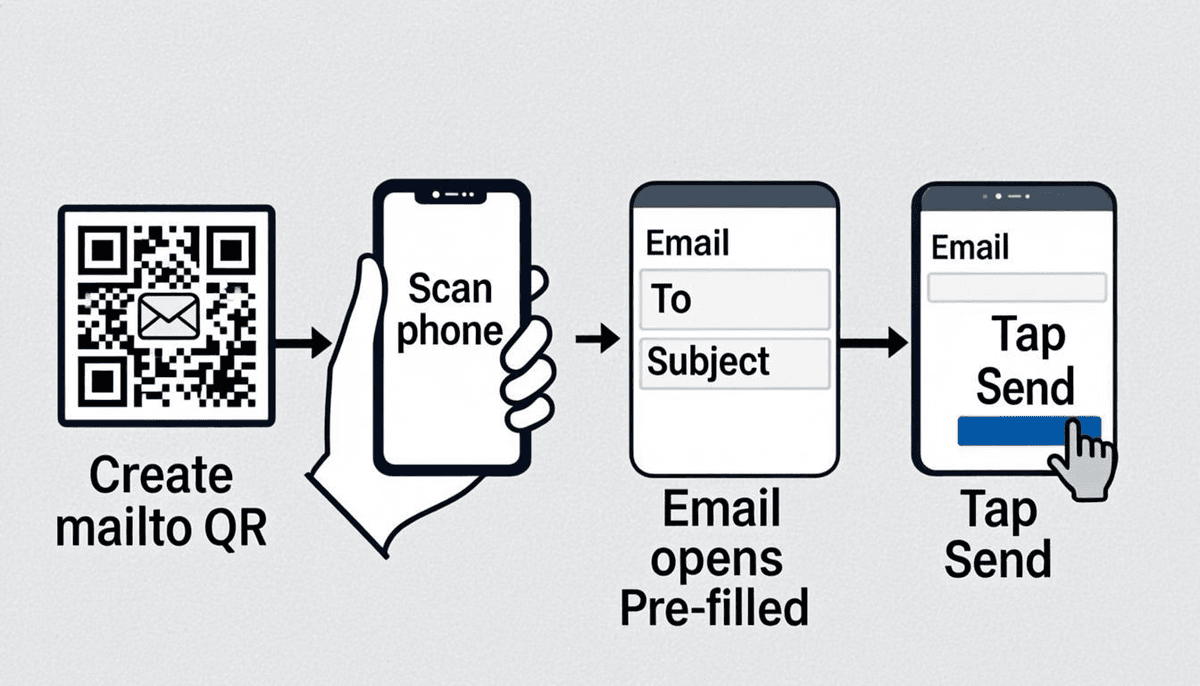
Here is exactly what happens when someone scans an email QR code:
- The person opens their phone camera and points it at the QR code.
- The phone reads the QR code data, which starts with
mailto:. - The phone recognizes this as an email instruction.
- The phone opens the default email app (Mail on iPhone, Gmail or another app on Android).
- A new email draft appears with the recipient, subject, body, CC, and BCC fields already filled in, depending on what you included.
- The person just taps send, or they can edit the message first if they want.
The beauty of an email QR code is that it removes friction. No typing long email addresses. No worrying about typos. No forgetting to include the subject line you wanted. The QR code handles all of that automatically.
The Mailto: Format Explained
To create an email QR code, you need to understand the mailto: format. This is a standard way to tell a device to open an email with specific information. It has been around for decades and works on virtually every phone and computer.
Basic Format
The simplest mailto: format is just the email address:
mailto:[email protected]When you encode this in a QR code and someone scans it, their email app opens with "[email protected]" in the recipient field. Everything else is blank.
Adding a Subject Line
You can add a subject line using a question mark followed by subject=:
mailto:[email protected]?subject=Product InquiryNow when the email app opens, it will have "Product Inquiry" already in the subject field.
Adding a Body
You can add a body (the main message text) using an ampersand followed by body=:
mailto:[email protected]?subject=Product Inquiry&body=I am interested in your services. Please send me more information.The email app will open with the recipient, subject, and body all pre-filled.
Adding CC and BCC
You can also add CC (carbon copy) and BCC (blind carbon copy) recipients:
mailto:[email protected][email protected][email protected]&subject=Product Inquiry&body=I would like to learn more.This sends a copy to [email protected] (visible to all recipients) and a blind copy to [email protected] (not visible to other recipients).
Multiple Recipients
You can include multiple email addresses in the recipient field by separating them with commas:
mailto:[email protected],[email protected]?subject=General InquiryURL Encoding for Special Characters
This is where many people run into trouble. The mailto: format follows URL rules, which means certain characters need to be encoded (converted to a special format) to work correctly.
Characters That Must Be Encoded
| Character | What to Replace It With | Example |
|---|---|---|
| Space | %20 |
"Hello World" becomes "Hello%20World" |
| Ampersand (&) | %26 |
"Q&A" becomes "Q%26A" |
| Question mark (?) | %3F |
"Price?" becomes "Price%3F" |
| Equals sign (=) | %3D |
"x=y" becomes "x%3Dy" |
| Line break | %0D%0A |
Creates a new line in the email body |
| Hash (#) | %23 |
"Item #5" becomes "Item %235" |
| Percent (%) | %25 |
"100%" becomes "100%25" |
Why This Matters
Imagine you want the email body to say: "I am interested in Product A & Product B. Can you send pricing?"
If you do not encode the ampersand, the phone might interpret the ampersand as a separator between parameters instead of a literal character in the text. The email body would get cut off or garbled.
Here is the correct encoded version:
mailto:[email protected]?subject=Pricing Request&body=I am interested in Product A %26 Product B. Can you send pricing?A Complete Example With Encoding
Let us say you want to create an email QR code with:
- Recipient: [email protected]
- Subject: Help with my order
- Body: Hi, I need help with my recent order. Order number: #12345. Please contact me at your earliest convenience. Thank you!
Here is the correctly formatted mailto: string:
mailto:[email protected]?subject=Help%20with%20my%20order&body=Hi%2C%20I%20need%20help%20with%20my%20recent%20order.%0D%0AOrder%20number%3A%20%2312345.%0D%0APlease%20contact%20me%20at%20your%20earliest%20convenience.%0D%0AThank%20you!Notice the line breaks created with %0D%0A, the spaces with %20, the comma with %2C, and the hash with %23.
How to Create an Email QR Code Step by Step
Creating an email QR code is simple when you use the right tool. Here is the step-by-step process:
- Go to the QR code generator. Open QREndlessPro's free QR generator.
- Select the Email data type. Choose "Email" from the available QR code types. This will give you fields for the recipient, subject, body, CC, and BCC.
- Fill in the recipient email address. Enter the email address where you want to receive messages. Double-check for typos.
- Fill in the subject line. Write a clear, specific subject line. This helps you organize incoming emails and helps the sender know what the email is about.
- Fill in the body text (optional). Add a default message if you want. Keep it short and helpful. The sender can always edit it before sending.
- Fill in CC and BCC (optional). Add any CC or BCC recipients if needed.
- Generate the QR code. Click the generate button. The tool will automatically format the mailto: string with proper URL encoding and create the QR code.
- Customize the design (optional). Use the QR customization tool to add your brand colors, logo, or change the shape of the code.
- Download the QR code. Get a high-resolution PNG or SVG file. For print materials, use at least 300 DPI.
- Test the QR code. Scan it with your own phone before using it anywhere. Verify that the email app opens with all the correct fields filled in.
Mobile Compatibility: How Different Devices Handle Email QR Codes
Email QR codes work differently depending on the device and email app. Here is what you need to know:
iPhone (iOS)
- When you scan an email QR code with the iPhone camera, it opens the default Mail app.
- All fields (recipient, subject, body, CC, BCC) are populated correctly.
- The user can edit the draft before sending.
- If the user has Gmail or Outlook installed, they can copy the email address from the Mail app draft and paste it into their preferred app, but the subject and body will not carry over automatically.
- Starting from iOS 14, the camera app recognizes QR codes automatically. No separate app needed.
Android
- Behavior varies by phone manufacturer and default email app.
- On most Android phones, scanning the QR code opens Gmail if it is set as the default email app.
- Gmail handles mailto: links well, including subject and body fields.
- Some Android phones open a "choose an app" dialog if there are multiple email apps installed.
- Samsung phones may open Samsung Email by default instead of Gmail.
- Older Android phones (before Android 8) may require a separate QR scanner app instead of using the built-in camera.
Desktop Computers
- Most desktop web browsers handle mailto: links by opening the default email application (Outlook, Apple Mail, Thunderbird, etc.).
- If the user has Gmail set up in their browser, clicking a mailto: link may open Gmail in the browser.
- Not all desktop QR scanners handle mailto: links correctly. Some just display the raw mailto: text instead of opening an email app.
What Happens When Someone Scans an Email QR Code (Step by Step)
On an iPhone
- Open the Camera app and point it at the QR code.
- A notification banner appears at the top of the screen showing the email address.
- Tap the notification banner.
- The Mail app opens with a new email draft.
- The "To" field shows the recipient email address.
- The "Subject" field shows the pre-filled subject line.
- The email body shows the pre-filled message text.
- The user can edit anything they want, then tap the Send button.
On an Android Phone
- Open the Camera app (or Google Lens) and point it at the QR code.
- A notification or popup appears with the email address.
- Tap the notification.
- The default email app (usually Gmail) opens with a new email draft.
- The recipient, subject, and body fields are pre-filled.
- The user can make changes and then tap Send.
Best Use Cases for Email QR Codes
1. Customer Feedback
Put a QR code on your receipt, packaging, or store display that says "Scan to give feedback." The email opens pre-addressed to your feedback team with the subject "Customer Feedback" and a body prompting them to share their experience.
mailto:[email protected]?subject=Customer%20Feedback&body=Please%20share%20your%20experience%20with%20us.2. Support Requests
Place a QR code on your product manual or help page. Customers scan it and an email draft opens addressed to your support team with a subject line like "Support Request" and a body asking for their issue details.
3. Newsletter Signups
At events or on printed materials, include a QR code that opens an email to your newsletter signup address. The subject line can be "Subscribe" so you can easily filter these emails.
4. Product Inquiries
On product displays or catalogs, add a QR code specific to that product. The subject line can include the product name, so you know exactly which product the customer is asking about.
mailto:[email protected]?subject=Inquiry%20about%20Product%20X&body=I would like more information about this product.5. Event RSVPs
On event invitations, include a QR code that opens an email with the subject "RSVP" and a body prompting them to confirm attendance and note any dietary requirements or plus-ones.
6. Job Applications
At career fairs or on job postings, use an email QR code that opens a draft addressed to your HR team with the subject "Job Application" and a body listing what to include (resume, cover letter, portfolio link).
7. Real Estate Inquiries
On "For Sale" signs or property flyers, include a QR code that opens an email to the listing agent with the property address in the subject line. Potential buyers can reach out instantly without typing anything.
8. Vendor and Supplier Communication
In offices or warehouses, place QR codes near supply stations. Scanning opens an email to the supplier for reorders, with the product or supply name in the subject line.
Email QR Code vs Contact Form: Pros and Cons
| Factor | Email QR Code | Contact Form |
|---|---|---|
| Setup difficulty | Very easy, just create a QR code | Requires web development and hosting |
| Works offline | Opens email app offline (sends when online) | No, requires internet connection |
| Data collected | Only what the person types in the email | You control exactly what fields to collect |
| Spam filtering | Subject to email spam in the inbox | Easier to filter and manage submissions |
| User experience | Fast, native email app experience | Web form, may feel slower on mobile |
| Follow-up | Easy, just reply to the email | Need to collect email address in the form |
| Cost | Free (static QR code) | May require paid form service |
| Maintenance | None, it just works forever | May need updates and maintenance |
The best approach for many businesses is to use both. Put a contact form on your website for detailed inquiries, and use an email QR code on printed materials for quick, casual communication.
Email QR Code in Email Signatures
Adding an email QR code to your email signature is a smart move. When someone reads your email on their computer and wants to save your contact info, they can scan the QR code with their phone instead of manually typing your email address.
Tips for email signature QR codes:
- Keep the QR code small, about 80 to 100 pixels wide, so it does not dominate your signature.
- Include a tiny label below it like "Scan to email me" so people know what it does.
- Use a static QR code, since your email address will not change.
- Test it in your email client to make sure it displays correctly and is not blocked by image settings.
- Some email clients (like Outlook) may strip QR code images by default. Check how your signature looks in different email clients.
Email QR Code for Business Cards
Business cards are one of the most popular places to use email QR codes. Here is how to do it right:
- Include both contact info and email QR code. Some people prefer to type the email address manually, so always print the address as text too. The QR code is a convenience, not a replacement.
- Pre-fill the subject line. A subject like "Following up from our meeting" gives context and makes it more likely the person will actually send the email.
- Keep the body short or leave it blank. A long pre-filled body can feel impersonal. A short prompt is better than a full template.
- Use a static QR code. Your email address is not going to change, so there is no reason to pay for a dynamic code.
- Place it on the back of the card. This keeps the front clean and professional while still offering the convenience of a scannable code.
Email QR Code on Product Packaging and Receipts
Product packaging and receipts are ideal places for email QR codes because customers have their phones handy and may want to reach out right away.
On Product Packaging
Include a QR code with a label like "Questions? Scan to email us." The email can be pre-addressed to your support team with the product name in the subject line. This makes it easy for customers to get help and easy for your team to route the email to the right department.
On Receipts
Add a QR code at the bottom of printed or digital receipts. Use it for feedback: "How was your experience? Scan to tell us." Pre-fill the subject with the store location or transaction number so you can track feedback by location.
Can You Track Email QR Codes?
Static Email QR Codes
A static email QR code cannot be tracked directly. There is no server in the middle counting scans. However, you can use a workaround: instead of encoding the mailto: link directly, encode a webpage URL that contains your contact form or email link. Then you can track visits to that page using Google Analytics with UTM parameters, just like any other web page.
Dynamic Email QR Codes
If you use a dynamic QR code, you can track how many times the code was scanned, when, and from what devices. The dynamic QR code would redirect to a webpage or a mailto: link. Most dynamic QR services provide a dashboard with scan counts, locations, and device information.
However, remember that a dynamic QR code that redirects to a mailto: link adds an extra step. The phone goes to the redirect server first, then gets sent to the mailto: link. This takes a fraction of a second longer than a static code that goes directly to the email app.
Common Mistakes With Email QR Codes and How to Fix Them
Mistake 1: Not URL-Encoding Special Characters
If your subject line or body contains ampersands, question marks, or other special characters without encoding them, the email fields will not populate correctly. The subject might get cut off, or the body might be missing entirely. Always use proper URL encoding or use a QR code generator that handles encoding for you automatically.
Mistake 2: Making the Body Text Too Long
QR codes have a data capacity limit. The more text you encode, the denser the QR code becomes, and the harder it is to scan. Long body text makes the QR code very dense and difficult for phone cameras to read, especially at small sizes. Keep your body text to a few sentences at most. If you need more content, put it on a web page and use a URL QR code instead.
Mistake 3: Not Testing on Multiple Devices
Your email QR code might work perfectly on your iPhone but behave differently on an Android phone. Always test on at least one iPhone and one Android device before printing or distributing your code. Check that the email app opens, all fields are populated correctly, and the email would actually send.
Mistake 4: Using a Dynamic QR Code for a Permanent Email Address
If your email address will not change, use a static QR code. There is no reason to pay a monthly subscription for a code that encodes a mailto: link to an address that will never change. A static code is free, more reliable, and works without any third-party service.
Mistake 5: Forgetting to Include a Call to Action
A QR code by itself does not tell people what to do. Always include a short label next to the code like "Scan to email us" or "Scan for support." Without a call to action, many people will ignore the code entirely.
Mistake 6: Making the QR Code Too Small
For email QR codes with subject and body text, the QR code will be data-dense. Dense QR codes need to be larger to scan reliably. A good rule of thumb is at least 2 centimeters (about 0.8 inches) wide for a moderately dense email QR code, and larger if it will be scanned from a distance.
Testing Your Email QR Code Before Printing
Never skip this step. Testing takes two minutes and can save you from costly reprinting. Here is a thorough testing process:
- Scan with an iPhone. Open the Camera app, point it at the QR code on your screen, and tap the notification. Check that the Mail app opens with the correct recipient, subject, and body.
- Scan with an Android phone. Do the same on an Android device. Check that Gmail or the default email app opens correctly.
- Check all fields. Verify the "To" field has the right email address. Check the subject line matches what you intended. Read through the body text for any garbled characters or missing content.
- Try sending a test email. Actually send the email to yourself. Make sure it arrives and looks correct when you receive it.
- Test from a printed sample. Before committing to a full print run, print one copy on your home printer and scan it. Sometimes codes that look fine on screen are hard to scan when printed at lower quality.
- Test at the actual size. If the QR code will be 1 inch wide on your business card, print it at that exact size and test. Codes that scan fine at 4 inches might not scan at 1 inch.
Email QR Code Size and Design Recommendations
Size Guidelines
- Simple mailto: with just an email address: The QR code will have low data density. 1.5 cm (0.6 inches) minimum width.
- Mailto: with subject line: Medium data density. 2 cm (0.8 inches) minimum width.
- Mailto: with subject and body text: Higher data density. 2.5 to 3 cm (1 to 1.2 inches) minimum width.
- Long body text: Very high density. 3 to 4 cm (1.2 to 1.6 inches) minimum width, or consider shortening the text.
Add at least 20% to these minimums if the QR code will be scanned from more than 20 centimeters (8 inches) away.
Design Tips
- Always include a quiet zone (blank white space) around the QR code, at least 4 modules (the width of one small square in the code) on all sides.
- Use high contrast between the QR code and the background. Black on white is the safest choice.
- You can customize colors using the QR customization tool, but make sure there is still strong contrast.
- Avoid placing the QR code over a busy image or patterned background. This makes scanning much harder.
- If you add a logo to the center of the QR code, keep it small (no more than 20% of the QR code width) to avoid making the code unreadable.
Security Considerations
Spam Risk
When you put an email address in a QR code, you are making that address visible to anyone who scans it. This is the same as printing your email address in text, but QR codes can make it even easier for automated tools to harvest email addresses. Here is how to reduce spam risk:
- Use a dedicated email address for your QR codes, not your personal or main business address. Something like "[email protected]" or "[email protected]."
- Set up strong spam filters on the receiving email account.
- Consider using a contact form instead of a direct email address if spam is a serious concern.
- Monitor the inbox and adjust filters as needed.
Email Harvesting
Email harvesting is when automated programs scan websites and QR codes to collect email addresses for spam lists. Since QR codes are images, they are somewhat harder for automated tools to read than plain text on a webpage. However, the mailto: data inside the QR code can be extracted by anyone who takes the time to decode it.
If you are very concerned about email harvesting, consider these alternatives:
- Use a dynamic QR code that redirects to a contact form instead of a mailto: link. The email address is hidden on the server side.
- Use a web page URL instead of a mailto: link, where the page has a "Send us a message" button that reveals the email address.
- Use an obfuscated email format, though this is less reliable with QR codes.
Content Safety
Keep your pre-filled email content professional and appropriate. Avoid including any sensitive information in the subject or body fields, since anyone who scans the code will see this text. Do not pre-fill passwords, account numbers, or personal data in the email fields.
Action Steps
Ready to create your email QR code? Follow these steps:
- Decide on your use case. Where will the QR code be placed? What do you want people to email you about?
- Choose your email address. Use a dedicated address like feedback@ or support@ rather than your personal email, to manage spam and organize incoming messages.
- Write your subject line. Keep it clear and specific. "Product Inquiry" or "Event RSVP" is better than "Hello" or a blank subject.
- Write your body text. Keep it short. A sentence or two prompting the sender to provide relevant information is ideal.
- Create the QR code. Use the QREndlessPro email QR generator to create your code. The tool handles URL encoding automatically.
- Customize the design. Add your brand colors and logo if desired. Ensure the code remains scannable after customization.
- Test thoroughly. Scan with at least an iPhone and an Android phone. Verify all fields populate correctly. Send a test email.
- Download in high resolution. Get a PNG or SVG at 300+ DPI for print materials.
- Add a call to action. Place text next to the QR code telling people what to do, like "Scan to email us" or "Scan for support."
- Print and deploy. Place the QR code where your audience will see it and have their phones ready to scan.
Frequently Asked Questions
What happens if someone does not have an email app on their phone?
Almost every smartphone comes with a built-in email app, so this is very rare. However, if someone has deleted all email apps, scanning the QR code might just display the mailto: text on screen without opening an app. They would need to copy the email address and paste it into a web-based email service like Gmail in their browser.
Can I pre-fill an email with an attachment?
No. The mailto: format does not support adding attachments. You can only pre-fill text fields: recipient, subject, body, CC, and BCC. If you need people to send you a file (like a photo or document), include instructions in the body text asking them to attach it before sending.
Does the person scanning the QR code need internet access?
They need internet access to actually send the email, but they do not need internet to scan the QR code and open the email draft. A static email QR code opens the email app and fills in the fields without any internet connection. The email will sit in their outbox and send once they are back online.
Can I use an email QR code for Gmail specifically?
The mailto: format opens whatever email app is set as the default on the person's phone. You cannot force it to open Gmail specifically. On most Android phones, Gmail is the default, so it will open there. On iPhones, the built-in Mail app will open. The user can always copy the email address and use it in any app they prefer.
How long can the email body text be in a QR code?
Technically, a QR code can hold up to about 4,296 characters. However, the more characters you encode, the denser and harder to scan the QR code becomes. For practical purposes, keep your total mailto: string (including the email address, subject, and body) under 300 characters. This keeps the QR code scannable at reasonable sizes.
Are email QR codes static or dynamic?
They can be either, but most email QR codes are static. Since email addresses rarely change, a static QR code is free, reliable, and permanent. Use a dynamic QR code only if you need tracking data or think you might change the email address later.
Can I use an email QR code in a digital display or screen?
Yes, but keep in mind that people are less likely to scan a QR code on a screen when they could just click a link or copy an email address. Email QR codes are most useful on printed materials where typing an email address is inconvenient. On a website or email, a clickable mailto: link is usually better than a QR code.
What if the pre-filled subject or body has special characters that do not display correctly?
This usually means the characters were not URL-encoded properly. Use a QR code generator that handles encoding automatically (like QREndlessPro), or manually encode special characters using the table earlier in this guide. Test on multiple devices to catch any encoding issues.
Can I create different email QR codes for different products or departments?
Yes. You can create as many email QR codes as you need, each with different recipient addresses, subject lines, and body text. For example, use "[email protected]" for technical help and "[email protected]" for purchase inquiries. You can also use bulk QR generation to create many email QR codes at once for different products or locations.
Is it safe to put my email address in a QR code?
It is about as safe as printing your email address in plain text on the same material. Anyone who can see your printed material can read your email address whether it is in a QR code or written out as text. If you are concerned about spam, use a dedicated email address for QR codes rather than your primary address, and set up good spam filters.