What Is a Barcode Scanner?
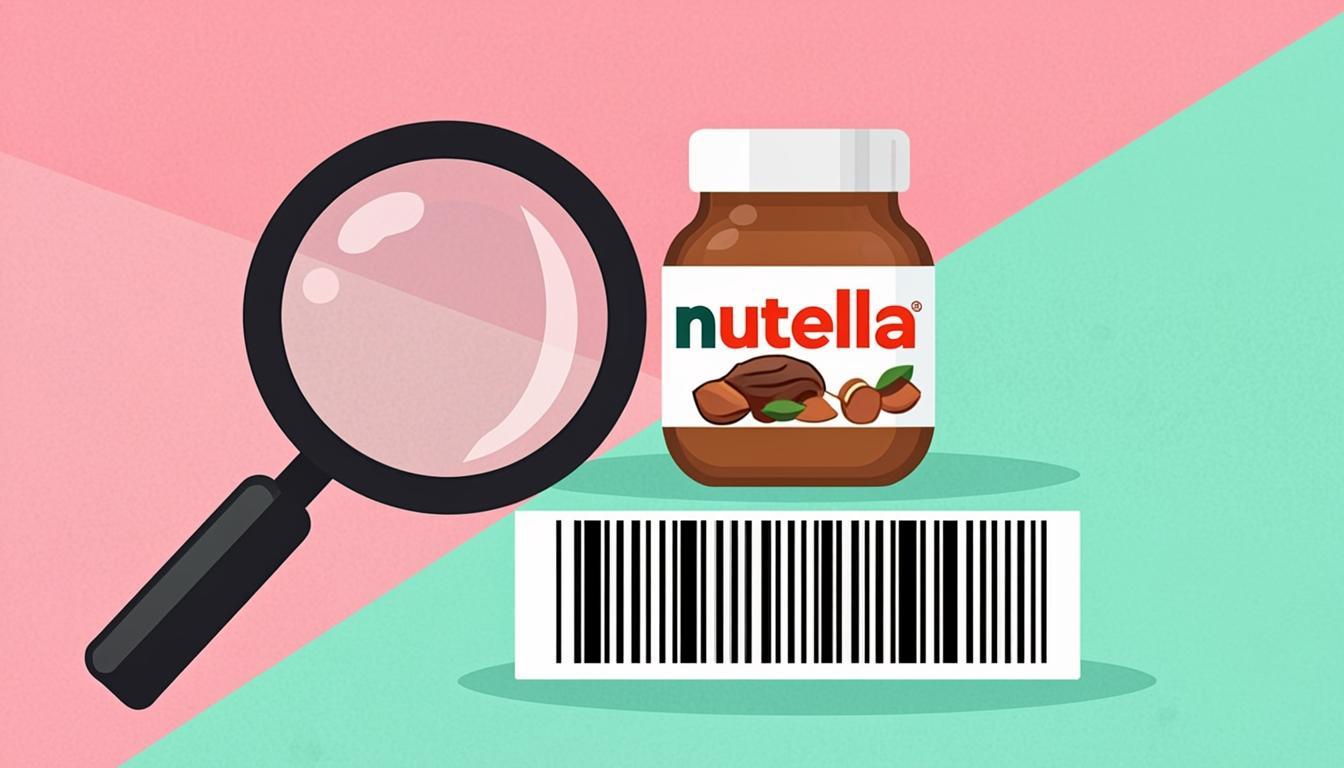
A barcode scanner is a tool that reads a barcode and shows the data hidden inside it. The data is usually numbers like 3017620422003 on a jar of Nutella or 5449000000996 on a bottle of Coca-Cola. A scanner takes the picture of the bars and turns it back into the original numbers and text.
Old barcode scanners were hardware devices. They had a laser and a sensor. A worker pointed the laser at the bars, the light bounced back, and the scanner sent the number to a cash register. Today, you do not need a hardware scanner. Your phone camera, or even a laptop webcam, can read barcodes with the right software.
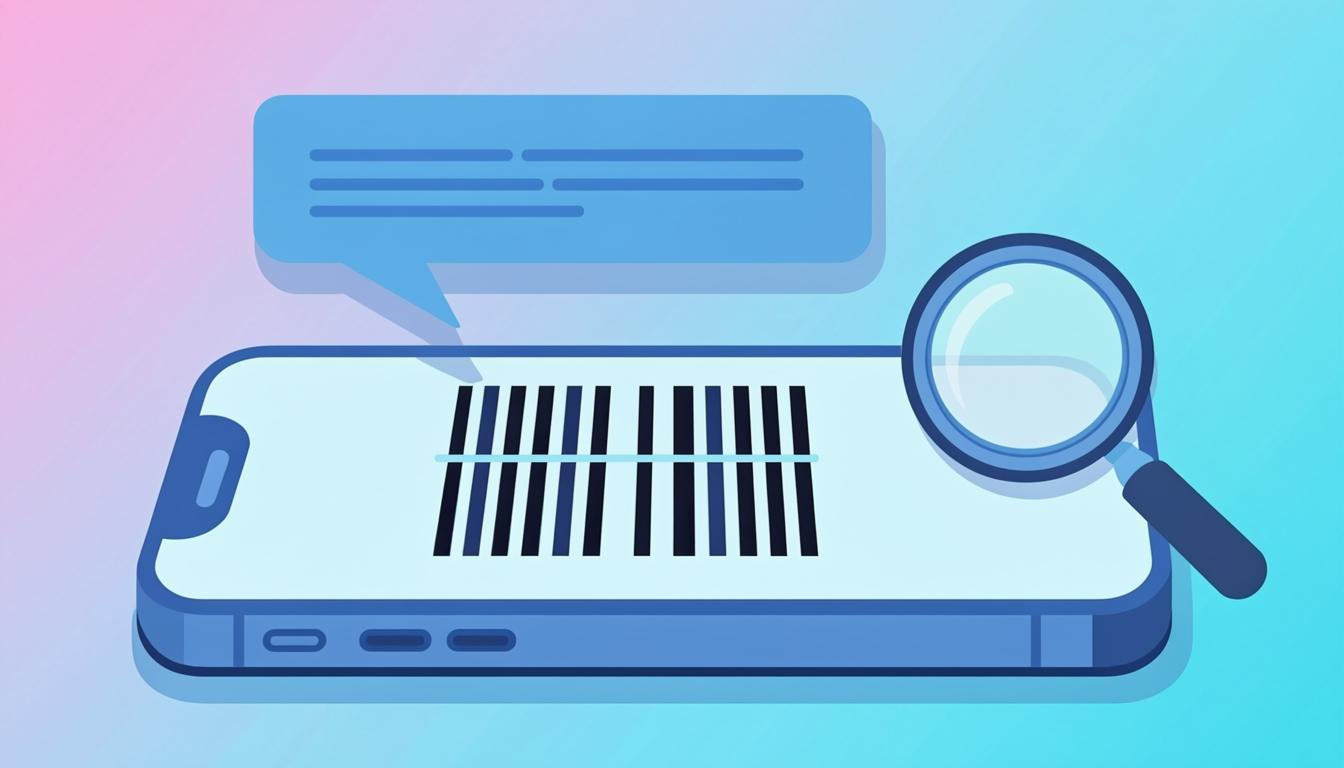
An online barcode scanner is a web page that does this job. You open the page, point your camera at a barcode, and the page shows the number on screen. You can also upload a photo of a barcode or paste a barcode image link. The page reads the code and shows the data. No software to install, no app to download.
Why Use Our Free Barcode Scanner?
There are many barcode scanner apps and websites, but most of them ask for an account, show ads, or only work with one barcode type. Our scanner is built to be simple, private, and powerful:
- 100% free, no signup — No account, no email, no payment. Open the page and start scanning. This is great when you just need to read one code and do not want to deal with app stores.
- Four ways to scan — Use your live camera, upload a photo from your computer, paste an image link, or use keyboard mode for fast typing. You pick the way that fits your situation.
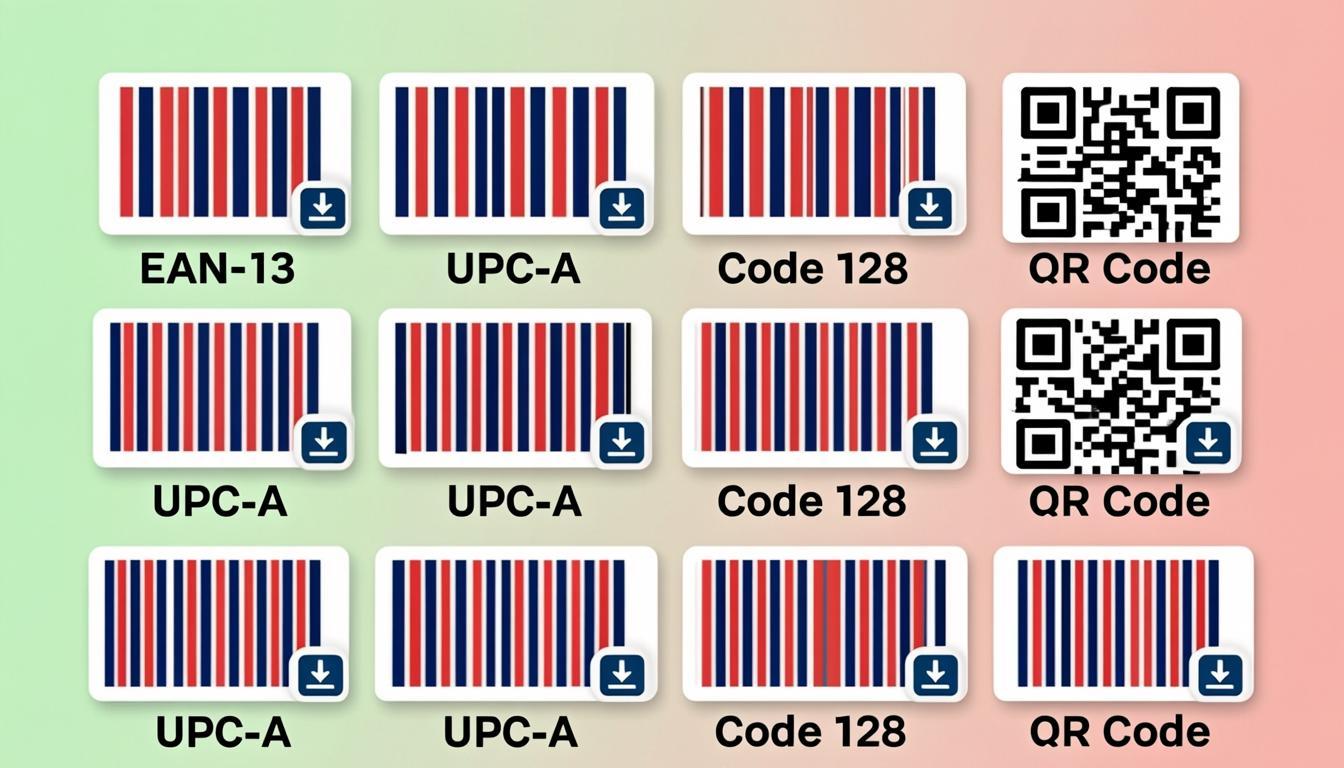
- Reads 100+ barcode types — EAN-13, UPC-A, EAN-8, Code 128, Code 39, ITF-14, Codabar, and many more. The same tool reads a grocery barcode and a shipping label without you changing any setting.
- Powered by ZXing — The tool uses the ZXing decoding engine, the same library that powers many phone apps and point-of-sale systems. ZXing is open source, well tested, and trusted by developers worldwide.
- Privacy first — Camera frames and image files are processed in your browser. Nothing is uploaded to a server. If you scan a private document, your data stays on your device.
How the Barcode Scanner Works
When you point your camera at a barcode, the tool grabs a video frame and sends it to the ZXing decoding engine. ZXing is an open source library first released by Google in 2008. The library reads the black and white bars, finds the start and stop patterns, and turns the bars back into the original numbers and text.
For each frame, the engine runs a few steps. First, it finds the quiet zone (the white space around the barcode). Then it finds the bar pattern and measures the width of each bar. It matches the bar widths against the rules for each barcode type. If the rules match, it outputs the data. If the code has a check digit, the engine checks that the math is right before showing the result.
The scanner runs these steps many times per second while the camera is on. This is why you can wave your phone slowly over a barcode and the page reads it in a moment. When the engine finds a valid code, the page stops, shows the data, and often makes a small beep so you know it worked. You can then copy the number to your clipboard or scan another code.
The ZXing engine also handles slightly damaged codes. If a corner of the label is torn or there is a small smudge, the engine uses the check digit to confirm the read. If the check digit math works out, the scan is shown as valid. If the math fails, the engine keeps trying. This is why ZXing powers many real-world scanner apps, from open source projects to point-of-sale systems. It is the same engine inside our online barcode scanner.
Step-by-Step: Using the Barcode Scanner
The scanner has four modes. Here is how to use each one:
- Open the scanner page — Go to the barcode scanner in your browser. On first load, the page will ask for camera permission. Click Allow if you want to use camera mode.
- Pick your mode — Choose Camera, Upload Image, Paste URL, or Keyboard. Camera mode is fastest for live scanning. Upload mode is best for photos you already have. Paste mode is best for images on the web. Keyboard mode is best when you have a long code to type by hand.
- Point or paste your barcode — In Camera mode, hold the barcode about 10 to 15 cm from the camera. Keep your hand steady. In Upload mode, drag a photo of the barcode into the box. In Paste mode, paste a direct link to the image file.
- Read the result — The page shows the barcode type (like EAN-13) and the decoded data (like
3017620422003). You can copy the data with one click. - Scan another or close — Click Reset to scan again. The page does not save your previous results, so each scan is fresh.
The whole process takes a few seconds. If a scan fails, move the camera closer or farther, or try a different angle.
Real-World Examples
Here are four real situations where you might use an online barcode scanner:
- Grocery item — Nutella (EAN-13 3017620422003) — You find a jar of Nutella in your kitchen and want to know its product number. Point your phone camera at the back label. The scanner reads EAN-13 and shows
3017620422003. Copy the number and search for it online to see product details. - Beverage bottle — Coca-Cola (EAN-13 5449000000996) — A 500 ml Coca-Cola bottle carries the EAN-13 code 5449000000996. Point your phone at the side of the bottle where the label is flat. The scanner reads the code in under a second. You can then look up the code to confirm the product, the manufacturer (Coca-Cola), and the country (the prefix 5449 belongs to Coca-Cola in Belgium).
- Shipping label — Code 128 — A courier hands you a box with a Code 128 barcode on the label. Scan the code to see the tracking number. Paste the number into the courier's website to see where the box came from and when it shipped.
- Library book — ISBN barcode (EAN-13 starting with 978) — Scan the back of a library book. The scanner reads an EAN-13 that starts with 978 or 979, which is the ISBN format. The number links the book to its title, author, and publisher in library systems.
Who Uses a Barcode Scanner?
Barcode scanners are used in many lines of work:
- Retail and shops — Cashiers scan product barcodes at the checkout to ring up the price. An online scanner can serve as a backup when the main register is broken or out of battery.
- Warehouses and logistics — Workers scan carton and pallet barcodes to log stock in and stock out. Code 128 and ITF-14 are common here. The online scanner is handy when a handheld scanner is not nearby.
- Libraries and archives — Librarians scan ISBN barcodes on books to check them in or out. The online tool works on a tablet or laptop at the front desk.
- Healthcare and pharmacies — Nurses scan medicine barcodes to make sure they give the right drug to the right patient. An online scanner can confirm a code at the bedside on a tablet. Hospitals use EAN-13 on medicine packs and Code 128 on patient wristbands and lab sample tubes.
- Shoppers at home — People scan barcodes on products at home to compare prices online, check ingredients, or look up reviews before buying again. The online scanner turns a phone or laptop into a free price-check tool.
Tips for Best Results
Scan success depends on lighting, angle, and the code itself. Use these five tips to read barcodes on the first try:
- Use good lighting — Barcodes need even, bright light to scan well. Daylight or a soft white lamp works best. Avoid harsh shadows or glare from glossy labels.
- Hold the camera steady — A moving camera blurs the bars. Rest your hand on a table or hold your phone with two hands. A one-second pause is often enough.
- Find the right distance — Too close cuts off the edges. Too far makes the bars blurry. About 10 to 15 cm is right for most phone cameras. Step back if the code is large.
- Keep the barcode flat — Curved bottles, jars, and cans can warp the bars. Try to flatten the label with your hand, or rotate the item so the bars face the camera straight.
- Clean the code — A torn, dirty, or wet barcode is hard to read. Wipe the label with a cloth. If a corner is torn, try to scan from the other side of the bars.
Common Mistakes to Avoid
Even good scanners fail when the setup is wrong. Watch out for these four common mistakes:
- Scanning a QR code with a barcode scanner — QR codes are 2D squares. Barcode scanners (the 1D kind) do not read them. If you have a QR code, use a QR code reader instead.
- Blocking the camera with a finger — It sounds silly, but it happens often. Make sure your fingers are not covering the lens or the barcode on the screen.
- Scanning in low light — A dark room makes the bars look gray on camera. The engine cannot read gray bars. Turn on a lamp or move to a brighter spot.
- Expecting data that is not there — A barcode only stores the numbers printed on it. It does not store the product name, price, or your customer list. To get product details, you look up the number in a database.
Frequently Asked Questions
What is a free barcode scanner?
A free barcode scanner is a web page that reads barcodes using your camera, an uploaded photo, or a pasted image link. You do not pay, sign up, or install an app. You open the page, scan the code, and see the data on screen. The tool runs in your browser and uses the ZXing engine to decode the bars.
Is the barcode scanner really free?
Yes. There is no cost, no account, no trial, and no credit card. You can scan as many barcodes as you want, every day, for personal or business use. The tool does not show ads inside the scanning window, and it does not watermark or limit your results.
Does the scanner work on iPhone and Android?
Yes. The scanner runs in any modern mobile browser. On iPhone, Safari works well. On Android, Chrome works well. The page asks for camera permission the first time you open it. Tap Allow, and the camera view will start.
What barcode types can the scanner read?
The scanner reads EAN-13, EAN-8, UPC-A, UPC-E, Code 128, Code 39, Code 93, ITF-14, Codabar, MSI, Plessey, Pharmacode, and many more. It also reads the ISBN format used on books, which is a special case of EAN-13 that starts with 978 or 979.
Does the scanner save my scans?
No. Camera frames and image files are processed in your browser. Nothing is uploaded to a server, and nothing is saved in a database. When you close the page, your scan results are gone. This makes the tool safe for confidential codes like patient IDs, order numbers, and shipping labels.
Why does my barcode not scan?
The most common reasons are low light, a torn or dirty label, the camera too close or too far, or the barcode being a QR code (which needs a different reader). Try moving to brighter light, cleaning the label, holding the phone steady at 10 to 15 cm, and making sure the bars face the camera flat. If it still fails, the code may be damaged and need a fresh print.
Ready to Try the Barcode Scanner?
You now know what a barcode scanner is, how it uses ZXing to read barcodes, and how to scan with the camera, an image, or a paste. You have seen real examples like Nutella's EAN-13 3017620422003 and a Coca-Cola EAN-13 5449000000996. You know the four scanning modes, the five tips for fast reads, and the four mistakes to avoid.
The scanner is free, it works on any phone or laptop, and your data never leaves your device. The next step is to grab any product near you and try it out. Most codes scan in under a second.