What Is a Barcode Generator?
A barcode generator is a tool that turns numbers or text into a scannable barcode image. The image is made of black bars and white spaces in a special pattern. When a scanner or a phone camera reads that pattern, it shows the original numbers or text on a screen.
Barcodes have been used in stores since the 1970s. The first product ever scanned was a pack of Wrigley's chewing gum in 1974 in Ohio. Today, almost every product in a supermarket, warehouse, library, and hospital has a barcode. Without barcodes, checkout lines would be much slower and stores would lose track of their stock.
A barcode generator does the same job as a label printer, but it lives inside your web browser. You type your data, pick a barcode type, and the tool gives you a PNG or SVG file you can download in one second. You do not need to install any software. You do not need to make an account. You just open the page and start making barcodes.
Why Use Our Free Barcode Generator?
There are many barcode tools on the web. Some are slow. Some add a watermark. Some ask for your email before they show you the result. Our tool is different. Here is what makes it the best choice for everyday barcode work:
- 100% free, no signup — No email, no account, no payment. You open the page, type your data, and download the barcode. That is the whole flow. You can use the tool one time or one thousand times, and it stays free.
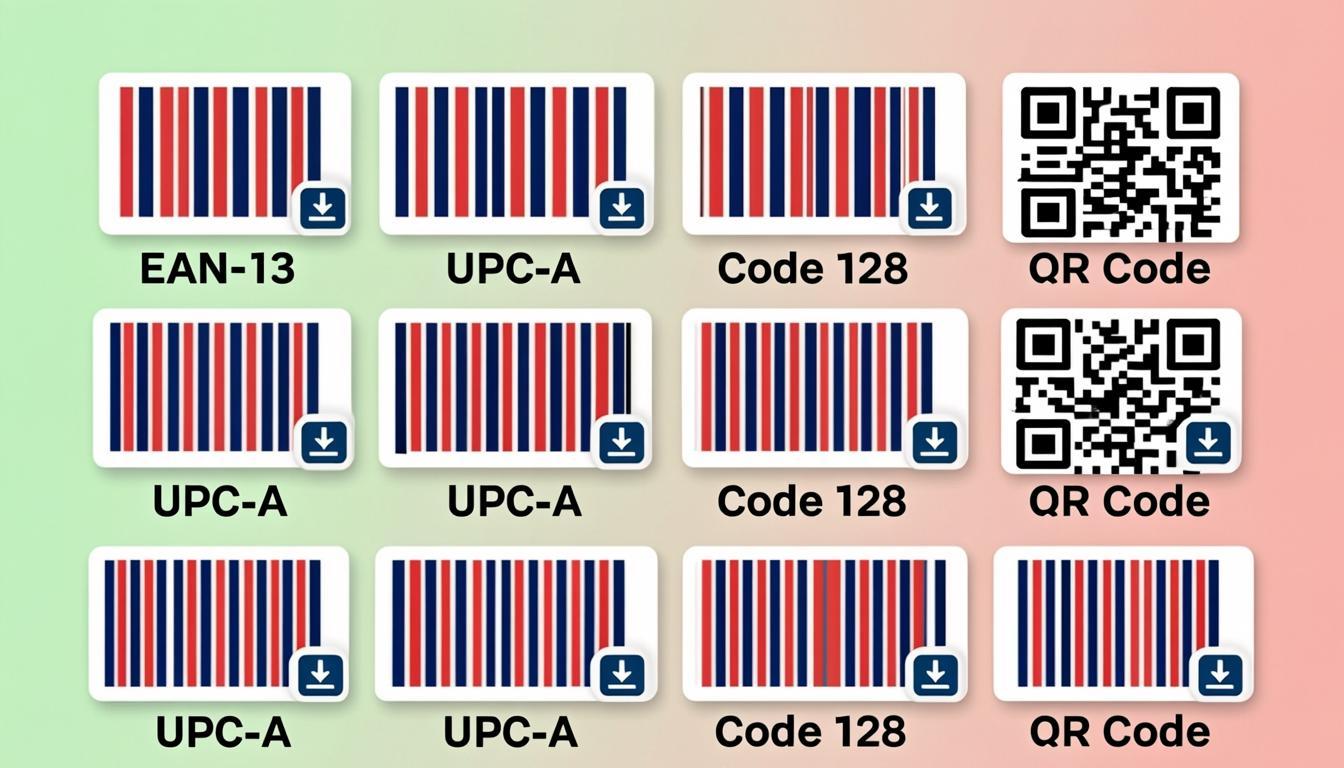
- 100+ barcode types in one place — EAN-13, UPC-A, Code 128, ITF-14, Code 39, Codabar, MSI, Plessey, Pharmacode, and many more. You do not need a different website for each barcode type. Everything is on one page.
- Instant PNG and SVG download — Save the barcode as an image file in your browser. PNG is best for printing. SVG is best for packaging design, logos, and websites because it stays sharp at any size.
- Privacy first, your data never leaves your browser — Your numbers and text are processed by JavaScript inside your own browser. Nothing is uploaded to any server. This means your product codes, order numbers, and customer data stay private.
- No watermark, no logo — The barcodes you download are clean. There is no website logo, no "Made with" line, no extra text. You can use the images in business work, packaging, shipping, and store signage.
How the Barcode Generator Works
When you type your data and pick a barcode type, the tool runs JavaScript code inside your browser. The code reads your input, checks the rules for the barcode type you picked, and draws the bars on a digital canvas. Each barcode type has its own pattern. For example, an EAN-13 barcode always has 13 digits and 30 black bars with different widths. A Code 128 barcode can hold letters, numbers, and symbols, and it adds a start code, a check digit, and a stop code.
After the bars are drawn, the tool turns the canvas into a file. If you pick PNG, it makes a flat image file that prints the same way every time. If you pick SVG, it writes XML code that draws the same bars at any size. SVG is best when you need to resize the barcode for different packages, websites, or printed documents.
Because everything runs in your browser, the tool works fast even on a slow connection. Once the page is loaded, you can keep making barcodes even if your internet drops. This is helpful in warehouses, shops, and field work where Wi-Fi is weak.
For codes like EAN-13 and UPC-A, the tool also checks the check digit. A check digit is the last number in the code. It is calculated from all the numbers that come before it. If you type 12 digits for EAN-13, the tool computes the 13th digit for you. If you type all 13 digits, the tool checks that the last digit is correct. If it is not, the tool shows a warning so you can fix the number before you print. This single check saves businesses from a common and costly mistake: printing thousands of labels with a wrong code.
Step-by-Step: Using the Barcode Generator
Making a barcode takes about ten seconds. Here is the full process from start to finish:
- Open the barcode generator page — Go to the tool in your browser. The page loads once, and then it works without any server calls.
- Pick your barcode type — Choose from the dropdown. Use EAN-13 for retail products in Europe and most of the world. Use UPC-A for products in the United States and Canada. Use Code 128 for shipping labels and IDs. Use ITF-14 for outer cartons and pallets.
- Type your data — For EAN-13, type 12 or 13 digits. The tool adds the correct check digit for you. For Code 128, type any mix of letters, numbers, and symbols. The tool will accept it and draw the code.
- Set size and color — Choose the height and width in pixels. Pick black on white for the best scanning results. If you need a colored barcode for design, keep the dark color very dark and the light color very light.
- Download PNG or SVG — Click the download button. The file is saved to your computer right away. You can then drop it into a label template, a Word document, or a design tool.
That is the entire workflow. There is no step for signup, payment, or waiting in a queue.
Real-World Examples
Here are four real barcode uses that you can copy today:
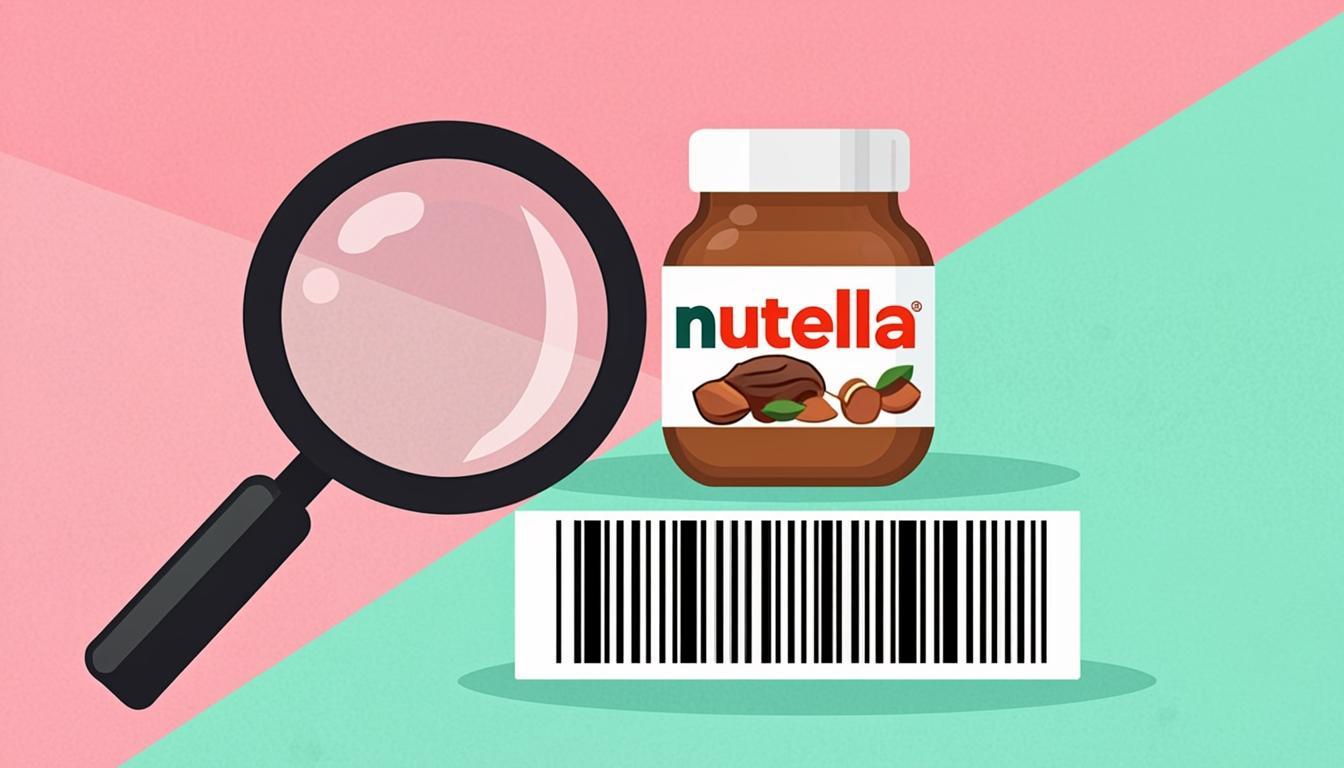
- Retail product label — Nutella (EAN-13 3017620422003) — Nutella's jar sold in Europe carries the EAN-13 code 3017620422003. The first digits (301762) belong to Ferrero, the company that makes Nutella. If you sell your own product, you can buy a GS1 company prefix and create codes in the same way. Type the 13 digits into the generator and download the PNG. Drop the image into your label template and print.
- Beverage bottle label — Coca-Cola (EAN-13 5449000000996) — A 500 ml Coca-Cola bottle carries the EAN-13 code 5449000000996. The first digits (5449) are the GS1 prefix for the Coca-Cola company in Belgium. If you sell drinks or food products, you can use the same generator to make labels for each SKU. Save the file as SVG so you can resize the barcode for a small bottle cap or a large case without losing sharpness.
- Shipping carton — ITF-14 — A shipping carton that holds 12 boxes of a product uses an ITF-14 barcode. The 14-digit code starts with the package indicator (often 1) followed by the product's EAN-13 number and a check digit. ITF-14 prints big and bold so warehouse scanners can read it from far away. Our tool makes ITF-14 in one click.
- Library book code — Code 39 — Many libraries use Code 39 because it can encode letters and numbers. A book number like
LIB-2024-0458turns into a clean Code 39 barcode you can print on a spine label. Code 39 supports the dash, so you do not need to remove the dashes from your book numbers.
Who Uses a Barcode Generator?
Many kinds of workers and businesses use barcode generators every day:
- Retail stores and brands — Print product barcodes for new items, sale stickers, and shelf tags. Use EAN-13 or UPC-A so any cash register can read the code.
- Logistics and shipping — Make ITF-14 codes for cartons and Code 128 codes for parcel labels. Couriers like UPS, DHL, and FedEx all scan Code 128 on shipping labels.
- Books and publishing — ISBN barcodes (which are EAN-13 codes that start with 978 or 979) go on the back of every book. Use the generator to make a fresh ISBN barcode before a book goes to print.
- Healthcare and pharmacies — Medicine packs carry EAN-13 barcodes. Hospitals also use Code 128 for patient wristbands and lab sample tubes. Our generator makes both types in seconds.
- Manufacturing and warehouses — Print Code 39 or Code 128 labels for parts bins, tools, and shelf locations. Workers scan the code to log a pick or move stock in the system.
Tips for Best Results
Follow these five tips and your barcodes will scan on the first try, every time:
- Pick the right barcode type — EAN-13 and UPC-A are for retail products. Code 128 is for shipping and IDs. ITF-14 is for cartons. Using the wrong type causes scan failures at the register.
- Use high contrast — Black bars on a white background always scan best. If you need color for design, keep the dark color darker than 70% black and the light color lighter than 70% white.
- Leave a clean quiet zone — The empty white space on both sides of the bars is called the quiet zone. Keep it at least 10 times the width of the narrowest bar. Scanners need this empty space to find the start of the code.
- Test before you print thousands — Print one label first. Scan it with a phone or scanner. If it reads fast and correct, then print the full run. This saves money and avoids reprinting.
- Keep your data clean — Remove extra spaces at the start and end of your data. Make sure EAN-13 has only digits, not letters or symbols. Clean data gives clean barcodes.
- Save SVG when you need to resize — If you will use the same barcode on a small label and a large poster, pick SVG. SVG stays sharp at any size. Use PNG when you want a flat image for a single print size.
Common Mistakes to Avoid
Even a small mistake can make a barcode fail to scan. Watch out for these four common errors:
- Using the wrong barcode type — Putting a Code 128 on a retail product will not work at the store. Stores only read EAN-13 or UPC-A at the register. Match the type to the place where the barcode will be scanned.
- Forgetting the check digit — EAN-13 and UPC-A need a final check digit that the math produces. Our tool adds it for you. But if you copy a number from a list, double-check that all 13 digits are there. Missing one digit breaks the code.
- Printing too small — A tiny barcode cannot be scanned. For EAN-13 at the checkout, the bars should be at least 80% of the standard size, which is about 31 mm wide. For warehouse labels, go bigger, not smaller.
- Placing text too close — If the human-readable digits under the bars touch the bars, scanners get confused. Leave a small gap between the bars and any text. Also avoid folding the barcode over a box edge.
Frequently Asked Questions
What is a free barcode generator?
A free barcode generator is a website or app that turns your numbers and text into a barcode image. You do not pay, you do not sign up, and you do not install software. You type your data, pick a barcode type, and download a PNG or SVG file you can print or use in design work.
Is the barcode generator really free? Any hidden costs?
Yes, it is really free. There is no payment, no trial, and no credit card step. You can make as many barcodes as you want for personal or business use. There is no watermark on the images, and there is no limit on the number of barcodes per day.
Which barcode type should I use?
For retail products sold in Europe, Asia, and most of the world, use EAN-13. For retail products sold in the United States and Canada, use UPC-A. For shipping labels and parcel IDs, use Code 128. For outer cartons and pallets, use ITF-14. For library books and IDs with letters, use Code 39.
Can I use the barcodes for commercial work?
Yes. The barcodes you make are yours. You can put them on products you sell, shipping labels, packaging, store signs, and printed documents. You do not need to credit the tool or pay a license. The tool simply turns your data into a standard barcode image.
Does the barcode generator work offline?
After the page loads, yes. The barcode drawing runs inside your browser as JavaScript. Once the page is open, you can keep making barcodes even if your internet drops. The page does not need to talk to a server for each barcode.
Does the tool save my data?
No. Your numbers and text stay in your browser. Nothing is uploaded to a server, and nothing is saved in a database. When you close the page, your data is gone. This makes the tool safe for product codes, order numbers, and customer data.
Ready to Try the Barcode Generator?
You now know what a barcode generator is, how it works, and how to use it step by step. You have seen real examples like Nutella's EAN-13 3017620422003. You know the best barcode type for retail, shipping, cartons, and libraries. You know the common mistakes and how to avoid them. The next step is to make your first barcode.
The tool is free, it works in your browser, and it gives you clean PNG and SVG files in seconds. You do not need an account, and your data never leaves your computer. Open the barcode generator and make your first code right now.