What Is Barcode Lookup?
Barcode lookup is the act of typing a barcode number into a search tool to find the product that the barcode belongs to. Every product that has a barcode — like a chocolate bar, a bottle of soda, or a book — carries a unique number printed below the lines. That number is a key. When you enter that key into a lookup tool, the tool searches public databases and returns the product name, brand, image, and other details.
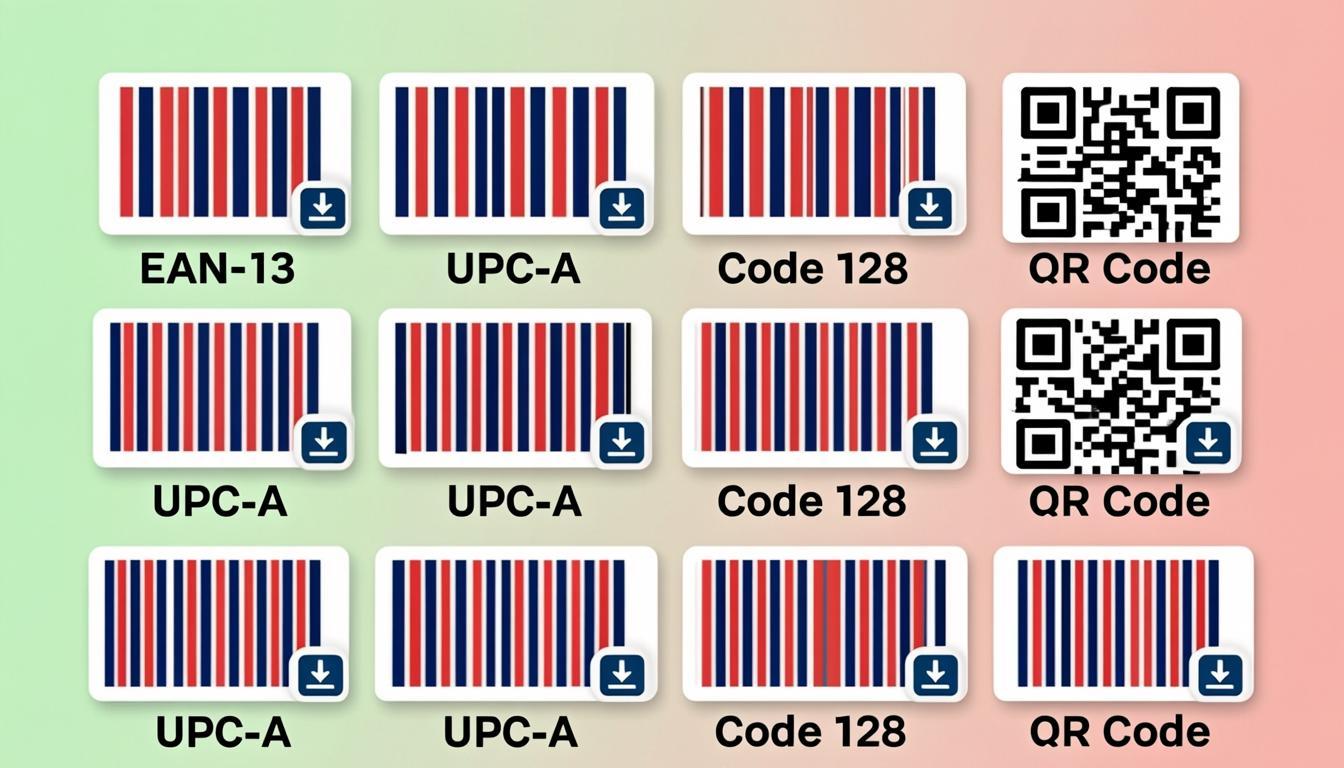
The most common barcode types used for products are EAN-13 (13 digits, used worldwide), UPC-A (12 digits, used mostly in North America), and ISBN-13 (13 digits, used for books). When you scan or type any of these into a lookup tool, the tool knows which database to search.
Barcode lookup has many uses. Shoppers use it to check prices or learn ingredients before buying. Retailers use it to add new items to their stores. Customs officers use it to identify goods at borders. Libraries use it to log books in and out. Hospitals use it to check medicine batches. The list goes on.
In the past, barcode lookup meant buying a paid database. Today, public databases like OpenFoodFacts (for food and grocery products) and Open Library (for books) let anyone look up products for free. Our tool connects you straight to these databases — no account, no fee.
Why Use Our Free Barcode Lookup Tool?
There are many barcode lookup websites, so why pick ours?
- 100% free, no sign-up — You do not have to create an account, type an email, or hand over a credit card. Open the page, type a barcode, get the answer. That is it.
- Multi-source search — Many lookup tools only check one database. Ours checks two of the largest free databases in the world. OpenFoodFacts is a public database of food and grocery products with millions of items, photos, ingredients, and nutrition facts. Open Library is a public catalog of books run by the Internet Archive, with millions of titles, cover images, authors, and summaries.
- UPC-A to EAN-13 conversion — A UPC-A code is 12 digits. An EAN-13 code is 13 digits. They overlap. To convert a UPC-A to EAN-13, you just add a leading 0. Our tool does this automatically, so you can enter either type.
- Private by design — Your barcode number goes straight from your browser to the public database. We do not run a server in the middle. We do not log your searches. We do not store any data. Your shopping habits, your book reads, your inventory scans — all stay on your device.
- Instant results — When you enter a valid barcode that exists in the database, you get an answer in under a second. You see the product name, brand, image, category, quantity, ingredients (for food), and links to the source page.
- Works on any device — The tool runs in your browser. It works on phones, tablets, laptops, and desktops. There is nothing to install.
- No fake data — Some lookup tools make up answers when they cannot find a product. Ours tells you the truth. If the product is not in the database, you see a clear "not found" message, and we suggest where you can add it yourself.
How Barcode Lookup Works
When you type a barcode number and press the search button, here is what happens in plain language:
- You type the barcode — You can type 8, 12, or 13 digits. The tool checks the length. If you typed a 12-digit UPC-A, the tool adds a 0 at the start to make it a 13-digit EAN-13.
- The tool checks the check digit — Barcodes have a built-in math check. The last digit of every EAN-13 and UPC-A is computed from the first 12 (or 11) digits. If you mistype one number, the check digit will not match, and the tool tells you the barcode is invalid before it searches.
- The tool picks the right database — The tool decides where to search based on the barcode type. If the barcode starts with the ISBN prefix (978 or 979), the tool searches Open Library for books. If the barcode is a 12- or 13-digit product code, the tool searches OpenFoodFacts for food and grocery items.
- The tool calls the API — The tool sends an HTTPS request straight from your browser to the public API of OpenFoodFacts or Open Library. The API returns product details as JSON data.
- The tool shows the result — The tool formats the JSON and shows you the product name, brand, image, category, quantity, ingredients (for food), nutrition grade (Nutri-Score), eco grade (Eco-Score), and a link to the source page.
- No result? You can add it — OpenFoodFacts is built by volunteers. If a barcode is missing, anyone can add the product on the OpenFoodFacts website. The tool gives you a link straight to the "add product" page.
The whole trip takes about half a second on a normal internet connection.
Step-by-Step: Using the Barcode Lookup Tool
Here is how to look up any product with our free tool:
Step 1: Open the Barcode Lookup page. Visit the QREndlessPro Barcode Lookup tool. The page loads in your browser. No login needed.
Step 2: Find the barcode number. Look at the product package. Find the lines-and-numbers barcode. The number printed below the lines is what you need. For most products, it is a 12-digit UPC-A or a 13-digit EAN-13. For books, it is a 13-digit ISBN that starts with 978 or 979.
Step 3: Type the number into the search box. Type the digits one by one. You can type with or without dashes — the tool ignores dashes. You can also paste a number you copied from somewhere else.
Step 4: Click "Lookup". Press the Lookup button. The tool starts the search right away. In a second or two, you will see one of three results: a product card with name, brand, image, and details when the barcode is found; a "not found" notice when the barcode is valid but not in the public database yet; or an "invalid barcode" notice when the check digit does not match (usually a typo).
Step 5: Read the result. If the product is found, you will see a card with: the product name (for example, "Hazelnut Spread with Cocoa"), the brand (for example, "Ferrero"), the category (for example, "Spreads"), a photo of the package, the quantity (for example, "400 g"), the ingredients list (for food items), the Nutri-Score (a grade from A to E), and a link to the source page on OpenFoodFacts or Open Library.
Step 6: Use the link to learn more. Click the source link if you want to read more about the product on the original database. OpenFoodFacts has full nutrition facts and customer photos. Open Library has summaries, reviews, and reading lists.
Step 7: Copy the barcode for your own list. If you are building a price list, an inventory sheet, or a shopping list, click the Copy button to grab the barcode in one tap. The barcode stays on your clipboard ready to paste.
Step 8: Save the search for next time. The tool keeps a short history of your last lookups in your browser's local storage. You can re-run any past search with one click, or clear the history with the trash button.
Real-World Examples
Let us walk through three real lookups. These are well-known products, so you can test them yourself.
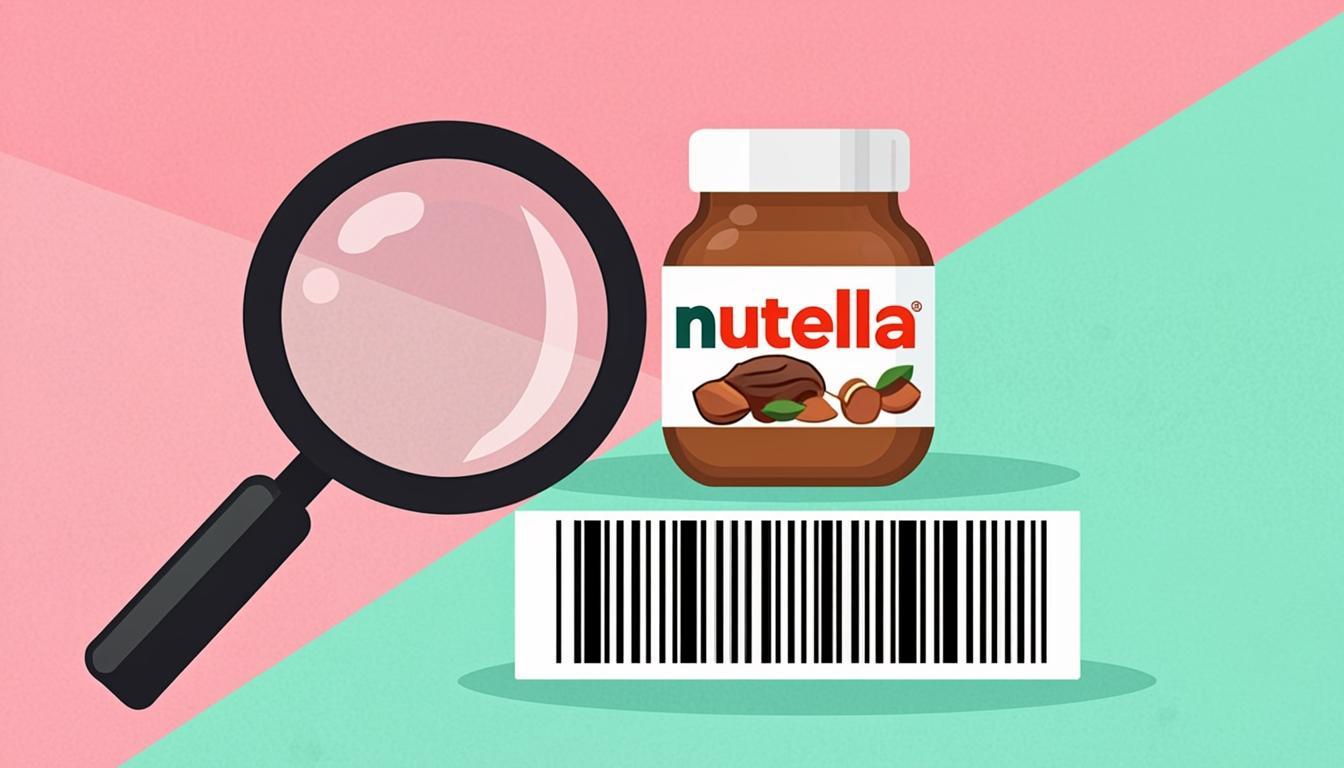
Example 1: Nutella Hazelnut Spread — 3017620422003. The barcode 3017620422003 is printed on every 400 g jar of Ferrero Nutella sold in Europe. The 3017620 prefix belongs to Ferrero. When you type this number into the lookup tool, the tool finds it in OpenFoodFacts. It returns the product name: "Nutella, Hazelnut Spread with Cocoa". It shows the brand: "Ferrero". It shows the category: "Spreads". It shows the quantity: "400 g". It shows the Nutri-Score: "E" (high in sugar). It shows the full ingredients list, starting with "sugar, palm oil, hazelnuts (13%)". This is useful if you are checking the spread for allergens before buying it.
Example 2: Coca-Cola Can — 5449000000996. The barcode 5449000000996 is printed on Coca-Cola cans sold across Europe. The 5449 prefix belongs to The Coca-Cola Company. When you type it into the lookup tool, the tool finds it in OpenFoodFacts. It returns the product name: "Coca-Cola". It shows the brand: "Coca-Cola". It shows the category: "Carbonated drinks". It shows the quantity: "330 mL". It shows the Nutri-Score: "E". This is useful if you are checking the calories or caffeine content of a soda.
Example 3: Matilda by Roald Dahl — ISBN 9780140328721. The ISBN 9780140328721 is printed on the back of the Puffin Classics paperback edition of Matilda. The 978 prefix marks it as a book ISBN, and the 0 region code marks it as an English-language title. When you type this into the lookup tool, the tool sees the 978 prefix and switches to Open Library. It returns the title: "Matilda". It shows the author: "Roald Dahl". It shows the publisher: "Puffin". It shows the publish year: "1988". It shows the cover image of the Puffin edition. It shows the page count: "240". This is useful if you are cataloging a home library or checking which edition you have.
Want to test the tool with these? Open the Barcode Lookup tool now and paste any of those three numbers. You should get the same answers we listed above.
Who Uses Barcode Lookup?
Many types of people use barcode lookup every day:
- Shoppers — Before buying a product, shoppers can type the barcode to check the brand, the ingredients, or the nutrition grade. This is common for people with food allergies, parents buying for kids, and people on special diets.
- Small shop owners — When a new product arrives, the shop owner can type the barcode to add the item to their point-of-sale system. This saves hours of manual data entry.
- Library staff — Libraries use ISBN lookups to log books in and out. A quick barcode scan pulls up the title, author, and edition.
- Customs officers — At border crossings, customs officers can type a barcode on a shipment box to verify what is inside the box and who made it.
- Online sellers — People who sell on eBay, Amazon, or Etsy use barcode lookups to write product listings fast. They type the barcode, copy the result, and paste it into their listing title and description.
- Customs brokers — Brokers who clear shipments through customs use barcode lookup to fill out paperwork for clients.
- Health inspectors — Inspectors can use barcode lookup to check the source and batch of food items on a store shelf.
- Journalists and researchers — People who study the food industry use barcode lookups to track down the company that made a product, even when the brand name on the package is different from the company that owns the brand.
In short, anyone who handles products — at home, in a shop, or at a border — can save time with barcode lookup.
Tips for Best Results
A few simple habits will make your barcode lookups more accurate:
- Type the full number. EAN-13 codes have 13 digits. UPC-A codes have 12 digits. ISBN-13 codes have 13 digits. Type all of them. Do not skip the leading zero or the trailing check digit.
- Use the dashes if you want. The tool accepts dashes, spaces, and other separators. So 3017620422003 and 3-017620-422003 and 3 017620 42200 3 all work.
- Watch for typos. The check digit catches most typos. If you swap two digits or miss one, the tool will say "invalid barcode" instead of "not found". Re-read the number off the package and try again.
- Try both UPC-A and EAN-13. Some U.S. products only have a 12-digit UPC-A on the package. If you cannot find the item with the 12-digit number, try adding a leading 0 to make a 13-digit EAN-13. The tool does this for you, but you can do it by hand too.
- Check the source page. OpenFoodFacts has photos from real shoppers. Open Library has multiple editions per book. Click the source link to see the full record.
- If "not found", add it. If the tool says "not found" but you have the product in your hand, you can add it to OpenFoodFacts or Open Library. Both are public databases built by volunteers, and your addition helps the next person who looks up that barcode.
- Use the history. The tool saves your last few lookups. If you check the same product twice (for example, once a week for an allergy check), click the history item instead of retyping.
Common Mistakes to Avoid
Watch out for these common mistakes:
- Mistake 1: Confusing UPC-A with EAN-13. A UPC-A has 12 digits. An EAN-13 has 13. If your number has 12 digits, do not pad with a 0 unless you want to convert to EAN-13. The tool handles this, but it helps to know what you have in your hand.
- Mistake 2: Forgetting the check digit. The last digit of a barcode is the check digit. It is not extra. If you skip it, the barcode is invalid. Always type the whole number, including the last digit.
- Mistake 3: Looking up a private barcode. Some companies print barcodes that only work inside their own systems. For example, a store-brand product might have an internal barcode (often starting with a 2 or 4) that is not in any public database. These will always come back "not found" — they are not in OpenFoodFacts or Open Library.
- Mistake 4: Expecting every product to be listed. OpenFoodFacts has millions of items, but it does not have every product in every shop. New products appear daily, and volunteers add them when they can. If your barcode is not found, it might just be new.
- Mistake 5: Trusting fake lookup sites. Some websites "make up" a product name when they do not know the real one. They invent a brand and a category so you do not go away empty-handed. This is bad data. Our tool only shows real results from real public databases. If we do not know, we say so.
- Mistake 6: Forgetting books use a different prefix. Books start with 978 or 979. If you type a book barcode into a tool that only checks OpenFoodFacts, you get "not found". Our tool checks the prefix and routes book lookups to Open Library.
Frequently Asked Questions
Q1: Is barcode lookup free?
Yes. The tool is free. The databases (OpenFoodFacts and Open Library) are free. There are no hidden fees, no daily limits, and no accounts to create.
Q2: Do you store the barcodes I look up?
No. Your barcode number goes straight from your browser to the public database API. We do not run a proxy server in the middle. We do not keep logs of what you searched. Your history is stored only in your own browser, and you can clear it with one click.
Q3: Why does my barcode say "not found"?
Three possible reasons: (1) The product is too new and has not been added to the public database yet. (2) The barcode is an internal store code (often starting with 2 or 4), which is not in any public database. (3) The product is regional — many products sold in only one country are not in the global database.
Q4: Can I look up a QR code?
No. QR codes and barcodes are different things. A QR code (the square one) can hold any text — a URL, a phone number, a WiFi password. Our lookup tool works on product barcodes (EAN-13, UPC-A, ISBN-13). To read a QR code, use the QR Decoder tool instead.
Q5: Can I scan a barcode with my camera?
Yes. If your phone camera supports barcode scanning (most modern phones do), open the camera app, point it at the barcode, and tap the link that appears. You can also use the Barcode Scanner tool to scan barcodes with any webcam or phone camera.
Q6: Can I download the product data?
Yes. The tool has a Copy button on every result. You can copy the barcode, the product name, the brand, and other fields, and paste them into a spreadsheet or your own inventory sheet.
Ready to Try Barcode Lookup?
You now know what barcode lookup is, how it works, who uses it, and what mistakes to avoid. The fastest way to learn more is to try it yourself.
Open the QREndlessPro Barcode Lookup tool and try one of these real barcodes to start: 3017620422003 (Nutella, 400 g jar), 5449000000996 (Coca-Cola can, 330 mL), or 9780140328721 (Matilda, Puffin Classics paperback). You will see the product name, brand, image, category, ingredients, and source link in under a second. No sign-up, no fee, no log.
The tool is free for shoppers, shop owners, librarians, sellers, and anyone who needs to know what is behind a barcode. If you need other free barcode tools, we also have a barcode generator, a bulk barcode generator, a barcode label maker, and a barcode validator. All free, all browser-based, all built on the same engine.