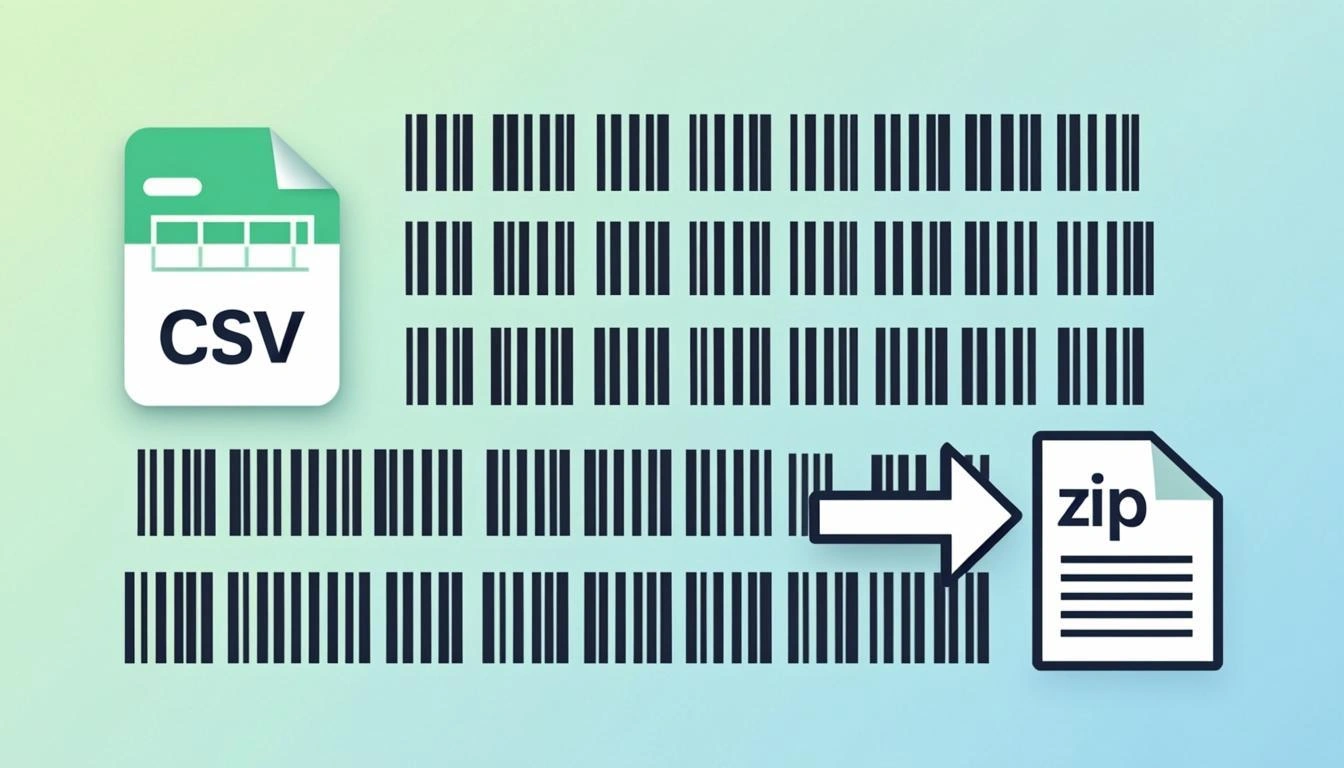
What Is a Bulk Barcode Generator?
A bulk barcode generator is a tool that takes many barcode values at once and makes one barcode picture for each value. Instead of typing one value, clicking generate, and downloading one barcode at a time, you can paste a list of 100 or 1,000 values and the tool makes a barcode for every line. This saves a lot of time when you need many barcodes for products, boxes, tickets, or labels.
Think of it like a copy machine for barcodes. You give the tool a big list of numbers, and it gives you back a folder of barcode pictures, ready to print. You do not need to install anything or sign up. You just open the page in your browser, paste your list, pick a barcode type, and click a button.
Why Use Our Free Bulk Barcode Generator?
Here are five reasons people choose our tool:
- Hundreds of barcodes at once. Paste a list with 100, 500, or 1,000 lines and the tool makes one barcode for every line in a single click.
- CSV input. You can paste your list right into a text box, or upload a CSV file from Excel, Google Sheets, or your inventory system.
- Download as ZIP or grid PDF. Get one PNG per barcode in a ZIP folder, or one big PDF with all barcodes laid out in rows and columns for printing.
- 100% browser-based. No software to install. No sign up. No data leaves your computer. Every barcode is drawn right inside your browser.
- Free and unlimited. Make as many batches as you want. No watermarks. No hidden fees. No limit on the number of barcodes per day.
How Bulk Barcode Generation Works: A Simple Explanation
Behind the screen, the tool uses a small open-source library called bwip-js. This library knows the rules for more than 100 different barcode types. When you give the tool a list of values, it does three things for every line:
First, it reads the value and checks the barcode type you picked. Second, it draws the barcode on a small canvas using the rules for that type. Third, it turns the canvas into a PNG picture. After every line is drawn, the tool bundles all the PNGs into one ZIP folder and also lays them out in a grid PDF.
All of this happens inside your browser. The list of values never gets sent to a server. That means your product codes, ticket numbers, or asset tags stay private on your own computer.
Step-by-Step: Using the Bulk Barcode Generator
Follow these four steps to make a big batch of barcodes:
- Paste your list of values or upload a CSV. Put one value on each line in the text box, or click the Upload CSV button and pick a CSV file with one value in the first column.
- Pick a barcode type. Choose from Code 128, EAN-13, UPC-A, ITF-14, Data Matrix, PDF417, and 100+ more. Each type has its own rules for length and characters.
- Set the output format. Pick ZIP for one PNG per barcode, or pick Grid PDF for a single print-ready file. You can also pick both.
- Click Generate and download. The tool draws every barcode in your browser and bundles them into a ZIP or PDF. Then your browser saves the file to your downloads folder.
Real-World Examples of Bulk Barcode Generation
Here are three real jobs where a bulk generator saves hours of work:
- 100 product EAN-13s for a small shop. A small grocery store gets 100 new items. The owner pastes 100 EAN-13 numbers into the tool, picks EAN-13, and gets a ZIP of 100 PNGs. Each one is ready to print on a sticky label.
- 1,000 SSCC-18s for a warehouse. A warehouse ships 1,000 pallets a week. Each pallet needs a unique SSCC-18 label. The team uploads a CSV of 1,000 numbers, picks SSCC-18, and downloads a single grid PDF. Print one page, cut, and stick.
- 500 asset tag Code 128s for an office. An office tags 500 laptops and chairs. The IT team pastes a list like
LAP-001throughLAP-500, picks Code 128, and downloads a ZIP. Each PNG goes onto an asset tag sticker.
Who Uses a Bulk Barcode Generator? Industries and Roles
Lots of people need many barcodes at the same time. Here are five common groups:
- Retail — product labels. Stores that add new SKUs every week use bulk EAN-13 or UPC-A generators to print price tags and shelf labels.
- Logistics — pallet labels. Shipping companies print SSCC-18 labels for every pallet. A bulk tool makes 500 labels in one batch.
- Manufacturing — asset tags. Factories tag tools, machines, and parts with Code 128 or Code 39 barcodes. One CSV can tag a whole factory floor.
- Education — student IDs. Schools print student ID cards with a unique Code 39 barcode for every student. Upload a CSV of student numbers and get all barcodes at once.
- Events — ticket barcodes. Event organizers make 1,000 tickets for a festival. Each ticket gets a unique Code 128 barcode so the gate scanner can check them in one by one.
Bulk Barcode Glossary: Key Terms Explained
These six words show up a lot when people talk about bulk barcodes. Here is what each one means:
- Bulk
- Doing many things at once. In barcodes, bulk means making 100 or more barcodes in one batch instead of one at a time.
- CSV
- Short for Comma-Separated Values. A CSV is a plain text file with one row of data per line. Excel and Google Sheets can open and save CSV files.
- ZIP Archive
- A ZIP is one file that holds many files inside. Our tool bundles one PNG per barcode into a single ZIP so you only download one file.
- Grid PDF
- A single PDF page with many barcodes laid out in rows and columns. You print the page once and cut the barcodes apart.
- Sequence
- A list of numbers that go up by one each line, like 001, 002, 003. Useful when you need barcodes for a series of items.
- Prefix
- A short code added at the start of every value, like
SKU-before each product number. Saves typing when every barcode shares the same start.
Tips for Getting the Best Results
Follow these five tips and your barcodes will scan cleanly every time:
- Validate check digits first. EAN-13, UPC-A, ITF-14, and SSCC-18 all use a final check digit. If your numbers are wrong, the barcodes will not scan. Use our check-digit calculator first.
- Use sequential numbers when possible. A clean list like 001 to 500 is easy to manage and easy to track. Random numbers are harder to audit later.
- Pick a high-resolution format for printing. PNG at 300 DPI or higher looks sharp on a printed label. Low-resolution barcodes may blur and fail to scan.
- Test a small batch first. Run 10 barcodes before you run 1,000. Confirm the type, size, and check digits look right, then scale up.
- Organize files by category. Group your CSVs by product line, warehouse, or month. This makes it easy to find the right ZIP later.
Common Mistakes to Avoid
These four mistakes cause most bulk barcode problems:
- Wrong barcode type for the data. EAN-13 needs exactly 12 digits (plus a check digit). Code 128 takes letters and numbers. Picking the wrong type means broken barcodes.
- Too many barcodes in one batch. Browsers have memory limits. If you try to draw 10,000 barcodes at once, the page may freeze. Keep batches under 500 to be safe.
- Missing check digits. If you paste EAN-13 numbers without the final check digit, the tool will reject them. Always include the full, valid number.
- Wrong CSV format. The CSV must have one value per line in the first column. Extra columns, header rows, or stray commas can confuse the parser.
Bulk Barcode Generator vs Single Generation
A single barcode generator is great when you need one or two barcodes. You type a value, see the preview, tweak the size, and download. It is fast and visual. The downside is that you have to repeat every step for each new barcode, which is slow if you need 100 of them.
A bulk barcode generator is the better choice when you need many barcodes at once. You paste a list once, pick a type once, and click once. You get a ZIP or PDF with every barcode inside. The trade-off is that you do not see a live preview for each one — so always run a small test batch first to make sure the type and size are right. Most teams use both tools: the single generator to design and test, then the bulk tool to print the final batch.
Ready to Generate Barcodes in Bulk?
You now know what a bulk barcode generator is, how it works, who uses it, and what mistakes to avoid. The next step is to try it yourself. Open the tool above, paste your list of values, pick a barcode type, and click Generate. In a few seconds you will have a ZIP of PNGs or a grid PDF with every barcode ready to print. It is free, private, and runs fully inside your browser.