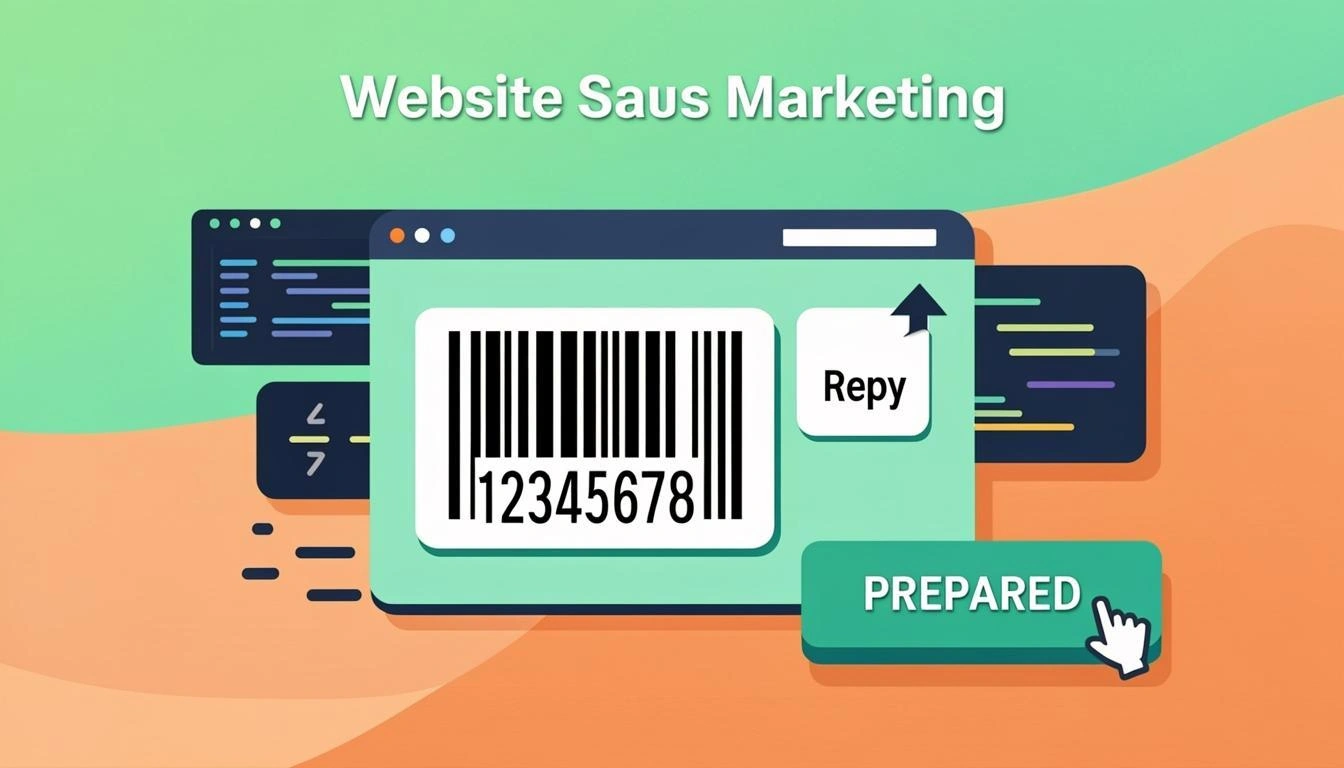
What Is a Barcode Embed Widget?
A barcode embed widget is a small piece of HTML code. You copy this code and paste it into your website. The code shows a barcode on your page. The best part is that you do not need to upload a new picture every time you change your data. You just change the data in the tool, copy the new code, and paste it again. The barcode updates without you having to redeploy your whole website.
Many people think a barcode embed widget is hard to use. It is not. If you can copy and paste text, you can use it. You do not need to know how to code. You do not need to hire a developer. The widget does the hard work for you and gives you a clean HTML snippet that any website can read.
Why Use Our Free Barcode Embed Widget?
There are many reasons to use our tool. Here are the top five:
- You can change colors and sizes to match your brand. Pick any color for the bars and any color for the background.
- You can pick from many barcode types. We support EAN-13, UPC-A, Code 128, QR Code, Data Matrix, PDF417, and 100+ more.
- You just copy and paste a simple HTML snippet. No coding skill needed. The code works on any site that lets you add HTML.
- The tool runs entirely in your browser. Your data never leaves your device. This is good for privacy.
- It is free forever. No API key, no credit card. Use it as many times as you want.
How the Embed Widget Works: A Simple Explanation
It is very simple. First, you pick a barcode type and enter your data. Then you choose colors and size. The tool makes an HTML snippet for you. You copy this snippet and paste it into your website or blog. When a visitor opens your page, the snippet shows the barcode in their browser.
The barcode is drawn on the spot, which means it is always sharp and never breaks. You do not store any picture file on your server. The barcode is made of code, not of a saved image. This is why it always looks clean. Even if a visitor zooms in, the bars stay sharp. The widget uses bwip-js, the same open-source tool that powers many big barcode websites.
Step-by-Step: Using the Barcode Embed Widget
Follow these four easy steps:
- Pick a barcode type. Choose from 100+ types like EAN-13, UPC-A, Code 128, QR Code, and Data Matrix. If you sell products, pick EAN-13 or UPC-A. If you ship boxes, pick Code 128.
- Enter your data. Type the number or text you want the barcode to hold. For EAN-13, type 12 or 13 digits. For Code 128, type any text.
- Customize colors and size. Match your website style with the right color and width. Use brand colors so the barcode looks like part of your site.
- Copy the HTML code and paste into your site. The barcode shows up right away. You can paste it into any HTML block, custom widget, or page builder.
Real-World Examples of Embedded Barcodes
Here are three simple ways people use the embed widget:
- A retail website embeds a UPC-A on a product page. Shoppers can scan the barcode in the store to check the price. The store owner can change the price without changing the barcode, because the UPC-A number stays the same.
- A logistics blog embeds a Code 128 sample. Readers can see how shipping labels look in real life. The blog author can show many barcodes without uploading any pictures.
- A library website embeds an ISBN-13. Students can scan the book barcode to find it on the shelf. The library can update the book list and the barcodes will update too.
Who Uses a Barcode Embed Widget? Industries and Roles
Many people use this tool. Here are five common industries:
- E-commerce: Online stores embed barcodes on product pages to help buyers scan and check items. The barcode makes the product page look professional.
- Blogging: Bloggers embed barcodes in posts to share links, coupons, or event codes. Readers can scan with their phone to open the link.
- Education: Schools and teachers embed barcodes in study sheets and worksheets for quick access to links. Students can scan to open a video or a quiz.
- Documentation: Software teams embed barcodes in help pages so users can scan to download files or open pages. This is faster than typing a long URL.
- Marketing: Marketers use barcodes in landing pages to track campaigns and offer quick app downloads. A scan takes the user right to the app store.
Barcode Embed Glossary: Key Terms Explained
Here are simple meanings for words you will see in this guide:
- Embed Widget
- A small tool you add to your website to show content from another source. The widget runs the code for you.
- HTML Snippet
- A short piece of HTML code that you copy and paste into your site. It is usually a few lines long.
- iframe
- A box on your web page that shows another web page inside it. Some sites block iframes for safety.
- Data URI
- A way to put a picture inside the HTML code as text, so you do not need a separate file. The barcode loads in one piece.
- Customization
- Changing how the barcode looks, like color, size, or shape. You can match your brand style.
- Cross-Origin
- When a website asks for files from another website address. Some browsers block this for safety. Data URIs avoid this problem.
Tips for Getting the Best Results
Follow these five tips to get great barcodes:
- Pick the right size for your layout. Too small barcodes do not scan well. A good rule is to make the barcode at least 1 inch wide on screen.
- Test on mobile. Most visitors will use a phone, so check the size looks good on a small screen. A barcode that looks fine on a computer may be too tiny on a phone.
- Use brand colors. Match the barcode colors to your website style. But make sure the bars are dark and the background is light, so scanners can read them.
- Validate the data first. Make sure your number is correct before you copy the code. A wrong digit will make a barcode that does not scan.
- Keep the snippet updated. If your data changes, copy a new snippet and replace the old one. The old code will still show the old barcode.
Common Mistakes to Avoid
Watch out for these four mistakes:
- Too-small barcode: If the bars are too thin, scanners cannot read them. Use a bigger size. Phone cameras need at least some space between bars to read them well.
- Wrong type for the use case: EAN-13 is for store products, not for shipping boxes. Pick the right type. Code 128 is good for shipping. QR Code is good for links.
- Broken HTML when pasting into a CMS:Some site builders strip code out. Use a "custom HTML" block. WordPress has one. So does Shopify and Wix.
- Forgetting to update when data changes: If your product number changes, you need a new embed code. The old code still shows the old number. Make a habit of checking.
Barcode Embed Widget vs Image Download
You have two choices. You can embed a live widget, or you can download a static PNG picture.
A live widget is small and updates fast. You change the data, copy new code, and your site shows the new barcode. You do not save any file on your server. The downside is that the snippet can be a bit long, especially in data-URI mode. Some email tools also strip data URIs out, so for emails, you may want to use the hosted-URL mode.
A static PNG download is a simple picture file. You upload it to your site like any other image. The downside is that if your data changes, you have to make a new picture, upload it again, and replace the old one. This takes more time and can lead to old barcodes staying on your site by mistake.
For most websites, the embed widget is faster and easier. For emails and PDFs, the PNG download is often safer. You can use both, depending on what you need.
Ready to Embed a Barcode?
You are now ready to embed a barcode on your website. Scroll up to the embed widget, pick your barcode type, enter your data, choose your colors and size, and copy the HTML code. Paste it into your site, and your barcode will show up right away.
It is free, fast, and works on any website, blog, or WordPress site. You do not need to pay. You do not need to know how to code. The widget does all the hard work for you.
If you want to go back to the tool now, click the link below. Your barcode is just a few clicks away.