What Is Bulk Barcode Generation?
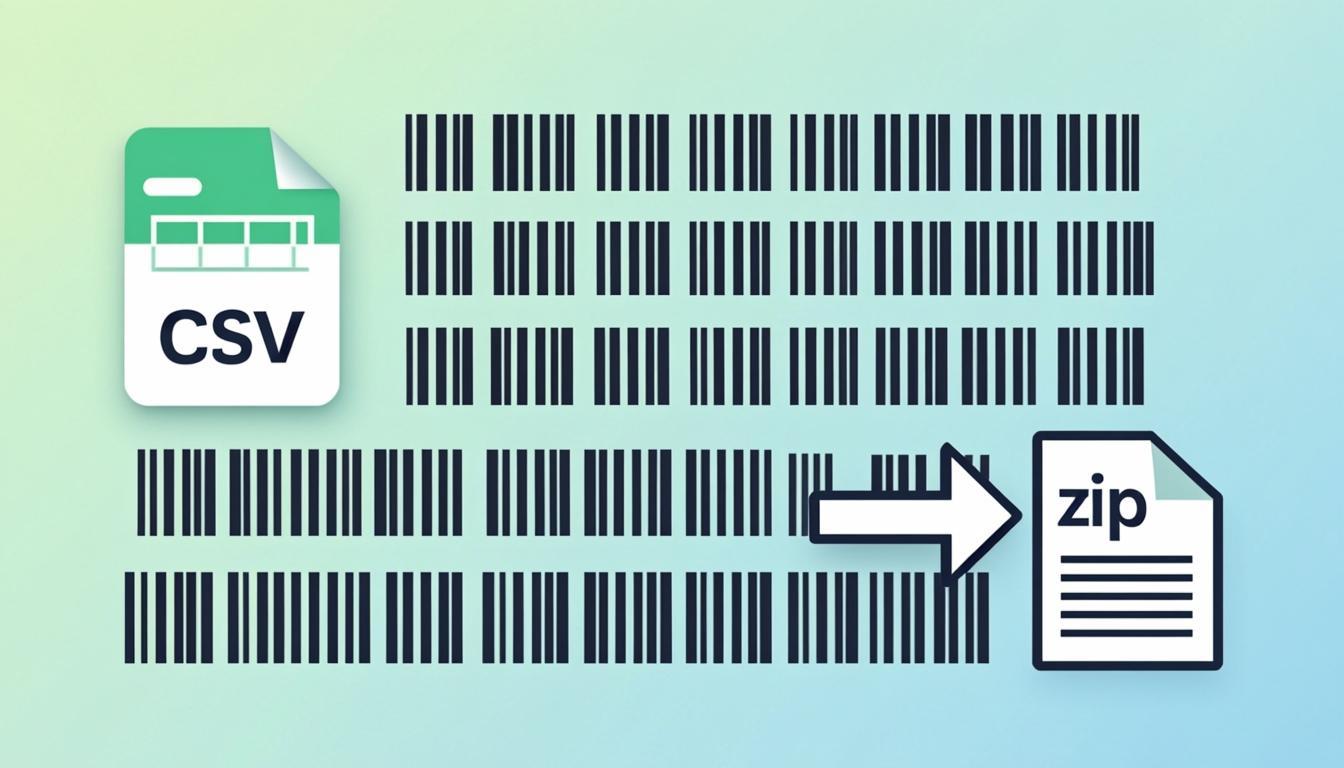
Bulk barcode generation is the act of making many barcodes at the same time, from a list of numbers. Instead of typing one barcode into a tool, pressing "generate", and downloading one image, you can upload a list of 100, 1,000, or 10,000 barcodes and get back a ZIP file full of barcode images in seconds.
This is what big operations need. A grocery chain that sells 5,000 items needs a barcode image for every one of them. A shipping company that sends 1,000 pallets a day needs a fresh SSCC-18 label for every pallet. A factory that tags 500 tools needs a barcode on each tool. Doing these one at a time is not practical.
A bulk barcode generator takes a list of barcodes — usually as a CSV (comma-separated values) file or pasted text — and turns each line into a single barcode image. The tool uses an open-source library called bwip-js to draw the lines, then bundles the images into a ZIP file you can download in one click. Some tools also output a single PDF with one barcode per page.
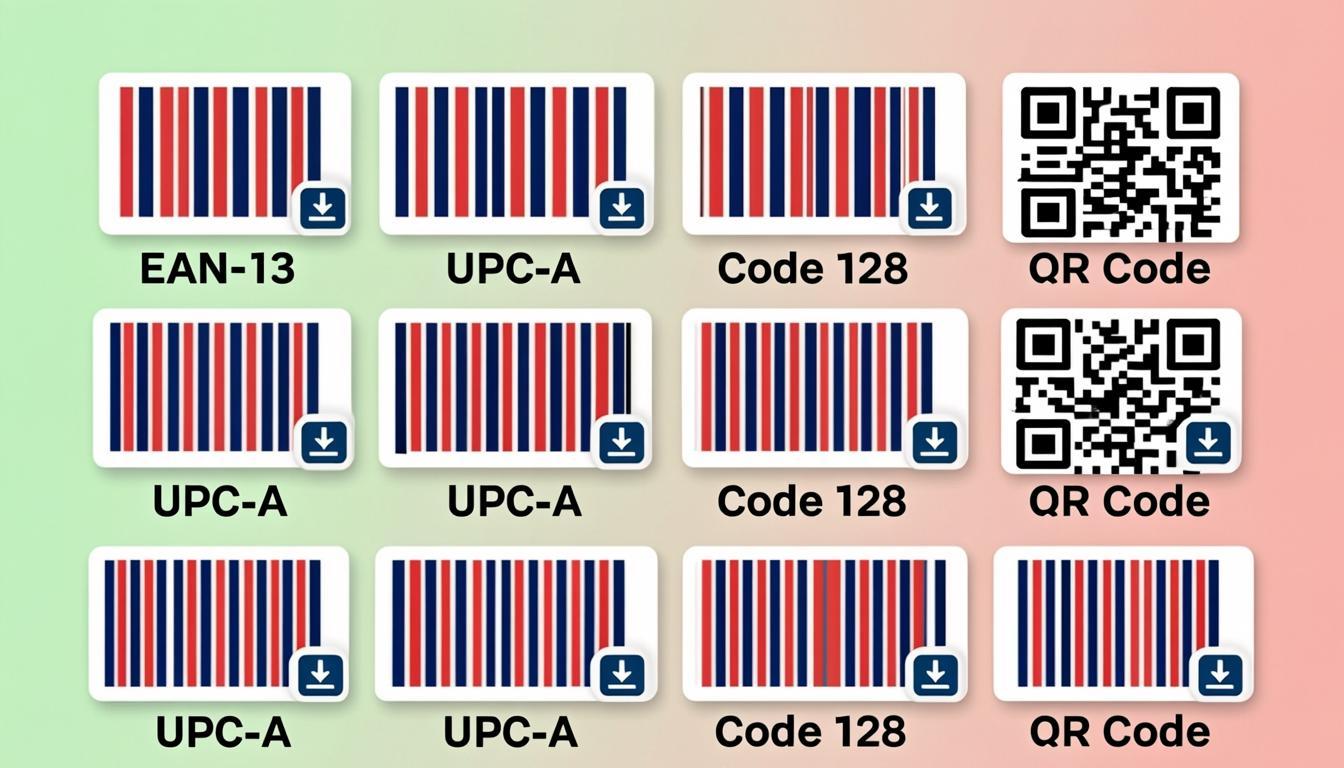
The most common barcode types for bulk generation are:
- EAN-13 — 13-digit retail barcodes for products.
- UPC-A — 12-digit retail barcodes (used in the U.S. and Canada).
- Code 128 — a flexible barcode that can hold letters and numbers.
- SSCC-18 — 18-digit shipping labels for pallets and cartons.
- ITF-14 — 14-digit barcodes for shipping cartons.
- Code 39 — an older barcode used for asset tags and ID badges.
With a bulk generator, you can turn a CSV into 1,000 barcodes faster than you could make 5 by hand.
Why Use Our Free Bulk Barcode Generator?
There are many bulk barcode tools online. Here is why ours is the best free choice:
- It is 100% free with no limit. Many "free" bulk generators cap you at 10 or 50 barcodes per upload. They want you to pay for the "pro" plan to get 1,000+. Ours has no such cap. You can upload 5 barcodes or 5,000. The same engine handles both.
- No sign-up, no email. You do not need to create an account. You do not need to type an email to "verify". You open the page, upload your CSV, click "Generate", and download the ZIP. That is it.
- Runs in your browser. The tool uses a JavaScript barcode library (bwip-js) that runs on your computer. Your data never leaves your machine. This matters for businesses that do not want their product list or shipping numbers on a third-party server.
- Multiple output formats. You can download your barcodes as a ZIP of individual PNG images (one file per barcode), a ZIP of individual SVG images (for high-resolution printing), or a single PDF with one barcode per page (for quick label printing).
- Supports 100+ barcode types. EAN-13, UPC-A, Code 128, Code 39, ITF-14, SSCC-18, GS1-128, MSI Plessey, Codabar, and many more. The tool picks the right encoder for the barcode type you choose.
- CSV import with auto-parsing. You upload a CSV file. The tool reads the first column (or the column you pick) as barcode data, and the second column (if present) as a label or name. You can also paste plain text — one barcode per line.
- Custom label text. For each barcode, you can add a custom text label printed below the lines. This is useful for shipping labels where you want to print the human-readable number alongside the barcode.
- Check digit auto-add. If your CSV has only the first 12 digits of each EAN-13, the tool can compute the 13th check digit for you. Same for UPC-A, ITF-14, and SSCC-18. This saves time and prevents typos.
- Full ZIP in seconds. The tool bundles all images and produces the ZIP in a few seconds for a 1,000-barcode list. The ZIP is named after your CSV file with a date stamp.
How Bulk Barcode Generation Works
Behind the screen, the tool does five things in a row:
Step 1: Read the input. You upload a CSV file or paste text. The tool reads the lines. For each line, it splits the columns (if there are commas or tabs). It picks the column you said was the barcode, and the column you said was the label (optional). It shows you a preview of the first few rows so you can check it parsed right.
Step 2: Validate each barcode. For each barcode, the tool checks: is it the right length for the type you picked (EAN-13 needs 12 or 13 digits, SSCC-18 needs 17 or 18, and so on), is the check digit correct (for EAN-13, the 13th digit must match the math check from the first 12), and are there any bad characters (letters in a numeric barcode, for example). If a line fails, the tool flags it in red and skips it. It does not stop the whole batch for one bad line.
Step 3: Draw each barcode. For each good barcode, the tool calls bwip-js to draw the lines onto an HTML5 canvas. It applies the right encoder for the type you picked, picks the right font for the human-readable text, and renders the lines at the size you chose.
Step 4: Convert each canvas to an image. The tool takes the canvas and converts it to a PNG (raster) or SVG (vector) image. PNG is good for screens and small prints. SVG is good for large prints and resizing without quality loss.
Step 5: Bundle into a ZIP. The tool packs all the images into a single ZIP file using the JavaScript jszip library. If you asked for a PDF, it also lays out one barcode per page using pdf-lib. The ZIP or PDF is then ready for you to download.
The whole pipeline runs in your browser, with no server round-trip.
Step-by-Step: Using the Bulk Barcode Generator
Here is how to use the QREndlessPro Bulk Barcode Generator:
Step 1: Open the tool. Visit the bulk barcode page. The page loads in your browser. No login needed.
Step 2: Pick your barcode type. At the top of the page, pick the type of barcode you want to make. The choices include EAN-13, UPC-A, Code 128, Code 39, ITF-14, SSCC-18, and more than 90 others. The tool shows you what input each type needs.
Step 3: Prepare your data. Make a list of your barcodes. The simplest way is a plain text file with one barcode per line. If you want labels too, use a CSV with two columns: barcode,label. For example:
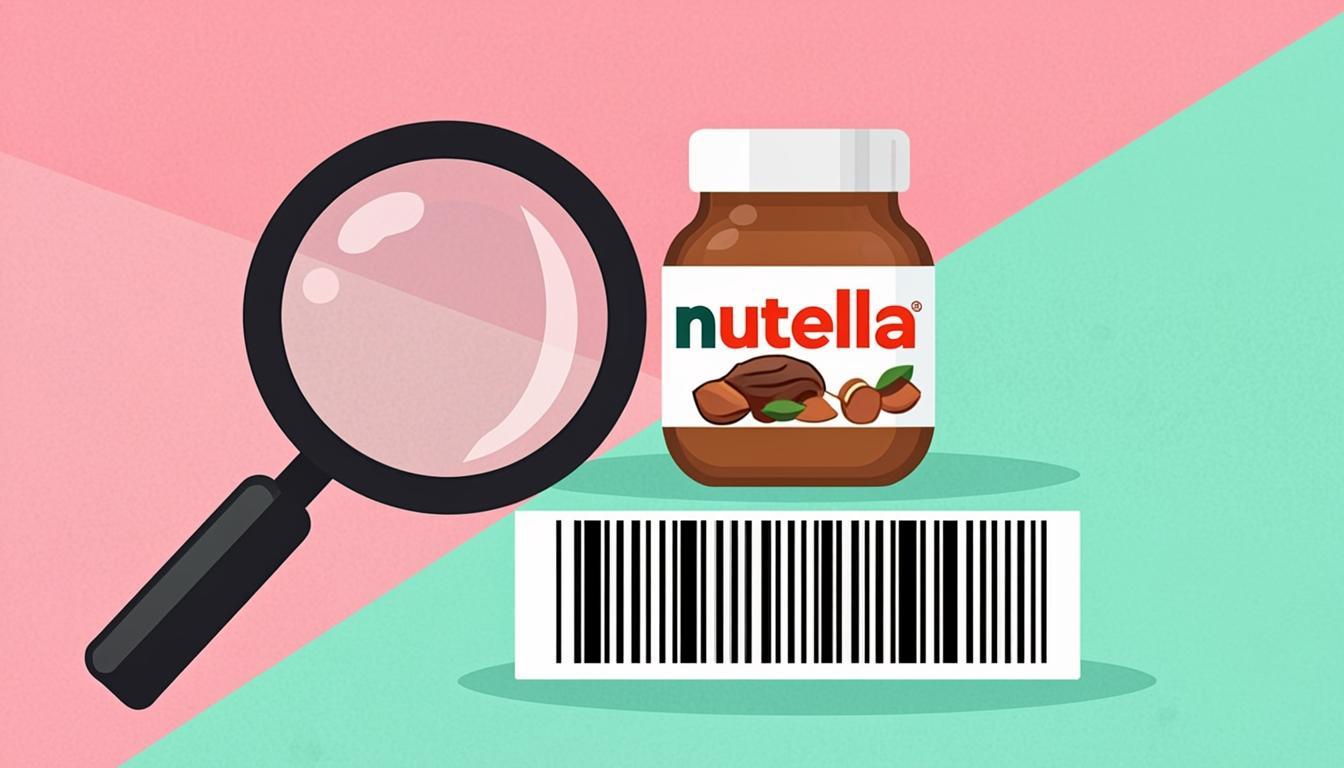
3017620422003,Nutella 400g
5449000000996,Coca-Cola 330ml
9780140328721,Matilda book
Step 4: Upload or paste. Drag your CSV file into the upload box, or click "Browse" to pick it. You can also click "Paste text" and paste your list into a text box. The tool shows a preview of the first 5 rows so you can check it parsed right.
Step 5: Pick options. Pick the output format: PNG (best for screens and small prints), SVG (best for large prints and resizing), or PDF (one barcode per page, best for label printers). You can also pick the image size, the bar height, the show-text option (whether to print the human-readable number below the lines), and the check digit option (auto-compute or as-is).
Step 6: Click "Generate ZIP". Press the Generate button. The tool starts processing. A progress bar shows you how far along it is. For 100 barcodes, it takes a second or two. For 1,000 barcodes, it takes a few seconds. For 10,000 barcodes, it can take a minute.
Step 7: Download the result. When the progress bar hits 100%, a Download button appears. Click it to save the ZIP (or PDF) to your computer. The file is named after your CSV, with a date stamp like barcodes-2026-02-10.zip.
Step 8: Unzip and use. Unzip the file. You will see one image per barcode, named like 001-3017620422003.png, 002-5449000000996.png, and so on. You can drag these into a Word document, a label maker, a Photoshop file, or any other layout tool.
Step 9: Save the project (optional). If you want to come back later and re-run the same batch (for example, you added 50 more barcodes to your list), click "Save project". The tool stores the CSV, the type, and the options in your browser's local storage. You can re-open the project any time.
Real-World Examples
Here are three real bulk-generation jobs and how the tool handles them:
Example 1: 100 product EAN-13s for a small grocery store. A small grocery store in Berlin gets a shipment of 100 new items from a supplier. The supplier gives them a CSV with 100 EAN-13 codes and 100 product names. The store owner uploads the CSV to our tool, picks EAN-13, and clicks Generate. In 3 seconds, they get a ZIP with 100 PNG files, named 001-nutella.png, 002-coke.png, and so on. They drag the PNGs into their label layout software and print 100 price labels in one run.
Example 2: 1,000 SSCC-18s for a logistics company. A logistics company in Rotterdam ships about 1,000 pallets per day. Each pallet needs a fresh SSCC-18 label. The company's warehouse system generates the SSCC-18 numbers overnight (using their GS1 company prefix) and exports them as a CSV. In the morning, the warehouse staff uploads the CSV to our tool, picks SSCC-18, and clicks Generate. In 15 seconds, they get a ZIP with 1,000 PNG files, each at 4 inches wide and 2 inches tall — exactly the size of their Zebra label printer. They load the PNGs into the printer's queue and print 1,000 labels in one batch.
Example 3: 500 asset tags for a manufacturing plant. A manufacturing plant in Ohio buys 500 new tools and needs to put an asset tag on each one. They use Code 128 barcodes (which can hold letters and numbers) with a custom prefix "ASSET-". Their asset list is a CSV with 500 rows like:
ASSET-0001,Cordless Drill
ASSET-0002,Safety Helmet
ASSET-0003,Torque Wrench
They upload the CSV, pick Code 128, enable "show label below barcode", and click Generate. In 8 seconds, they get a ZIP with 500 PNG files. Each PNG shows the barcode lines, with the text "ASSET-0001" printed below and the tool name "Cordless Drill" printed above. They print these on adhesive label paper, stick them on the tools, and scan them into their asset tracking system.
Want to test the tool with your own list? Open the Bulk Barcode Generator and try it with a 10-line CSV first. You will see the whole pipeline run in under a second.
Who Uses Bulk Barcode Generation?
Many kinds of businesses use bulk barcode generation:
- Retail — Grocery stores, clothing shops, and electronics retailers all need barcode images for products. When they add a new product line, they generate 100 or 1,000 barcodes at once.
- Logistics — Shipping companies, freight forwarders, and 3PL (third-party logistics) providers print SSCC-18 labels for every pallet and carton. A single warehouse might print 5,000 SSCC-18s per day.
- Manufacturing — Factories tag every tool, machine, and spare part with an asset barcode. When they buy a new line of equipment, they generate 100+ asset tags at once.
- Events — Conferences, festivals, and sports events print barcode badges for every attendee. A 10,000-person event needs 10,000 barcodes generated in advance.
- Libraries — Public libraries tag every book with an ISBN barcode. When a library buys a new shipment of 500 books, they generate 500 ISBN-13 barcodes in bulk.
- Hospitals — Hospitals tag every piece of equipment with an asset barcode. New equipment batches need bulk barcodes.
- Schools and universities — Schools tag laptops, tablets, and lab equipment with asset barcodes. A school that buys 200 laptops for students needs 200 barcodes in one go.
- Offices — Offices tag computers, monitors, and furniture for inventory tracking. A new office setup might need 50 barcodes for desks and chairs.
Any operation that needs more than 5 barcode images at once should be using a bulk generator. The time savings are huge.
Tips for Best Results
A few tips will help your bulk barcode generation go smoothly:
- Use a clean CSV. Make sure each row has the right number of columns. Remove blank rows. Use commas or tabs between columns. If your data has commas inside a value (like "Coca-Cola, Classic"), wrap the value in quotes: "Coca-Cola, Classic",5449000000996.
- Pick the right barcode type. For products, use EAN-13 or UPC-A. For shipping pallets, use SSCC-18. For shipping cartons, use ITF-14. For asset tags with letters and numbers, use Code 128. For old-style asset tags, use Code 39. If you pick the wrong type, the encoder will fail.
- Do not mix types in one batch. A single CSV should have one barcode type. If you mix EAN-13 and Code 128 in one CSV, the tool can only pick one encoder. Run two batches.
- Test with a small batch first. Before you generate 1,000 barcodes, run a test with 5. Check the output. Make sure the size, the text, and the labels look right. Then run the full batch.
- Use SVG for large prints. If you will print the barcode bigger than 2 inches, use SVG output. PNG can look blurry when scaled up. SVG stays sharp at any size.
- Use PDF for label printers. If you will feed the barcodes to a Zebra, Honeywell, or Brother label printer, use PDF output. The PDF has one barcode per page, sized for the label roll.
- Auto-compute check digits. If your CSV has 12-digit EAN-13 numbers (without the 13th check digit), turn on "auto-add check digit". The tool computes the last digit for each barcode, saving you a step.
- Save your project. If you will re-run the same batch (for example, every week for a shipping company), click "Save project" before you close the page. Next time, just open the saved project and re-run.
Common Mistakes to Avoid
Avoid these common bulk generation mistakes:
- Mistake 1: Wrong barcode type for the data. If your CSV has 13-digit numbers but you picked UPC-A (12 digits), the encoder will fail. Always match the type to the data length.
- Mistake 2: Letters in a numeric barcode. EAN-13, UPC-A, SSCC-18, ITF-14, and ISBN-13 only accept digits. If your CSV has a letter or dash in one of these, the encoder will skip that row. Use Code 128 if you need letters.
- Mistake 3: Missing check digit. If your CSV has 12 digits for an EAN-13 (without the 13th check digit) and you do not turn on auto-add, the encoder will fail. Either include the full 13 digits, or turn on auto-add.
- Mistake 4: Mixed CSV columns. If some rows have 1 column and others have 2, the parser may pick the wrong column. Use a consistent CSV — either every row has 1 column (barcode only) or every row has 2 columns (barcode + label).
- Mistake 5: Bad barcode values. Some barcodes have prefixes that are reserved. For example, EAN-13 starting with "2" is often used for store-brand items and is not a unique global code. SSCC-18 starting with "00" is fine, but starting with "99" is not a real GS1 number. Use real prefixes from your GS1 company membership.
- Mistake 6: Forgetting to test. Some people generate 1,000 barcodes, then realize the size is wrong (too small for their scanner) or the text is too tiny. Always test with 5 barcodes first.
- Mistake 7: Closing the tab mid-job. The tool runs in your browser. If you close the tab or refresh the page, the job stops. Wait for the ZIP to download before you close the page.
Frequently Asked Questions
Q1: How many barcodes can I generate at once?
There is no hard limit. We have tested the tool with up to 10,000 barcodes in one batch. For batches over 5,000, give the browser a minute to process. For batches over 10,000, split into multiple runs.
Q2: Does the tool work offline?
Once the page loads, yes. The barcode engine (bwip-js) runs in your browser. You can disconnect from the internet and still generate barcodes. The page itself needs internet the first time you open it, so the browser can cache it.
Q3: Can I generate barcodes from an Excel or Google Sheet?
Yes, but save as CSV first. Excel files (.xlsx) are binary. Use File → Save As → CSV UTF-8 in Excel, or File → Download → Comma Separated Values in Google Sheets. Then upload the CSV.
Q4: Can I use my own barcode font?
Yes. The tool lets you pick from common barcode fonts like OCR-B (the classic EAN-13 font), OCR-A, and several sans-serif fonts. The default is OCR-B for EAN/UPC types and a clean sans-serif for Code 128 and Code 39.
Q5: Do I need a GS1 company prefix?
For EAN-13, UPC-A, SSCC-18, and ITF-14, yes. These are GS1 barcodes, and you need a real GS1 company prefix to assign unique numbers. For Code 128, Code 39, and other non-GS1 types, no — you can use any numbers or letters you want.
Q6: Is the output ready for commercial use?
Yes. The PNGs, SVGs, and PDFs the tool produces have no watermark, no logo, no "made with" tag. The output is clean and yours. You can use the barcodes on products you sell, on shipping labels, on asset tags — anywhere you need.
Ready to Try the Bulk Barcode Generator?
You now know what bulk barcode generation is, how the tool works, who uses it, and what mistakes to avoid. The fastest way to see it for yourself is to try it.
Open the QREndlessPro Bulk Barcode Generator and upload a small CSV (10 rows) to test the pipeline. Pick EAN-13, leave the defaults, and click Generate. In under a second, you will have a ZIP file with 10 PNG barcodes inside.
If you need other free barcode tools, we also have a single barcode generator, a barcode label maker for Avery templates, a barcode lookup tool, and a barcode validator. All free, all browser-based, all built on the same engine.