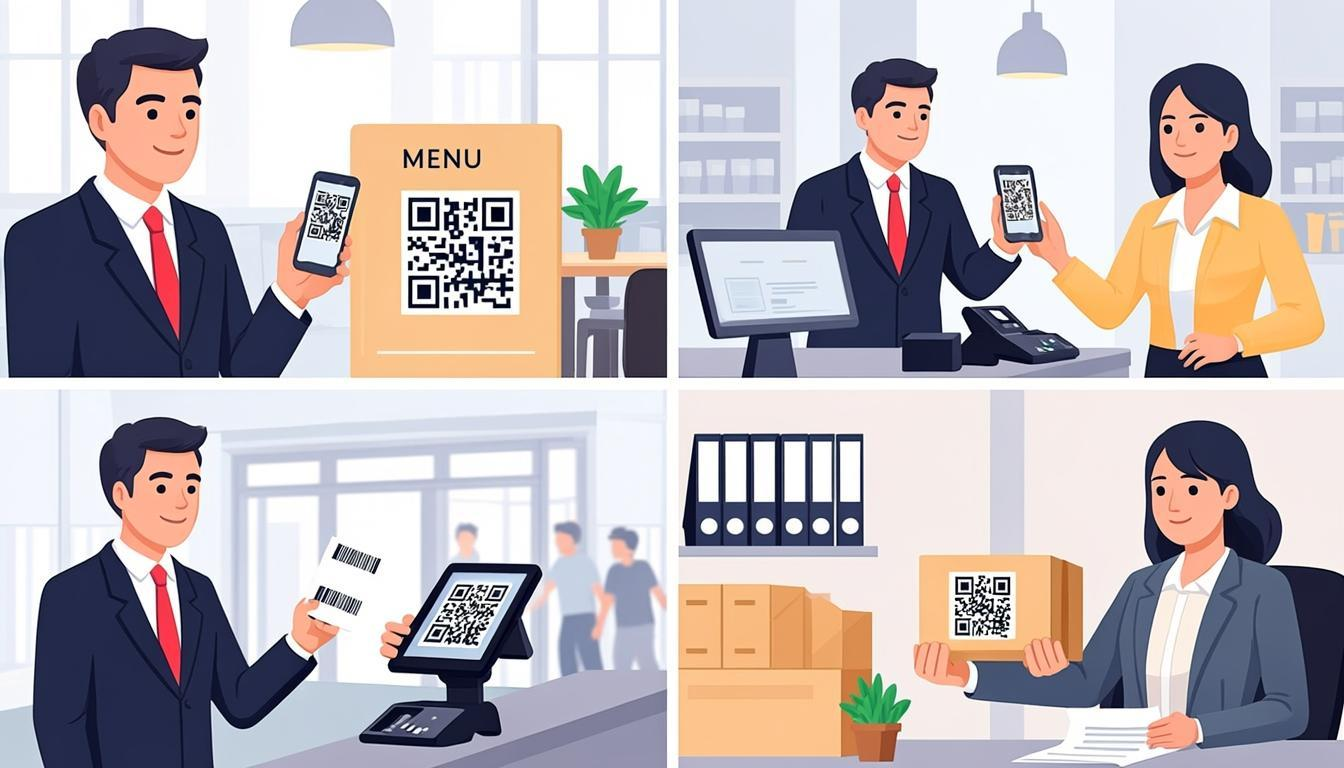
Why QR Codes Are the Best Solution for Event Management
If you have ever stood in a long line waiting to get into an event, you already know the problem. Manual check-in is slow. Someone finds your name on a printed list, crosses it off, and hands you a badge. That takes 30 to 60 seconds per person. For 200 guests, you are looking at over an hour of waiting. For 1,000 guests, that line stretches on for hours.
QR codes fix this. A QR code check-in takes under 3 seconds. Scan the code, see the green check mark, and the person walks in. That same 200-person event processes in under 10 minutes. The 1,000-person event? Under an hour.
But speed is just the start. QR codes also give you accuracy — no more accidentally checking in the wrong person because two guests have the same name. They give you data — you know exactly who showed up, who did not, and when each person arrived. And they give you cost savings — you do not need expensive badge printers or specialized check-in software. A phone and a free scanner app do the job.
In this guide, I will walk you through the entire process from start to finish. Registration, ticket creation, delivery, scanning, and tracking. By the end, you will be able to set up QR code check-in for any event, big or small.
The Complete Check-In Workflow, Explained Step by Step
Before we get into the details of setting things up, let me explain how the whole system works. There are five steps in the complete QR code event workflow.
Step 1: Registration
People sign up for your event. They fill out a form on your website, an event platform, or a social media event page. You collect their name, email, ticket type, and any other information you need.
Step 2: Ticket Generation
For each registered attendee, you generate a unique QR code. This code contains a unique ticket ID, the attendee's name, and their ticket type. Every code is different — no two attendees share the same QR code.
Step 3: Delivery
You send each attendee their QR code. The most common method is email — the QR code is embedded in a confirmation email or attached as a downloadable ticket. You can also send it by text message or through a ticketing app. Some events print QR codes on paper tickets or wristbands.
Step 4: Scan at the Door
When attendees arrive, your staff scans their QR code using a phone, tablet, or dedicated scanner. The scanning app reads the code instantly and checks it against your guest list. Valid tickets get a green confirmation. Invalid or already-used tickets get a red alert.
Step 5: Entry and Tracking
Each scan records the check-in time. Your system updates in real time. You can see how many people have arrived, who is still expected, and whether there are any issues. This data is invaluable for planning future events.
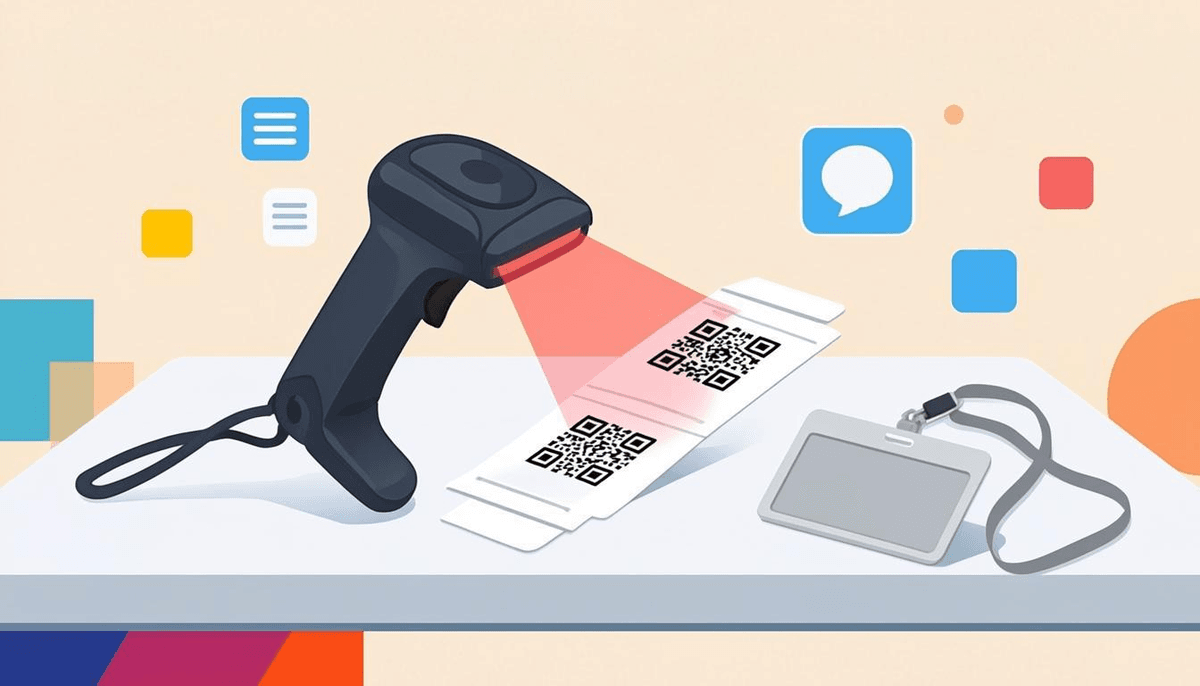
How QR Codes Speed Up Check-In: The Math
Let me show you exactly how much time QR codes save, with real numbers for different event sizes.
Manual Check-In Times
With a printed guest list, each check-in takes about 45 seconds on average. The staff person finds the name (some alphabetized lists help, but people arrive out of order), crosses it off, and hands over materials. Add time for name spelling confusion, line management, and small talk.
QR Code Check-In Times
With QR codes, each check-in takes about 3 seconds. The staff person points the scanner at the code. The app confirms entry. The attendee walks in. No searching, no spelling, no confusion.
| Event Size | Manual Check-In | QR Code Check-In | Time Saved |
|---|---|---|---|
| 50 guests | 37 minutes | 2.5 minutes | 34 minutes |
| 200 guests | 2.5 hours | 10 minutes | 2 hours 20 minutes |
| 500 guests | 6.25 hours | 25 minutes | 6 hours |
| 1,000 guests | 12.5 hours | 50 minutes | 11 hours 40 minutes |
| 5,000 guests | 62.5 hours | 4 hours 10 minutes | 58+ hours |
Look at that 1,000-guest event. Manual check-in would take over 12 hours — that is not even possible in a single day. With QR codes, you process everyone in under an hour. And that is with a single scanning station. Add more stations and it gets even faster.
QR Codes for RSVP: Setting Up on Invitations
QR codes are not just for the day of the event. They work before the event too. You can add a QR code to your invitations that lets guests RSVP instantly.
Here is how it works. You create a QR code that links to your RSVP form — a simple Google Form, Typeform, or any online form. You put that QR code on your printed or digital invitation. When a guest receives the invitation, they scan the code with their phone. The form opens right there. They fill it out and submit. The whole process takes under a minute.
This works beautifully for:
- Wedding invitations: Guests scan the code on the invite to RSVP. No need to mail back a response card.
- Corporate event invitations: Send a digital invite with a QR code. Track responses in real time.
- Party invitations: Put the QR code on a physical or digital invite. Guests respond instantly.
For the RSVP QR code, use a static QR code from QREndlessPro that links directly to your form. It is free, it never expires, and it works perfectly for this purpose.
QR Codes for On-Site Registration and Walk-Ins
Not everyone registers in advance. Some people show up at the door. QR codes handle walk-ins too.
Place a QR code on a sign at the registration desk. The code links to a quick registration form. Walk-ins scan it, fill out their name and info, and submit. They instantly receive their event QR code on their phone. Then they walk over to the check-in line and get scanned in.
This approach has several advantages:
- No paper forms to hand out and collect. Everything is digital.
- Data goes straight into your system. No manual data entry later.
- The walk-in gets their ticket instantly. No waiting for someone to create a badge by hand.
- You capture walk-in data for your records. Know exactly who attended, not just who pre-registered.
QR Codes for Different Event Types
Different events have different needs. Here is how QR codes work for each type.
Conferences
Conferences often have hundreds or thousands of attendees, multiple sessions, and multi-day schedules. QR codes shine here. Each attendee gets one master QR code on their badge. That code works for general check-in and can be scanned at individual session rooms for session tracking. You know which sessions were most popular and which speakers drew the biggest crowds.
Weddings
For weddings, QR codes simplify RSVP collection and day-of coordination. Put a QR code on the invitation for RSVP. At the reception, use QR codes for seating assignments — guests scan a code at the entrance to find their table number. Some couples even use QR codes for their guest book, linking to a page where guests leave messages.
Trade Shows
Trade shows have high volumes of attendees and often require lead retrieval for exhibitors. Attendees wear QR code badges. Exhibitors scan the badges to capture contact information for follow-up. This replaces the old business-card-in-a-fishbowl approach with instant, digital lead capture.
Concerts and Festivals
Large-scale events need fast, high-volume check-in. Multiple scanning stations with QR codes handle thousands of entries per hour. Each ticket has a unique QR code. Scanners verify the ticket and flag duplicates. For festivals with multiple stages or days, different QR codes can grant access to different areas or days.
Workshops and Classes
Smaller events benefit from QR codes too. Use QR codes to track attendance at each session. This is especially useful for events where attendance counts matter — training sessions for professional credits, for example. A quick scan records who was present.
Corporate Meetings
Internal company meetings often skip formal check-in. But for large all-hands meetings or off-site events, QR codes make it easy to track who attended. Send the QR code in the calendar invite. Scan at the door. Now HR or event planning has an accurate headcount without taking roll call.
Contactless Check-In and Why It Matters
Contactless check-in means attendees do not need to hand anything to staff. They hold up their phone with the QR code. Staff scans it from a distance. No physical exchange of paper, no touching shared surfaces.
This matters for several reasons:
- Health and hygiene: After the pandemic, many venues and attendees prefer contactless processes. QR codes make this easy.
- Speed: No passing items back and forth means each check-in is even faster.
- Attendee comfort: Some people prefer not to hand their phone to a stranger. With contactless scanning, they never have to let go of their device.
- Reduced touchpoints for staff: Staff handle fewer physical items, which reduces their contact with potentially contaminated surfaces.
How to Create Event QR Codes: Step by Step
Ready to set this up? Here is the exact process using QREndlessPro's free tools.
For a Small Event (Under 50 Attendees)
- Go to QREndlessPro's QR code generator. This creates one QR code at a time. It is free, runs in your browser, and your data stays private.
- Choose the "Text" or "URL" data type. For simple event check-in, enter each attendee's ticket information. A good format is:
TicketID-AttendeeName-TicketType— for example:EV001-JaneSmith-VIP. - Generate and download the QR code. Save it as PNG. Repeat for each attendee.
- Send each QR code to the right person. Email the image with a note: "Show this QR code at the entrance for fast check-in."
For a Larger Event (50+ Attendees)
- Prepare your attendee list. Create a spreadsheet with columns for: Ticket ID, Name, Email, Ticket Type. Each row is one attendee.
- Go to QREndlessPro's bulk QR code generator. Upload your attendee list. The tool generates a unique QR code for every person in one batch. It all runs in your browser — your guest data never goes to any server.
- Download all the QR codes. You get a ZIP file with individual QR code images, plus a combined spreadsheet that maps each code to its attendee.
- Send tickets to attendees. Email each person their QR code. You can use mail merge to automate this. Include clear instructions: "Show this QR code at the entrance."
Customizing Your Event QR Codes
Want your QR codes to look professional? Use QREndlessPro's QR code customizer to add your event logo, change colors to match your branding, or adjust the design. Custom QR codes look better on tickets and make your event feel more polished. Just make sure the customization does not reduce scanability — test the final design before you send it out.
How to Set Up Scanning at the Door
Creating the QR codes is only half the job. You also need a smooth scanning setup at the entrance. Here is how to do it right.
Equipment You Need
- A phone or tablet with a camera — any smartphone or tablet works. iPads are popular because of their larger screen, which makes it easy for staff to see confirmation messages.
- A scanning app — use QREndlessPro's free QR code scanner. It works in the browser, so there is nothing to install. Just open the page and start scanning.
- A stable internet connection — needed if you are validating tickets against a live database. If you are using a pre-downloaded guest list, internet is optional.
- A portable charger — scanning all day drains batteries fast. Keep chargers or power banks at each station.
- A backup device — always have a spare phone or tablet ready in case the primary device has issues.
Staff Training
Train your scanning staff for 5 minutes before doors open. Cover these points:
- How to open the scanner app and point the camera at the QR code.
- What a successful scan looks like (green confirmation, attendee name displayed).
- What a failed scan looks like (red alert, "already checked in" or "not found").
- What to do when a scan fails (ask for ID, check the printed backup list).
- How to handle special cases (VIP entry, accessibility needs, last-minute registrations).
Workflow at the Door
- Attendee approaches and holds up their QR code on their phone or printed ticket.
- Staff scans the code. The app reads it instantly.
- App shows result. Green for valid, red for invalid or duplicate.
- Valid entry: Staff says "Welcome" and directs the attendee inside.
- Invalid entry: Staff asks for the person's name, checks the backup guest list, and resolves the issue.
Real-Time Attendance Tracking and Dashboard
One of the biggest advantages of QR code check-in is real-time data. As each person scans in, your system updates immediately. You can see:
- Total check-ins — how many people have arrived so far.
- Expected arrivals — how many registered guests have not checked in yet.
- Check-in rate — how fast people are entering (useful for deciding whether to open more doors).
- No-show count — who registered but did not attend (this helps with future event planning).
- Arrival time distribution — when most people arrived, which helps you plan staffing for future events.
For a simple setup, a shared Google Sheet works great. Each scan adds a row with the ticket ID, name, and check-in time. Multiple scanning stations all write to the same sheet, so you get a live view. For larger events, dedicated event platforms offer more sophisticated dashboards with charts and analytics.
Multi-Day and Multi-Session Events with QR Codes
Events that span multiple days or have multiple sessions need a more thoughtful approach. Here are two strategies.
Strategy 1: One Code Per Day
Give each attendee a different QR code for each day of the event. Day 1 code, Day 2 code, Day 3 code. This makes it easy to track who came on which day. The downside is that attendees need to manage multiple codes.
Strategy 2: One Master Code, Database-Driven
Give each attendee a single QR code that works for all days. Your scanning app checks the code against a database and records which day and session the person is checking into. This is simpler for attendees (one code to keep track of) but requires a more sophisticated scanning system with a database backend.
For session tracking within a day, put a QR code on the door of each session room. Staff scan each attendee's badge as they enter. Now you know exactly which sessions each person attended and which sessions were most popular.
Security Considerations for Event QR Codes
QR code check-in is simple, but you need to think about security to prevent problems at your event.
Duplicate Tickets
The most common concern is: what if someone copies a QR code and two people try to use it? Your scanning app should flag duplicate scans. The first scan shows "Checked in." The second scan of the same code shows "Already used" with a red alert. This prevents one ticket from being used twice.
Screenshot Sharing
Some people take a screenshot of their QR code ticket and send it to a friend. Now two people have the same code. This is the same as the duplicate ticket problem. Your scanning app solves it the same way — the first scan wins. The second person with the same code gets turned away.
To make screenshot sharing harder, you can use dynamic QR codes that change periodically (refreshing every 30 seconds, for example). This way, a screenshot is only valid for a brief window. However, this adds complexity and requires a dedicated app.
Ticket Transfer Prevention
If your event is non-transferable (like a conference with personalized badges), you want to prevent ticket transfers. The QR code should include the attendee's name, and staff should verify the name against an ID at the door. This adds a few seconds per check-in but ensures tickets are used by the right person.
For events where transfers are fine (general admission concerts, for example), you do not need this step. The QR code just needs to be valid and not previously used.
Offline Check-In: Does It Work Without Internet?
This is one of the most common questions, especially for outdoor events, remote venues, and places with unreliable Wi-Fi. The answer depends on your setup.
Offline with Static QR Codes
If your QR codes are static and your scanner has a pre-downloaded guest list, you can check people in completely offline. The scanner reads the QR code, matches it against the local guest list, and confirms entry. No internet needed at any point.
Here is how to set this up:
- Before the event, download your guest list to the scanning device.
- Use a scanning app that can check codes against a local list.
- During the event, each scan validates against the local list and marks the person as checked in.
- After the event (when internet is available), sync the check-in data to your main database.
Offline with Dynamic QR Codes
Dynamic QR codes need to connect to a server to find the destination. Without internet, the scan fails. If you are using dynamic QR codes, you need a reliable internet connection at your venue. Consider bringing a mobile hotspot as backup.
Recommendation
For events where internet might be unreliable, use static QR codes and a pre-downloaded guest list. It is the safest approach. You can create static QR codes for free at QREndlessPro's QR code generator.
Common Mistakes and How to Avoid Them
Even with a simple system, things can go wrong. Here are the most common mistakes people make with QR code event check-in, and how to avoid every one of them.
Mistake 1: QR Codes Too Small
People try to fit QR codes into tiny spaces on tickets. Small QR codes are hard to scan, especially in dim lighting. The minimum size for a reliably scannable QR code is 2 cm by 2 cm (about 0.8 inches). For phone screens, 3 cm by 3 cm is better. Bigger codes scan faster and from farther away. Always err on the side of larger.
Mistake 2: Low Contrast Between Code and Background
A light gray QR code on a white background looks elegant but scans poorly. A dark code on a dark background is even worse. The best contrast is black on white. If you want colored QR codes, use a dark color on a very light background. Test the contrast by scanning the code in different lighting conditions before you print.
Mistake 3: No Backup Plan
Technology fails. Batteries die. Internet drops. Devices crash. If your only check-in method is QR code scanning and it stops working, you have a big problem. Always have a printed guest list as backup. Train staff on how to do manual check-in. It takes 5 minutes to prepare and can save your event.
Mistake 4: Only One Scanner for a Large Event
For events over 100 people, a single scanning station creates a bottleneck. Even at 3 seconds per scan, 300 people take 15 minutes — and that assumes a perfectly steady flow. In reality, people arrive in clusters. Use at least two scanning stations for events of 100-300 people, and add more for larger events. A good rule of thumb: one scanner per 150 expected guests.
Mistake 5: Not Testing Before the Event
This is the most preventable mistake. Test your entire check-in system before the event. Create a few test QR codes. Scan them with the actual devices and app you will use. Test on both iPhone and Android. Test in the actual venue if possible. Fix any issues before the doors open. A 15-minute test can prevent hours of problems.
Mistake 6: Complicated Data in the QR Code
The more data you put in a QR code, the denser the pattern becomes. Dense patterns are harder to scan. Keep the data short and simple. Use a compact format like ID-Name-Type instead of a full JSON object with lots of fields. If you need more data, store it in your database and use the QR code as a lookup key.
Mistake 7: Forgetting to Account for Screen Brightness
When attendees show QR codes on their phones, screen brightness matters. A QR code on a phone at 30% brightness in bright sunlight is very hard to scan. Train your check-in staff to ask attendees to turn up their brightness. Some events include this tip in the pre-event email: "Please turn your screen brightness up before arriving."
Cost Comparison: QR Code Check-In vs Traditional Methods
Let us compare the costs of different check-in methods for a 500-person event.
| Method | Setup Cost | Per-Event Cost | Time for 500 Guests | Accuracy |
|---|---|---|---|---|
| Printed guest list (manual) | $0 | $20 (printing) | 6+ hours | Low (human error) |
| QR codes with free scanner | $0 | $0 | 25 minutes | High |
| Dedicated event platform | $0-$200 | $50-$500 | 15-25 minutes | High |
| RFID badges | $500+ | $1,000+ | 10-15 minutes | High |
| Biometric check-in | $2,000+ | $2,000+ | 15-20 minutes | Very high |
QR code check-in with a free scanner gives you the best combination of low cost, high speed, and high accuracy. It outperforms manual check-in by a huge margin on speed and accuracy, and it costs a fraction of what RFID or biometric systems cost. For most events, QR codes are the sweet spot.
Choosing the Right QR Setup for Your Event
Not every event needs the same setup. Use this table to find the right approach for your event type.
| Event Type | Best QR Approach | Why |
|---|---|---|
| Small meeting (under 30) | Simple QR scan or manual | Lines are short, simple is fine |
| Conference (100-500) | QR codes with scanning app, multiple stations | Fast entry, session tracking, attendance data |
| Large event (500+) | QR codes with 3+ scan stations, real-time dashboard | Prevents bottlenecks, live monitoring |
| Wedding | QR RSVP on invite, simple scan at reception | Easy RSVP tracking, fast seating |
| Trade show | QR badges with lead retrieval for exhibitors | Captures contact info, tracks booth visits |
| Concert or festival | High-volume QR scanning, duplicate prevention | Thousands of entries per hour, ticket validation |
| Workshop | QR codes per session for attendance tracking | Accurate attendance for credits and records |
Action Steps: Set Up QR Codes for Your Event Now
Here is your checklist. Follow these steps to get your event ready.
- Create your QR codes. For small events, use QREndlessPro's QR code generator. For larger events, use QREndlessPro's bulk QR generator. Both are free and run entirely in your browser.
- Send tickets to attendees. Email each person their QR code with clear instructions: "Show this code at the entrance for fast check-in." Consider adding a note about screen brightness.
- Set up your scanner. Open QREndlessPro's QR scanner on the device your staff will use. Bookmark it for quick access on event day.
- Test everything. Create a test QR code. Scan it with the actual device and app you will use. Test on both iPhone and Android. Test in the venue if possible.
- Prepare a backup. Print a guest list and keep it at the door. Have a spare device with the scanner app loaded. Bring chargers and a mobile hotspot.
- Train your staff. Spend 5 minutes before doors open walking through the scanning process, what success and failure look like, and how to handle problems.
- Set up tracking. If you want real-time attendance data, set up a shared spreadsheet or dashboard that each scanning station writes to.
FAQ
How do QR codes work for event check-in?
Each attendee receives a unique QR code as their ticket. At the entrance, staff scan the code with a phone or tablet. The scanning app verifies the ticket against the guest list and records the check-in. The whole process takes under 3 seconds per person.
Can I use QR codes for event RSVP?
Yes. Add a QR code to your invitation that links to your RSVP form. When guests scan it, the form opens on their phone. They fill it out and submit. You can track responses in real time and know exactly who is coming.
Do QR codes work without internet at events?
Static QR codes work without internet because all data is stored in the code pattern itself. If your scanner has a pre-downloaded guest list, you can check people in completely offline. Dynamic QR codes need internet because they must connect to a server to validate tickets.
Are QR codes free to use for events?
Yes. Creating and scanning static QR codes is completely free. Use QREndlessPro's free QR code generator to create codes and QREndlessPro's free QR scanner to read them. No sign-up required, no per-scan charges.
How many times can a QR code be scanned?
A QR code pattern has no scan limit. It can be scanned thousands of times. For event check-in, your scanning app should flag duplicate scans so each ticket is used only once. The first scan shows "Checked in," and any subsequent scan of the same code shows "Already used."
What information should I put in an event QR code?
Keep it simple. Include a unique ticket ID, the attendee's name, and the ticket type. A format like EV001-JaneSmith-VIP works well. Short data makes a QR code with a simpler pattern that scans faster and more reliably.
What if my scanner stops working at the event?
Always have a backup plan. Keep a printed guest list at the door. Have a second device ready with the scanner app bookmarked. Most issues come from dead batteries or lost internet — keep chargers and a mobile hotspot handy. Train staff on manual check-in as a fallback.
Can I use QR codes for multi-day events?
Yes. You can give each attendee a different QR code for each day, or use one master QR code that your scanning app checks against a daily attendance list. Either way, you can track who came on which day and which sessions they attended.
How big should a QR code be on an event ticket?
At least 2 cm by 2 cm (0.8 inches by 0.8 inches). Larger codes scan faster and from farther away. For tickets shown on phone screens, 3 cm by 3 cm is even better. Always test the size with your actual scanner before the event.
How do I prevent duplicate ticket use?
Your scanning app should track which QR codes have already been scanned. The first scan of a code shows a green confirmation. The second scan of the same code shows a red "Already used" alert. This prevents one ticket from being used by two people.
Can QR codes be used for lead retrieval at trade shows?
Yes. Attendees wear QR code badges containing their contact information. Exhibitors scan the badges using a scanning app to capture the contact data instantly. This replaces collecting business cards and manually entering data later. It is faster and more accurate.