Stop Sharing Your WiFi Password the Hard Way
Every single day, people walk into cafes, hotels, offices, and homes and ask the same question: "What is the WiFi password?" Then someone has to find the password, say it out loud, or write it on a piece of paper. The guest types it in, makes a mistake, asks again. It happens countless times a day around the world — and it wastes time for everyone.
A WiFi QR code solves this problem. Instead of typing a password, your guest simply points their phone camera at a QR code and taps once. That is it. They are connected in about 2 seconds — no typing, no risk of typos, no asking anyone for help.
In this guide, you will learn exactly how WiFi QR codes work, how to make one for free in under 30 seconds, where to put it for the best results, and how to keep your network safe. By the end, you will know everything you need to start using WiFi QR codes at your business or home today.
Try it now: Create your free WiFi QR code at the QREndlessPro QR Code Generator — pick "WiFi" as the type, type in your network name and password, and download. No sign-up, no watermark, and your data stays in your browser.
What Is a WiFi QR Code?
A WiFi QR code is a regular QR code that stores your WiFi network details in a special format that phones understand. When someone scans it with their phone camera, their phone reads the WiFi name and password from the code and connects automatically — the person never has to type anything.
The QR code stores four pieces of information:
- Network name (SSID) — The name of your WiFi network, like "CafeLuna-Guest"
- Security type — WPA/WPA2/WPA3 (most common today), WEP (old networks only), or None (open network with no password)
- Password — Your WiFi password
- Hidden network — Whether your network name is hidden from the WiFi list
All of this goes into one text string that follows this standard format:
WIFI:T:WPA;S:MyNetwork;P:MyPassword;H:true;;
Here is what each part means: T is the security type (WPA), S is the network name, P is the password, and H tells the phone if the network is hidden (H:true for hidden networks, omit for visible networks). Because this format is an official standard set by the Wi-Fi Alliance, most modern phones — iPhone and Android — can read it without any extra app.
How WiFi QR Codes Work — Step by Step
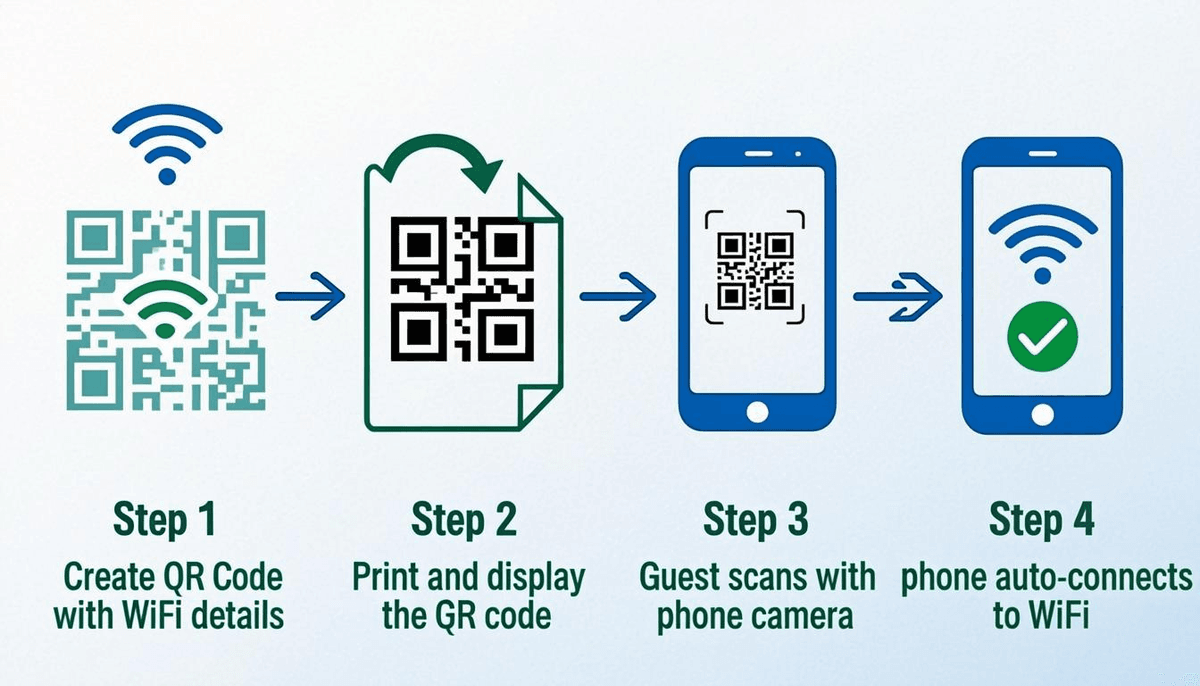
- You create the QR code — Go to a WiFi QR code generator like QREndlessPro, type in your network name, security type, and password. The generator turns these details into a QR code using the standard WiFi format.
- You put the QR code where people can see it — Print it on a table tent, poster, business card, or show it on a screen. Place it wherever guests need to connect.
- Your guest scans it — They open their phone camera and point it at the QR code. No special app needed — iPhones and Android phones both read WiFi QR codes natively.
- The phone reads the network details — The phone reads the WIFI: format string from the QR code and pulls out the network name, security type, and password.
- The phone connects right away — On iPhone, a prompt appears saying "Join WiFi Network?" — one tap and you are in. On Android, the phone may connect right away or show a quick confirmation. Either way, no one typed a password.
The whole thing takes about 2 seconds from scan to connected. Compare that to the 30 to 60 seconds it takes to find the network name, type the password, fix a typo, and try again.
How to Create a WiFi QR Code — Step by Step
You can create a WiFi QR code in under 30 seconds using the free QREndlessPro generator. Here is exactly how to do it, with screenshots of every step:
Step 1: Open the QR Code Generator
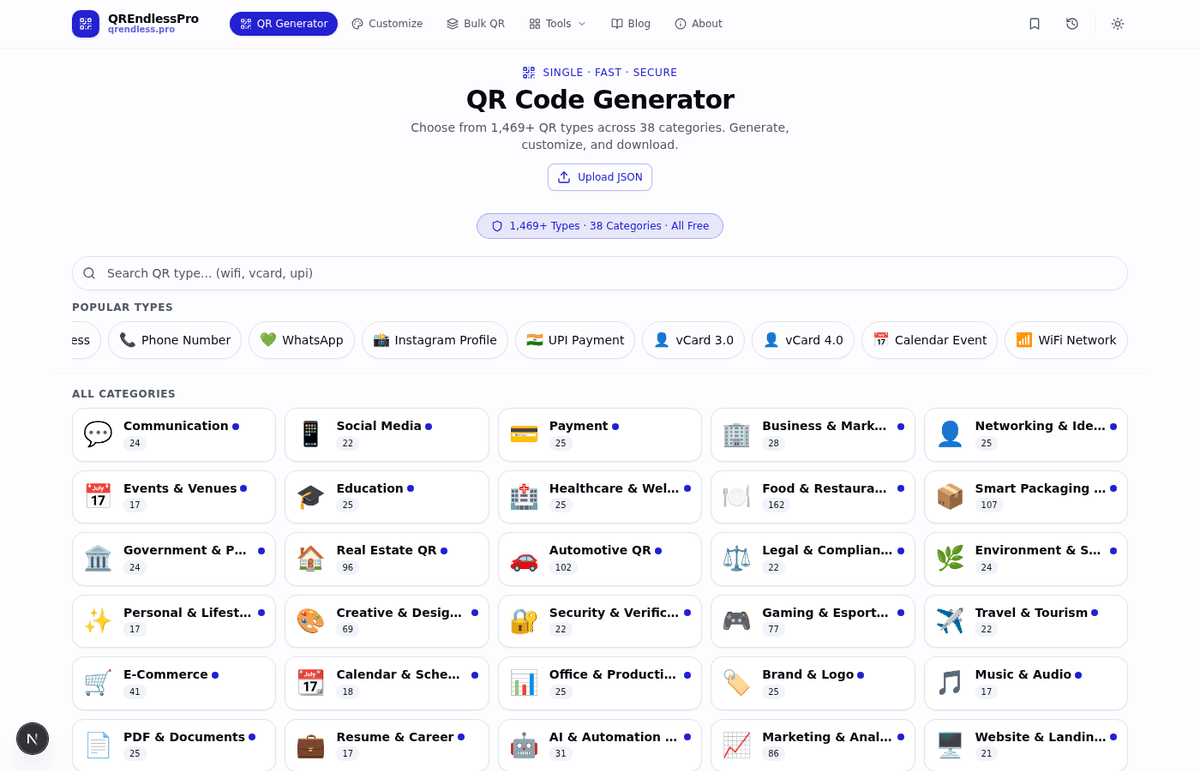
Go to the Free QR Code Generator at QREndlessPro. When the page loads, you will see the main screen with a search bar, a row of Popular Types, and a grid of categories. The tool runs entirely in your browser — your WiFi password is not sent to any server.
Step 2: Select "WiFi Network" as the QR Type
There are two easy ways to find the WiFi option:
- Click "WiFi Network" in the Popular Types row near the top of the page — this is the fastest way.
- Or type "wifi" in the search bar — the WiFi Network type will appear in the results. Click it to select.
Once you click it, the tool switches to the WiFi form where you enter your network details.
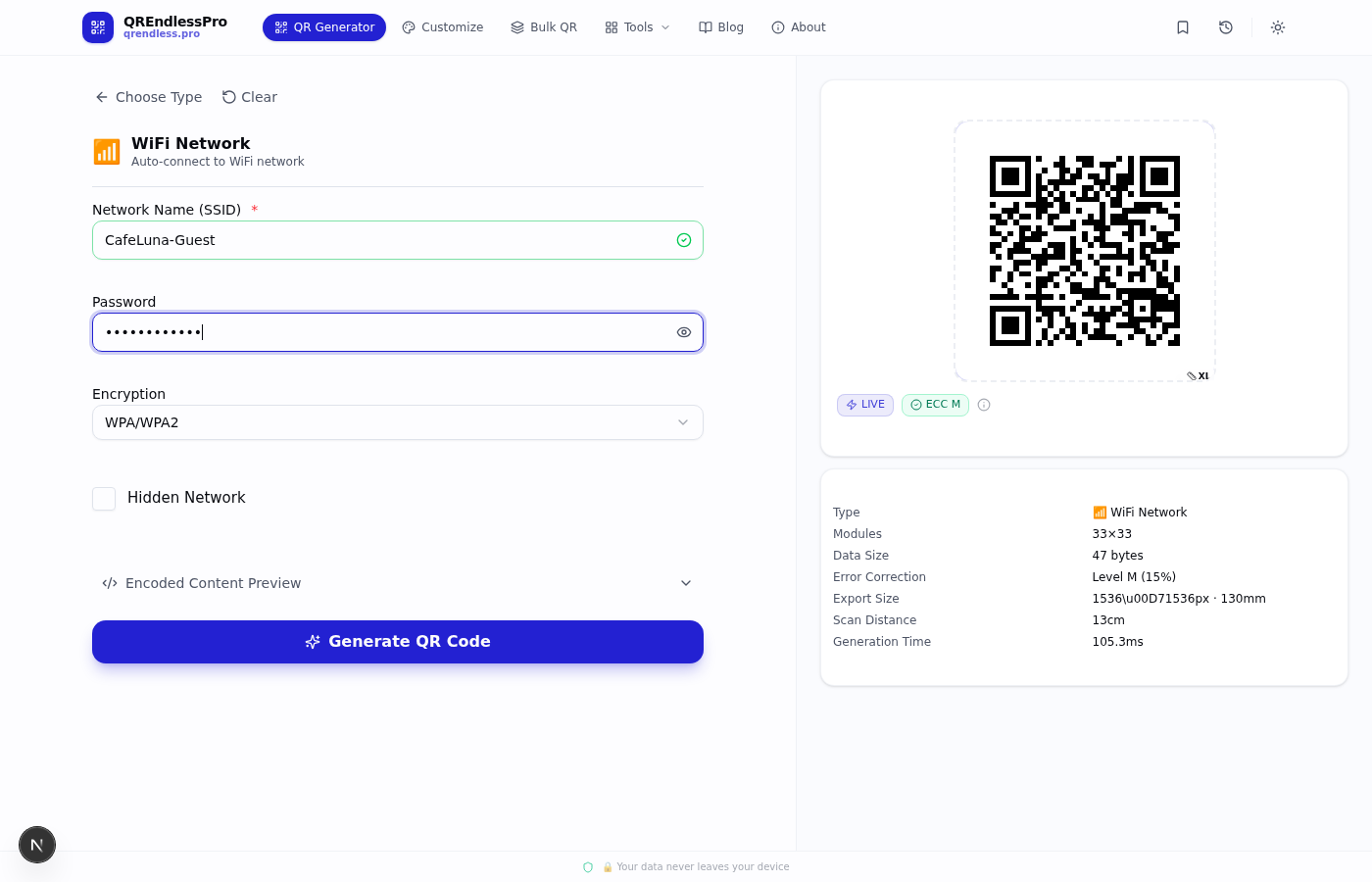
Step 3: Enter Your WiFi Details
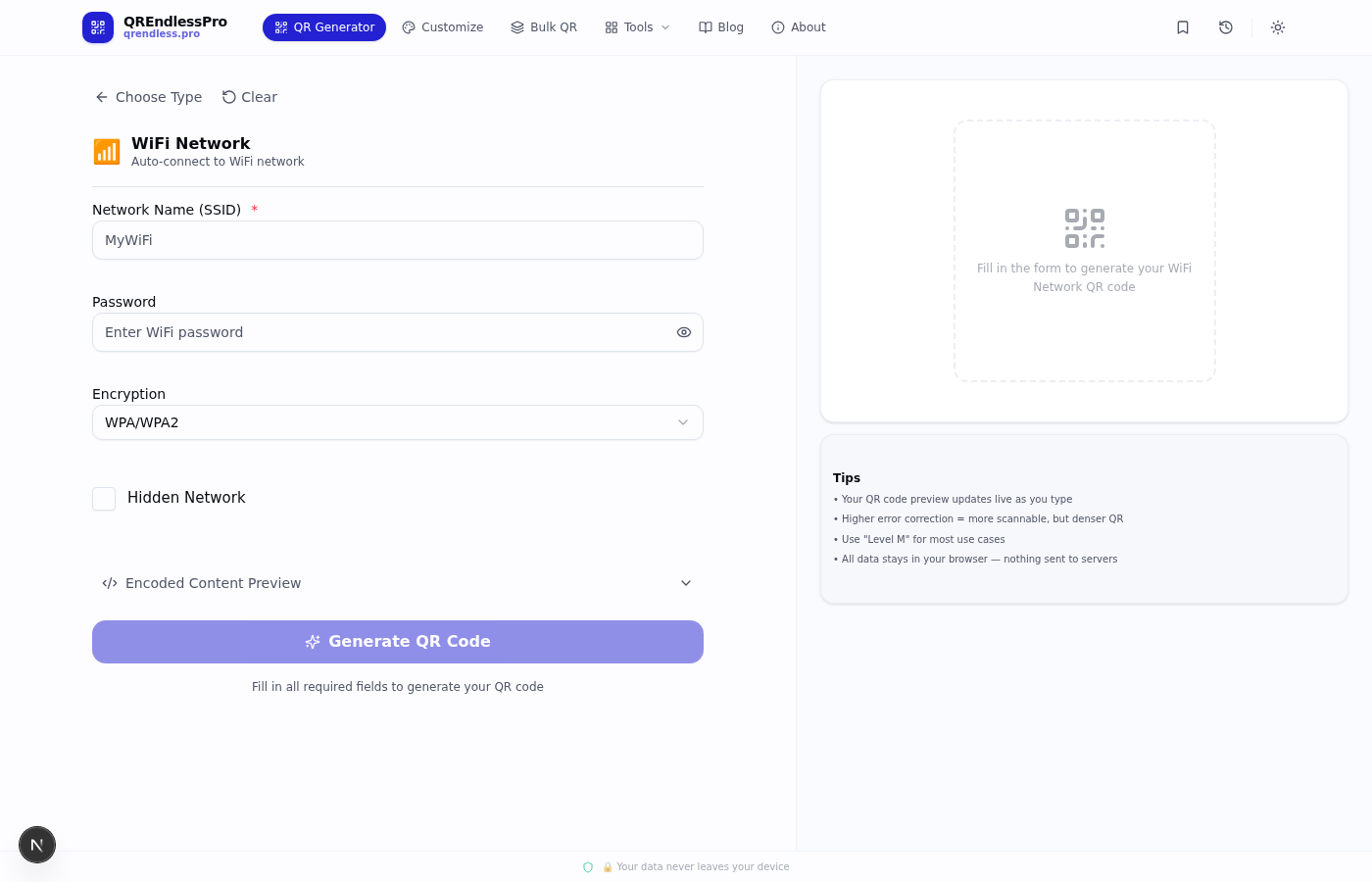
The form has four fields. Here is what to put in each one:
- Network Name (SSID) * — This is the required field. Type your WiFi network name exactly as it appears on your phone's WiFi list. It is case-sensitive — "MyWiFi" and "mywifi" are different networks. A green checkmark appears when the field is valid.
- Password — Type your WiFi password. It will be encoded inside the QR code. Click the eye icon next to the field to show or hide the password as you type.
- Encryption — Click the dropdown (it defaults to "WPA/WPA2"). Pick WPA/WPA2 for most modern routers. Pick WEP only if you have a very old router. Pick None for open networks that have no password.
- Hidden Network — Check this box only if you have intentionally hidden your network name from the WiFi list. Most people leave this unchecked.
Step 4: Click "Generate QR Code"
Once you have filled in your network name (and password if needed), the "Generate QR Code" button at the bottom of the form becomes active. Click it to create your WiFi QR code. The tool generates the QR code in your browser — no server processing required.
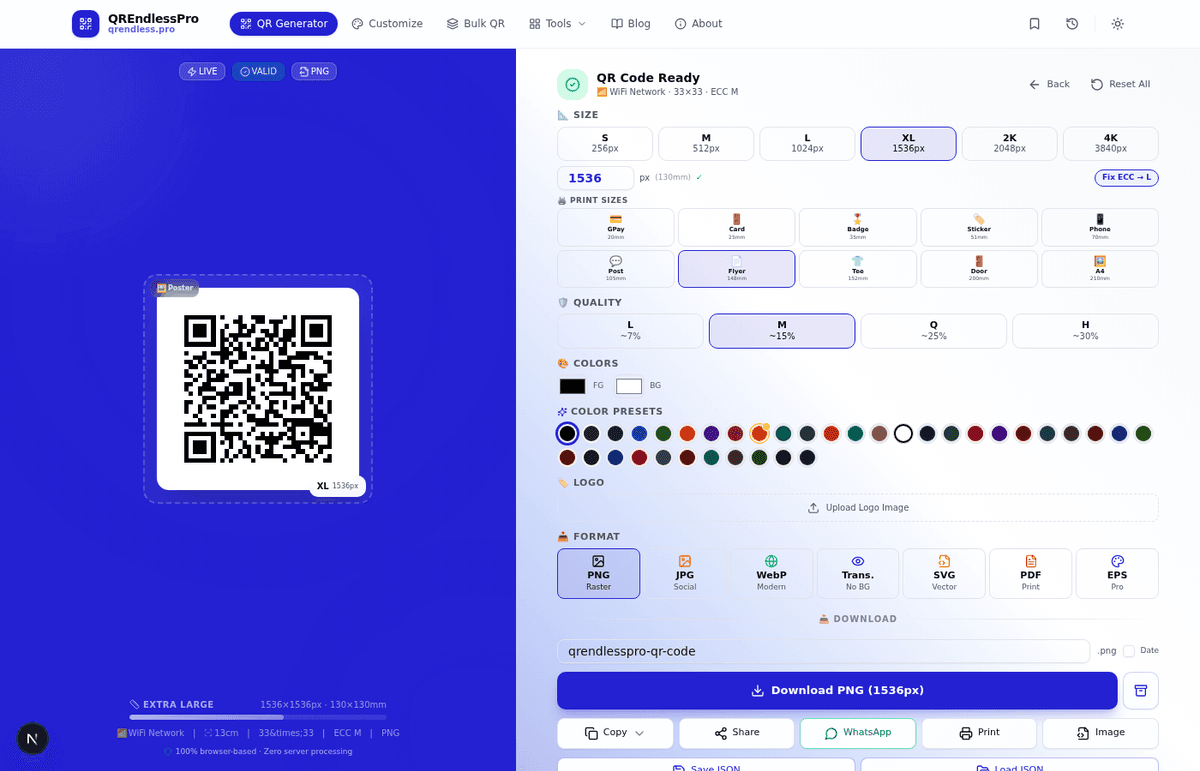
Step 5: Customize the Design (Optional)
Before downloading, you can customize your QR code using the controls on the screen:
- Size — Pick from S (256px) up to 4K (3840px), or choose a print preset like Flyer, Card, Badge, or Sticker.
- Error Correction — Choose M (~15%) for normal use, or H (~30%) if you plan to add a logo or the QR code might get damaged (spills, scratches).
- Colors — Change the foreground (dot color) and background color. Use your brand colors for a professional look.
- Logo — Add your cafe or hotel logo to the center of the QR code. Use error correction level H when adding a logo so the code still scans reliably.
Branded QR codes with a logo tend to get more scans because people recognize them as official and trustworthy. For more design ideas, see our creative QR code designs guide. You can also use the QR Code Customizer for even more design options.
Step 6: Download and Print
Click the format tab you need, then click the Download button:
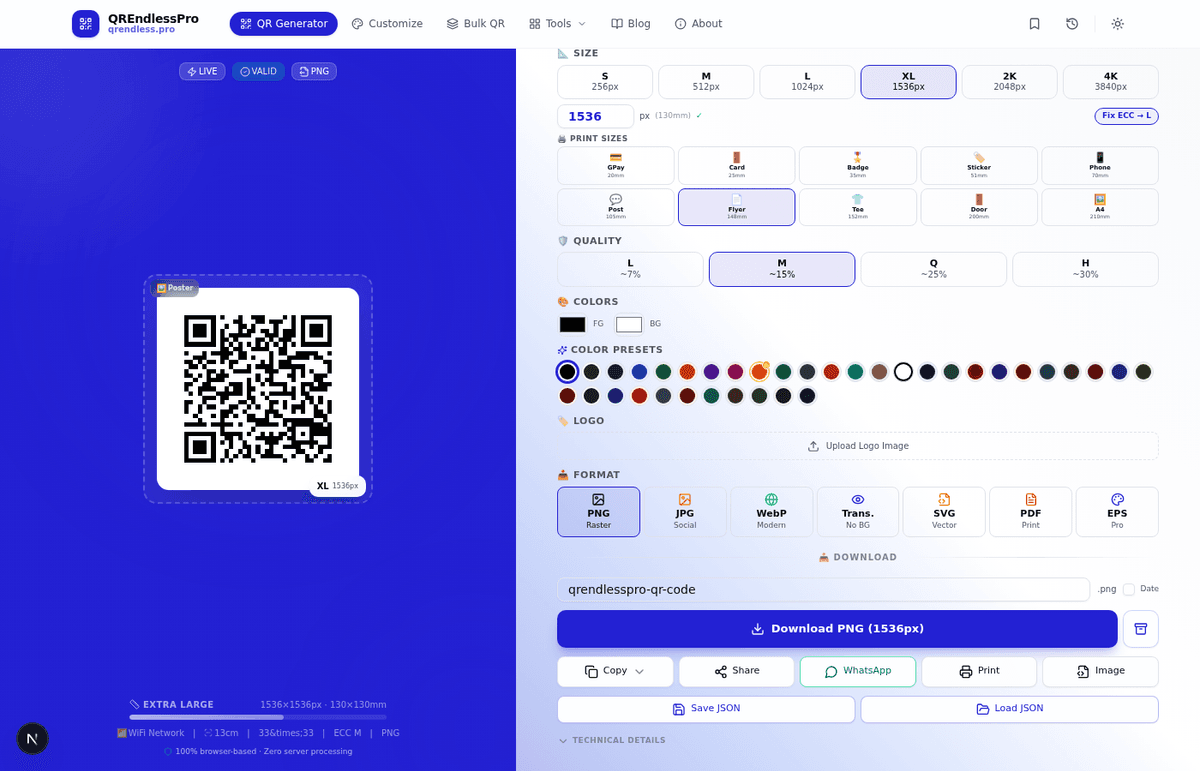
- PNG — Best for digital screens, table tents, and regular printing. Most common choice.
- SVG — Best for large prints like posters and banners. Stays perfectly sharp at any size because it is a vector format.
- PDF — Best for sending to a print shop or including in printed materials.
- EPS — Best for professional graphic design workflows (Adobe Illustrator, etc.).
For table tents and small prints, PNG at high resolution (XL or 2K) works great. For posters or wall displays, use SVG so the QR code stays crisp no matter how big you print it.
Where to Put Your WiFi QR Code — 7 Best Locations
A WiFi QR code only works if people can see it. Here are the 7 best places to put it, based on how real businesses use them:
1. Table Tents at Cafes and Restaurants
This is the most effective spot. Every guest sits down and wants WiFi right away. A table tent with "Scan to Connect" and your WiFi QR code on every table means staff do not have to say the password repeatedly. Result: Staff save 2 to 3 minutes per customer, and customers connect in about 2 seconds instead of waiting to ask.
2. Check-In Desk at Hotels and Coworking Spaces
Put a framed QR code at the front desk. Guests connect while checking in — no printed password slips, no outdated paper sheets. Result: Front desk staff answer one fewer repetitive question per guest, which adds up to hours saved every week at a busy hotel.
3. Conference Room Wall or Screen at Offices
Show the WiFi QR code on the conference room TV or print it on the wall. Visiting clients and partners connect right away without asking IT for help. Result: Meetings start on time instead of starting 5 minutes late because someone is still trying to get on the network.
4. Event Badges and Lanyards
Print the WiFi QR code on the back of event badges or on a lanyard insert. Attendees connect the moment they put on their badge — before they even walk into the venue. Result: Everyone is online from the start, so event apps, live polls, and networking tools all work right away.
5. Business Cards
Add a WiFi QR code to your business card next to your contact info. When someone gets your card, they scan it to join your office guest WiFi — smooth and professional. Result: Your business card does something useful, not just shares information.
6. Welcome Book at Vacation Rentals
If you host on Airbnb or VRBO, put a WiFi QR code in the welcome book on the kitchen counter. Guests connect the moment they arrive without searching for the router or texting you for the password. Result: Way fewer messages from guests asking "what is the WiFi password?" — which is the most common message hosts get.
7. Window Sticker for Retail Stores
Put a WiFi QR code sticker on your store window or door. People walking by can scan it from outside and connect to your guest WiFi before they even come in. Result: Free WiFi becomes a reason for people to choose your store over the one next door.
WiFi QR Code Security — What You Should Know
People often ask about security with WiFi QR codes. Here are straight answers to the most common concerns:
"Can Someone See My WiFi Password in the QR Code?"
Yes — the password is stored as plain text inside the QR code. If someone scans the QR code with a regular QR scanner app (instead of their phone camera), they can read the password. This is how the WiFi QR code standard works — the phone needs to read the password to connect.
But this is the exact same risk as writing your password on a sign, which every cafe, hotel, and office already does. The QR code simply replaces the handwritten password with a scannable one. It does not create a new risk — the password was already visible to anyone in the room.
Best Practice: Use a Separate Guest Network
The right solution is not to avoid WiFi QR codes — it is to use them with a guest network that is separate from your main network. Almost all modern routers support this:
- Guest network — Isolated from your main network. Guests can get online but cannot reach your printers, shared files, or smart home devices. Put the WiFi QR code for this network where guests can see it.
- Main network — Keep this password private for staff and your own devices. Do not put a QR code for this network in public areas.
This is standard practice at hotels, cafes, and offices everywhere. The QR code goes on the guest network, and your main network stays safe.
"Can Someone Replace My QR Code With a Fake One?"
It is possible for someone to create a QR code with the same network name but a different password, then stick it over your real one (this is sometimes called "quishing" — QR code phishing). Here is how to prevent it:
- Use frames or stickers that show visible damage if someone peels them off
- Check your QR code regularly to make sure it still connects to the right network
- Use WPA3 if your router supports it — it is more resistant to password guessing attacks
For a deeper look at QR code security, read our QR code security guide.
"Should I Use a Client-Side Generator for Privacy?"
Yes — this matters more than most people think. Many free QR code generators work by sending your data to their server, which creates the QR code image and sends it back. That means their server receives your WiFi network name and password. You have no way to know if they store it, log it, or share it with anyone.
The QREndlessPro QR Code Generator works differently — it runs entirely in your browser. Your WiFi details are encoded into the QR code using JavaScript right on your device. No data is ever sent to any server. No one else ever sees your network name or password. This is the safest way to make a WiFi QR code.
WiFi QR Codes vs. Other Ways to Share WiFi
How do WiFi QR codes compare to other methods of sharing WiFi access?
| Method | Time | Mistakes? | Works for Many Guests? | Privacy |
|---|---|---|---|---|
| Type password manually | 30-60 sec | Yes — typos are common | No — each guest asks staff | Password said out loud |
| Printed password sheet | 15-30 sec | Yes — hard to read | Limited — sheets get lost | Visible to everyone nearby |
| WiFi QR code | 1-2 sec | No — scan and connect | Yes — one code for unlimited guests | Same as printed password |
| WiFi Easy Connect (DPP) | 2-3 sec | No | Very limited — ~32 certified devices | Best — uses public keys, no password |
| WPS button | 5-10 sec | No | No — need physical access | Weak — easy to misuse |
WiFi QR codes give you the best mix of speed, reliability, and compatibility across all phones. WPS is no longer recommended because of known security weaknesses in its PIN-based authentication. WiFi Easy Connect (DPP) is a newer protocol that uses public key cryptography instead of passwords — making it more secure — but adoption is very limited with only about 32 certified devices from 12 vendors as of early 2026. For most businesses and homes today, WiFi QR codes are the most practical choice.
Real-World Use Cases — How Businesses Use WiFi QR Codes
Cafes and Coffee Shops
This is the most common use case. A busy cafe might serve 200 to 400 customers a day. If half of them ask for WiFi, that is 100 to 200 password requests. Each one takes about 30 seconds — that adds up to 1 to 2 hours of staff time per day just giving out the WiFi password. A WiFi QR code on every table eliminates this task.
Tip: Print the QR code on a branded table tent. Put "Scan to Connect" above the code and the network name below it. This makes it self-explanatory — no staff help needed at all.
Hotels and Resorts
Hotels usually print WiFi passwords on key card envelopes or info sheets. These get lost, and the password changes from time to time. With a WiFi QR code, you can:
- Print one framed QR code at the front desk — it works for years
- Show it on the in-room TV welcome screen
- Include it in the pre-arrival email as an image
When the password changes, just make a new QR code in 30 seconds and swap the printout. No need to reprint hundreds of key card envelopes.
Coworking Spaces
Coworking spaces have new members joining every day. A WiFi QR code at the entrance and in every meeting room means new people connect on their first day without any hassle. For events and meetups in the space, the same QR code works for 50 to 200 attendees with zero manual effort.
Offices and Conference Rooms
Visiting clients, contractors, and new employees all need WiFi. Instead of IT getting a help request every time, put a WiFi QR code in the lobby and conference rooms. Many companies that have done this report saving significant IT support time — because "what is the guest WiFi password" is no longer a ticket that needs answering.
Events and Conferences
Events have the highest volume — anywhere from 500 to 50,000 attendees, all needing WiFi in the first few minutes. Print the WiFi QR code on:
- Event badges and lanyards (scanned before people enter the venue)
- Signs at the registration desk
- Posters in each session room
- The event app splash screen
With a WiFi QR code, 1,000 people can connect at the same time with zero manual process. For bulk badge printing with WiFi QR codes, use the Bulk QR Code Generator to create hundreds of identical WiFi QR codes at once.
Vacation Rentals (Airbnb, VRBO)
"What is the WiFi password?" is one of the most common messages Airbnb hosts receive from guests. A WiFi QR code in the welcome book helps solve this. Guests connect when they arrive without texting you. If you change the password between guests, make a new QR code and swap the printout in 30 seconds.
Home Use
Having a party? Family visiting? Instead of saying your long password out loud to every guest, put a WiFi QR code on your fridge or coffee table. Friends and family scan it once and they are connected. It is a small thing that makes hosting easier.
Which Phones Support WiFi QR Codes?
WiFi QR code support is built right into the phone — no app needed:
| Device | Support | How to Scan | Works Since |
|---|---|---|---|
| iPhone (iOS) | ✅ Yes | Open Camera app, point at QR code | iOS 11 (2017) |
| Android | ✅ Yes | Open Camera app or Google Lens | Android 10 (2019) |
| Windows | ⚠️ Partial | Camera app on Windows 11 24H2+ | Windows 11 24H2 (2024) |
| Mac | ⚠️ Partial | Needs a third-party app | — |
| Linux | ⚠️ Partial | Needs nmcli or a third-party tool | — |
Since iOS 11 (2017) and Android 10 (2019) both support WiFi QR codes natively, and these versions are 5+ years old, the vast majority of smartphones in active use today can scan WiFi QR codes — estimated at over 90% of all smartphones worldwide. Desktop computers are the main gap, but desktop users are usually staff who can get the password directly.
Advanced Tips to Get More from Your WiFi QR Code
Use Error Correction Level H for Printed QR Codes
If you are printing WiFi QR codes that people will handle, that might go outside, or that could get smudged, use error correction level H. This lets the QR code survive up to 30% damage and still scan correctly. A coffee spill, a scratch, or sun fading will not stop your guests from connecting. Learn more in our QR code error correction guide.
Add Your Logo Without Breaking the QR Code
You can put a logo in the center of a WiFi QR code if you use error correction level H. The logo covers some of the data, but the extra error correction makes up for it. Use the QR Code Customizer to add your cafe or hotel logo to the center. Always test-scan after adding a logo to make sure it still works.
Show Two Networks Side by Side
Many businesses have two guest networks — 2.4GHz (better range) and 5GHz (faster speed). Create two QR codes and put them side by side: "Standard WiFi (2.4GHz)" and "Fast WiFi (5GHz)". Guests pick the one that works best for their device and location.
Change Passwords Without Reprinting Everything
If you change your WiFi password regularly (good security habit), you do not have to reprint all your table tents. Instead, show the WiFi QR code on a digital screen — a tablet at the front desk, a TV in the lobby, or a digital sign. When you change the password, generate a new QR code and update the screen. Your physical prints can just say "Ask at the front desk for WiFi" as a backup.
Create QR Codes in Bulk for Events
For conferences with hundreds or thousands of attendees, use the Bulk QR Code Generator to create many identical WiFi QR codes at once. Export them as a ZIP of PNGs or a single PDF with multiple codes per page, then print them all at once on badges, lanyards, or table tents.
5 Common Mistakes to Avoid
Mistake 1: Wrong Network Name Capitalization
WiFi network names are case-sensitive. If your network is called "GrandHotel-Guest" but you type "grandhotel-guest" in the generator, the QR code will try to connect to a network that does not exist. Always copy your network name exactly from your router settings.
Mistake 2: Wrong Security Type
If your router uses WPA2 but you pick WEP in the generator, the phone will try to connect the wrong way and fail. Most modern routers use WPA2 or WPA3. Pick the type that matches your router.
Mistake 3: QR Code Too Small
A WiFi QR code on a business card needs to be at least 2cm x 2cm (about 0.8 inches) to scan easily from a normal phone distance. On a table tent, go for at least 3cm x 3cm. On a poster that people scan from 2 meters away, the QR code should be at least 10cm x 10cm. The general rule: scanning distance is about 10 times the QR code width. For more on sizing, see our QR codes explained guide.
Mistake 4: No "Scan to Connect" Label
Not everyone knows that scanning a QR code will connect them to WiFi. Always add a clear instruction above the QR code: "Scan to Connect to WiFi". Adding the network name below helps people confirm they are joining the right network.
Mistake 5: Using a Generator That Sends Your Password to a Server
Many free QR code generators are server-based — they send your data to their server to create the QR code image. When you type your WiFi password, it travels across the internet to their server. You have no way to know if they are storing it. We recommend using a client-side generator like QREndlessPro where your password stays in your browser and is not sent to any server.
How to Share WiFi From Your Phone Without a Generator
You do not always need a QR code generator to share your WiFi. Both iPhone and Android have built-in ways to share WiFi using QR codes directly from your phone settings:
Share WiFi From iPhone
iOS does not let you create a WiFi QR code directly, but you can share your WiFi password with another Apple device nearby:
- Make sure both iPhones are signed into iCloud and have each other in their contacts.
- Connect your iPhone to the WiFi network.
- Have the other person tap the WiFi network name on their iPhone.
- Your iPhone will show a "Share Password" prompt — tap Share and their phone connects right away.
Limitation: This only works between Apple devices. For Android guests or non-Apple users, you need a WiFi QR code created with a generator like QREndlessPro.
Share WiFi From Android (Built-In QR Code)
Android 10 and later can generate a WiFi QR code right from your phone settings:
- Open Settings → Network and Internet (or Connections) → WiFi.
- Tap the gear icon next to your connected network.
- Tap Share — you may need to verify with your fingerprint, face, or PIN.
- A QR code appears on screen. Another phone can scan it to connect.
When to use a generator instead: The Android sharing QR code disappears when you close the screen — you cannot print it or save it. For a permanent QR code that you can print and display, use the QREndlessPro WiFi QR Code Generator to create a downloadable version.
How to Set Up a Guest Network on Your Router
If you are going to use a WiFi QR code for guests, you should put it on a separate guest network. Here is how to set one up on the most common router brands:
- Log in to your router — Open a web browser and go to your router's admin page (usually 192.168.1.1 or 192.168.0.1). Enter your admin username and password.
- Find the Guest Network setting — Look for a section called "Guest Network", "Guest WiFi", "Visitor Network", or similar. It is usually under Wireless settings.
- Enable the guest network — Turn it on, set a network name (like "MyBusiness-Guest"), and set a password.
- Isolate the guest network — Make sure "Allow guests to access my local network" is turned OFF. This prevents guests from reaching your printers, computers, and smart devices.
- Create the WiFi QR code — Use the QR Code Generator to create a QR code for the guest network. Print it and put it where guests can see it.
Common router admin pages:
- TP-Link: 192.168.0.1 or tplinkwifi.net
- Netgear: 192.168.1.1 or routerlogin.net
- ASUS: 192.168.1.1 or router.asus.com
- Linksys: 192.168.1.1
- Google/Nest: Use the Google Home app
- Eero: Use the Eero app
Most modern routers support guest networks. If your router does not have this feature, consider upgrading — a guest network is essential for securely sharing WiFi with visitors.
Test Your WiFi QR Code Before Printing
Always test your WiFi QR code before you print copies or put it on display. Here is how to make sure it works:
- Scan it with your own phone first — Open your camera app, point it at the QR code on your computer screen, and try to connect. If it works on your screen, it will work when printed.
- Test with both iPhone and Android — Have someone with a different phone type test it. This catches issues like wrong encryption type or special characters in the password that one OS handles differently.
- Check the network name matches — After scanning, check that the network name shown on the phone matches your actual WiFi name exactly. If it shows a different name, the SSID in the QR code is wrong.
- Print a test copy — Print one copy at the size you plan to use. Scan the printed version — printed QR codes can sometimes be too small, blurry, or have low contrast. If it does not scan, increase the print size or use a higher resolution.
- Test from the expected distance — If guests will scan from 2 meters away, test from 2 meters away. If the QR code is on a table tent, test from a seated position.
Quick check: If you used the QREndlessPro generator, look at the "Encoded Content Preview" section below the form before generating. It shows the exact WIFI: string that will be encoded. Verify the SSID and encryption type look correct.
WiFi QR Code Not Working? — Troubleshooting Guide
Sometimes a WiFi QR code does not work as expected. Here are the most common problems and how to fix each one:
Problem: Phone says "No network found" or "Unable to join"
Cause: The SSID in the QR code does not match your actual WiFi name.
Fix: Check that you typed the network name exactly right in the generator. WiFi names are case-sensitive and spaces matter. "My WiFi" and "MyWiFi" are different networks. Copy the name directly from your router settings or your phone's WiFi list.
Problem: Phone connects but has no internet
Cause: You connected to the right network, but there is a router or internet issue.
Fix: This is not a QR code problem. Check that your router is online and working. Try connecting manually with the password — if manual connection also has no internet, the issue is with your router or internet service, not the QR code.
Problem: QR code does not scan at all
Cause: The QR code is too small, too blurry, or has low contrast.
Fix: Make the QR code larger. Follow the size guide: business card = 2cm minimum, table tent = 3cm minimum, poster = 10cm minimum. If the print is blurry, use a higher-resolution image (choose XL or 2K size in the generator). Make sure the QR code has dark dots on a light background — avoid light colors on dark backgrounds.
Problem: iPhone shows QR code notification but does not join WiFi
Cause: iOS requires you to tap the notification to join. It does not auto-connect.
Fix: This is normal iPhone behavior. The camera detects the QR code and shows a notification — the user must tap it. This is a security feature, not a bug. Just tap the notification to join.
Problem: Android phone does not recognize the QR code as WiFi
Cause: The QR code format might be wrong, or the phone's camera app does not support WiFi QR codes.
Fix: Make sure you used the WiFi QR code format (WIFI:T:...;S:...;P:...;H:...;;). Some generic QR code generators just encode the WiFi details as plain text instead of using the standard WiFi format. The QREndlessPro generator always uses the correct format. On older Android phones (before Android 10), try using Google Lens instead of the camera app.
Problem: Special characters in WiFi password cause issues
Cause: Some special characters like semicolons (;), backslashes (\), or colons (:) in the password need to be escaped in the QR code format.
Fix: The QREndlessPro generator handles special character escaping automatically. If you are using a different generator or creating the QR code string manually, make sure special characters are properly escaped with backslashes.
Problem: Printed QR code got damaged and will not scan
Cause: Physical damage (spills, tears, scratches, sun fading) has damaged part of the QR code.
Fix: If you used error correction level H (30%), the QR code can survive up to 30% damage and still scan. If the damage is too severe, print a new copy. For future prevention, use error correction level H and consider laminating the QR code or using a protective frame. Learn more in our QR code error correction guide.
Static vs. Dynamic WiFi QR Codes — Which Should You Use?
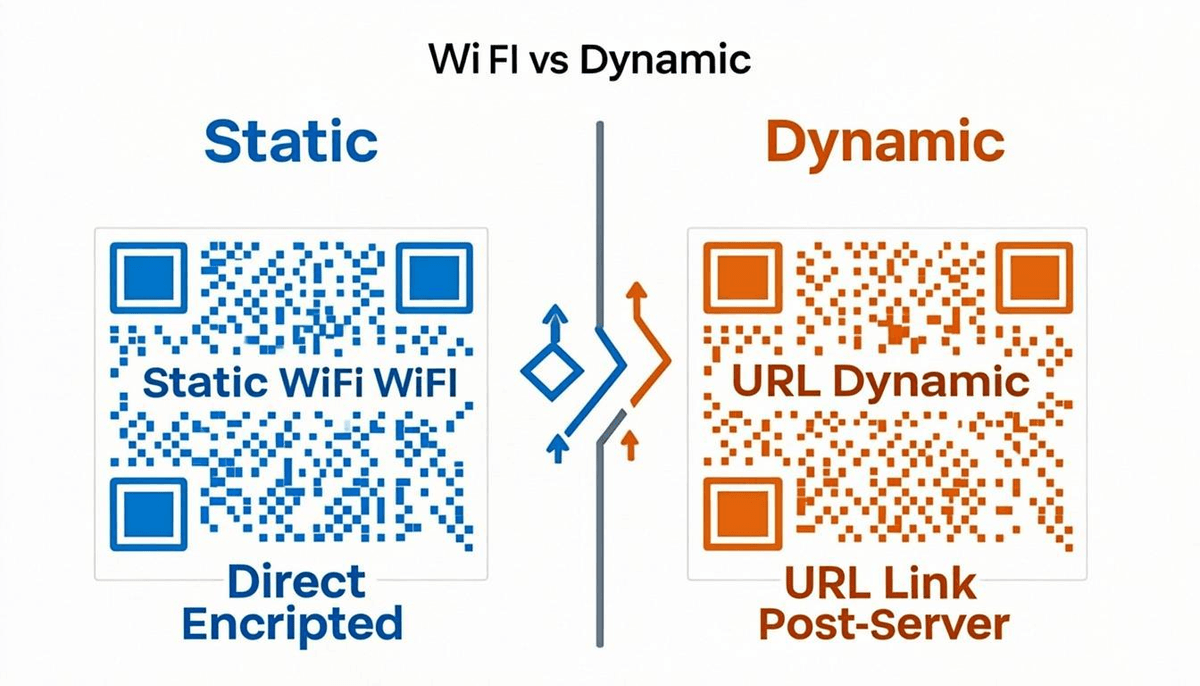
When choosing a WiFi QR code, you have two options: static and dynamic. Understanding the difference is important for getting the right setup for your business.
Static WiFi QR Code
A static WiFi QR code encodes your WiFi details directly into the QR code image. The data is fixed — it never changes unless you generate a brand new QR code.
- How it works: The WIFI:T:WPA;S:...;P:...;; string is embedded permanently in the QR code pattern
- Pros: No subscription needed, works offline, no internet required to scan, strong privacy — no server sees your data
- Cons: If you change your WiFi password, you must generate and reprint a new QR code
- Best for: Home use, small cafes, hotels, offices — places where the WiFi password rarely changes
The QREndlessPro QR Code Generator creates static WiFi QR codes — your data stays in the code, nothing is sent to any server, and the QR code works without any account or subscription.
Dynamic WiFi QR Code
A dynamic WiFi QR code works differently — the QR code contains a short URL that redirects to your current WiFi details. When someone scans it, their phone loads the URL first, gets the WiFi credentials, and then connects.
- How it works: The QR code encodes a short URL (like
https://qr.example/wifi-abc123), which serves your current WiFi details - Pros: Change your WiFi password anytime without reprinting — just update the server record, and the same printed QR code works with the new password; some services offer scan analytics (how many people scanned, when, from what device type)
- Cons: Requires an internet connection to scan (the phone must load the URL first), requires a subscription with a dynamic QR code service, your WiFi password is stored on a third-party server, raises privacy concerns
- Best for: Large businesses that change passwords frequently, event organizers who need scan tracking, marketing teams that want analytics
| Feature | Static QR Code | Dynamic QR Code |
|---|---|---|
| Password change | Must generate and reprint new QR code | Update server — same QR code works |
| Works offline | Yes | No — needs internet to load URL |
| Privacy | Best — data stays in QR code | Password stored on third-party server |
| Cost | Free (no subscription) | Monthly subscription typically required |
| Scan analytics | Not available | Available (scans, time, device type) |
| Scan speed | Instant — data in the code | Slower — must load URL first |
Our recommendation: For most businesses — cafes, hotels, offices, homes — a static WiFi QR code is the best choice. It is free, private, works offline, and connects guests quickly. The only time you need a new QR code is when you change your password, which takes about 30 seconds to generate and print. Use a dynamic QR code only if you change passwords weekly or need scan analytics for marketing purposes.
WPA3 and WiFi QR Codes — What You Need to Know
WPA3 is the latest WiFi security standard, replacing WPA2 as the recommended encryption for new routers. Here is how it affects WiFi QR codes:
WPA2/WPA3 Transition Mode (Most Common)
Most modern routers that support WPA3 use a "transition mode" — they accept both WPA2 and WPA3 connections. For this mode, the WiFi QR code uses the same format as WPA2:
WIFI:T:WPA;S:MyNetwork;P:MyPassword;;
This works because the security type is still listed as T:WPA — the phone connects using WPA2 or WPA3 depending on what it supports. This is the most common setup and works with all modern phones.
WPA3-Only Networks
If your router is configured as WPA3-only (transition mode disabled), you need to add the R:1 flag to the QR code string:
WIFI:T:WPA;S:MyNetwork;P:MyPassword;R:1;;
The R:1 flag tells the phone that "WPA2/WPA3 transition mode is disabled" — meaning the network requires WPA3 and will not accept WPA2 connections. Without this flag, a phone might try to connect using WPA2 and fail on a WPA3-only network.
Important: Support for the R:1 flag is not yet universal. Many QR code generators do not include it, and some phones do not recognize it. If you have a WPA3-only network, test the QR code with both iPhone and Android to make sure it works. If you encounter issues, switch your router to WPA2/WPA3 transition mode instead — this is more compatible and still provides WPA3 security for devices that support it.
Should You Upgrade to WPA3?
If your router supports WPA3, enabling it (in transition mode) is a good security upgrade. WPA3 provides stronger encryption and protection against offline brute-force attacks. But for WiFi QR code compatibility, stick with transition mode (WPA2/WPA3) rather than WPA3-only, at least until phone support for the R:1 flag becomes more widespread.
2.4 GHz vs. 5 GHz vs. 6 GHz — Which Band for Your WiFi QR Code?
Modern routers often broadcast on multiple frequency bands. Here is how to choose which band to put your WiFi QR code on:
| Feature | 2.4 GHz | 5 GHz | 6 GHz (WiFi 6E/7) |
|---|---|---|---|
| Range | Best — penetrates walls well | Good — shorter range than 2.4 GHz | Shortest — needs line of sight |
| Speed | Adequate for browsing, email, social media | Best — faster for streaming, video calls | Best — fastest available |
| Device compatibility | Universal — every device supports it | Most modern devices | WiFi 6E/7 devices only (still limited) |
| Interference | More — crowded band (Bluetooth, microwaves) | Less — more channels available | Least — wide open spectrum |
| Best for WiFi QR | ✅ Recommended default | ✅ Good as secondary option | ⚠️ Too limited for guest use |
Recommendation: Put your WiFi QR code on the 2.4 GHz band as the default. It has the best range and works with every device — guests in every corner of your cafe or hotel can connect. If you also want to offer faster speeds, create a second QR code for 5 GHz and label them clearly: "Standard WiFi (2.4 GHz)" and "Fast WiFi (5 GHz)". Skip 6 GHz for guest QR codes — too few devices support it yet.
Pro tip: Many routers use the same network name (SSID) for both bands with "band steering" — the router automatically connects each device to the best band. If your router does this, you only need one QR code. Check your router settings to see if band steering is enabled.
WiFi QR Code String Format — Technical Specification
For technically-minded readers and developers, here is the complete WiFi QR code string format specification:
WIFI:T:[WPA|WEP|nopass