What Is a vCard QR Code and Why It Matters
Think about the last time you met someone at a networking event. You handed them your business card. They put it in their pocket. And then what? Most likely, that card went into a desk drawer or a rolodex and was never looked at again. Or worse — it went into the trash.
Studies show that 88% of paper business cards are thrown away within a week. That is a staggering waste of time, money, and networking opportunities. The problem is not the card itself — the problem is that the information on the card is hard to use. To actually contact you, the person has to type your name, phone number, and email into their phone manually. Nobody wants to do that.
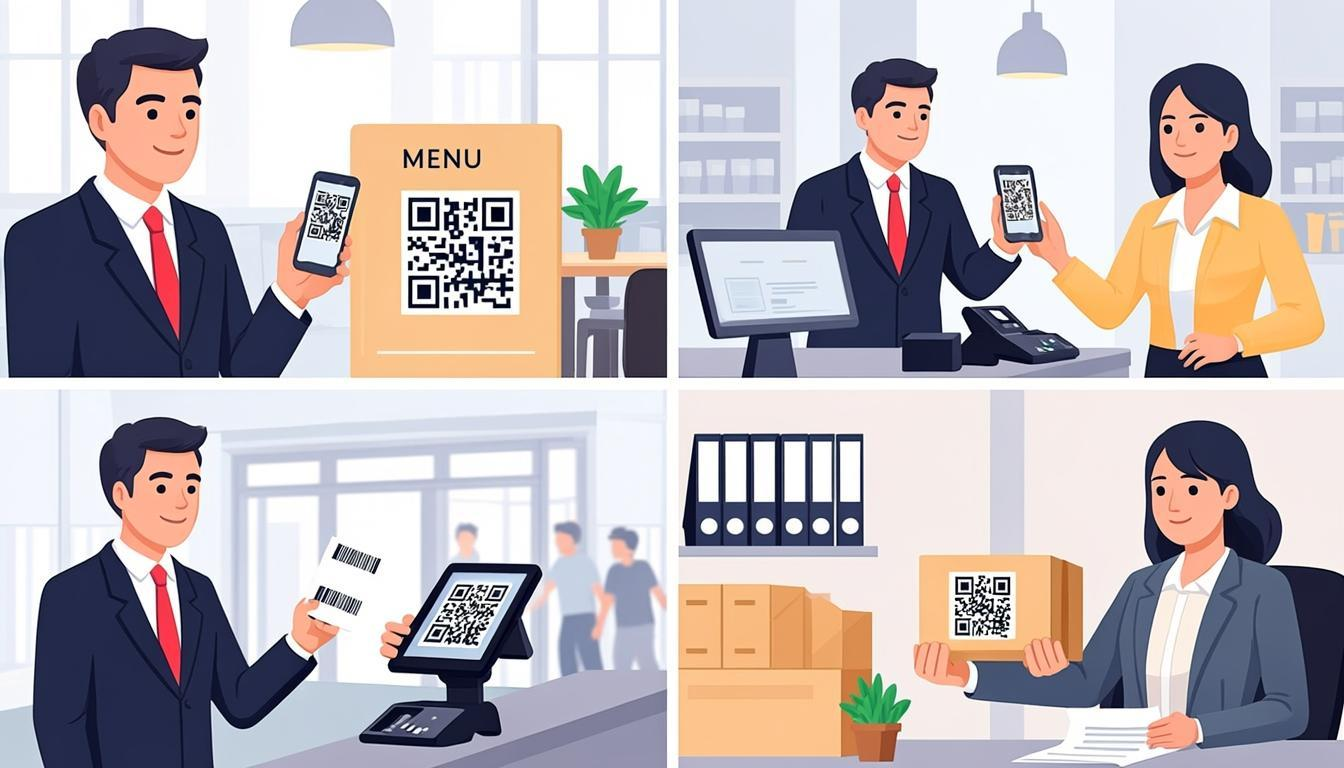
A vCard QR code solves this problem completely. It is a QR code that contains your contact information in a format called vCard (also known as VCF). When someone scans the QR code with their phone, your entire contact profile — name, phone, email, company, job title, website, and even your photo — pops up on their screen with an "Add Contact" button. One tap, and your information is saved in their phone forever.
No typing. No losing the card. No forgetting who you met. The contact is in their phone instantly, exactly as you intended it.
You can create one right now with QREndlessPro's QR code generator — just select the vCard option, fill in your details, and download your code.
How vCard QR Codes Work: The Full Process
Here is exactly what happens when someone scans your vCard QR code, step by step:
- Scan — The person points their phone camera at the QR code. The camera app detects the code and reads the data inside it.
- Phone reads the vCard — The phone recognizes that the data is in vCard format (it starts with BEGIN:VCARD). The phone's operating system knows how to parse this format.
- Contact screen appears — The phone automatically opens a contact preview showing all the information from the vCard: name, phone numbers, email, company, title, address, and any other fields you included.
- "Add Contact" button — The person taps "Add to Contacts" or "Save" and your information is added to their phone's address book.
- Contact saved — Your information is now in their phone, synced to their cloud backup, and available whenever they need it. Even if they lose the physical card, they still have your contact.
The whole process takes about 3 to 5 seconds. Compare that to manually typing in a contact, which takes 30 to 60 seconds and often introduces typos in phone numbers and email addresses.
The vCard Format Explained in Detail
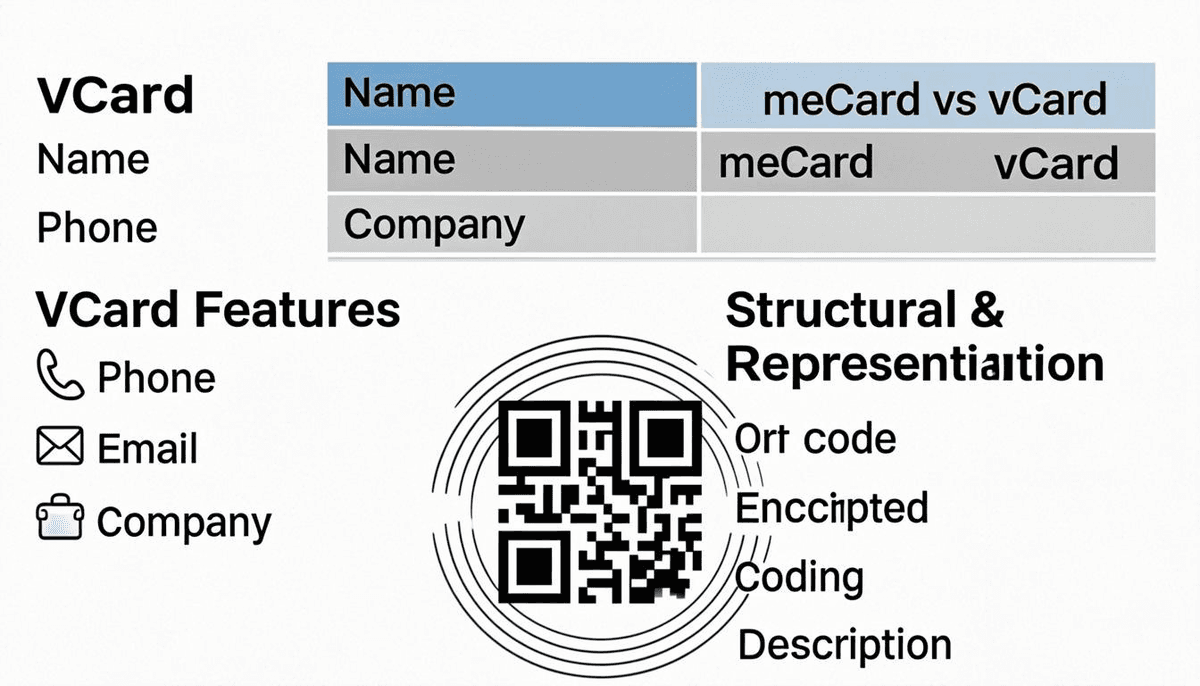
vCard is a standardized file format for electronic business cards. It has been an official internet standard (RFC 6350) since 2011. Every major phone operating system, email client, and contact management app can read vCard files. That is why it works on iPhones, Android phones, Windows phones, and even older devices — it is a universal standard, not a proprietary format.
Here is what a complete vCard looks like in plain text:
BEGIN:VCARD
VERSION:3.0
N:Doe;Jane;;;
FN:Jane Doe
ORG:Acme Corporation
TITLE:Marketing Director
TEL;TYPE=WORK,VOICE:+1-555-123-4567
TEL;TYPE=CELL,VOICE:+1-555-987-6543
EMAIL;TYPE=WORK:[email protected]
URL:https://www.acme.com
ADR;TYPE=WORK:;;123 Main Street;Springfield;IL;62704;USA
PHOTO;VALUE=URI:https://www.acme.com/staff/jane.jpg
NOTE:Met at 2024 Marketing Conference
END:VCARD
Each line in the vCard is a field. The format is always FIELDNAME:value. Some fields have additional type information after a semicolon, like TEL;TYPE=CELL to indicate that this phone number is a cell phone.
Every vCard Field Explained
Here is a complete guide to every field you can use in a vCard QR code, what it does, and whether you should include it:
N (Name) — The structured name field. Format is: N:LastName;FirstName;MiddleName;Prefix;Suffix. Example: N:Doe;Jane;Marie;Dr.;PhD. This is a required field in the vCard specification. Most phones use it for alphabetical sorting. Character count: varies, typically 20-50 characters.
FN (Formatted Name) — The full name as you want it displayed. Example: FN:Dr. Jane Marie Doe, PhD. Also required. This is the name that shows up in the contact list. If you only fill in one name field, make it this one. Character count: typically 15-40 characters.
ORG (Organization) — Your company or organization name. Example: ORG:Acme Corporation. Very useful — people often remember the company even if they forget the person's name. Character count: typically 15-50 characters.
TITLE — Your job title or role. Example: TITLE:Marketing Director. Helps the person remember what you do and why they might need to contact you. Character count: typically 15-40 characters.
TEL (Telephone) — A phone number. You can include multiple phone numbers with different types. Common types are WORK (office phone), CELL (mobile phone), HOME (personal phone), and FAX. Example: TEL;TYPE=CELL,VOICE:+1-555-987-6543. Each phone number entry adds about 25-35 characters.
EMAIL — An email address. You can include multiple emails with types like WORK and HOME. Example: EMAIL;TYPE=WORK:[email protected]. Each email entry adds about 25-45 characters.
URL — A website URL. This can be your company website, your personal portfolio, or your LinkedIn profile. Example: URL:https://www.acme.com. Each URL adds 20-60 characters depending on the length of the address.
ADR (Address) — A physical mailing address. Format is: ADR;TYPE=WORK:;;Street;City;State;Zip;Country. Example: ADR;TYPE=WORK:;;123 Main Street;Springfield;IL;62704;USA. Adds about 50-80 characters.
PHOTO — A photo of yourself or your company logo. This is referenced as a URL pointing to an image file. Example: PHOTO;VALUE=URI:https://www.acme.com/staff/jane.jpg. Adds about 50-100 characters depending on the URL length. Note: the photo itself is not embedded in the QR code — only the URL is. The phone downloads the photo when saving the contact.
NOTE — A free-text note. Use it to add context about where you met, a reminder, or any additional information. Example: NOTE:Met at 2024 Marketing Conference in Chicago. Adds about 30-80 characters.
Which Fields to Include and Which to Skip
More data means a larger QR code, and a larger QR code is harder to scan — especially on a small business card. You need to balance completeness with scannability. Here is my recommendation:
Always include:
- FN (formatted name) — essential
- N (structured name) — essential
- At least one TEL (phone number) — the main reason people save contacts
- At least one EMAIL — the second most common way people reach out
- ORG (company) — helps people remember you
Include if you have room:
- TITLE (job title) — useful but not critical
- URL (website or LinkedIn) — great for professionals
- A second TEL (cell phone if you listed work phone, or vice versa)
Skip on business cards (too many characters):
- ADR (full address) — rarely needed in a phone contact. Adds 50-80 characters. If someone needs your address, they can find it on your website.
- PHOTO — requires a hosted image URL and internet access to display. Adds 50-100 characters. The benefit is minimal for a first introduction.
- NOTE — useful at events but adds 30-80 characters. Consider including it only for event-specific cards.
Character count estimate for a well-balanced vCard:
- Required framing (BEGIN, VERSION, END): ~30 characters
- FN + N: ~50 characters
- ORG + TITLE: ~50 characters
- 2 phone numbers: ~60 characters
- 1 email: ~30 characters
- 1 URL: ~40 characters
- Total: approximately 260-300 characters
At 300 characters, the QR code is relatively small and easy to scan. If you add every possible field, you could easily exceed 500 characters, making the QR code denser and harder to scan on a business card. Keep it lean.
vCard 3.0 vs vCard 4.0: Which to Use
There are two versions of vCard you will encounter:
vCard 3.0 — Released in 2000. This is the version you should use. It is supported by virtually every phone, email client, and contact app on Earth. It has been the standard for over 20 years, and compatibility is nearly universal. When you create a vCard QR code, use VERSION:3.0.
vCard 4.0 — Released in 2011 (RFC 6350). It adds some useful features like social media profiles, gender, and better address formatting. However, compatibility is not universal. Some older phones and some current apps do not fully support vCard 4.0. Fields might be ignored or the contact might not save correctly.
The practical advice: always use vCard 3.0 unless you are absolutely certain that every person who will scan your QR code has a device that supports vCard 4.0. Since you cannot control what phone someone else has, vCard 3.0 is the safe choice.
meCard vs vCard: What Is the Difference?
meCard is an older, simpler format for encoding contact information in QR codes. It was developed by Docomo, a Japanese mobile carrier, in the early 2000s. Here is what a meCard looks like:
MECARD:N:Doe,Jane;TEL:+1-555-123-4567;EMAIL:[email protected];URL:https://www.acme.com;ORG:Acme Corporation;ADR:123 Main Street, Springfield, IL 62704;;
Key differences between meCard and vCard:
| Feature | meCard | vCard |
|---|---|---|
| Format | Single line, semicolon-separated | Multi-line, one field per line |
| Fields | N, TEL, EMAIL, URL, ORG, ADR, NOTE, BDAY | Many more fields including TITLE, PHOTO, ROLE, multiple typed phones |
| Multiple phone numbers | Not well supported | Full support with TYPE labels (WORK, CELL, HOME) |
| Job title | Not a standard field | Supported as TITLE field |
| Photo | Not supported | Supported as PHOTO field |
| Compatibility | Good on older phones, inconsistent on newer ones | Excellent on all modern phones |
| Standard | Never officially standardized | IETF standard (RFC 6350) |
| Character efficiency | Slightly more compact (single line) | Slightly more verbose (multi-line) |
My recommendation: use vCard. The slightly larger character count is a small price to pay for much better compatibility, more fields, and proper standardization. meCard was fine in 2005, but today vCard is the right choice for any new QR code business card.
If you have an existing meCard QR code that works fine, there is no urgent need to change it. But if you are creating a new one, go with vCard 3.0.
How to Create a vCard QR Code Step by Step
Here is the complete process from start to finish:
Step 1: Gather Your Contact Information
Write down exactly what you want to share. Do not just copy everything from your current business card — think about what someone you just met actually needs. Name, phone, email, and company are essential. Job title and website are nice to have. Full address and photo are usually more than you need for a QR code on a business card.
Step 2: Choose a QR Code Generator
Use QREndlessPro's QR code generator — it has a dedicated vCard mode that builds the vCard format for you. You just fill in the fields and it handles the formatting, encoding, and error correction automatically.
Step 3: Enter Your Information
Fill in the fields in the generator. Use the guidelines above — include name, phone, email, company, and optionally title and website. Keep it concise. Use your professional phone number and email, not personal ones (unless you want both).
Step 4: Choose Error Correction Level
For a vCard QR code on a business card, use Level M (15%) or Level Q (25%). Business cards get bent, folded, and stuffed in wallets — you need error correction. Level L (7%) is too low for something that will be physically handled. Level H (30%) is great for durability but makes the QR code larger.
Step 5: Customize the Design
A plain black-and-white QR code works, but you can make it look more professional with QREndlessPro's customization tool. You can change the colors to match your brand, adjust the shape of the modules, and add a logo in the center. Just remember: every customization affects scannability. Test after you customize.
Step 6: Download and Test
Download the QR code as a high-resolution PNG or SVG. Then test it — scan it with an iPhone, scan it with an Android phone, and verify that the contact information saves correctly on both. Check every field: is the phone number correct? Does the email address have no typos? Does the company name show up? Do not skip this step.
Step 7: Add to Your Business Card Design
Place the QR code on your business card with enough white space around it (the quiet zone — at least 4 times the width of one module on every side). The QR code should be at least 2 cm x 2 cm (about 0.8 inches square) for reliable scanning. Make sure the printed resolution is at least 300 DPI. Add a small label like "Scan to save contact" next to the QR code so people know what it does.
Design Best Practices for QR Business Cards
Size — The QR code should be at least 2 cm x 2 cm on the printed card. If the card is standard size (3.5 x 2 inches), a 2 cm QR code takes up about a quarter of the card — enough room to still include your name and company. For cards that will be scanned from a distance (like on a conference badge), make the QR code larger — at least 3 cm x 3 cm.
Quiet Zone — The blank white space around the QR code is critical. Without it, scanners cannot detect the finder patterns and the code will not scan. The quiet zone must be at least 4 module widths on all four sides. On a typical business card QR code, that means at least 3-4 mm of white space on every side. Do not put text, lines, or design elements in the quiet zone.
Contrast — The QR code must have strong contrast between the dark and light modules. Dark foreground on a light background is the standard. If you want to use brand colors, make sure the contrast ratio is at least 4:1. Avoid light gray on white, dark blue on black, or any low-contrast combination. Black on white is the most reliable choice.
Print Quality — Business cards are typically printed at 300 DPI or higher. Make sure your QR code image is generated at a matching or higher resolution. A 72 DPI web image will look blurry when printed and may not scan. Always export your QR code as a vector (SVG) or high-resolution raster (PNG at 300+ DPI).
Surface and Finish — Glossy card stock reflects light, which can create glare that makes scanning difficult. Matte or uncoated finishes scan more reliably. If you must use glossy stock, test the QR code under various lighting conditions before printing a full batch.
Label the QR Code — Not everyone knows what a QR code does. Add a short label like "Scan to save my contact" or "Scan me" near the QR code. This small addition significantly increases scan rates.
vCard QR Code vs NFC Business Card
NFC (Near Field Communication) business cards are another way to share contact information digitally. Instead of scanning a QR code, the other person taps their phone against your NFC card and your contact information appears. Here is how they compare:
| Feature | vCard QR Code | NFC Business Card |
|---|---|---|
| How it works | Scan with camera | Tap phone against card |
| Phone compatibility | Works on all phones with a camera | Requires NFC-enabled phone (most modern phones have it) |
| User action | Open camera, point at code, wait for scan | Tap phone to card |
| Requires app | No (built into camera) | No (built into phone OS) |
| Works at a distance | Yes (scan from a few feet away) | No (must physically touch) |
| Works on wall/display | Yes (stick QR code on a poster) | No (you must carry the NFC card) |
| Cost per card | Same as regular business card (just printing) | $5 to $30+ per card (NFC chip embedded) |
| Data capacity | Up to 4,296 characters | Typically 1-2 KB (NDEF format) |
| Can be updated | Only with dynamic QR codes | Depends on the NFC card type (rewritable ones can be updated) |
| Durability | Printed QR code lasts as long as the paper | NFC chip can break if card is bent or damaged |
| Multiple people can scan | Yes, unlimited people at once | One person at a time (must tap) |
When to choose vCard QR code: You want a low-cost solution, you want multiple people to be able to scan at once, you want to put contact info on posters or displays, or you want maximum phone compatibility.
When to choose NFC: You want a premium feel, you primarily share contacts in one-on-one conversations, and you do not mind the higher cost per card.
The best approach for many professionals is both — an NFC card with a QR code printed on it. The NFC handles tap-to-share in one-on-one meetings, and the QR code handles all other situations.
vCard QR Code vs Digital Business Card Apps
Apps like HiHello, Popl, Linq, and Blinq let you create a digital business card that you share via QR code, NFC, text message, or email. Here is how a standalone vCard QR code compares:
| Feature | Standalone vCard QR Code | Digital Card App |
|---|---|---|
| Cost | Free (generate once, use forever) | Free tier available; premium features $5-15/month |
| Where contact saves | Directly to phone contacts | App may save to their platform first, then to contacts |
| Requires recipient to install app | No | Sometimes (depends on the app) |
| Analytics / tracking | Not available (static QR code) | Available — see who viewed your card, when, how often |
| Update after sharing | No — static code, cannot be changed | Yes — update your info and everyone sees the new version |
| Customization | Limited to QR code appearance | Rich — custom colors, photos, social links, videos |
| Privacy | Full control — data stays in the QR code | Depends on the app's privacy policy and data handling |
| Works offline | Yes (vCard data is in the code) | Depends — some features require internet |
| Dependency | None — QR code works forever | If the app shuts down, your digital card stops working |
When to choose a standalone vCard QR code: You want a free, permanent solution with no subscriptions, no app dependencies, and maximum privacy. This is the right choice for printing on business cards, resumes, and signage.
When to choose a digital card app: You want analytics on who views your card, you need to update your information frequently, you want a rich interactive profile with photos and social links, and you are comfortable with a monthly subscription.
Using vCard QR Codes at Events and Conferences
Events are where vCard QR codes shine. Here is how to get the most out of them:
On your name badge — Many conferences now print QR codes on attendee badges. If you are organizing an event, include a vCard QR code on every badge so attendees can exchange contacts instantly. If you are attending, check if the event provides this — and if not, bring business cards with your own vCard QR code.
On event materials — Put your vCard QR code on presentation slides, booth banners, and handouts. Conference attendees are already walking around with their phones — make it easy for them to save your contact while they are standing in front of your booth or listening to your talk.
Event-specific vCards — Consider creating a slightly different vCard for each event. Add a NOTE field with the event name and date: NOTE:Met at Tech Summit 2024, Booth 42. This helps people remember where and when they met you.
Follow-up QR code — After saving the contact, the person can use the phone number or email in the vCard to follow up immediately. A vCard QR code with your email makes it one tap from scanning to sending a follow-up message.
Troubleshooting: When vCard QR Codes Do Not Save
Sometimes a vCard QR code does not work as expected. Here are the most common problems and how to fix each one:
1. The phone scans the QR code but opens it as text instead of a contact
This usually means the vCard format is incorrect. Check that the first line is exactly BEGIN:VCARD and the last line is exactly END:VCARD. Check that the VERSION line is present. Even a small typo like BEGIN:VCARD (with a trailing space) can break it.
2. The QR code is too small to scan
Print the QR code larger. On a business card, it should be at least 2 cm x 2 cm. If you crammed too much data into the vCard, the QR code modules become tiny and hard for the camera to resolve. Solution: reduce the number of fields or increase the printed size.
3. The contact saves but some fields are missing
Different phone OS versions handle vCard fields differently. Android may not display the TITLE field in the contact preview, or an older iPhone might ignore the PHOTO field. Test on both platforms. If a field is not saving, it might not be supported by that OS version — try simplifying the field format.
4. Phone numbers are formatted incorrectly
Always include the country code in phone numbers and use the international format: +1-555-123-4567 for a US number. Do not use parentheses or dots in the vCard TEL field — those can cause parsing issues on some phones. The display format (how it looks in the contact list) is handled by the phone OS.
5. The QR code scans but nothing happens
This can happen on older phones that do not have built-in QR code support. The camera app reads the code but does not know what to do with vCard data. Solution: suggest that the person install a QR code reader app, or include a plain-text URL as a fallback that links to a web page with your contact information.
6. Custom colors or design make the QR code unscannable
If you customized the QR code colors and it stopped scanning, the contrast is too low. Go back to black on white. If you must use colors, ensure the contrast ratio between foreground and background is at least 4:1. Test with multiple phones — some cameras handle low contrast better than others.
7. The QR code works on some phones but not others
This is usually a size or contrast issue combined with varying camera quality. High-end phones with good cameras can scan smaller, lower-contrast codes. Budget phones with lower-quality cameras need larger codes with strong contrast. Design for the lowest common denominator — make the code larger and the contrast higher.
Testing Your vCard QR Code Before Printing
Never print a batch of business cards without testing the QR code first. Here is your testing checklist:
- Test on an iPhone — Open the Camera app, point it at the QR code, and tap the notification. Verify that the contact screen shows all fields correctly and that "Add to Contacts" works.
- Test on an Android phone — Open the Camera app or Google Lens, scan the QR code, and verify the contact saves correctly. Android implementations vary more than iOS, so test on at least one Android device.
- Test with Google Lens — Some Android phones use Google Lens for QR scanning. Open Lens, scan the code, and verify.
- Test with a third-party QR app — Install a free QR scanner app and test. Some people use these instead of the built-in camera. Make sure the vCard data is passed correctly to the contacts app.
- Test the printed version — Print one test card (or even just the QR code on regular paper) and scan it. A QR code that works on screen may not work when printed at a specific size and resolution. This is the most important test.
- Test under different lighting — Scan the printed card in bright light, dim light, and with overhead shadows. Glare on glossy card stock can prevent scanning in certain lighting.
- Test from different angles — People will not always hold their phone perfectly perpendicular to the card. Test scanning at slight angles to make sure the code reads reliably.
Email Signature With vCard QR Code
Adding a vCard QR code to your email signature is a great way to let recipients save your contact with one scan instead of manually typing it from the email header. Here is how to do it:
- Generate a vCard QR code using QREndlessPro and download it as a PNG image.
- Resize the image to about 100-150 pixels wide for email. It does not need to be large — the recipient will hold their phone close to their computer screen.
- Add the image to your email signature, positioned below your name and contact details.
- Add a small line of text next to or below the QR code: "Scan to save my contact" or "Add me to your contacts."
- Test by sending yourself an email and scanning the QR code from the received message. Some email clients strip or resize images — verify that the QR code appears correctly in Gmail, Outlook, Apple Mail, and any other client your recipients are likely to use.
Note: email signatures are one case where a .vcf file attachment can be simpler than a QR code. A .vcf file is a vCard saved as a standalone file. The recipient clicks it and their phone or email client opens the contact screen. Both approaches work — the QR code is better for mobile recipients, the .vcf file is better for desktop recipients. Consider including both.
Do vCard QR Codes Work Without Internet?
Yes, vCard QR codes work without internet. This is one of their biggest advantages. The vCard data — your name, phone, email, company, and all other text fields — is encoded directly in the QR code pattern. When the phone scans the code, it reads the data from the code itself. No server request, no internet connection, no loading time.
The only exception is the PHOTO field. If your vCard includes a photo URL, the phone needs internet to download the image. But the contact will still save correctly without the photo if there is no internet connection — the phone just skips the photo and saves everything else.
This makes vCard QR codes ideal for conferences, trade shows, and networking events where Wi-Fi may be spotty or cellular signals may be weak. The contact exchange happens entirely between the QR code and the phone, with no network needed.
Can vCard QR Codes Be Tracked?
A static vCard QR code cannot be tracked. The data is fixed in the QR code pattern, and no server is involved in the scanning process. There is no way to know how many times someone scanned it or who scanned it.
If you want tracking, you need a dynamic QR code. A dynamic QR code does not contain the vCard data directly. Instead, it contains a short URL that redirects to a server, which then serves the vCard data. The server logs every scan — when it happened, what type of phone scanned it, and roughly where the scan happened (based on IP address).
The tradeoff with dynamic QR codes is that they require internet to work and they depend on the server staying online. If the QR code service goes out of business or their server goes down, your QR code stops working. Static QR codes have no such dependency — they work forever.
For a business card, I recommend sticking with a static vCard QR code. Tracking is nice, but reliability is more important. Your business card is a long-term asset — it needs to work five years from now just as well as it works today. A static QR code guarantees that.
Are vCard QR Codes Free?
Yes, creating a vCard QR code is free. You can generate one right now at QREndlessPro at no cost. The QR code itself is just an image file — there are no ongoing fees, no subscription, and no per-scan charges.
What you might pay for:
- Printing — The cost of printing business cards with the QR code. This is the same as printing any business card.
- Custom design — If you want a designer to create a branded business card layout with the QR code integrated, that is a design cost, not a QR code cost.
- Dynamic QR code services — If you want scan tracking or the ability to update your contact info later, dynamic QR code services charge monthly fees (typically $5 to $30 per month).
For most people, a free static vCard QR code on a standard business card is all you need.
Common Mistakes and How to Avoid Them
- Cramming too many fields into the vCard — More data makes the QR code denser and harder to scan. Stick to the essentials: name, phone, email, company, and optionally title and website. Skip the full address, photo, and long notes on business cards.
- Using meCard instead of vCard — meCard is outdated and has inconsistent support on modern phones. Always use vCard 3.0 for new QR codes.
- Not including a "scan to save" label — Many people will not scan a QR code if they do not know what it does. A simple text label next to the code increases scan rates significantly.
- Printing the QR code too small — A QR code that looks fine on screen may be unreadable at business card size. Always test the printed version before ordering a full print run.
- Using vCard 4.0 without testing — vCard 4.0 is not universally supported. Use vCard 3.0 unless you have tested vCard 4.0 on all target devices and confirmed it works.
- Forgetting the quiet zone — The white space around the QR code is essential for scanning. Do not crowd the QR code with text, borders, or design elements. Leave at least 3-4 mm of white space on all sides.
- Not testing on both iPhone and Android — vCard handling differs between operating systems. A QR code that works perfectly on your iPhone might save incomplete data on an Android phone. Always test on both platforms.
- Using a low-resolution QR code image — Download your QR code as a high-resolution PNG (300+ DPI) or SVG vector. Do not use a screenshot or a 72 DPI web image for printing — it will be blurry and may not scan.
Action Steps
Ready to create your vCard QR code? Here is exactly what to do:
- Decide what information to share — Write down the fields you want to include. Stick to the essentials: name, phone, email, company, and title. Add URL if you have a website or LinkedIn profile.
- Generate your vCard QR code — Go to QREndlessPro's QR generator, select the vCard option, enter your information, and choose error correction Level M. Download the QR code as a high-resolution PNG or SVG.
- Test on multiple phones — Scan the QR code with at least one iPhone and one Android phone. Verify that every field saves correctly and that the contact appears properly in the address book.
- Customize if desired — Use QREndlessPro's customization tool to match your brand colors. Test again after customizing to make sure the code still scans reliably.
- Design your business card — Place the QR code on your card with adequate quiet zone (3-4 mm white space). Add a "Scan to save contact" label. Ensure the QR code is at least 2 cm x 2 cm.
- Print one test card — Order a single test print or print one at home. Scan the physical card with your phone. If it works, order your full batch. If it does not, adjust the size or contrast and try again.
- Add to your email signature — Include a small version of the QR code in your email signature with a "Scan to save" label. Test by sending an email to yourself.
FAQ
What is a vCard QR code?
A vCard QR code is a QR code that contains contact information in the vCard format. When someone scans it with their phone, a contact screen appears with your name, phone number, email, company, and other details. They tap "Add Contact" and your information is saved to their phone instantly — no typing required.
Does a vCard QR code need internet to work?
No. The vCard data is encoded directly in the QR code, so scanning works without any internet connection. The only exception is the PHOTO field — if your vCard includes a photo URL, the phone needs internet to download the image. But all other fields (name, phone, email, etc.) work offline.
Should I use vCard 3.0 or vCard 4.0?
Use vCard 3.0. It is supported by virtually every phone and contact app. vCard 4.0 has more features but is not universally supported, so some fields may not save correctly on certain devices. Since you cannot control what phone the other person has, vCard 3.0 is the safer choice.
How much data can a vCard QR code hold?
A QR code can hold up to 4,296 alphanumeric characters. A typical vCard with name, phone, email, company, and title uses about 260-300 characters — well within the limit. Even a vCard with every possible field filled out rarely exceeds 600 characters. You do not need to worry about hitting the capacity limit for contact information.
Can I track who scans my vCard QR code?
Not with a static vCard QR code — it has no tracking capability. To get tracking, you would need a dynamic QR code that redirects through a server before serving the vCard. However, dynamic QR codes require internet and depend on the service staying online. For a business card, a static QR code is more reliable and works forever.
What is the difference between meCard and vCard?
meCard is an older, simpler Japanese format for contact QR codes. vCard is an international standard (RFC 6350) with more fields and better compatibility. Always use vCard for new QR codes — meCard is outdated and has inconsistent support on modern phones.
How small can a vCard QR code be on a business card?
A vCard QR code on a business card should be at least 2 cm x 2 cm (about 0.8 inches square) for reliable scanning. If you include more fields (making the data longer), you may need a slightly larger QR code. Always test the printed size — a QR code that works on screen may be too small to scan when printed.
Can I update my vCard QR code after printing it?
No — a static QR code is permanent. Once printed, the data cannot be changed. If your contact information changes, you need to generate a new QR code and print new cards. This is why you should include only stable information (name, company, professional email) in the QR code, not information that changes frequently (like your current project or office extension).
Do vCard QR codes work on both iPhone and Android?
Yes, vCard QR codes work on both platforms. However, field handling can differ slightly. For example, some Android phones may not display the TITLE field in the contact preview, while iPhones typically show all fields. Always test your specific vCard on at least one iPhone and one Android phone before printing.
Should I include my photo in the vCard QR code?
Generally, no. The PHOTO field adds 50-100 characters to the vCard (the URL to the image), which makes the QR code denser. The photo also requires internet to display and requires you to host the image file somewhere permanently. For a business card, skip the photo — keep the QR code lean and reliable.
Are vCard QR codes free to create?
Yes, creating a vCard QR code is completely free. You can generate one at QREndlessPro at no cost. The QR code is yours to use forever with no fees, no subscriptions, and no per-scan charges. The only cost is printing the business card itself.