What Is ZPL?
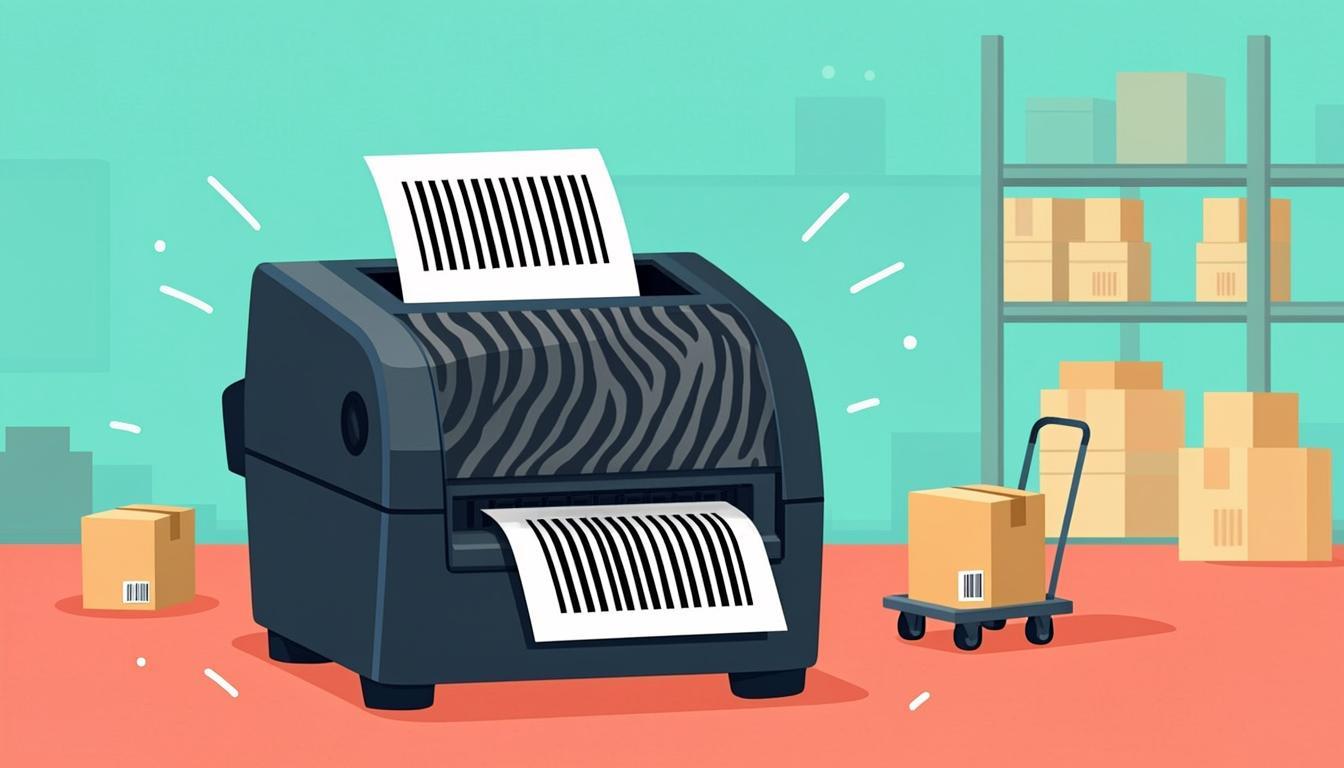
ZPL (Zebra Programming Language) is a small text-based language used to tell Zebra thermal printers what to print. It was created by Zebra Technologies and is the native command set for nearly every Zebra label printer ever sold, from the desktop GK420 to the industrial ZT411. Brother, TSC, Honeywell, and other thermal printer makers also support ZPL on most of their industrial models.
A ZPL file is just plain text. It looks like this:
^XA
^FO50,50^BY3,2.0,100^BCN,100,Y,N,N^FDABC-1234^FS
^FO50,200^A0N,40,40^FDHello World^FS
^XZ
Each line is one instruction. The printer reads them in order, lays out the label, and prints it. There is no drag-and-drop, no preview window, no graphic designer — just text the printer understands. That sounds old-fashioned, but it is exactly why ZPL is still everywhere: it is fast, predictable, tiny, and works the same way on a 1995 printer and a 2025 one.
If you have ever shipped a box, scanned a wristband in a hospital, or checked a price tag at a store, the label was almost certainly printed with ZPL.
Why Use Our Free ZPL Generator?
Writing ZPL by hand is painful. You need to know the command names, the order of parameters, the field origin coordinates, and the barcode type codes. One wrong comma and the label prints blank, or the printer beeps and shows an error.
Our free ZPL generator at QREndlessPro writes the code for you. You design the label visually, and the tool:
- Outputs clean, well-formatted ZPL II code that any Zebra printer accepts.
- Supports Code 128, EAN-13, UPC-A, Code 39, QR code, Data Matrix, and PDF417.
- Lets you add text, barcodes, lines, boxes, and images by dragging on a label canvas.
- Generates a live preview that matches what the printer will actually output.
- Exports ZPL text, PNG previews, and a print-ready PDF.
- Works with common label sizes (4×6 inch, 4×4, 2×1, wristband, and more).
Everything runs in the browser. No sign-up, no install. The output is compatible with Zebra ZT411, ZT230, GK420, ZD420, ZD621, and any printer that supports ZPL II. To build a label right now, open our ZPL generator.
How ZPL Works
ZPL is built from commands that all start with the caret (^) or tilde (~) character. The most important commands are:
^XA— Start of label format. Every label begins here.^XZ— End of label format. Every label ends here. The printer only prints when it sees^XZ.^FO<x>,<y>— Field Origin. Sets the X and Y position (in dots) of the next element on the label.^FD<data>— Field Data. The text or barcode value to print.^FS— Field Separator. Ends one field and starts the next.^A<font>N,<height>,<width>— Font.Nmeans normal orientation; height and width are in dots.^BY<width>,<ratio>,<height>— Barcode default. Sets the module width, narrow-to-wide ratio, and bar height for the barcode that follows.^BCN,<height>,...</code>— Code 128 barcode. Other barcodes use^BE(EAN-13),^BU(UPC-A),^BQ(QR code),^BX(Data Matrix).^GB<w>,<h>,<t>— Graphic Box. Draws a rectangle with a given thickness.
Here is the anatomy of a typical shipping label in ZPL:
^XA
^FO50,50^BY3,2.0,100^BCN,100,Y,N,N^FDABC-1234^FS
^FO50,200^A0N,40,40^FDHello World^FS
^XZ
Decoded:
^XA— Start the label.^FO50,50— Move to position X=50, Y=50 dots.^BY3,2.0,100— Set barcode defaults: module width 3, ratio 2.0, height 100 dots.^BCN,100,Y,N,N— Code 128 barcode, normal orientation, height 100 dots, print human-readable text below (Y), no check digit printed above, no UCC check digit.^FDABC-1234— The data inside the barcode is ABC-1234.^FS— End of this field.^FO50,200— Move to position X=50, Y=200 dots (below the barcode).^A0N,40,40— Use font 0 (the built-in scalable font), normal orientation, height 40 dots, width 40 dots.^FDHello World— The text to print.^FS— End of the text field.^XZ— End the label and print.
The whole label is just 12 lines of text. The printer renders it in under a second. There is no PDF, no image file, no driver overhead — just the raw ZPL string sent over USB, network, or Bluetooth.
Step-by-Step: Using the ZPL Generator
- Open the tool: Go to /zpl-generator/ in your browser. You see a blank label canvas and a components panel.
- Pick a label size: Choose from common sizes (4×6 inch shipping label, 4×4, 2×1, wristband, and others) or set a custom width and height in millimeters or inches.
- Add a barcode: Drag the Barcode component onto the canvas. Pick a symbology (Code 128 for shipping, EAN-13 for retail, QR code for marketing, Data Matrix for pharma). Type the data.
- Add text: Drag a Text block. Type your title, address, or human-readable copy. Set the font, size, and orientation.
- Add shapes: Drag a Box or Line for borders and dividers — useful for SSCC-18 pallet labels with a "peel here" box.
- Add images: Upload a logo (PNG, JPG, or BMP). The tool converts it to ZPL graphic format automatically.
- Preview: Click Render. The preview window shows what the printer will output, dot for dot.
- Export ZPL: Click Download ZPL. Save the text file. Send it to the printer over USB, network (TCP 9100), or Bluetooth. The printer prints the label instantly.
- Save the template: The tool saves your design as a JSON file. Reopen it later to make variations without starting from scratch.
If you need 500 labels in one go, the bulk mode accepts a CSV file (one row per label) and merges each row into the template, producing 500 ZPL strings to send in a batch.
Real-World Examples
Example 1 — A 4×6 shipping label with Code 128:
^XA
^FO50,50^BY3,2.0,100^BCN,100,Y,N,N^FD1234567890^FS
^FO50,200^A0N,40,40^FDShip To: John Smith^FS
^FO50,250^A0N,30,30^FD123 Main Street, Anytown, USA^FS
^XZ
This prints a 100-dot-tall Code 128 barcode at the top, then two lines of address text below. The label fits a standard 4×6 inch thermal label.
Example 2 — A 2×1 retail price tag with UPC-A:
^XA
^FO20,30^A0N,30,30^FDT-Shirt - Blue, M^FS
^FO20,80^BY2,2.0,80^BUN,80,Y,Y,Y^FD012345678905^FS
^FO20,200^A0N,40,40^FD$14.99^FS
^XZ
This prints a product name, a UPC-A barcode, and the price. The ^BU command tells the printer to render a UPC-A barcode.
Example 3 — A wristband for patient ID with QR code:
^XA
^FO30,30^A0N,30,30^FDPatient: J. Doe^FS
^FO30,80^A0N,25,25^FDMRN: 0042156^FS
^FO30,150^BQN,2,6^FDQA,P0042156^FS
^XZ
The ^BQ command renders a QR code. The FDQA, prefix is how ZPL marks a QR code field with alphanumeric mode. The wristband scans at the bedside and links the patient to the electronic medical record.
In all three examples, the same simple ZPL commands produce very different labels. The strength of ZPL is that one tool can output every kind of label your business needs.
Who Uses ZPL?
- Logistics: Every major carrier — UPS, FedEx, DHL, USPS, regional LTL carriers — accepts ZPL shipping labels. The label on the box at your door was almost certainly a ZPL file sent over the internet to a thermal printer at the shipper's dock.
- Retail: Stores use ZPL for shelf-edge price tags, markdown labels, and back-room bin labels. Zebra desktop printers (ZD420, ZD621) are the workhorses.
- Manufacturing: Factory floors print work-in-process labels, batch labels, and quality-control labels on demand with ZPL.
- Healthcare: Hospitals print patient wristbands, specimen labels, and medication labels with ZPL — usually on a Zebra HC100 or ZD420R.
- Warehousing: 3PL operations print SSCC-18 pallet labels, bin labels, and put-away slips with ZPL.
- Apparel: Clothing brands print care labels, hang tags, and size stickers with ZPL.
- Food and beverage: Bottling lines and bakeries print ingredient labels, batch labels, and best-by labels with ZPL on inline thermal printers.
If a business prints more than a few dozen labels a day, the printer in the back room is almost certainly a Zebra running ZPL.
Tips for Best Results
- Print at the printer's native DPI: A 203 DPI printer (ZT230, GK420) wants 203-dot-per-inch measurements. A 300 DPI printer (ZT411, ZD621) wants 300. Mixing them up makes labels look fuzzy. Our tool sets the right DPI when you pick a printer model.
- Always include
^XAand^XZ: Without them, the printer treats the data as garbage. The printer only starts printing when it sees^XAand only ejects the label when it sees^XZ. - Use
^PQ<n>for quantity: To print 50 copies of a label, add^PQ50before^XZ. Do not send the same ZPL 50 times. - Leave a quiet zone: Barcodes need at least 10 dots of empty space on each side. ZPL does not enforce this — you must design it in.
- Test on the actual printer: A 4×6 label looks different from a 2×1. Always print one test label before sending a batch of 500.
- Use the
~PScommand for a status request: Before sending a big print run, send~PSover the network. The printer replies with status (ready, paused, label out). This avoids pile-ups. - Keep font 0 for crisp text: Zebra's built-in scalable font (font 0) prints cleaner than bitmap fonts on most printers. Use it unless you need a specific corporate typeface.
- Save your template: The same template can print 5,000 different shipping labels if you change the
^FDvalues. Save the ZPL and re-merge for every batch.
Common Mistakes to Avoid
- Forgetting
^FS: Every field needs a Field Separator. Miss one and the printer merges two fields into one and prints nothing useful. - Wrong DPI: Designing at 300 DPI and printing on a 203 DPI printer makes everything oversized. The reverse makes labels tiny.
- Barcodes off the edge: A
^FOvalue that places the barcode past the label boundary just clips the barcode. Always check the preview before printing. - Sending ZPL to a non-Zebra driver: If Windows is set to print ZPL through the standard text driver, nothing happens. The printer must be added as a raw ZPL device (Generic / Text Only, or Zebra's official driver).
- Using lowercase commands: ZPL is case-sensitive.
^xadoes nothing; you need^XA. Always use uppercase for command letters. - Forgetting the
^FDdata: A barcode command without^FDafter it prints an empty barcode. The scanner then reads nothing. - Image too large: Converting a 4-megapixel logo to ZPL graphic format produces a string that takes the printer 30 seconds to process. Resize logos to the print size first.
- Not testing QR codes: A QR code that looks fine in preview may be too small to scan. The GS1 standard says a QR code on packaging should be at least 20×20 mm. Verify with a real phone before printing 5,000.
Frequently Asked Questions
What does ZPL stand for?
ZPL stands for Zebra Programming Language. It is the native text command set used by Zebra thermal printers to render labels. ZPL II is the current version, supported by virtually every Zebra printer sold in the last 25 years.
Do I need to write code to use a Zebra printer?
No. With our ZPL generator, you design the label on a visual canvas and the tool writes the ZPL for you. You can also use Zebra's free ZebraDesigner software. Hand-writing ZPL is only necessary for developers integrating printers into custom apps.
Can I send ZPL to a printer over the network?
Yes. Open a raw TCP connection to the printer on port 9100 and send the ZPL string. Most Zebra printers also accept ZPL over USB, Bluetooth, and serial connections. The ZPL is the same regardless of the connection type.
What is the difference between ZPL and ZPL II?
ZPL II is the modern version of the language and is supported on every printer Zebra has shipped for decades. The differences are minor — ZPL II added a few new commands and removed some obsolete ones. In practice, "ZPL" today means ZPL II.
Will ZPL work on non-Zebra printers?
Often yes. Thermal printer makers including TSC, Honeywell, SATO, and Brother ship models that accept ZPL for compatibility. The label quality and command support vary by model. If you have a mixed printer fleet, test the ZPL on each model before deploying.
How do I preview ZPL without printing it?
Our ZPL generator has a built-in preview that renders the ZPL exactly as the printer would. There are also free online viewers like Labelary that render ZPL in the browser. Both let you catch layout mistakes before you commit to a print run.
Ready to Try Our ZPL Generator?
You now know what ZPL is, how the basic commands fit together, why it is the standard for thermal label printing, and how to avoid the mistakes that waste labels. The next step is to design one and print it.
Open our ZPL generator, drag a barcode and some text onto the canvas, and download clean ZPL II code in seconds. To make SSCC-18 pallet labels and send them straight to a Zebra, pair the ZPL generator with our SSCC-18 generator. To encode GS1 Digital Link QR codes for retail packaging, visit our GS1 Digital Link tool. And to verify that a printed label meets ISO quality standards before you ship, run it through our barcode verifier.