What Is a Barcode Label Generator?
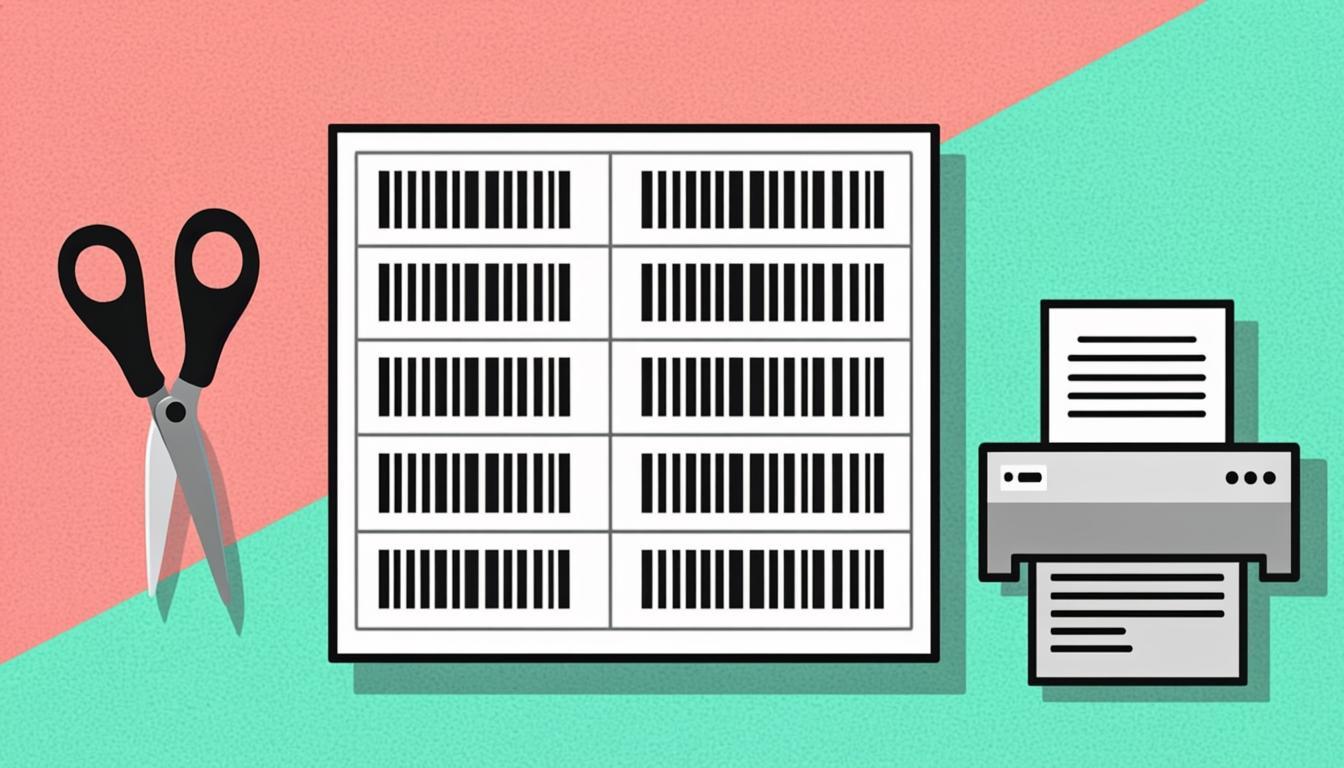
A barcode label generator is a tool that lays out many barcodes onto a sheet of label paper, ready to print on a home or office printer. Instead of generating one barcode image at a time and copying it into a Word document by hand, the tool takes a list of barcodes, picks a label template (like Avery 5160, 5163, or 5164), and outputs a PDF with the barcodes already laid out in the right spots on the page.
The most common label templates come from Avery, a U.S. company that has sold label paper since the 1930s. Avery templates have standard sizes that work with most home and office printers. Three of the most popular are:
- Avery 5160 — 30 labels per sheet, in a 3-column by 10-row layout. Each label is 2.625 inches wide by 1 inch tall. This is the most common label size for retail price stickers and address labels.
- Avery 5163 — 10 labels per sheet, in a 2-column by 5-row layout. Each label is 4 inches wide by 2 inches tall. This size is common for shipping labels.
- Avery 5164 — 6 labels per sheet, in a 3-column by 2-row layout. Each label is 4 inches wide by 3.33 inches tall. This size is used for bigger shipping labels and asset tags.
A good barcode label generator knows these templates by name. You pick the template from a list, upload your barcode data, and download a print-ready PDF in seconds. No more fiddling with margins in Microsoft Word.
Why Use Our Free Barcode Label Generator?
Here is why our tool is the best free choice for printing barcode labels:
- 100% free, no sign-up. No account, no email, no credit card. Open the page, pick a template, upload your data, and download the PDF.
- Pre-loaded Avery templates. The tool knows all the common Avery templates — 5160, 5163, 5164, 5167, 5168, 5195, 5196, and more. You pick the template from a drop-down list. No need to look up label sizes or grid layouts.
- Works with any printer. The PDF the tool produces is a standard 8.5" x 11" (Letter) size, which is what home and office printers use in North America. For A4 paper (used in Europe and Asia), the tool also supports A4 templates.
- PDF output is print-ready. The PDF has the barcodes already placed in the right spots. Just load your label paper into the printer, open the PDF, and click Print. No alignment fiddling.
- Multiple barcode types. EAN-13, UPC-A, Code 128, Code 39, ITF-14, SSCC-18 — the tool supports all the common label barcode types. Pick the type that matches your barcode data.
- CSV or paste input. Upload a CSV file with your barcode list, or paste plain text — one barcode per line. The tool handles both.
- Custom label text. For each barcode, you can add a custom text label printed above or below the lines. Useful for adding product names, prices, or asset descriptions.
- Real-time preview. The tool shows a preview of the first sheet before you download. You can check the layout, the size, and the text before you commit to a print run.
- No watermark. The PDF the tool produces has no "Made with" tag, no logo, no watermark. It is clean and ready for commercial use.
- Privacy first. The tool runs in your browser. Your barcode data does not leave your machine. This matters for businesses that do not want their product lists on a third-party server.
How the Barcode Label Generator Works
Behind the screen, the tool does four things:
Step 1: Read the template. Each Avery template is a definition file with: page size (Letter or A4), margins (top, bottom, left, right), label width and height, gap between labels (horizontal and vertical), and number of columns and rows. The tool loads the template you pick from a built-in list.
Step 2: Read your data. You upload a CSV file or paste text. The tool reads the lines. For each line, it picks the barcode (column 1) and the label text (column 2, if present). It shows a preview of the first 5 rows.
Step 3: Draw each barcode. For each row, the tool uses bwip-js to draw the barcode lines on a small canvas. It picks the right encoder for the type you chose (EAN-13, Code 128, and so on), draws the lines at the size that fits the label, and adds the human-readable text below the lines (if you enabled that option).
Step 4: Place barcodes on the page. The tool creates a PDF page (Letter or A4) using the pdf-lib library. It places each barcode image at the right (x, y) position based on the template's grid. For Avery 5160, that is 3 columns by 10 rows. For Avery 5163, that is 2 columns by 5 rows. The tool calculates the position of each label slot and centers the barcode image inside that slot.
Step 5: Render the PDF. When all the barcodes are placed, the tool saves the PDF file. The PDF is ready to print on a sheet of Avery label paper.
The whole pipeline runs in your browser, with no server round-trip. A 30-label sheet (Avery 5160) takes about 2 seconds to render.
Step-by-Step: Using the Barcode Label Generator
Here is how to print a sheet of barcodes with the QREndlessPro Barcode Label Generator:
Step 1: Open the tool. Visit the barcode labels page. The page loads in your browser. No login needed.
Step 2: Pick your label template. At the top of the page, pick the Avery template that matches your label paper. The most common choices are Avery 5160 (30 labels per sheet, 2.625" x 1", for price stickers, address labels, and small barcodes), Avery 5163 (10 labels per sheet, 4" x 2", for shipping labels and medium barcodes), and Avery 5164 (6 labels per sheet, 4" x 3.33", for large shipping labels and asset tags).
Step 3: Pick your barcode type. Pick the type of barcode you want to print. EAN-13 for retail products, SSCC-18 for shipping, Code 128 for asset tags with letters and numbers, and so on.
Step 4: Prepare your data. Make a list of your barcodes. The simplest way is a CSV with one barcode per line. If you want a label printed next to or below each barcode, use a 2-column CSV: barcode,label. For example:
3017620422003,Nutella 400g
5449000000996,Coca-Cola 330ml
9780140328721,Matilda book
Step 5: Upload or paste your data. Drag your CSV file into the upload box, or click "Browse" to pick it. You can also click "Paste text" and paste your list into a text box. The tool shows a preview of the first 5 rows.
Step 6: Set options. Pick the options you want: show barcode text (print the human-readable number below the lines — usually yes), show label text (print the second CSV column on the label), bar height (how tall the lines should be — taller lines scan better from a distance), and font size (for the label text — bigger is easier to read but takes more space).
Step 7: Preview the sheet. Click "Preview". The tool renders the first sheet and shows it on the screen. Check that each barcode is centered in its label slot, the text is readable, the lines are sharp (not blurry), and nothing is cut off at the edges.
Step 8: Download the PDF. When the preview looks right, click "Download PDF". The tool renders all the sheets you need (one sheet per 30 barcodes for Avery 5160, per 10 for 5163, and so on) and saves the PDF to your computer. The file is named after your CSV with a date stamp.
Step 9: Print on label paper. Load a sheet of Avery label paper into your printer. Open the PDF in any PDF viewer (Adobe Reader, Preview, Chrome). Click Print. Make sure the print dialog is set to "Actual Size" or "100%" — do not let the printer scale the page or "fit to page", or the labels will not line up with the die-cuts.
Step 10: Peel and stick. After the sheet prints, peel each label off the backing and stick it on your product, box, or asset. Scan one with your phone or scanner to make sure it reads correctly.
Real-World Examples
Here are three real label-printing jobs and how the tool handles them:
Example 1: 30 EAN-13s on Avery 5160. A small bookshop in London wants price stickers for 30 new books. They have a CSV with 30 ISBN-13 codes and 30 book titles:
9780140328721,Matilda - Roald Dahl
9780747532743,Harry Potter 1 - J.K. Rowling
9780142405412,The Outsiders - S.E. Hinton
They upload the CSV, pick Avery 5160, pick EAN-13 (the same encoder works for ISBN-13), and click Generate. In 2 seconds, they get a one-page PDF with 30 labels — 3 columns by 10 rows. Each label has the book title on top, the EAN-13 barcode lines in the middle, and the human-readable ISBN below. They print on a sheet of Avery 5160 label paper, peel, and stick on the back of each book. Total time: 5 minutes.
Example 2: 10 SSCC-18s on Avery 5163. A small e-commerce seller in Toronto ships 10 pallets a day. Each pallet needs an SSCC-18 label. Their shipping system exports 10 SSCC-18 numbers per day:
0001234560000000012
0001234560000000029
0001234560000000036
They upload the CSV, pick Avery 5163, pick SSCC-18, set bar height to 50 pixels, and click Generate. In 1 second, they get a one-page PDF with 10 labels — 2 columns by 5 rows. Each label has the SSCC-18 barcode lines, big and tall, with the human-readable number below. They print on a sheet of Avery 5163 label paper, peel, and stick on the side of each pallet. The pallets are ready for the carrier to scan.
Example 3: 6 asset tags on Avery 5164. A small office in Mumbai buys 6 new laptops and needs to tag them. They use Code 128 barcodes (which can hold letters and numbers) with a prefix "IT-LAPTOP-":
IT-LAPTOP-001,MacBook Pro 14
IT-LAPTOP-002,MacBook Air 13
IT-LAPTOP-003,Dell XPS 13
IT-LAPTOP-004,Dell XPS 15
IT-LAPTOP-005,HP EliteBook 840
IT-LAPTOP-006,Lenovo ThinkPad T14
They upload the CSV, pick Avery 5164, pick Code 128, set bar height to 80 pixels, and click Generate. In 1 second, they get a one-page PDF with 6 labels — 3 columns by 2 rows. Each label is big (4" x 3.33") with the laptop name on top, the barcode lines in the middle, and the asset code below. They print on a sheet of Avery 5164 label paper, peel, and stick on the bottom of each laptop.
Want to try it yourself? Open the Barcode Label Generator and run a test with 3 barcodes on Avery 5160. You will have a print-ready PDF in under a second.
Who Uses Barcode Label Generators?
Many kinds of businesses use barcode label generators:
- Retail — Grocery stores, bookshops, and clothing stores print price labels for products. Avery 5160 is the most common template — 30 small labels per sheet for 30 price tags.
- Logistics — Small shipping companies print SSCC-18 labels for pallets. Avery 5163 (10 labels per sheet) is the standard for medium shipping labels.
- Manufacturing — Factories print asset tags for tools and machines. Avery 5164 (6 labels per sheet) gives them big tags that are easy to see on a factory floor.
- Offices — Offices print asset tags for laptops, monitors, and furniture. Avery 5160 is common for small asset tags; Avery 5164 for bigger ones.
- Schools and universities — Schools print asset tags for student laptops and lab equipment. They use Avery 5160 for small tags (one per laptop) and Avery 5163 for bigger equipment.
- Hospitals — Hospitals print asset tags for medical equipment. Each new MRI machine, IV pump, or monitor gets a label.
- Home businesses — People who run small online shops (Etsy, eBay) print barcode labels for their products at home. A small pack of Avery 5160 paper plus a home printer plus our tool equals 30 product labels in 5 minutes.
- Event organizers — Conferences print barcode badges for attendees. Avery 5160 is common for small badges; Avery 5163 for bigger ones.
- Libraries — Public libraries print spine labels for new books. They use ISBN-13 barcodes on small labels.
Anyone who needs more than 3 barcode labels at a time should be using a label generator. The time savings are huge, and the cost (just the label paper) is small.
Tips for Best Results
A few tips will make your label printing go smoothly:
- Use real Avery paper. Generic label paper from office stores is fine, but check the size. The label layout must match the template you picked (5160, 5163, 5164). If the labels do not line up, you have the wrong template.
- Print at 100% scale. In your PDF viewer's print dialog, set "Scale" to "100%" or "Actual Size". Do not use "Fit to page". If the printer scales the page, the labels will not line up with the die-cuts.
- Test on plain paper first. Before you waste a sheet of label paper, print the PDF on a plain sheet of paper. Hold it over a sheet of label paper against a window or lamp. If the barcodes line up with the die-cuts, you are good. If not, adjust the template or the print scale.
- Pick the right template for the job. 30 small labels per sheet (5160) for price tags. 10 medium labels per sheet (5163) for shipping labels. 6 large labels per sheet (5164) for asset tags and big shipping labels.
- Pick the right barcode type. EAN-13 for retail products, SSCC-18 for shipping pallets, Code 128 for asset tags with letters and numbers. Do not use Code 39 if you can use Code 128 — Code 128 is more compact and scans better.
- Make the lines tall enough. For long-distance scanning (for example, a forklift driver scanning a pallet from 10 feet away), use Avery 5163 or 5164 with a bar height of at least 50 pixels. For close-up scanning (a checkout counter), Avery 5160 with a bar height of 30 pixels is fine.
- Keep the label text short. Long product names can wrap and overlap the barcode. If your labels are long, shorten them in your CSV before you upload. "Nutella Hazelnut Spread with Cocoa 400g" becomes "Nutella 400g".
- Use OCR-B font for EAN-13. The classic EAN-13 human-readable font is OCR-B. Our tool uses it by default. If you change the font, keep it simple — sans-serif like Arial or Helvetica works fine.
Common Mistakes to Avoid
Watch out for these common label-printing mistakes:
- Mistake 1: Wrong template for the paper. You picked Avery 5160 (30 per sheet) but you have Avery 5163 paper (10 per sheet). The barcodes will print in the wrong spots. Check the Avery number on the paper box before you start.
- Mistake 2: "Fit to page" in the print dialog. The printer scaled your PDF down to 95% to fit the page margins. Now the labels do not line up with the die-cuts. Always set the print scale to 100% or "Actual Size".
- Mistake 3: Wrong paper orientation. You loaded the label paper "portrait" but the PDF is "landscape" (or vice versa). The labels come out sideways. Check the page orientation in the print dialog before you click Print.
- Mistake 4: Barcodes too small. You picked Avery 5160 (small labels) and SSCC-18 (long 18-digit barcodes). The lines are tiny and your scanner cannot read them. Use Avery 5163 or 5164 for long barcodes.
- Mistake 5: Long label text wraps over the barcode. Your CSV has a 50-character product name on each row. The text wraps to 2 lines on a small label and overlaps the barcode lines. Shorten the names.
- Mistake 6: Wrong barcode type for the data. You picked UPC-A (12 digits) but your CSV has 13-digit EAN-13 codes. The encoder fails on every row. Pick the type that matches your data.
- Mistake 7: Missing check digit. Your CSV has 12-digit EAN-13 codes (without the 13th check digit) and you did not turn on "auto-add check digit". Every row fails. Either include the full 13 digits, or turn on auto-add.
- Mistake 8: Not testing first. You print 30 labels on a fresh sheet of label paper, then realize the size is wrong or the text is unreadable. You have wasted a sheet of label paper. Always test on plain paper first.
Frequently Asked Questions
Q1: What is the most common Avery template for barcodes?
Avery 5160. It is the 30-per-sheet template (2.625" x 1" each). It works for retail price stickers, address labels, and small asset tags. Most home and office printers handle it. Many office stores sell "Avery 5160 compatible" label paper — the layout is the same; only the brand on the box is different.
Q2: Can I print on A4 paper?
Yes. The tool supports both Letter (8.5" x 11", used in North America) and A4 (210mm x 297mm, used in Europe and Asia). For A4, pick an A4 template like "Avery J8160" (the A4 version of 5160). You do not need a special barcode printer — any inkjet or laser printer works. For high-volume label printing (1,000+ labels a day), a dedicated label printer like a Zebra, Honeywell, or Brother is faster.
Q3: Can I print barcodes in color?
Yes. The tool lets you pick the bar color and the background color. For best scanning, use black bars on white background. If you want color (for example, your brand colors), use a dark color on a light background. Avoid red bars on white — red is invisible to red laser scanners.
Q4: How many sheets can I print at once?
There is no limit. The tool can render a 100-page PDF (3,000 labels on Avery 5160) in under a minute. For big print runs, just print 10-20 sheets at a time so you can check quality as you go.
Q5: My labels do not line up with the die-cuts. What is wrong?
Three things to check: (1) The Avery template you picked matches the Avery number on the paper box. (2) The print dialog is set to 100% scale or "Actual Size" — not "Fit to page". (3) The paper is loaded in the correct orientation (portrait or landscape).
Q6: Can I add my logo to each label?
Not yet in the basic mode. If you need a logo on each label, you can use the Barcode Generator to make individual barcodes with logos, then arrange them on the label sheet by hand in Word or Photoshop.
Ready to Try the Barcode Label Generator?
You now know what a barcode label generator is, how the tool works, who uses it, and what mistakes to avoid. The fastest way to see it is to try it.
Open the QREndlessPro Barcode Label Generator and run a test with 6 barcodes on Avery 5164. You will have a print-ready PDF in under a second.
If you need other free barcode tools, we also have a single barcode generator, a bulk barcode generator for ZIP output, a barcode lookup tool, and a barcode validator. All free, all browser-based, all built on the same engine.