Picking the Wrong QR Code File Format Will Ruin Your Print Job
You just created a QR code. Now you need to download it — but you see seven different file format options: PNG, JPG, WebP, SVG, PDF, EPS. Which one do you choose?
The wrong choice can cause big problems. Pick PNG for a billboard and it will look blurry. Pick SVG for a social media post and it might not display. Pick the right format and your QR code will look sharp, scan reliably, and work everywhere. In this guide, you will learn what each format does, when to use it, and which one is right for your project.
This guide explains every QR code file format, when to use each one, and how to download the right format from QREndless's free tools. After reading this, you will never again send the wrong format to a printer or paste a blurry QR code onto your website.
Table of Contents
- What Is a QR Code File Format?
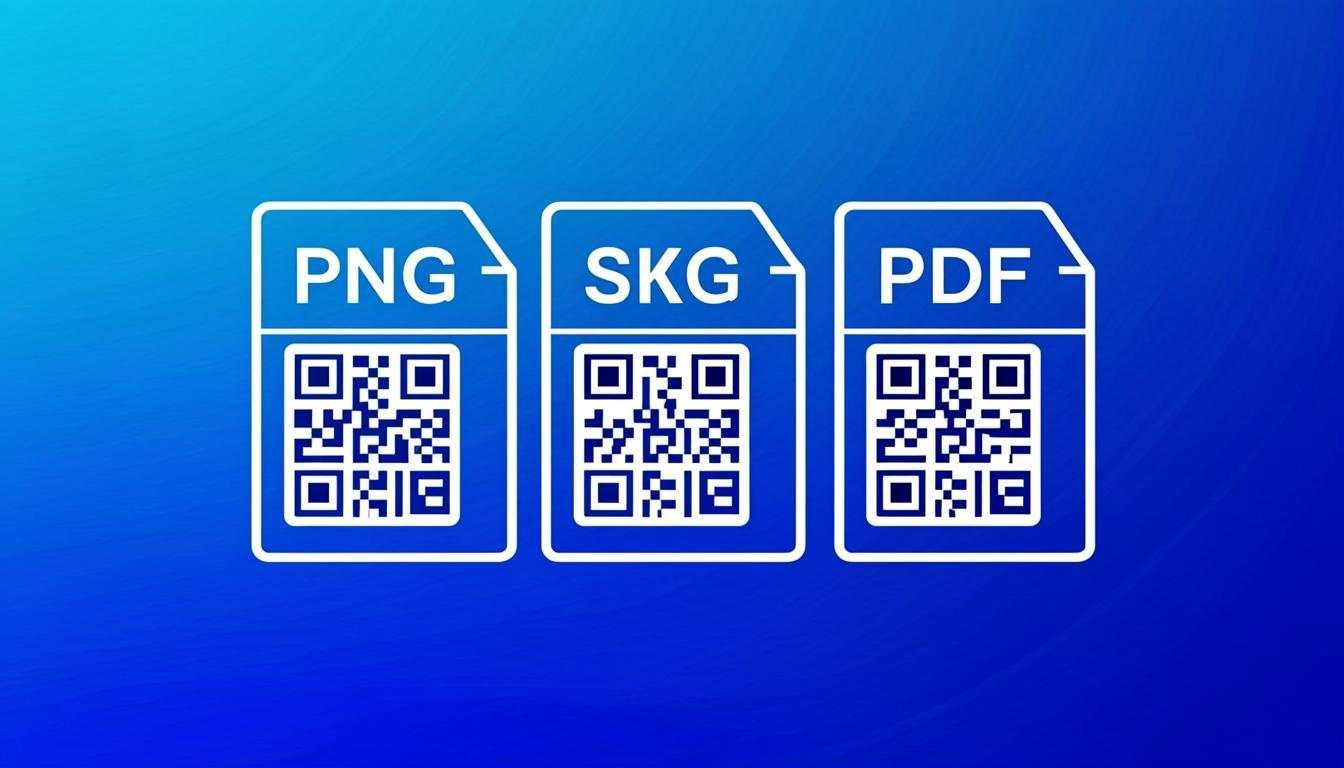
- The Three Main QR Code File Formats
- PNG Explained: The Raster Workhorse
- SVG Explained: The Vector Champion
- PDF Explained: The Print-Ready Document
- Other QR Code Formats: JPG, WebP, EPS, BMP
- PNG vs SVG vs PDF: The Comparison Table
- When to Use PNG for QR Codes
- When to Use SVG for QR Codes
- When to Use PDF for QR Codes
- Print vs Screen: Decision Matrix
- How to Export QR Codes in Each Format Using QREndless
- QR Code File Format Best Practices
- Common Mistakes When Choosing a File Format
- Action Steps: Pick the Right Format Today
- Frequently Asked Questions
What Is a QR Code File Format?
A file format is the way an image is saved on a computer. Different formats store image data in different ways, and each one has strengths and weaknesses. For QR codes, the format you choose affects three things:
- Image quality at different sizes: Some formats stay sharp no matter how big you print them. Others get blurry when enlarged.
- File size: Some formats produce small files. Others produce large files.
- Software compatibility: Some formats work in every design tool. Others need specialized software.
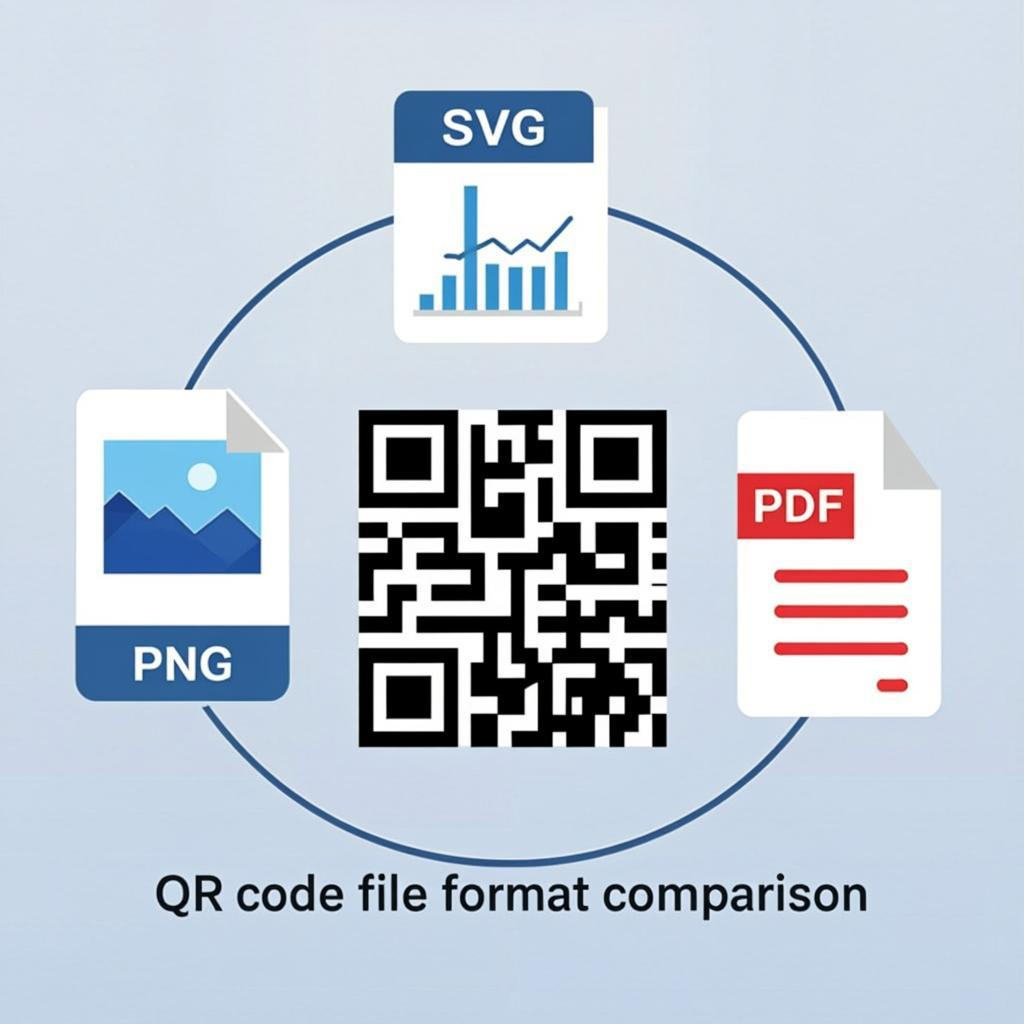
For most QR code users, the choice comes down to three formats: PNG, SVG, and PDF. We will spend most of this guide on those three, then briefly cover JPG, WebP, EPS, and BMP at the end.
The single most important thing to understand before we go further is the difference between raster and vector images. This one concept explains 90 percent of file format mistakes.
The Three Main QR Code File Formats
Here is the one-paragraph summary before we go deep:
- PNG is a raster format. It stores the QR code as a grid of pixels. Great for screens and small prints. Gets blurry when enlarged. File size is small.
- SVG is a vector format. It stores the QR code as math — instructions for drawing the squares. Stays sharp at any size, from a business card to a billboard. File size is very small.
- PDF is a document format that can contain either raster or vector data. For QR codes, PDF is usually vector, which makes it ideal for print shops. Most printers ask for PDF.
PNG Explained: The Raster Workhorse
PNG (Portable Network Graphics) is the most common image format on the web. When you right-click an image on a website and save it, you usually get a PNG. PNG files store images as a grid of pixels — tiny colored squares. A 200×200 pixel PNG has 200 squares across and 200 squares down, for a total of 40,000 pixels.
For QR codes, PNG has some real strengths:
- Universal compatibility: Every browser, every design tool, every operating system can open PNG. No special software needed.
- Lossless compression: PNG compresses the file without losing any quality. The image looks identical to the original.
- Transparency support: PNG supports transparent backgrounds, which is useful if you want to place a QR code on a colored background.
- Small file size: A simple QR code PNG is usually under 10 KB. Loads instantly on any website.
But PNG has one big weakness: it is a raster format. A 200×200 pixel PNG looks crisp on a phone screen. But if you try to print that same PNG on a poster at 30 cm by 30 cm, each pixel becomes 1.5 mm wide. The result looks blocky and blurry. The camera cannot scan it.
To print a PNG clearly, you need a high-resolution version — at least 1000×1000 pixels for a 5 cm print, and much more for larger prints. Even then, PNG is not the best choice for large-format printing. Vector formats are.
SVG Explained: The Vector Champion
SVG (Scalable Vector Graphics) is a vector format. Instead of storing pixels, it stores instructions: "Draw a black square at position 10, 10. Draw another at position 12, 10." When you open an SVG, the software reads those instructions and draws the image fresh — at whatever size you want.
This means SVG has a magical property: it stays sharp. You can print a QR code from an SVG at 1 cm wide or 10 meters wide, and every square stays ideally sharp. There are no pixels to enlarge.
SVG has other strengths too:
- Tiny file size: An SVG QR code is usually under 5 KB — smaller than a PNG of the same code.
- Editable in design tools: You can open an SVG in Adobe Illustrator, Figma, Inkscape, or any vector editor and change individual squares, colors, or shapes.
- Web-friendly: Modern browsers display SVG directly. You can put an SVG on a website just like a PNG.
- Great for logos and branding: If you want to add your logo to a QR code and resize it later, SVG is the format to use.
The one weakness of SVG: it does not work well with very old design software or some entry-level printing tools. But for any modern print shop or design tool, SVG is the gold standard.
PDF Explained: The Print-Ready Document
PDF (Portable Document Format) is a document format created by Adobe. It is the standard format for print shops, magazines, and any professional printing. When you send a design to a commercial printer, they almost always ask for PDF.
PDFs can contain either raster or vector data. For QR codes, the PDFs generated by QREndless are vector — meaning the QR code inside is stored as math, just like an SVG. The PDF is essentially a wrapper around the vector data, plus optional metadata like document size, color profile, and fonts.
Why use PDF instead of SVG for printing?
- Print shops expect PDF. Most commercial printers have workflows built around PDF. They know how to handle it.
- PDF preserves print settings. You can embed color profiles, bleed marks, and crop marks in a PDF. SVG cannot do this.
- PDF can combine multiple QR codes. If you are printing a sheet of 20 QR codes, a single PDF can hold all 20 in a defined layout.
- PDF is universally readable. Anyone with a phone or computer can open a PDF without design software.
For QR codes, PDF is the format to use when you are sending files to a professional printer for posters, banners, packaging, or any large-format output.
Other QR Code Formats: JPG, WebP, EPS, BMP
Besides PNG, SVG, and PDF, you may see these formats offered. Here is what each one is good for:
JPG (or JPEG)
JPG is a raster format like PNG, but it uses lossy compression. Every time you save a JPG, you lose a little quality. For photographs, this is fine — the loss is barely visible. For QR codes, it is a bad choice. The compression can blur the edges of the squares, making the code hard to scan. Avoid JPG for QR codes unless you have no other option.
WebP
WebP is a modern raster format developed by Google. It produces smaller files than PNG and JPG, and it supports transparency. For websites, WebP is excellent. But for printing, WebP is raster — it has the same blur-when-enlarged problem as PNG. Use WebP for web display, not for print.
EPS
EPS (Encapsulated PostScript) is an older vector format. It does the same job as SVG — stores the QR code as math, scales without blurring. EPS used to be the standard for print shops, but SVG and PDF have largely replaced it. Some older print workflows still ask for EPS. If yours does, EPS is a safe choice for vector quality.
BMP
BMP is an old raster format with no compression. Files are huge. There is almost no reason to use BMP for QR codes today. Skip it.
Transparent PNG
A transparent PNG is just a regular PNG with a transparent background instead of a white background. Use it when you want to place a QR code on a colored or textured background and have the background show through the empty spaces of the code. Most QR code tools (including QREndless) offer this as a separate download option.
PNG vs SVG vs PDF: The Comparison Table
Here is the side-by-side comparison to help you pick.
| Feature | PNG | SVG | |
|---|---|---|---|
| Image type | Raster (pixels) | Vector (math) | Usually vector |
| Scales without blurring | No | Yes | Yes |
| Best for | Screens, small prints | Web, design tools, any size print | Professional printing |
| File size | Small (5-50 KB) | Very small (2-10 KB) | Small (10-50 KB) |
| Transparency support | Yes | Yes | Yes |
| Editable in design tools | Limited | Yes (full vector editing) | Limited |
| Print shops accept it | Sometimes | Sometimes | Always |
| Browser support | Universal | Modern browsers | Requires PDF viewer |
| Recommended print size | Up to 5 cm | Any size | Any size |
When to Use PNG for QR Codes
PNG is the right choice for these situations:
- QR codes on websites: A PNG displays in every browser, loads fast, and looks crisp at typical screen sizes.
- QR codes in email signatures: PNG works in all email clients. SVG does not work reliably in Outlook.
- QR codes in social media posts: Twitter, Facebook, Instagram, and LinkedIn all accept PNG.
- QR codes in Word and Google Docs: PNG embeds easily. Vector formats may not display correctly.
- Small printed items: Business cards, stickers, product labels up to about 5 cm. Use a high-resolution PNG (at least 1000×1000 pixels).
- QR codes in PowerPoint or Keynote slides: PNG is the safest choice for presentations.
For print, make sure your PNG is high resolution. A 200×200 pixel PNG is fine for a website but useless for printing. Use at least 1000×1000 pixels for any printed QR code.
When to Use SVG for QR Codes
SVG is the right choice for these situations:
- Large-format printing: Posters, banners, billboards. SVG stays sharp at any size.
- QR codes that will be resized: If you might use the same QR code at different sizes (small on a business card, big on a poster), SVG is the one source file you need.
- QR codes with custom logos or branding: SVG can be edited in Illustrator, Figma, or Inkscape. You can change colors, add elements, or tweak the design.
- Modern websites that want maximum quality: SVG displays at any resolution, including Retina displays and 4K screens.
- QR codes embedded in other vector designs: If you are designing a flyer in Illustrator and want to drop the QR code in as a vector element, SVG is the way.
The only place SVG struggles is older software. If your printer says they cannot accept SVG, send them PDF instead.
When to Use PDF for QR Codes
PDF is the right choice for these situations:
- Professional printing: Posters, packaging, magazine ads, business cards printed by a commercial print shop. PDF is the format they expect.
- Multi-QR layouts: If you need a sheet of 20 QR codes laid out in a grid, PDF can hold all 20 with precise positioning.
- Documents with embedded QR codes: Reports, brochures, instruction manuals — anywhere a QR code is part of a larger document.
- Files that need to be reviewed by non-designers: PDF opens on any phone or computer without design software.
- Files that need print settings embedded: Color profiles, bleed, crop marks — these only work in PDF.
For QR codes specifically, PDF is usually the safest choice when in doubt. It is vector, it is universal, and print shops know how to handle it.
Print vs Screen: Decision Matrix
Use this table to pick the right format for your specific use case.
| Use Case | Best Format | Why |
|---|---|---|
| Website QR code | PNG or SVG | PNG for compatibility, SVG for crisp scaling |
| Email signature QR code | PNG | Most reliable across email clients |
| Social media post QR code | PNG | Universal support on social platforms |
| Business card QR code | SVG or PDF | Vector quality for small print |
| Sticker QR code (under 5 cm) | SVG or PDF | Vector quality for sharp edges |
| Poster QR code | SVG or PDF | Must scale without blurring |
| Billboard QR code | SVG or PDF | Must scale to massive sizes |
| Packaging QR code | Print shop standard, supports color profiles | |
| Word document QR code | PNG | Most reliable in Office |
| PowerPoint slide QR code | PNG | Most reliable in presentations |
| Flyer QR code (designed in Illustrator) | SVG | Editable vector element |
| Sheet of 50 QR codes for an event | Multi-page layout, print-ready |
How to Export QR Codes in Each Format Using QREndless
QREndless's free tools support all the major file formats. Here is how to get each one.
From the QR Code Generator
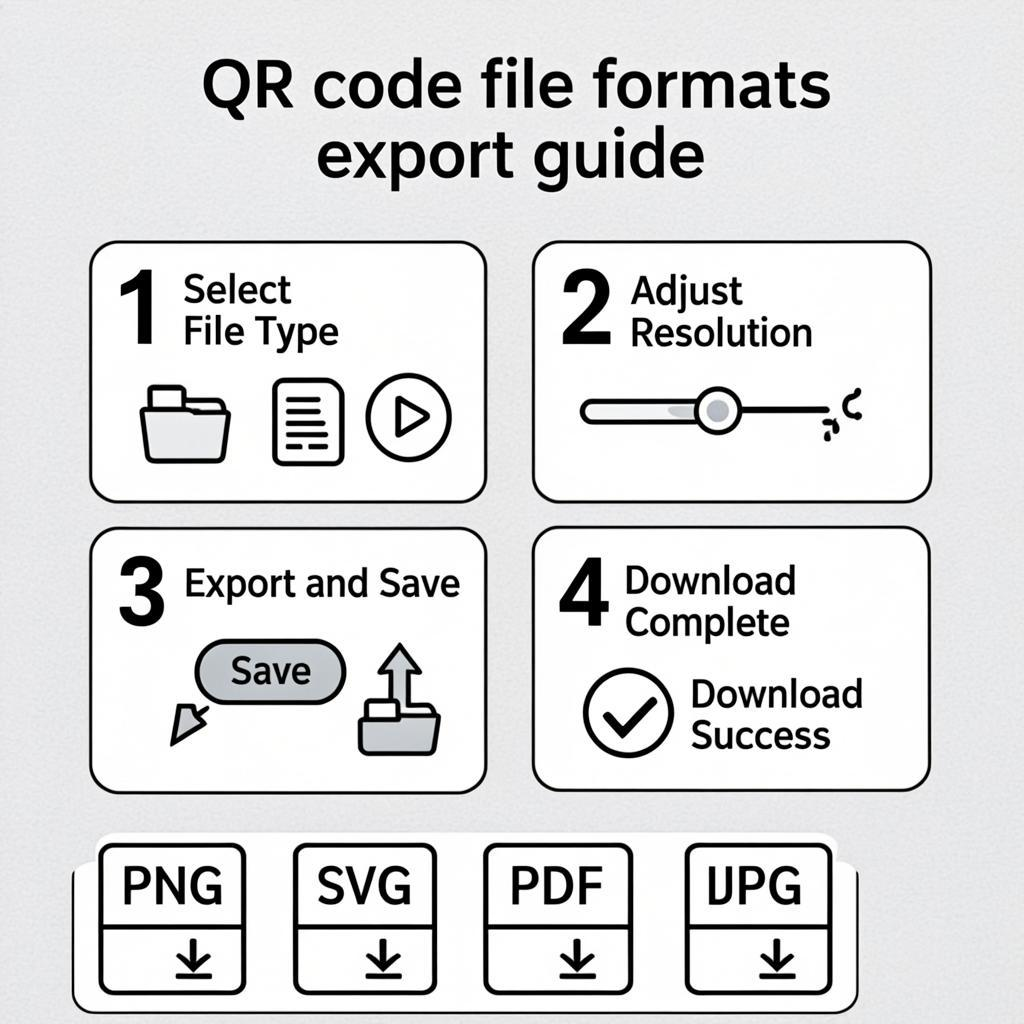
The QREndless QR generator lets you download your QR code in multiple formats. After generating a code, look at the download options:
- PNG — for web and small prints.
- SVG — for large prints and design tools.
- PDF — for professional printing.
- JPG — only if you need a small file and cannot use PNG.
- WebP — for modern websites that want smaller files.
- EPS — for older print workflows that require it.
- Transparent PNG — for placing the QR code on colored backgrounds.
From the Bulk QR Generator
The QREndless bulk QR generator lets you choose the output format for the entire batch. Generate up to 5,000 QR codes in PNG, SVG, PDF, or JPG. The download comes as a ZIP file containing individual images plus an index spreadsheet.
From the QR Code Customizer
The QREndless QR customizer supports all the same download formats. After you finish customizing your QR code (logo, colors, dot styles, frames), download it in the format that matches your use case.
From the QR Code Enhancer
If you already have a low-quality QR code image and need to fix it, use QREndless's QR enhancer. It can sharpen blurry codes, upscale to 4K resolution, force black-and-white contrast, and export the result in 7 formats — including PNG, SVG, PDF, JPG, WebP, transparent PNG, and EPS.
QR Code File Format Best Practices
- Always save the SVG version. Even if you do not need it today, you may need to resize the QR code later. SVG is your source-of-truth file that works at any size.
- Use PDF for commercial printing. It is the format print shops expect, and it preserves vector quality.
- Use high-resolution PNG for any printed QR code. At least 1000×1000 pixels for prints up to 5 cm. Larger prints need vector formats.
- Avoid JPG for QR codes. The lossy compression can blur the edges of the squares and make the code unscannable.
- Test the printed QR code before mass production. Print one copy, scan it with multiple phones, and confirm it works. Then print the rest.
- Keep file sizes small for web use. A QR code PNG should be under 50 KB. SVG should be under 10 KB. Large files slow down your website.
- Use transparent PNG for colored backgrounds. If you are placing the QR code on a colored background, use a transparent PNG so the background shows through.
- Embed color profiles for print. If color accuracy matters (e.g., brand colors), use PDF with embedded color profiles.
Common Mistakes When Choosing a File Format
Mistake 1: Using PNG for Large Prints
A 200×200 pixel PNG looks fine on a website but turns into a blurry mess when printed on a poster. For anything larger than 5 cm, use SVG or PDF.
Mistake 2: Using JPG for QR Codes
JPG compression blurs the edges of QR code squares. The code may look fine to your eye but fail to scan. Use PNG, SVG, or PDF instead.
Mistake 3: Sending the Wrong Format to the Printer
Print shops usually want PDF or EPS. Some accept SVG. Almost none work well with PNG or JPG. Ask your printer what format they prefer before sending files.
Mistake 4: Resizing a PNG to Make It Bigger
When you enlarge a PNG in Photoshop or any image editor, the software invents new pixels to fill the gaps. The result is blurry. You cannot add detail that was not in the original. Always go back to the SVG source and re-export at the size you need.
Mistake 5: Not Saving the SVG Source File
If you only save the PNG and later need to print the QR code bigger, you are stuck. Always save the SVG version — it is your master file that can be re-exported at any size.
Mistake 6: Forgetting to Test the Printed Code
Even with the right format, things can go wrong in printing — wrong color profile, wrong scaling, wrong paper. Always print one test copy and scan it before mass-producing.
Mistake 7: Using WebP for Print
WebP is great for websites but is a raster format. It has the same blur-when-enlarged problem as PNG. Use WebP for web display only, not for printing.
Action Steps: Pick the Right Format Today
- Identify your use case. Will the QR code appear on a website, an email, a business card, a poster, or packaging?
- Check the format recommendation table earlier in this guide. Pick the format that matches your use case.
- Generate your QR code using QREndless's free QR generator.
- Download the SVG version first. This is your master file. Save it somewhere safe — you may need it later for resizing.
- Download the format you need for your specific use case — PNG for web, PDF for print, and so on.
- If you have an existing low-quality QR code, run it through QREndless's QR enhancer to fix blur and upscale resolution.
- Test the QR code by printing one copy and scanning it with multiple phones. Do this before any mass production.
- Send the right format to your printer. Ask them what they prefer if you are not sure — usually PDF.
Frequently Asked Questions
What is the best file format for a QR code?
It depends on the use case. For websites and small prints, PNG is fine. For large prints like posters and billboards, use SVG or PDF. For commercial printing, PDF is the standard. The safest approach is to always save the SVG version as your master file — it works at any size and can be re-exported as any other format.
What is the difference between PNG and SVG for QR codes?
PNG is a raster format — it stores the QR code as a grid of pixels. It gets blurry when enlarged. SVG is a vector format — it stores the QR code as math instructions for drawing squares. It stays sharp at any size, from a business card to a billboard. SVG is also usually a smaller file than PNG.
Why does my QR code look blurry when printed?
Almost always because you used a raster format (PNG or JPG) at too low a resolution for the print size. A 200×200 pixel PNG looks fine on a website but blurs when printed at 10 cm wide. Use SVG or PDF (vector formats) for any print larger than 5 cm, or use a PNG with at least 1000×1000 pixels for small prints.
Can I use JPG for a QR code?
You can, but you should not. JPG uses lossy compression that blurs the edges of the QR code squares. The code may look fine to your eye but fail to scan. Use PNG for web and SVG or PDF for print instead.
Which format do print shops prefer for QR codes?
Most commercial print shops prefer PDF. Some accept SVG or EPS. Almost none work well with PNG or JPG because those are raster formats that lose quality when scaled. Always ask your printer what format they prefer before sending files.
How do I download my QR code as SVG?
Use QREndless's free QR generator. After generating your QR code, choose SVG from the download options. The SVG file will be vector and can be scaled to any size without losing quality.
Can I edit a QR code SVG in Illustrator or Figma?
Yes. SVG is fully editable in any vector design tool — Adobe Illustrator, Figma, Inkscape, Sketch, Affinity Designer. You can change colors, modify individual squares, add logos, or combine the QR code with other vector elements. Just be careful not to alter the data squares, or the code may stop scanning.
What is a transparent PNG and when should I use it?
A transparent PNG is a regular PNG file with a transparent background instead of white. Use it when you want to place the QR code on a colored or textured background and have the background show through the empty spaces of the code. QREndless offers transparent PNG as a separate download option in the QR generator and the customizer.
Can I convert a PNG QR code to SVG?
You can, but the conversion may not be exact. Tools that convert raster to vector (vectorization) can struggle with the precise squares of a QR code. The best approach is to regenerate the QR code from the original data using QREndless's QR generator and download the SVG directly. If you only have a PNG and no way to recreate the code, run it through QREndless's QR enhancer to fix quality, then export as SVG.
How big should a PNG QR code be for printing?
For prints up to 5 cm wide, use at least 1000×1000 pixels. For prints up to 10 cm, use at least 2000×2000 pixels. For anything larger, switch to SVG or PDF — raster formats become impractical for big prints because the file size explodes and the risk of blurriness increases.