Want to Share a PDF With a Quick Scan? Here Is How
You have a PDF — a restaurant menu, a product manual, an event program, a price list, a brochure. You want people to open it instantly by pointing their phone at a code. No typing a long web address. No searching. Just scan and read.
This is one of the most popular uses for QR codes, and the good news is that it is simple to set up. You do not need to be technical. You do not need to pay for special software. In a few minutes, you can have a QR code that opens your PDF on any phone.
The key thing to understand is this: a QR code does not hold a PDF file inside it. A QR code holds a link (a URL) that points to where the PDF lives on the internet. When someone scans the code, their phone opens the link, and the PDF loads in their browser. So the steps are: put the PDF somewhere online, get its link, then turn that link into a QR code.
This guide walks you through each step in plain English. We cover four different ways to host your PDF online — pick the one that fits your situation. Then we show you how to turn the link into a clean, scannable QR code using free tools.
Table of Contents
- What Happens When Someone Scans a PDF QR Code
- Step 1: Put Your PDF Online (4 Ways)
- Option A: Cloud Storage (Google Drive, Dropbox, OneDrive)
- Option B: Your Own Website
- Option C: Free PDF Sharing Services
- Option D: Email Auto-Responder Services
- Step 2: Get the Public Link to Your PDF
- Step 3: Turn the Link Into a QR Code
- Step 4: Customize the QR Code (Optional)
- Step 5: Test and Print
- Best Practices for PDF QR Codes
- Real-World Use Cases
What Happens When Someone Scans a PDF QR Code
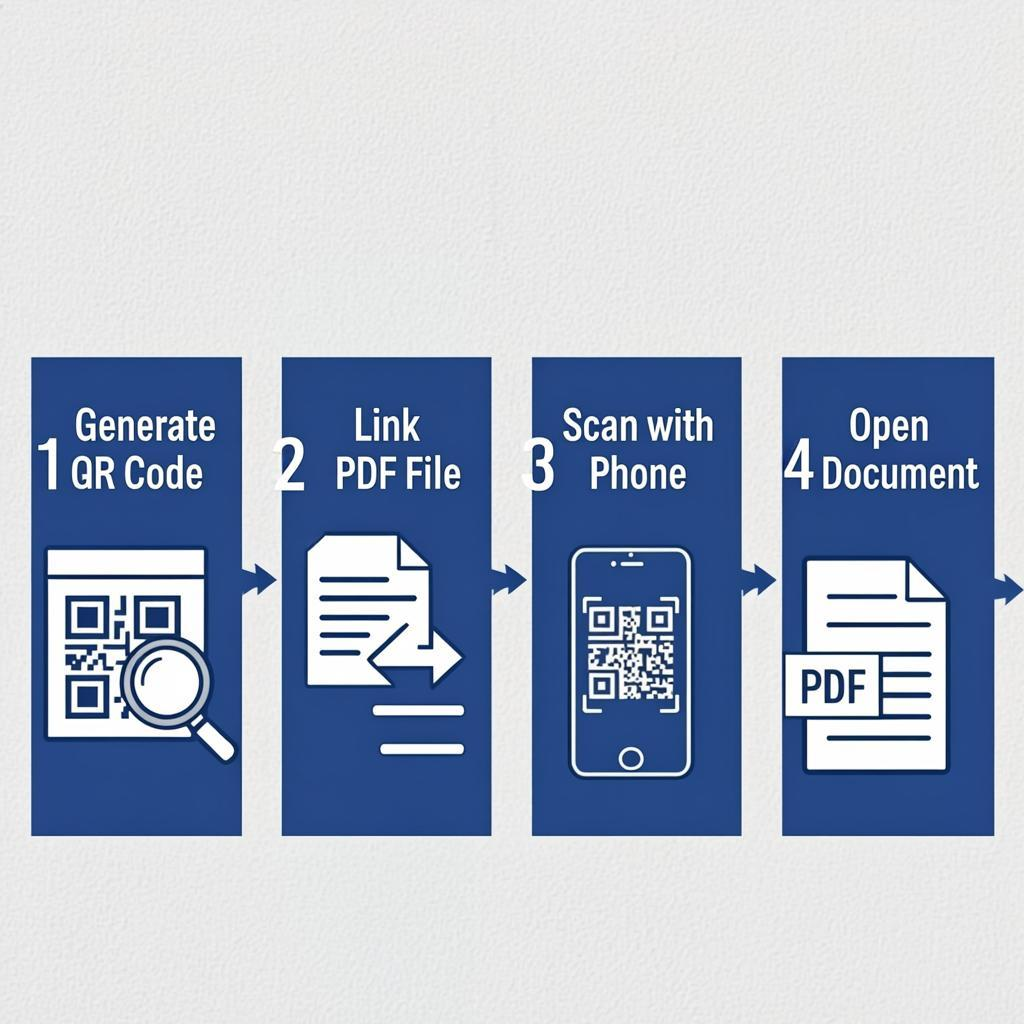
Here is the simple version of what happens:
- You upload your PDF to a website, cloud storage, or file host.
- You get a public URL — a web link that points to the PDF.
- You turn that URL into a QR code.
- Someone scans the QR code with their phone.
- Their phone opens the URL in the browser.
- The PDF opens in the browser (or downloads, depending on the phone and the file).
The QR code itself is just a way to deliver the URL without typing. The PDF stays where you uploaded it — the QR code simply tells the phone where to find it.
This means two things:
- The PDF must be online somewhere. If it is only on your computer, scanning a QR code cannot reach it.
- The link must stay valid. If you delete the PDF or move it, the QR code stops working.
With that understood, let us look at how to put the PDF online.
Step 1: Put Your PDF Online (4 Ways)
You have four main options. Pick the one that fits your needs:
| Option | Cost | Best For | Link Stays Valid? |
|---|---|---|---|
| A. Cloud storage (Google Drive, Dropbox, OneDrive) | Free | Personal use, small teams, quick sharing | Yes — as long as you keep the file and share settings |
| B. Your own website | Free if you have a site | Business use, branding, long-term | Yes — as long as you keep the site running |
| C. Free PDF sharing services | Free | Public sharing, no website needed | Depends on the service — read the terms |
| D. Email auto-responders (Mailchimp, ConvertKit) | Free or paid | Lead magnets, email signups | Yes — as long as you keep the account |
Let us walk through each option.
Option A: Cloud Storage (Google Drive, Dropbox, OneDrive)
This is the easiest and most popular option for personal use and small teams.
Steps for Google Drive:
- Open Google Drive (drive.google.com) and sign in.
- Click "New" → "File upload" and select your PDF.
- Wait for the upload to finish.
- Right-click the PDF and select "Share."
- Click "Change access" and select "Anyone with the link."
- Click "Copy link."
You now have a public link to your PDF. Anyone with the link can view the PDF in their browser.
Steps for Dropbox:
- Open Dropbox (dropbox.com) and sign in.
- Click "Upload files" and select your PDF.
- Once uploaded, click the "..." menu next to the file.
- Select "Copy link."
- The link is now public — anyone with it can view the PDF.
Steps for OneDrive: Similar steps. Upload the PDF, right-click, select "Share," set to "Anyone with the link," and copy the link.
Important: Make sure the sharing setting is set to "Anyone with the link" (public), not "Restricted." Otherwise, scanners will see a sign-in page instead of the PDF.
Option B: Your Own Website
If you have a website, this is the most professional option. You control the link, the file, and the experience.
Steps:
- Upload the PDF to your website's file manager. The exact location depends on your hosting — usually a folder called "uploads," "files," or "docs."
- Note the URL where the PDF lives. For example: https://yoursite.com/files/menu.pdf
- Test the URL in a browser. The PDF should open.
- Use this URL to create your QR code.
Many website builders (WordPress, Wix, Squarespace) make this easy. In WordPress, you can upload the PDF through the Media Library and click "Copy URL." In Wix and Squarespace, you upload the file and the builder gives you a public link.
For best performance, use a short, clean URL. Long URLs with random characters (like Google Drive links) make denser QR codes that are harder to scan. Short URLs make smaller, easier-to-scan QR codes.
Option C: Free PDF Sharing Services
If you do not have a website and want a public link fast, you can use a free PDF sharing service. Some common options include:
- DocDroid — Upload a PDF, get a public link. Free.
- PDFHost — Simple PDF hosting with a public link. Free.
- Internet Archive — For public documents you want to preserve permanently. Free.
Read the terms of service. Some free services insert ads or limit how long the file stays online. For important business use, use your own website or paid cloud storage instead.
Option D: Email Auto-Responder Services
If you are using the PDF as a "lead magnet" — a free download people get when they sign up for your email list — services like Mailchimp, ConvertKit, or MailerLite can host the PDF and send the link automatically.
Steps:
- Upload the PDF to your email service.
- The service gives you a download link.
- Use the link in your QR code.
- When people scan the QR code, the PDF downloads.
This works well for marketing campaigns, ebooks, checklists, and free guides.
Step 2: Get the Public Link to Your PDF
Whichever option you chose, you should now have a public URL that points to your PDF. The URL looks something like:
- https://drive.google.com/file/d/1Abc...23xyz/view (Google Drive)
- https://www.dropbox.com/s/abc123/menu.pdf (Dropbox)
- https://yoursite.com/files/menu.pdf (your own website)
Test the URL in a browser. The PDF should open or download. If you see a sign-in page, the sharing settings are not set to public — go back and fix them.
Pro tip: If the URL is very long, use a URL shortener like Bitly, TinyURL, or your own short domain. A shorter URL means a smaller, easier-to-scan QR code. Many URL shorteners also give you click tracking, so you can see how many people scanned your QR code.
Step 3: Turn the Link Into a QR Code
Now you have a public URL. The next step is to convert it into a QR code. This is the easy part.
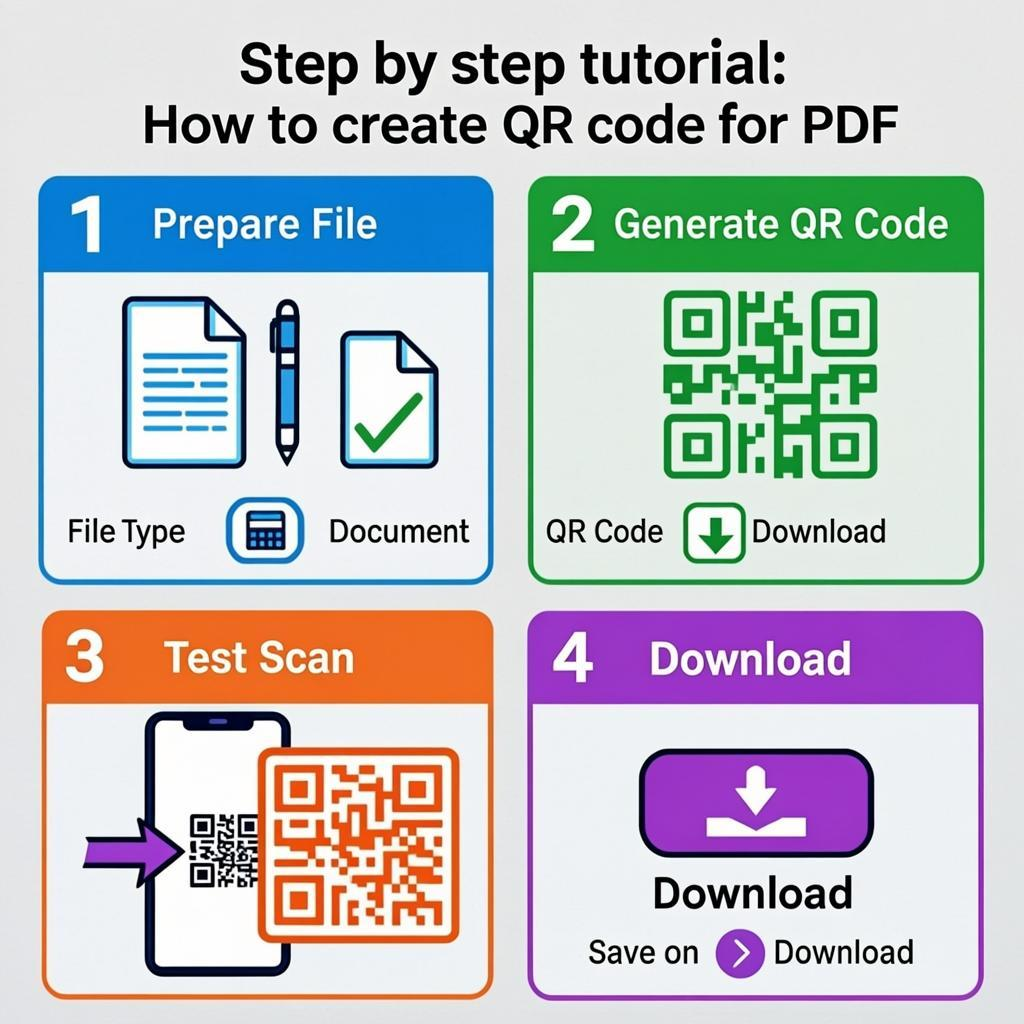
- Open QREndless's free QR code generator.
- Choose the "URL" data type (the most common type for linking to web pages).
- Paste your PDF link into the URL field.
- Choose your error correction level. For printed QR codes, use Level M (default) or Level Q (for items people will handle).
- Click "Generate."
- Preview the QR code to make sure it looks clean.
- Download the QR code as SVG, PDF, or EPS for print. Use PNG for digital display.
The whole process takes less than a minute. The QR code is now ready to use.
Step 4: Customize the QR Code (Optional)
If you want the QR code to look branded — with your logo, brand colors, or a custom design — use the QR code customizer.
You can:
- Add your logo in the center (use Level H error correction to keep it scannable)
- Change the dot colors to match your brand
- Pick from many dot styles and finder patterns
- Add a frame with a call to action like "Scan to View Menu" or "Scan for PDF"
- Use a transparent background so the QR code blends with your design
Important: Always keep enough contrast (4:1 or higher) between the dots and the background. Always test on multiple phones after customizing.
Step 5: Test and Print
Before you print or distribute the QR code, test it:
- Scan the digital QR code with your phone. It should open the PDF.
- Print a test copy at the actual size and material.
- Scan the printed QR code with at least two different phones.
- Check that the PDF opens on mobile. Some PDFs are large and slow to load on phones. If your PDF is bigger than 5 MB, consider compressing it.
- Check the PDF on different screen sizes. Make sure the text is readable on a small phone screen.
If everything works, you are ready to print and distribute. Read our full QR code printing guide for tips on formats, DPI, materials, and testing.
Best Practices for PDF QR Codes
- Use a short URL. Long URLs create dense, hard-to-scan QR codes. Use a URL shortener if needed.
- Keep the PDF file size small. Phones on slow connections will struggle with 20 MB PDFs. Aim for under 2 MB if possible. Use online PDF compressors if needed.
- Optimize the PDF for mobile. Use a readable font size (12 pt minimum for body text). Avoid tiny columns that require zooming.
- Make sure the PDF is publicly accessible. Test the URL in an incognito/private browser window. If it asks for a sign-in, the sharing settings are wrong.
- Use Level M or higher error correction for printed QR codes.
- Include a call to action near the QR code: "Scan to View Menu," "Scan for the Manual," "Scan to Download." People are more likely to scan when they know what they will get.
- Print at 2 cm × 2 cm minimum (larger for distance scanning). See our QR code size guide for details.
- Test the link periodically. If you ever delete or move the PDF, the QR code stops working. Use the QR code decoder to check what a QR code links to.
Real-World Use Cases
Restaurant Menus
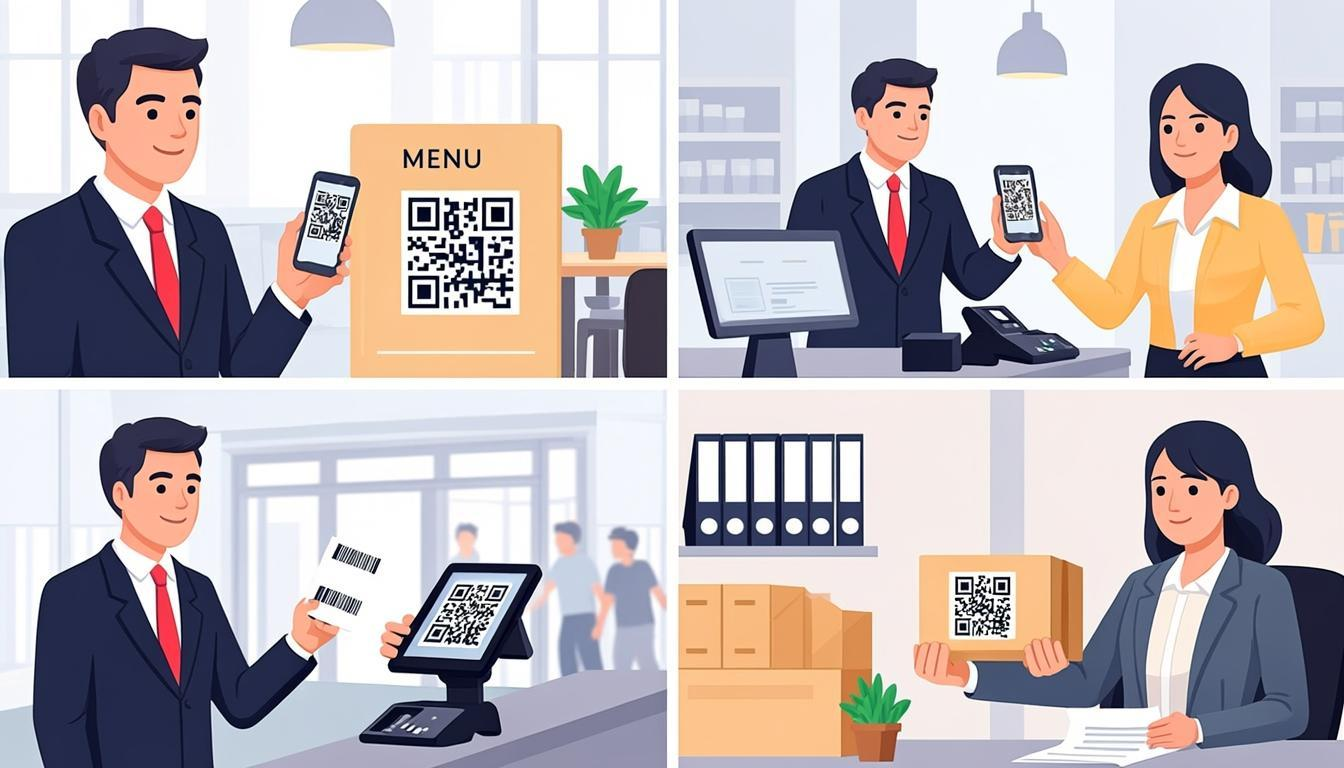
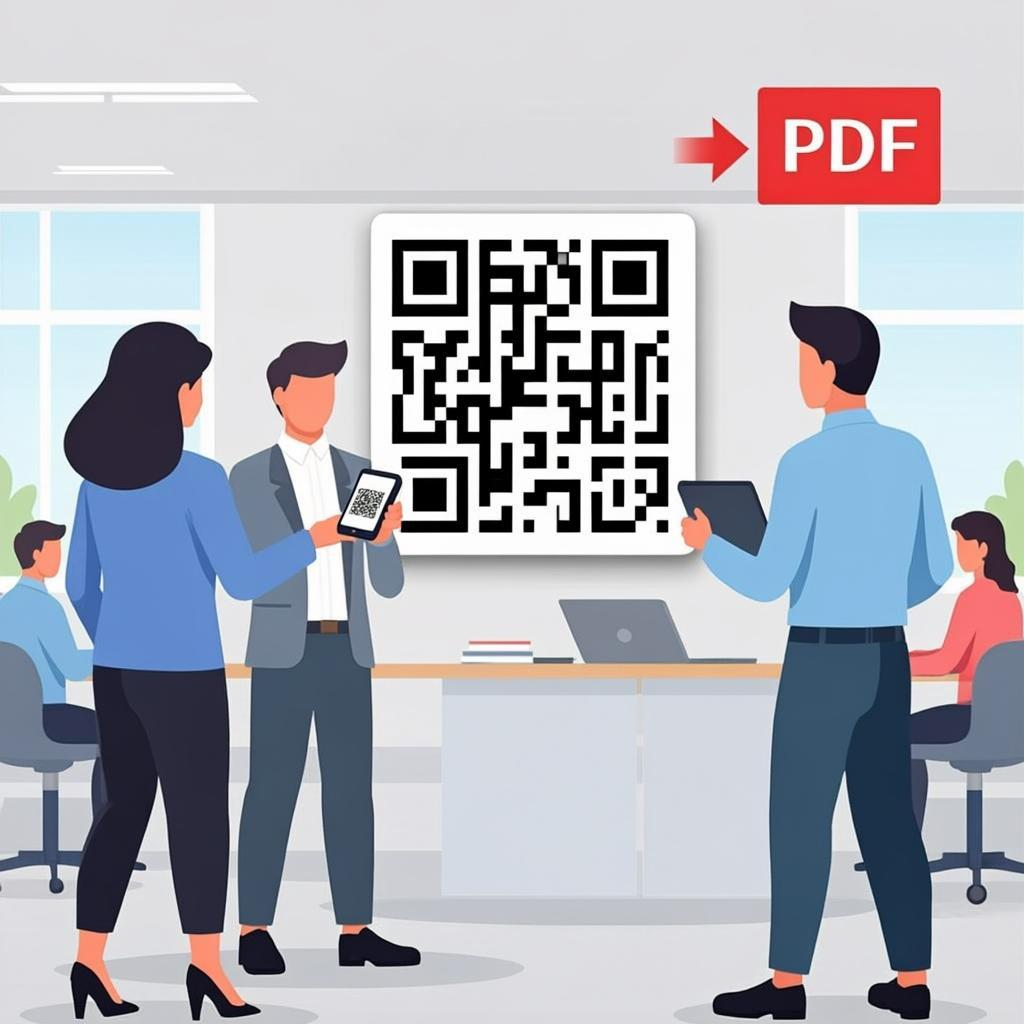
Upload your menu PDF to your website (or cloud storage), generate a QR code, and print it on a table tent. Customers scan to view the menu on their phone — no app, no contact. Update the menu anytime by replacing the PDF at the same URL; the QR code keeps working.
Product Manuals
Print a QR code on the product box or in the manual that links to the full PDF manual. Customers can read the manual on their phone without keeping the paper version. Saves printing costs and lets you update the manual without reprinting.
Event Programs
For conferences, weddings, or concerts, generate a QR code that links to the event program PDF. Print it on signs at the entrance. Guests scan to see the schedule on their phone.
Price Lists and Catalogs
For B2B companies, wholesalers, or retailers, link a QR code to your latest price list PDF. Customers can scan to view current prices anytime. Update the PDF whenever prices change — the QR code stays the same.
Real Estate Property Listings
Print a QR code on the "For Sale" sign that links to a PDF with full property details, photos, and virtual tour links. Passersby can scan to learn more without leaving their car.
Healthcare and Patient Education
Doctor's offices and clinics can print QR codes in exam rooms that link to PDFs about common conditions, treatment options, or aftercare instructions. Patients can read on their phone while they wait.
Educational Handouts
Teachers and trainers can link QR codes to PDF worksheets, reading materials, or course slides. Students scan to download the materials — no email, no logins.
Lead Magnets and Free Guides
Marketing teams use PDF QR codes to deliver ebooks, checklists, and free guides. Place the QR code on a flyer, business card, or social media post. People scan, enter their email, and receive the PDF automatically.
How to Update a PDF Without Changing the QR Code
One of the best things about a PDF QR code is that you can update the PDF without reprinting the QR code — as long as the URL stays the same.
Here is how:
- Upload the new PDF to the same location with the same filename.
- Overwrite the old file. The URL stays the same.
- The QR code keeps working — it now points to the new PDF.
This is why hosting the PDF on your own website (Option B) is often better than cloud storage (Option A). With your own site, you have full control over the URL and can overwrite the file anytime. With cloud storage, every new upload gets a new URL, so you would need to generate a new QR code each time.
If you need to change the destination URL frequently (for example, rotating weekly specials), consider a "dynamic QR code" — a redirect URL that you can update without reprinting. Note that dynamic QR codes require a redirect service to manage.
Common Mistakes to Avoid
- Forgetting to set sharing to "public." The QR code scans, but the user sees a sign-in page instead of the PDF.
- Using a huge PDF file. Mobile users on slow connections will give up. Compress the PDF first.
- Deleting the PDF. If the file is gone, the QR code stops working. Keep the PDF at the same URL.
- Using a long URL. Dense QR codes are harder to scan. Use a URL shortener.
- Skipping the test. Always scan the printed QR code with at least two phones before printing a big batch.
- Forgetting the quiet zone. The QR code needs white space around it to scan reliably.
- Not optimizing the PDF for mobile. Small text and wide columns are hard to read on phones. Use a single column with readable text.
Frequently Asked Questions
Can I put a PDF file directly inside a QR code?
No. QR codes can hold text, URLs, contact info, and other small data — but a typical PDF is much too large to fit. A QR code holds a link (URL) to the PDF, not the PDF itself. The PDF must be hosted somewhere online.
Do I need to pay to host a PDF for a QR code?
No. You can use free cloud storage like Google Drive, Dropbox, or OneDrive. You can use a free PDF sharing service. Or you can host it on your own website. All these options are free for personal use.
Will the QR code stop working if I update the PDF?
Not if you keep the same URL. If you overwrite the PDF at the same URL (same filename, same location), the QR code keeps working and now points to the new PDF. If you upload a new PDF with a new URL, you need to generate a new QR code.
How big should a PDF QR code be?
At least 2 × 2 cm for close-range scanning. For posters or signs scanned from farther away, use the formula: size (cm) = scanning distance (cm) ÷ 10. See our QR code size guide for full details.
Why does my PDF QR code open a sign-in page instead of the PDF?
The sharing settings on your PDF are not set to public. Go back to Google Drive, Dropbox, or wherever you host the PDF, and change the sharing setting to "Anyone with the link." Test the URL in an incognito browser window — if it opens the PDF, the sharing is correct.
Can I track how many people scan my PDF QR code?
Yes, in two ways. First, use a URL shortener (Bitly, TinyURL) that includes click tracking. Second, use UTM parameters on the URL so the scans show up in Google Analytics. Both are free and let you see scan counts, locations, and devices.
Can I customize the QR code with my logo?
Yes. Use the QR code customizer to add your logo, brand colors, custom dot styles, and frames. Use Level H error correction to keep the QR code scannable with the logo on top.
What file format should I download for printing a PDF QR code?
Use a vector format — SVG, PDF, or EPS — for any print job. These scale to any size without losing quality. For digital use (websites, social media), PNG at 1000+ pixels works well. QREndless offers all formats for free.
Can I make a QR code that links to multiple PDFs?
A single QR code links to one URL. To link to multiple PDFs, create a landing page that lists all the PDFs, and link the QR code to that page. Users scan, see the list, and pick the PDF they want.
How do I check what URL a PDF QR code links to?
Upload the QR code image to QREndless's QR code decoder. It will show you the exact URL encoded in the QR code, in seconds. This is useful for verifying that a printed QR code still points to the right PDF.