You Point Your Phone, Nothing Happens. Here Is Why
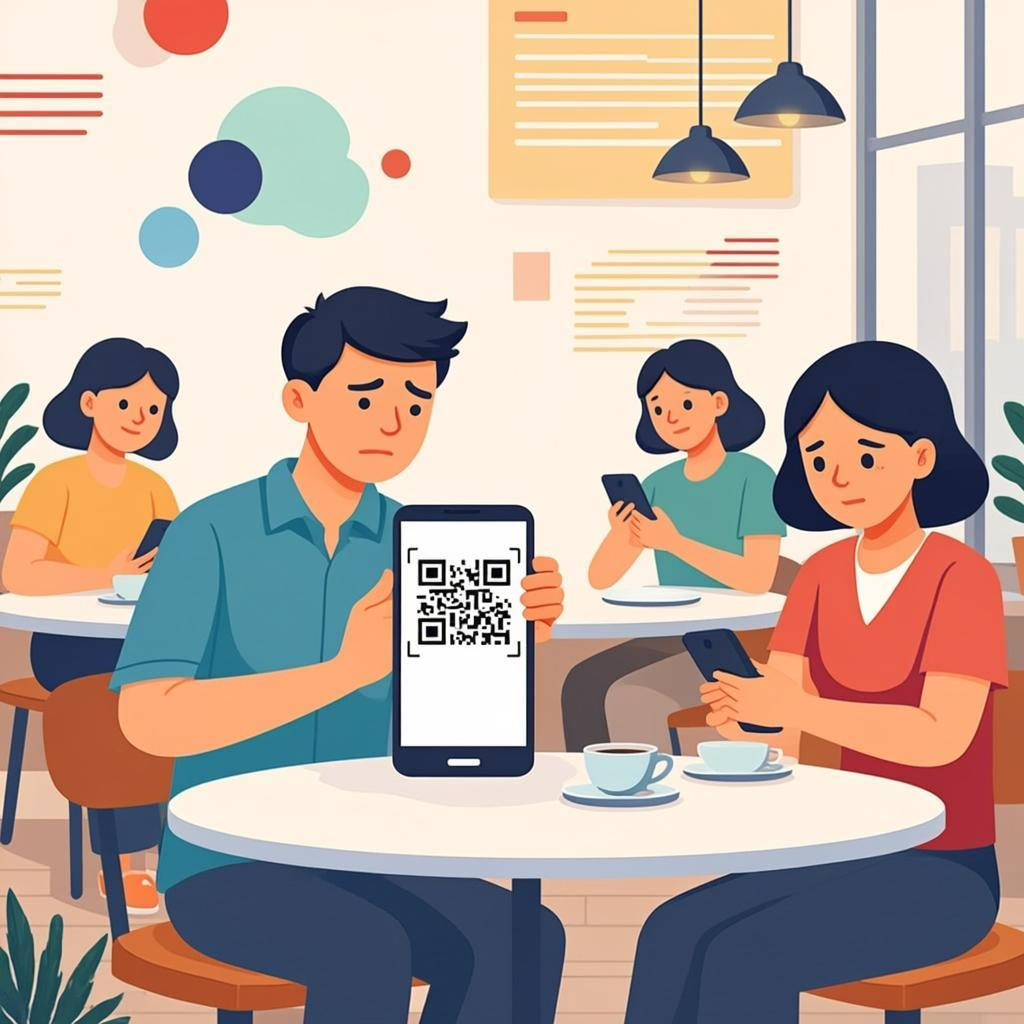
You printed the QR code. You placed it on the table. You point your phone at it, and... nothing. The camera does not react. No beep, no link, no menu.
You try again. Still nothing.
Why is your QR code not scanning? If this has happened to you, you are not alone. "QR code not scanning" is one of the most common complaints from people who use QR codes for the first time.
The good news is that almost every scanning problem has a simple cause and a simple fix. QR codes are very reliable when they are made and used the right way, but small mistakes in size, contrast, placement, or lighting can stop them from working. In this guide, we will walk through the 15 most common reasons a QR code will not scan, and show you exactly how to fix each one.
Whether you are a small business owner, a teacher, an event organizer, or just someone trying to share a Wi-Fi password with a friend, this guide will help you get your QR code working in minutes.
Table of Contents
- You Point Your Phone, Nothing Happens. Here Is Why
- 1. The QR Code Is Too Small
- 2. The QR Code Is Blurry or Low Resolution
- 3. Poor Contrast Between Dots and Background
- 4. The Quiet Zone (White Border) Is Missing or Too Small
- 5. The QR Code Is Damaged, Folded, or Dirty
- 6. You Are Standing Too Close or Too Far
- 7. Glare or Reflection on the Surface
- 8. Poor Lighting or Strong Shadows
- 9. Your Phone Camera Lens Is Dirty
- 10. The QR Code Is on a Curved or Wrinkled Surface
- 11. The QR Code Contains Too Much Data
- 12. Wrong Error Correction Level for the Use Case
- 13. The QR Code Is Stretched or Not Square
- 14. The Camera App Does Not Support QR Scanning
- 15. The QR Code Link Itself Is Broken
- Quick Troubleshooting Flow: Find the Problem in 60 Seconds
- How to Make a QR Code That Scans Every Time
- How I Test Every QR Code Before It Ships
- When to Fix and When to Start Over
- Frequently Asked Questions
After the 15 fixes, you will also find a quick checklist, a troubleshooting flow chart, and answers to the most common questions.
1. The QR Code Is Too Small
This is the top reason QR codes fail in the real world. If the printed code is too small, the camera cannot see the tiny squares (called modules) clearly enough to read them. The phone sees a blurry pattern instead of clean black and white dots.
How small is too small? A QR code printed smaller than 2 cm × 2 cm (about 0.8 inches) is risky. Below 1.5 cm, most phones will struggle to scan it, especially older models.
The fix: Make sure your QR code is at least 2 cm × 2 cm for close-up scanning (a few centimeters away). If people will scan from farther away (like a poster on a wall or a billboard), make it much bigger. A simple rule: the scanning distance in centimeters should be no more than 10 times the QR code size in centimeters.
So a 3 cm QR code works up to about 30 cm away. A 10 cm QR code works up to about 1 meter away.
If you need to make a small QR code, use a short URL. Less data means fewer modules, which means the dots are bigger for the same printed size. Use QREndless's free QR code generator to create a clean, compact code with the smallest possible version for your data.
2. The QR Code Is Blurry or Low Resolution
If the QR code looks blurry when you zoom in, the camera cannot read it. This happens when the image was saved at low resolution and then printed large. A 200 × 200 pixel PNG can look fine on a phone screen but becomes pixelated when printed on a poster.
The fix: Always export your QR code at high resolution. For print, use a vector format like SVG or PDF; these scale to any size without losing quality. For digital use, PNG at 1000 × 1000 pixels or larger is safe.
With QREndless you can export your QR code as SVG, PDF, or EPS (vector formats that never blur) or as a high-resolution PNG up to 4K. For print, always pick a vector format.
If your existing QR code is already blurry, do not try to "sharpen" it with an image editor, because that often makes things worse. Instead, regenerate it from the original data at a higher resolution.
3. Poor Contrast Between Dots and Background
QR code readers need to see a clear difference between the dark dots and the light background. If the colors are too similar (for example, light gray dots on a white background, or dark blue dots on a black background), the scanner cannot tell them apart.
The general rule is to keep a contrast ratio of at least 4:1 between the foreground (dots) and background. Black on white is the safest choice and works every time. Dark blue, dark green, or dark purple on white also work well.
The fix: Use dark colors for the dots and light colors for the background. Avoid:
- Light gray or pastel dots on white
- Yellow or orange dots on white (almost invisible to scanners)
- Dark dots on a dark background
- Red dots on red background, or any matching foreground-background combo
- Inverted colors (white dots on black): some scanners handle this, but many do not. Avoid it for important use cases.
If you want a branded color, keep the dots dark (like a deep navy or forest green) and the background white or very light. Use QREndless's QR code customizer to test colors while keeping the QR code scannable.
4. The Quiet Zone (White Border) Is Missing or Too Small
The "quiet zone" is the empty white border around the QR code. It is not decoration. Scanners need this empty space to find where the QR code starts and ends. The QR code standard says the quiet zone must be at least 4 modules wide (4 of the small squares that make up the code).
If the quiet zone is missing (for example, the QR code touches the edge of a printed card, or text is printed right next to it), many scanners will fail to detect the QR code at all.
The fix: Always leave a white margin around your QR code. As a simple rule, leave at least 10% of the QR code size as empty space on every side. If your QR code is 3 cm wide, leave at least 3 mm of white space around it.
If you generated a QR code without enough margin, regenerate it with a proper quiet zone; most QR code tools, including QREndless, include the correct quiet zone automatically.
If your QR code has been cropped and the quiet zone is gone, the QR code enhancer can rebuild the quiet zone for you.
5. The QR Code Is Damaged, Folded, or Dirty
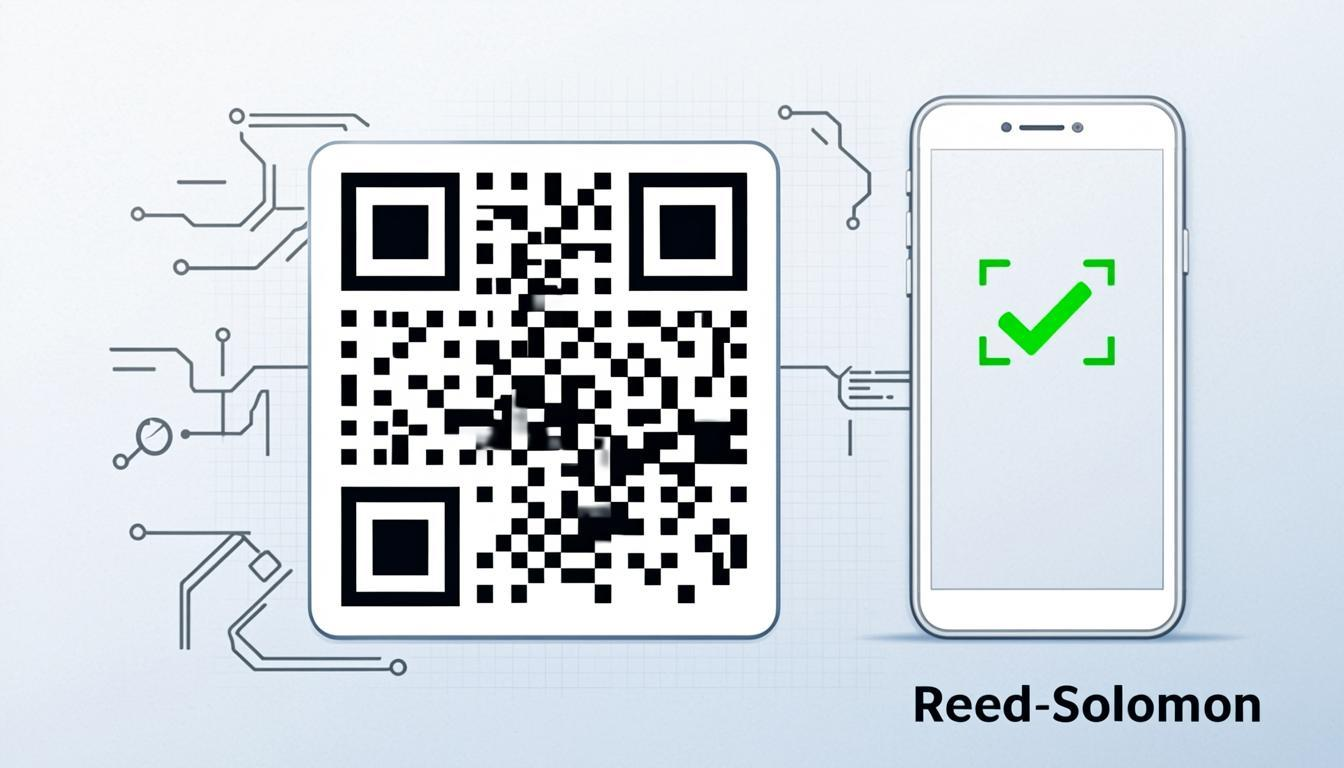
QR codes have built-in error correction, which means they can survive some damage. But every code has a limit. If the code is torn, folded, scratched, smudged with coffee, or covered by a sticker, the scanner may not have enough clean data to read it.
The fix: First, try cleaning the surface gently with a dry cloth. If the code is on paper and it is folded or torn, flatten it as much as possible and try scanning from a different angle. If that does not work, you need a new print.
To prevent this in the future, choose the right error correction level when you generate the QR code:
- Level L (7% recovery): Best for digital displays, no risk of physical damage
- Level M (15% recovery): Default, good for indoor prints like business cards
- Level Q (25% recovery): Good for high-traffic items like event badges
- Level H (30% recovery): Best for outdoor signs, packaging, or codes that will be handled a lot
For anything that will be printed and touched by people, use Level M or higher. For outdoor or harsh environments, use Level H. Read our QR code error correction guide for more detail.
6. You Are Standing Too Close or Too Far
Every QR code has a "sweet spot" scanning distance. Too close and the camera cannot focus. Too far and the dots are too small for the camera to resolve. Both lead to scanning failure.
The fix: Move your phone back or forward until the QR code fills about half to two-thirds of the camera frame. If the QR code is small, you may need to come very close (10–15 cm). If it is large, like a poster, stand farther back.
If you are designing the placement of a QR code, think about how people will reach it. A QR code on a restaurant table should be at arm's length when seated. A QR code on a wall poster should be at eye level. A QR code on a billboard should be huge, because people will scan from many meters away.
7. Glare or Reflection on the Surface
If your QR code is printed on glossy paper, behind glass, or on a laminated surface, light reflects off it. The camera sees a bright white spot instead of the dots. This is very common with menu cards inside plastic sleeves or QR codes behind shop windows.
The fix: Tilt your phone slightly until the reflection is gone. Or move to a different angle so the light source is not directly behind you. If you control the printing, choose matte (non-glossy) paper or non-reflective lamination. If the QR code must be behind glass, place a small light on the side rather than straight on.
8. Poor Lighting or Strong Shadows
QR codes need light to be scanned. In very dark rooms, the camera cannot see the dots. In direct bright sunlight, strong shadows can hide parts of the code. Both cause scanning failures.
The fix: If too dark, turn on a light or move to a brighter spot. Some phones have a "torch" option in the camera app. Turn it on to light up the QR code. If too bright, move to a shaded area or use your body to block direct sunlight from hitting the code.
9. Your Phone Camera Lens Is Dirty
This is the most embarrassing and the most common reason QR codes "suddenly stop working." Your phone lives in your pocket, your bag, your hand. The camera lens picks up fingerprints, dust, and oils all day. A smudged lens turns a sharp QR code into a blurry mess.
The fix: Wipe your camera lens with a soft cloth (a shirt or tissue works in a pinch). Try scanning again. You will be surprised how often this fixes the problem. Make it a habit to wipe your lens when a QR code does not scan on the first try.
10. The QR Code Is on a Curved or Wrinkled Surface
QR codes are designed to be scanned flat. If the code is on a curved bottle, a crumpled flyer, or a rounded cup, the perspective distortion can confuse the scanner. Some scanners handle this well, but many do not.
The fix: Try to flatten the surface as much as possible. If you are scanning a bottle, rotate it slowly so the QR code faces you flat. If the QR code is on a curved product, consider moving it to a flatter part of the packaging, or printing it on a sticker that goes on a flat surface.
For designers: if you must place a QR code on a curved surface, make it bigger and use a higher error correction level (Q or H). Test on real products before printing the full batch.
11. The QR Code Contains Too Much Data
QR codes can hold thousands of characters, but bigger data makes the dots smaller and denser, which makes them harder to scan. A QR code with a long URL, multiple UTM parameters, or a full paragraph of text will be harder to read than one with a short link.
The fix: Use the smallest amount of data possible. If you are linking to a website, use a short URL instead of a long one. If you need tracking, add only essential UTM parameters. Never encode a full page of text in a QR code. Link to a web page instead.
If your QR code already has too much data, regenerate it with a shorter URL. Tools like bit.ly, TinyURL, or your own URL shortener can compress a long link into 15–20 characters. Then regenerate the QR code with the short link.
12. Wrong Error Correction Level for the Use Case
Error correction is the QR code's ability to recover from damage. If you used Level L (low) for a QR code that gets printed, handled, and exposed to dirt, it will fail quickly. If you used Level H (high) for a tiny QR code with lots of data, the code becomes too dense to scan.
The fix: Match the error correction level to the use case:
| Use Case | Recommended Level | Why |
|---|---|---|
| Digital screen, website, email | L (7%) | No physical damage risk, smaller code scans faster |
| Business cards, flyers, brochures | M (15%) | Handles normal wear, default for most prints |
| Event badges, table tents, product labels | Q (25%) | More handling, possible smudging |
| Outdoor signs, billboards, packaging | H (30%) | Weather, UV, heavy handling |
| QR code with a logo on top | H (30%) | The logo covers part of the data, so you need maximum recovery |
When you create a QR code with QREndless's generator, you can pick any error correction level before downloading.
13. The QR Code Is Stretched or Not Square
QR codes must be exact squares. If someone resized the image and changed the aspect ratio (making it wider than tall, or taller than wide), the scanner cannot read it. This happens when people drag the corners of an image in a design tool without holding the Shift key.
The fix: Always resize QR codes proportionally. In design tools like Canva, Photoshop, or Illustrator, hold the Shift key while dragging, or lock the aspect ratio. If your QR code is already stretched, regenerate it and place it correctly this time.
14. The Camera App Does Not Support QR Scanning
Most modern phones (iPhone since iOS 11, Android since version 8) scan QR codes directly in the default camera app. But older phones or some custom Android camera apps may not have this feature. The user points the camera and nothing happens, because the camera app does not know what to do with a QR code.
The fix: If the default camera does not work, the user can install a free QR scanner app. Or, on a computer, they can use a web-based scanner.
QREndless's free QR code scanner works in any browser, on phones, tablets, and computers. It uses the device camera or accepts an uploaded image, so it works even on devices where the default camera does not scan QR codes.
15. The QR Code Link Itself Is Broken
Sometimes the QR code scans fine (the camera reads it, opens the link), but the link leads to a 404 page, a dead website, or a page that no longer exists. People often say "the QR code does not work" when actually the QR code works ideally, but the destination is broken.
The fix: Test the URL in your browser first. If the page is down, fix the page. If the page is gone, you have two options:
- If you used a static QR code, you must print a new one with the new URL.
- If you used a dynamic QR code (a redirect URL), you can update the destination without reprinting.
To check what data is actually inside a QR code, use QREndless's QR code decoder. Upload the QR code image and it will show you the exact encoded data in seconds.

Quick Troubleshooting Flow: Find the Problem in 60 Seconds
When a QR code does not scan, work through this checklist in order. Most problems are caught in the first few steps:
- Clean your camera lens with a soft cloth. (Yes, this fixes more problems than you think.)
- Check the lighting. Not too dark, no strong glare on the QR code.
- Move to the right distance. Make the QR code fill about half the camera frame.
- Tilt your phone if there is glare from a glossy surface or window.
- Look at the QR code. Is it torn, dirty, or folded? Clean or flatten it.
- Check the size. If smaller than 2 cm × 2 cm, get closer or print bigger.
- Check the contrast. Are the dots clearly darker than the background?
- Check the quiet zone. Is there a clean white border around the code?
- Try a different phone or a free scanner app like QREndless's scanner.
- Decode the QR code with QREndless's decoder to check if the data is intact and the link works.
If all 10 steps fail, the QR code itself is broken and needs to be regenerated. Use QREndless's free generator to create a new one with proper settings: a short URL, Level M error correction, high contrast, and a clean quiet zone.
How to Make a QR Code That Scans Every Time
The best way to fix scanning problems is to prevent them. Here is a 5-step recipe for QR codes that just work:
- Start with a short URL or small data payload. Less data = bigger dots = easier scanning.
- Use Level M error correction for indoor prints, Level Q or H for outdoor or handled items.
- Use black or dark dots on a white or very light background. Save the creative colors for non-critical use.
- Export as SVG, PDF, or EPS for print, PNG at 1000+ pixels for digital. Never use a small JPG.
- Print at 2 cm × 2 cm minimum for close scanning, bigger for distance. Always include the white quiet zone.
Test on at least three different phones before you print a big batch. What works on your new iPhone might fail on an older Android.
How I Test Every QR Code Before It Ships
I run an automated self-test on every generator release: it generates codes for every supported type, degrades them on purpose (blur, compression, cropping, glare), and scans them back. A build that fails scannability does not ship. That pipeline is also why I keep repeating the same three rules in this guide: real contrast, a real quiet zone, and honest physical size.
When I test by hand, I scan each new code type with at least two different phones, one iOS and one Android, before publishing it. If a code survives a 2× zoom-out screenshot and heavy JPEG compression and still scans, it goes live. If it does not, the tool changes, not the tolerance.
When to Fix and When to Start Over
Sometimes fixing a broken QR code is faster than making a new one. Other times, you are just polishing a bad design. Here is a quick guide:
| Problem | Fix It or Start Over? |
|---|---|
| Dirty lens, bad lighting, wrong angle | Fix it (user side) |
| Glare on glossy print | Fix it (tilt phone) or reprint on matte |
| Slightly damaged code with Level H error correction | Fix it (try scanning from another angle) |
| Low contrast colors | Start over with new colors |
| Missing quiet zone | Start over with new generation (or use enhancer) |
| Stretched or non-square code | Start over |
| Too much data (very dense code) | Start over with a shorter URL |
| Wrong error correction level | Start over with the right level |
| Blurry or low-resolution print | Start over with a vector format |
If you need to start over, all QREndless tools are free, browser-based, and need no sign-up. You can regenerate a QR code in under a minute.
Frequently Asked Questions
Why is my QR code not scanning on iPhone but works on Android?
This is usually a contrast or lighting issue that one camera handles better than the other. iPhone cameras tend to be very strict about contrast.
Clean your lens, move to better lighting, and make sure the QR code has dark dots on a light background. If only one phone model fails, the QR code is probably borderline. Fix it before printing more.
Can a QR code be too small to scan?
Yes. Below 1.5 cm × 1.5 cm, most phone cameras cannot resolve the dots clearly enough. The recommended minimum is 2 cm × 2 cm for close-range scanning. For posters or signs that people scan from farther away, the QR code should be much larger, roughly 1/10 of the expected scanning distance.
Why does my QR code work on screen but not when printed?
The print version probably has one of these issues: low resolution (a small PNG stretched large), missing quiet zone (cropped too tight), poor contrast (colors that looked fine on a bright screen but printed too light), or glossy paper causing glare. Always export as SVG or PDF for print, keep the quiet zone, and test the printed version before ordering a big batch.
How do I fix a blurry QR code?
You cannot really "fix" a blurry image. You need to regenerate the QR code at higher resolution. If you still have the original data (the URL or text), use QREndless's generator to create a new QR code and export it as SVG or as a PNG at 1000 × 1000 pixels or larger. If you only have the blurry image, first decode it with the QR decoder to recover the data, then regenerate it.
Can a damaged QR code still scan?
Yes, if the damage is within the error correction limit. Level L handles about 7% damage, Level M 15%, Level Q 25%, and Level H 30%. If the damage is worse than that, the code will not scan. The fix is to use a higher error correction level when you generate the code, especially for outdoor or handled items.
Why does my QR code take a long time to scan?
Slow scanning is usually caused by small size, low contrast, dense data, or a dirty lens. Make the QR code bigger, darken the dots, shorten the URL, and clean your camera lens. A well-made QR code scans in under a second on any modern phone.
Do inverted QR codes (white dots on black background) scan?
Some scanners can read inverted QR codes, but many cannot. For maximum compatibility, always use dark dots on a light background. If you need a dark theme for design reasons, test on multiple devices before printing.
How do I know what is inside a QR code that will not scan?
Upload the QR code image to QREndless's QR code decoder. It will extract the encoded data (URL, text, vCard, Wi-Fi credentials, or any other format) and show it to you in seconds. This is the quickest way to verify if the QR code contains what you think it contains.
Can I make a QR code that always scans?
No QR code is fully ensured, but you can get very close. Use a short URL, Level M or higher error correction, black dots on white, a clean quiet zone, vector format for print, and a size of at least 2 cm × 2 cm.
Test on three different devices. Following these rules, your QR code will scan reliably for almost every user.
Is there a free tool to test if my QR code is scannable?
Yes. Open QREndless's free QR code scanner in your browser, point your camera at the QR code, or upload the image. If it scans, your code works. You can also use the QR code decoder to verify the encoded data without scanning.