Seeing %20, 20percent, or Strange Characters After Scanning a QR Code?
You are not alone. A QR code may scan successfully but show a long string of encoded text instead of opening a website, starting a chat, showing a contact card, or connecting to WiFi.
For example, you may see something like:
https://wa.me/919876543210?text=Hello%20I%20want%20to%20talk
Or:
WIFI:T:WPA;S:My%20Network;P:My%40Password;;
Or a contact code may appear like:
BEGIN:VCARD%0AVERSION:3.0%0AN:Doe%3BJohn%0ATEL:%2B15551234567%0AEND:VCARD
The QR code itself may still be readable. The problem can be how the data inside the QR code is organized and how the scanner handles that data.
In this guide, we explain why QR codes can show encoded text, what %20 means, why WiFi and contact QR codes can be affected, how to test your QR codes, and how QREndless handles organized QR data.
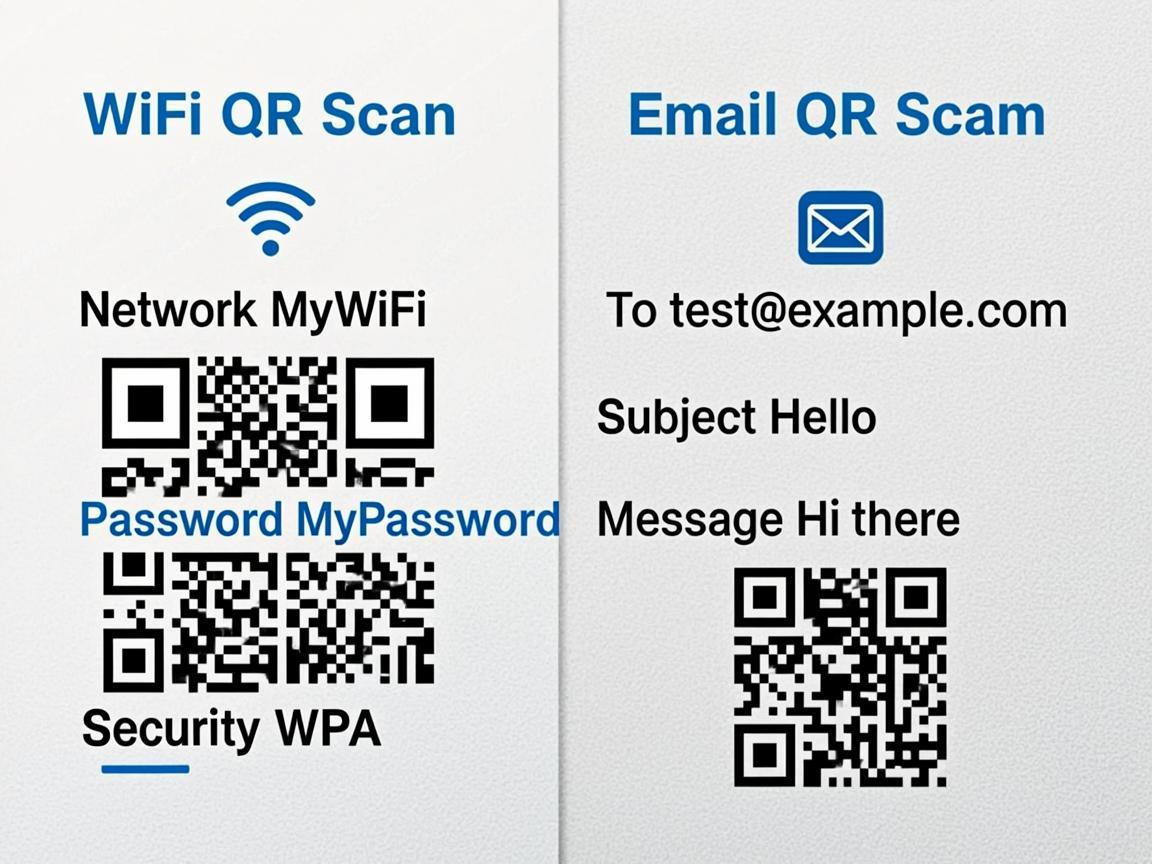
Table of Contents
- Your QR Code Data Is Unreadable — What Does That Mean?
- What Does %20 Mean in a QR Code?
- Why Does My QR Code Show Strange Text After Scanning?
- 5 Common QR Code Problems Users Can Face
- Why QR Code Data Formatting Matters
- How QREndless Handles QR Code Data
- QR Code Before and After Example
- How to Test If Your QR Code Is Working Correctly
- Use a QR Decoder to See What Is Inside
- Why Your Printed QR Code May Need to Be Replaced
- Frequently Asked Questions About QR Code Data
- How to Make a Better QR Code
- Final Takeaway
Your QR Code Data Is Unreadable — What Does That Mean?
When you scan a QR code, your phone has to do two things:
- Read the QR code.
- Understand the data stored inside it.
A QR code can contain many types of information, including:
- Website URLs
- WhatsApp links
- WiFi details
- Contact information
- Email addresses
- Phone numbers
- Payment links
- Plain text
- App links
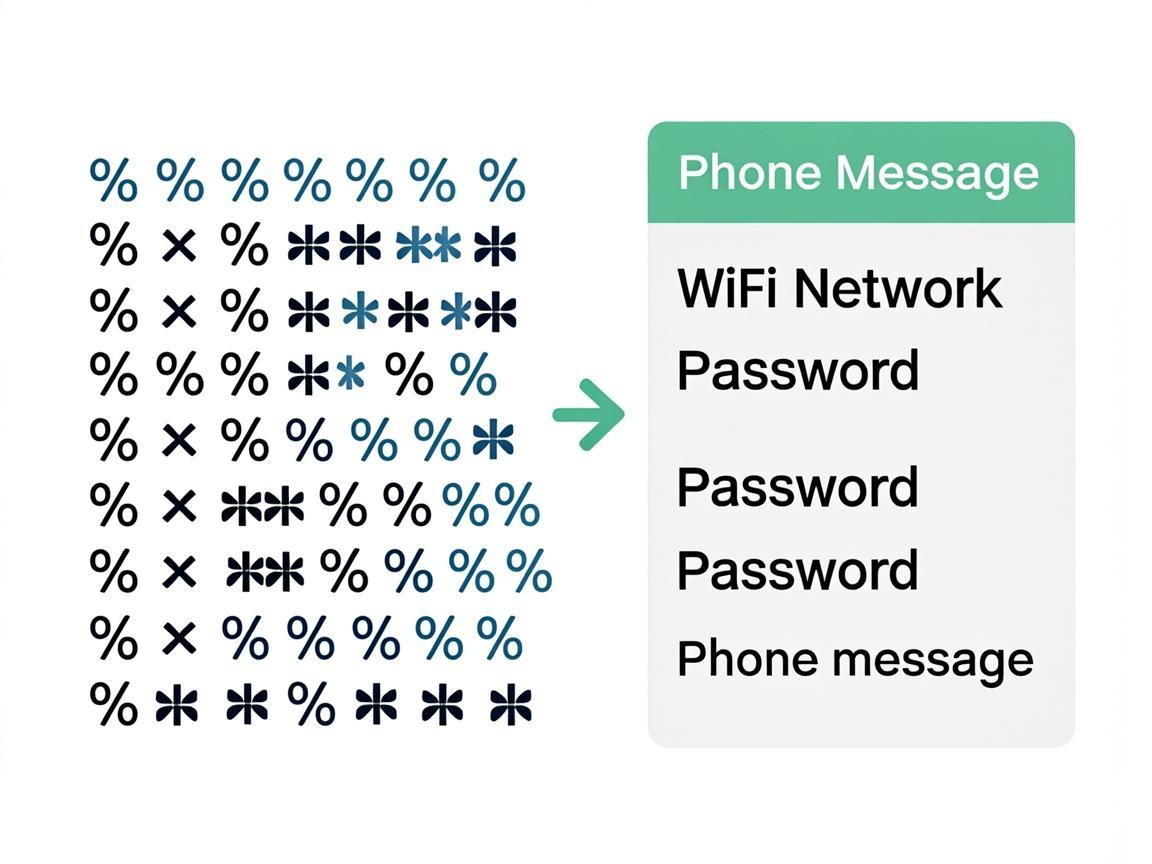
If the information is stored in a format that the scanner does not recognize as a special type, the scanner may simply display the raw text.
That is why you might see codes such as %20, %3F, %26, or %0A.
This does not always mean that the QR code is damaged. It often means that the scanner is showing the encoded data instead of turning it into the action you expected.
What Does %20 Mean in a QR Code?
%20 is commonly used in URL encoding to represent a space.
For example:
Hello World
can appear in an encoded URL as:
Hello%20World
The same type of encoding is used for other characters. Some common examples are:
| Encoded value | Meaning |
|---|---|
%20 | Space |
%3F | Question mark (?) |
%26 | Ampersand (&) |
%2B | Plus sign (+) |
%0A | Line break |
%3B | Semicolon (;) |
So if you scan a QR code and see %20, it does not automatically mean that the QR code is broken. It means that part of the data is coded. The important question is whether the scanner correctly understands the type of data and performs the expected action.
Why Does My QR Code Show Strange Text After Scanning?
There are several possible reasons.
1. The QR code contains encoded URL data
URLs often use URL coding. For example, https://example.com/hello%20world is a normal encoded URL. A scanner may open the URL correctly, while another scanner may show the URL as text. The result depends on how the scanner handles the data.
2. The QR code contains organized data
WiFi, contact cards, and some other QR formats use specific data structures. For example, a WiFi QR code can contain the network name, password, and security type. A contact QR code can contain name, phone number, email, and address. The scanner needs to recognize the format before it can show a useful action such as Connect, Save Contact, or Open.
3. Special characters were not handled correctly
Spaces and special characters can make organized QR data more difficult to process. Characters such as spaces, +, &, ?, ;, and line breaks may need the correct layout for the QR type being created.
4. The scanner may not support the data type
Different scanners may handle QR data in different ways. One scanner may recognize a contact card and show a save option. Another may simply display the text. That is why testing a QR code with a real phone is important.
5 Common QR Code Problems Users Can Face
1. The QR Code Shows Raw Text
A user expects an action but receives a long text string. For example: BEGIN:VCARD%0AN:Doe%3BJohn%0ATEL:%2B15551234567. Instead of seeing a contact card, the user sees the underlying data. This can make the QR code difficult to use.
2. A WiFi QR Code Does Not Show a Connect Option
A WiFi QR code is designed to provide the network name, security type, and password. If the data is not organized correctly for WiFi, the scanner may display the text instead of recognizing it as WiFi information. For example: WIFI:T:WPA;S:My%20Network;P:My%40Password;;. Whether the phone automatically offers a connection option depends on the QR type and the scanner.
3. A WhatsApp QR Code Shows the Encoded Message
A WhatsApp link can contain a pre-filled message. For example: https://wa.me/15551234567?text=Hello%20I%20want%20to%20contact%20you. Here, %20 represents spaces in the URL. A correctly handled URL should open the link and let WhatsApp process the message. If a scanner only displays the URL, the user may have to tap it manually.
4. A Contact QR Code Shows Code Instead of a Contact
A contact QR code (vCard) uses a specific format to store contact information including name, phone, email, company, and address. If the scanner recognizes the format, it may offer a contact card or save option. If it does not recognize the format, it may show the underlying text instead.
5. The QR Code Works in One Scanner but Not Another
QR scanners are not all identical. Different phones, camera apps, QR readers, and operating systems can handle QR data differently. A QR code should be tested on the devices and scanners that your users are likely to use.
Why QR Code Data Formatting Matters
A QR code is more than the black-and-white pattern you see on a screen or printed page. The pattern stores data. The scanner reads that data and then decides what it represents.
For a simple website QR code, the data might be https://example.com. For a WiFi QR code, the data follows a WiFi format. For a contact QR code, the data follows a contact format. For a WhatsApp QR code, the data can be a WhatsApp URL.
The better the data matches the intended QR format, the easier it is for compatible scanners to understand it. This is why a QR generator should not simply put text into a QR code and stop there. It should create the correct data for the selected QR type.
How QREndless Handles QR Code Data
QREndless takes a different approach from most QR generators. Instead of putting raw URLs or coded strings into the QR code, it creates clean, readable text that anyone can understand when they scan it.
WhatsApp QR Code
You enter your phone number and an optional message into separate fields. When someone scans the QR code, they see clean text like: WhatsApp QR | Phone: 15551234567 | Message: Hello I want to contact you. No encoded characters, no confusing codes.
WiFi QR Code
You enter your network name, password, and security type. When scanned, the result shows: WiFi QR | Network: MyWiFi | Password: MyPassword | Security: WPA. The network name and password are clearly visible.
Contact QR Code
You enter your name, phone number, email, and address. When scanned, the result shows: Contact QR | Name: John Doe | Phone: 15551234567 | Email: [email protected]. All contact details are readable.
With QREndless, you never need to type %20, %0A, or any coded characters. The generator handles everything for you, and the scanned result is always clean, readable text.
Step 1: Choose the Correct QR Code Type
The first step is selecting the QR type that matches your purpose:
- Use a URL QR code for a website
- Use a WhatsApp QR code for a chat
- Use a WiFi QR code for network access
- Use a Contact QR code for contact details
- Use a Text QR code when you simply want to store text
Choosing the correct type helps keep the data organized for its intended use. You can explore all available types in the QR Generator.
Step 2: Enter Your Information
After selecting the QR type, enter the requested information. For a WiFi QR code, this may include your network name and password. For a Contact QR code, this may include your name and phone number. For a WhatsApp QR code, this may include your phone number and an optional message.
Step 3: Generate and Scan the QR Code
After generating the QR code, do not immediately print thousands of copies. Test it first. Scan it with your phone and check what happens. Ask yourself: Does the website open? Does WhatsApp open? Does the contact information appear correctly? Does the WiFi option appear? Is the text displayed correctly?
Step 4: Test the Actual User Experience
A QR code can look perfect and still provide a poor scanning experience. Always test the finished QR code from the same type of surface and distance where people will use it.
- If it will be printed on a business card, print a sample and scan the printed version
- If it will be placed on a restaurant menu, test the code from the normal reading distance
- If it will be placed on packaging, test the actual printed package
- If it will be displayed on a screen, scan it from another phone
This helps you find problems before your customers do.
QR Code Before and After Example
Here is what happens with a typical QR generator versus QREndless when you create a WhatsApp QR code with the message "Hi I found your card":
Typical generator output (confusing):
https://wa.me/15551234567?text=Hi%20I%20found%20your%20card
QREndless output (clean and readable):
WhatsApp QR | Phone: 15551234567 | Message: Hi I found your card
The difference is clear. One shows coded characters that confuse people. The other shows clean text that anyone can read and understand.
How to Test If Your QR Code Is Working Correctly
If you already have a QR code, test it before replacing it.
- Open your phone camera or QR scanner
- Scan the QR code
- Look at the result — does it provide the expected action?
- If you see a long string of encoded text, check the QR type and the data
- If you created the QR code with QREndless, use the QR Generator to create a new version and test it again
Use a QR Decoder to See What Is Inside
Sometimes the easiest way to understand a QR code problem is to decode the QR code and inspect its actual data. A QR Decoder can help you see the stored text, the URL, the QR data type, encoded characters, WiFi information, and contact information.
QREndless's QR Decoder can be used to inspect a QR code image and view the data it contains. This is especially useful when you have an old QR code and no longer remember how it was created.
Why Your Printed QR Code May Need to Be Replaced
There are two different problems that are easy to confuse.
Problem 1: Data problem
The QR code contains data that is not formatted as expected. If the QR code has already been printed, you generally cannot change the information stored inside that printed QR pattern. You need to create a new QR code with the correct data and print the replacement.
Problem 2: Image or printing problem
The QR data may be correct, but the printed QR code may be too small, blurry, damaged, low contrast, partly covered, or printed on a difficult surface. In this situation, the problem is scan quality rather than the text format. If this is the case, you can use the QR Enhancer to improve the image quality before reprinting.
These two problems should be checked separately.
Frequently Asked Questions About QR Code Data
Why do I see %20 in my QR code?
%20 is commonly used to represent a space in URL encoding. For example, Hello%20World represents "Hello World." Seeing %20 does not automatically mean your QR code is broken. The important question is whether the scanner correctly handles the URL or QR data.
What does 20percent mean in QR code text?
Some scan results or copied text may display encoded values in an unusual way, such as "20percent." The underlying value is commonly %20, which represents a space in URL encoding. If this appears in a QR scan result, inspect the actual data and check how your scanner is displaying it.
Why does my QR code show raw text?
A QR scanner may show raw text when it does not recognize the stored data as a special type, or when the QR data is being displayed rather than acted upon. For organized QR codes, the correct format is especially important.
Why does my WiFi QR code not connect?
Check that the WiFi QR data contains the correct network name, security type, and password. Also check whether your phone and QR scanner support automatic WiFi QR recognition. Different devices may handle WiFi QR codes differently.
Why does my contact QR code show text instead of a contact?
A contact QR code (vCard) needs to contain properly organized contact data. If the scanner does not recognize the format, it may display the stored text instead of showing a contact card. Test the QR code with another scanner to determine whether the issue is the QR data or the scanner.
Can I change a normal printed QR code?
Not if the information is stored directly inside a static QR code. You normally need to generate a new QR code and print it again. A dynamic QR code is different because the printed code can point to a destination that can be changed later, depending on the service and setup.
Does a QR code need to be tested before printing?
Yes. Testing before printing can help you catch wrong URLs, wrong phone numbers, incorrect WiFi details, incorrect contact information, formatting problems, and poor scan quality. For large print runs, testing a sample first is especially important.
How to Make a Better QR Code
Before downloading or printing your QR code, use this simple checklist:
- Check the data — make sure the website, phone number, message, WiFi details, or contact information is correct
- Choose the correct QR type — do not use a plain text QR when a organized QR type is available for your purpose
- Scan the QR code — test it with a real phone
- Test the final image — if you will print it, test the actual printed version
- Check different devices — if the QR code will be used by many people, test it on more than one phone
- Keep the QR code easy to scan — avoid making the QR code unnecessarily small or placing it where it can become blurry, damaged, or covered
Final Takeaway
Seeing %20, 20percent, %0A, or other encoded characters after scanning a QR code can be confusing. But these characters often come from the way URLs and organized data are encoded.
A QR code can be technically readable while still giving users a poor result if the scanner does not recognize or process the stored data as expected.
The best approach is simple: Create the correct QR type. Use properly formatted data. Scan it before printing. Test the real user experience.
If you already have a QR code, decode it with the QR Decoder and check what information it contains. And if you are creating a new QR code, use a generator that handles the data format for the QR type you need.
Create your QR code with QREndless and test it before you share or print it.