Table of Contents
- What Is the QR Code Quiet Zone?
- The 4-Module Rule
- Why Quiet Zones Get Cropped
- How a Missing Quiet Zone Breaks Scanning
- Quiet Zone Size by Use Case
- How to Fix a Missing Quiet Zone
- Quiet Zone vs Margin vs Padding
- FAQ
What Is the QR Code Quiet Zone?
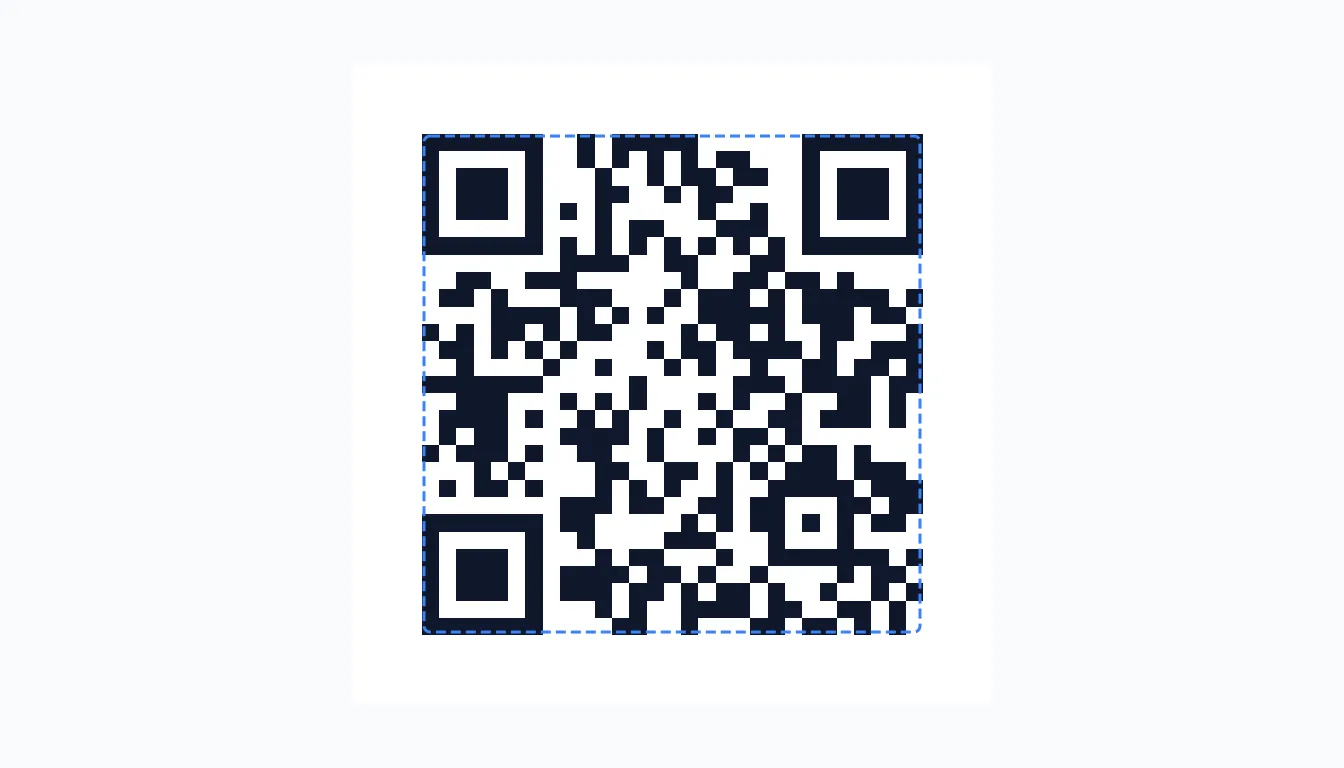
The quiet zone is the empty white border that surrounds every QR code. It is not decoration — it is part of the QR specification (ISO/IEC 18004), and without it, scanners often fail to recognise the code at all.
When a phone camera or a laser scanner looks at a QR code, it first has to find the three square finder patterns in the corners. The quiet zone is what tells the scanner "this is the edge of the code, and everything outside it is background." Without that visual separation, the finder patterns blur into the surrounding design and the decode fails before it even starts.
The 4-Module Rule
The QR standard requires a quiet zone at least 4 modules wide on every side. A module is the smallest black or white square that makes up the QR code grid — not a pixel, but a single cell of the data matrix.
For a Version 2 QR code (25×25 modules), a 4-module quiet zone means the total printed area is 33×33 modules, because you add 4 modules on the left, right, top, and bottom. For a Version 5 code (37×37 modules), the quiet zone brings the total to 45×45 modules.
The rule is the same regardless of QR version or size: four modules of blank space, measured in the same unit as the code itself, on all four sides.
Why Quiet Zones Get Cropped
Despite the rule, missing quiet zones are one of the most common reasons a QR code stops scanning. It usually happens in one of three ways:
- Designers crop to the squares. The three finder patterns look like the edge of the code, so a designer trims the white margin to "clean up" the artwork — and removes the quiet zone in the process.
- Printers cut to the bleed. A print shop trims a business card or label to its trim line, slicing off the quiet zone if it was not given enough room.
- Backgrounds blend in. A QR code placed on a light-grey or patterned background has no visible quiet zone even when the code itself is correct, because the scanner cannot tell where the code ends.
How a Missing Quiet Zone Breaks Scanning
QR scanners are built to look for a specific pattern: three corner squares separated from the background by empty space. When the quiet zone is missing, the finder patterns touch the surrounding design, and the scanner either cannot locate the corners or cannot determine the code's orientation. The result is a code that looks perfect to a human but fails to scan on most phones.
This is why a QR code that worked in a generator can stop working once it is placed in a design, printed, or cropped. The code itself is unchanged; only the quiet zone was lost.
Quiet Zone Size by Use Case
Four modules is the minimum. In practice, a larger quiet zone is safer for difficult scanning conditions:
- Screen to screen (a QR on a website scanned by a phone): 4 modules is usually enough, because the background is a solid colour and the camera is close.
- Printed materials (business cards, flyers, labels): aim for 4 to 6 modules to survive trimming and printing tolerance.
- Posters and signage scanned from a distance: use 6 or more modules. At longer range, any surrounding visual noise is more likely to interfere.
- Packaging with busy artwork: use the full 4-module minimum and keep the area around the code as plain as possible.
How to Fix a Missing Quiet Zone
If your QR code was cropped or placed on a busy background, you do not need to regenerate it from scratch. The QR Code Enhancer can read your existing code and re-render it with a correct quiet zone automatically, along with clean black-and-white contrast and an error-correction boost if you need one.
The fix is a single pass: load the QR image, let the enhancer decode the data, and export a fresh QR with a guaranteed 4-module quiet zone in PNG, SVG, or PDF. Because the enhancer runs in your browser, the data inside your QR code never leaves your device.
Open the QR Code Enhancer and load your code to repair the quiet zone in seconds.
Quiet Zone vs Margin vs Padding
These three terms are often used interchangeably, but they mean different things:
- Quiet zone — the mandatory blank border defined by the QR standard, measured in modules. A scanner needs it.
- Margin — the space a generator adds around the code, usually expressed in modules or pixels. A correct margin produces the quiet zone.
- Padding — extra space added by a design tool or container, separate from the QR standard. Padding does not count as a quiet zone unless it is blank and at least 4 modules wide.
If a scanner fails, check the quiet zone first — not the padding.
How to Fix a Missing Quiet Zone — Step by Step
If your QR code was cropped or printed without a quiet zone, you can fix it in under a minute without regenerating it by hand. The QR Code Enhancer reads your existing code and rebuilds it with a correct 4-module quiet zone.
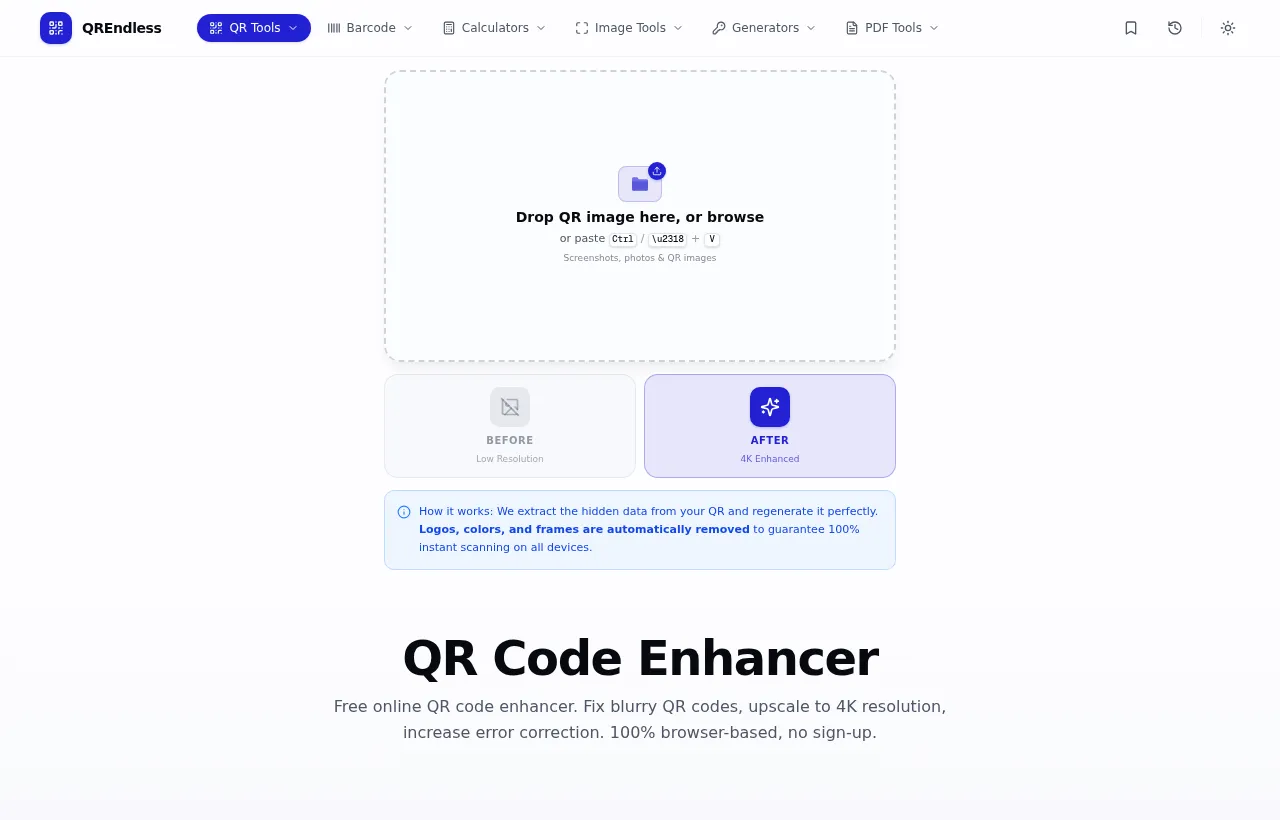
- Open the enhancer. Go to the QR Code Enhancer. You see an upload box and four mode buttons.
- Load your cropped QR code. Drag the image into the box or paste it. The tool reads the code on your device, even if the quiet zone was trimmed off.
- Pick All mode. All runs the full fix in one pass: it rebuilds the QR with clean black and white, adds a correct 4-module quiet zone on every side, and boosts error correction. For a quiet zone fix only, Sharpen also works.
- Check the preview. The result shows a clean white border around the code. That border is the quiet zone the scanner needs.
- Download the fixed QR. Export as PNG for screens, SVG for print artwork, or PDF for documents. The new file has a correct quiet zone and will scan on phones that failed before.
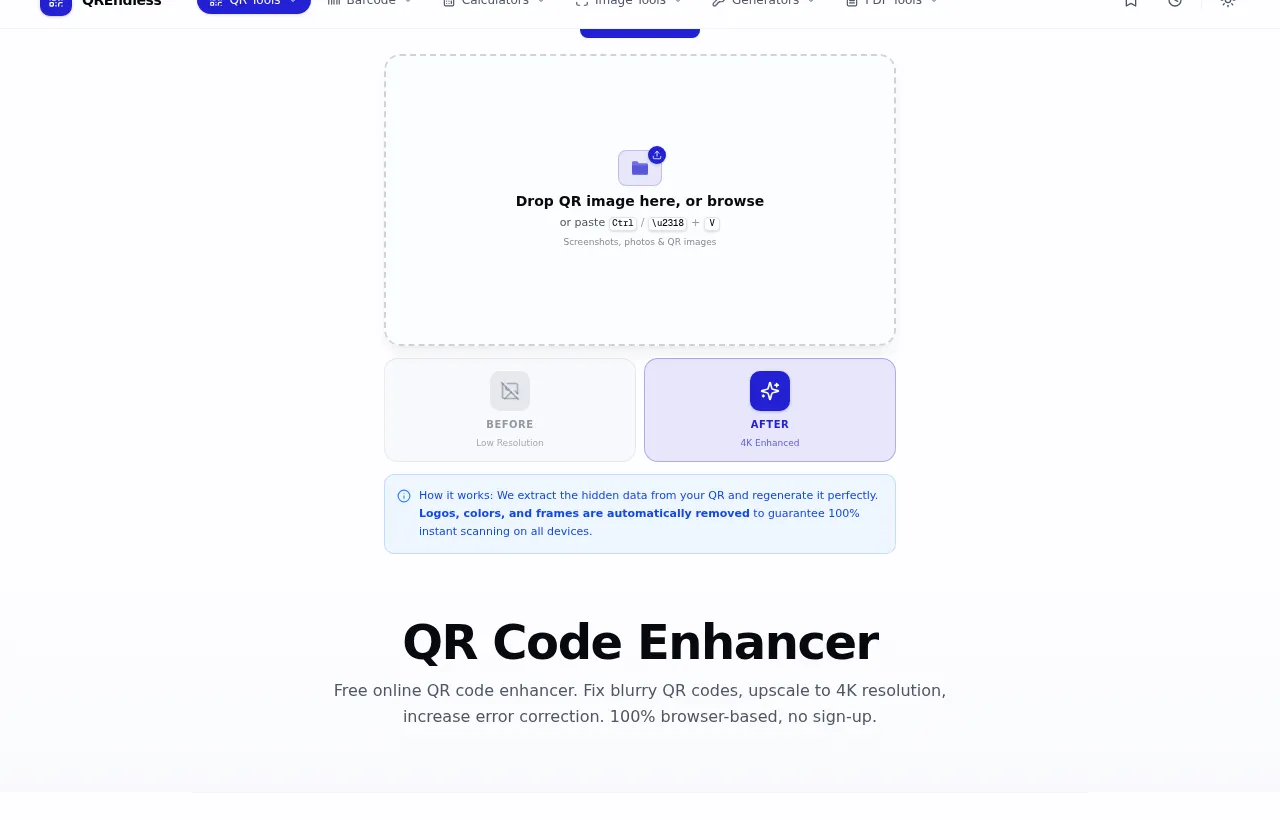
The preview shows your original code next to the enhanced version, so you can confirm the quiet zone is back and the code is clean before you download. Because the enhancer runs in your browser, the data inside your QR code never leaves your device during the fix.
Quick A-to-Z Guide
Here is the whole process in one short list, from A to Z, so you can act fast without re-reading the detail:
- A — Open the QR Code Enhancer in your browser.
- B — Bring in your QR image: drag it, paste it, or load a saved file.
- C — Choose All mode (or Sharpen for a quiet-zone-only fix).
- D — Decode happens on your device — the tool reads the QR and rebuilds it.
- E — Examine the before and after preview. Check the white border (the quiet zone) is back.
- F — Format: pick PNG, SVG, PDF, or transparent PNG.
- G — Get the file: it saves straight to your device.
- H — Hand-test: scan the new QR with your phone to confirm it reads.
That is the full A-to-Z. No sign-up, no upload, no cost. If the scan still fails after the fix, the original QR may be damaged beyond what error correction can recover — in that case, regenerate the QR from the source data at a higher error-correction level using a QR code generator.
FAQ
What is the QR code quiet zone?
The quiet zone is the blank white border around a QR code, at least 4 modules wide on every side. It tells scanners where the code ends and the background begins. Without it, most phones cannot find the finder patterns and the code fails to scan.
How wide should a QR code quiet zone be?
At least 4 modules — the smallest squares in the QR grid — on all four sides. For printed materials and distance scanning, 6 modules or more is safer. The size scales with the code, so a larger QR code gets a proportionally larger quiet zone.
Why is my QR code not scanning after I cropped it?
Cropping often removes the quiet zone. The code itself is still valid, but the scanner cannot find the finder patterns without the blank border. Re-add a 4-module quiet zone or use the QR Code Enhancer to re-render the code with a correct quiet zone.
What is the difference between quiet zone and margin?
The quiet zone is the standard-defined blank border the scanner requires. The margin is the space a generator adds around the code to produce that quiet zone. A correct margin creates a correct quiet zone.
Can a QR code work without a quiet zone?
Sometimes, on a solid background with a close, high-end camera, a code with a missing quiet zone may still scan. But it is unreliable and fails on most phones. The 4-module quiet zone is the safe minimum defined by the QR standard.