How a Tiny Black-and-White Square Changed the Restaurant Industry
Remember the last time you sat down at a restaurant and the waiter handed you a sticky, worn-out menu? Or worse — there was no menu at all, just a QR code sticker on the table? You probably scanned it without thinking twice. That small square has completely changed how restaurants operate.
QR codes in restaurants are not just about digital menus. They handle orders, payments, loyalty programs, reviews, and even allergen information — all from a single scan. In this guide, you will learn how restaurants use QR codes to serve customers faster, cut costs, and create a better dining experience.
This guide is a complete walkthrough. We will cover digital menus, contactless ordering, table reservations, takeout, payments, WiFi, loyalty, and the exact steps to set everything up using free tools. Whether you run a small cafe or a 200-seat restaurant, this guide will help you build a QR code system that works.
Table of Contents
- The Restaurant QR Revolution: What Changed
- Use Case 1: Digital Menus That Update in Seconds
- Use Case 2: Contactless Ordering From the Table
- Use Case 3: Table Reservations and Waitlists
- Use Case 4: Takeout and Pickup Ordering
- Use Case 5: Payment at the Table
- Use Case 6: WiFi Access for Guests in One Tap
- Use Case 7: Loyalty Programs and Review Collection
- How to Create Restaurant QR Codes With QREndless
- Customizing QR Codes for Your Restaurant Brand
- Restaurant QR Code Best Practices
- Common Mistakes Restaurants Make
- Restaurant QR Use Cases at a Glance
- Action Steps: Set Up QR Codes for Your Restaurant This Week
- Frequently Asked Questions
The Restaurant QR Revolution: What Changed
Before QR codes, restaurant menus were a constant headache. You printed hundreds of copies. A dish sold out, and you had to either tell every customer "sorry, we are out" or use a marker to cross it off — which looked bad. Prices changed, and you waited for the next print run to update them. Seasonal menus meant re-printing everything four times a year.
Digital menus accessed by QR codes fix all of this. You update the menu in one place — your website or your menu management tool — and every customer instantly sees the latest version. Sold-out item? Hide it in one click. Price change? Update once. New seasonal dish? Add it without reprinting a single piece of paper.
The benefits go beyond menus. With QR codes, customers can place orders directly from their phone. The order goes straight to the kitchen display system. No waiter needs to walk to the table, write down the order, walk back to the kitchen, and enter it into the POS. This saves labor and reduces errors. Customers also tend to order more when they can browse at their own pace — no waiter hovering, no pressure to decide quickly.
Use Case 1: Digital Menus That Update in Seconds
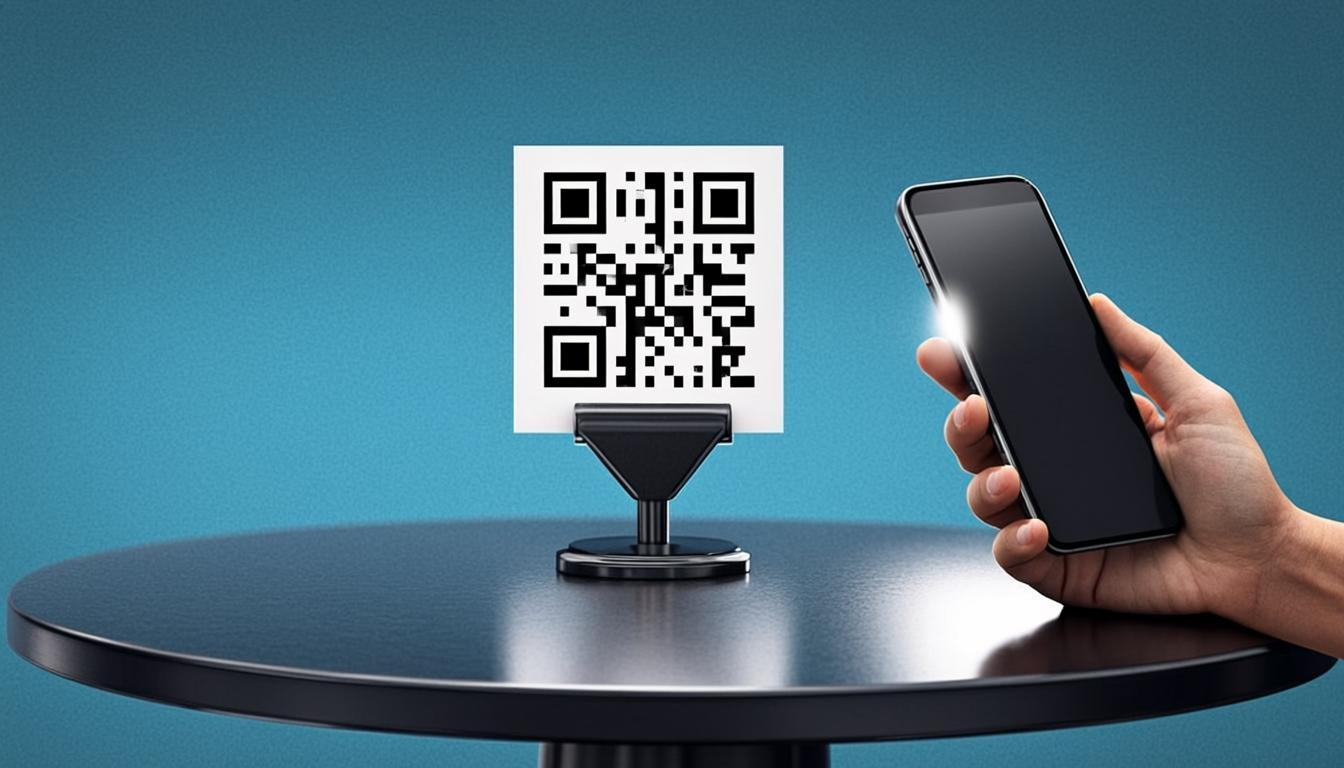
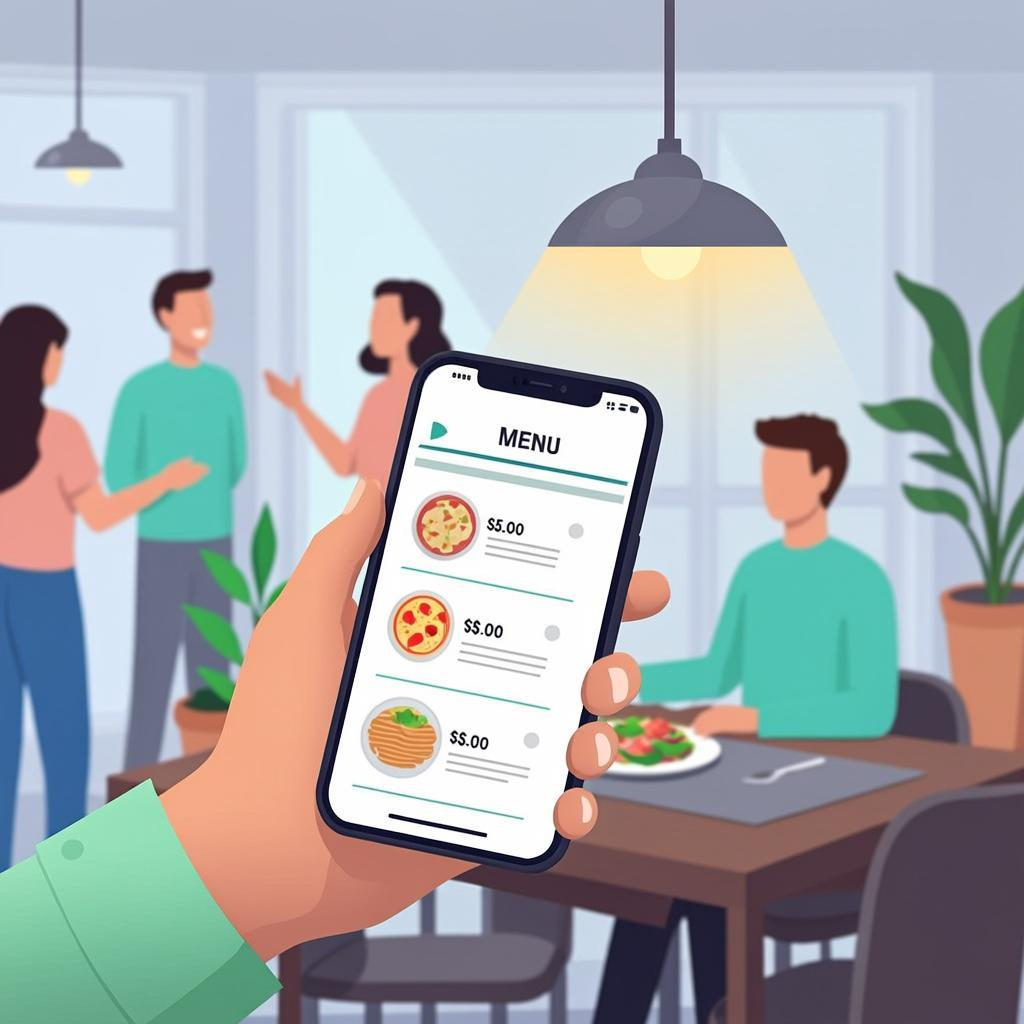
A digital menu is the foundation of any restaurant QR code system. Each table gets a QR code (printed on a table tent, sticker, or placard). Customers scan the code with their phone camera. The menu opens in their browser — no app to install.
Here is what makes a good digital menu:
- Mobile-first design: Big text, clear photos, easy-to-tap buttons.
- Clear sections: Appetizers, mains, desserts, drinks — easy to jump between.
- Photos for top items: People order what they can see. Photos boost sales of featured dishes.
- Allergy and dietary info: Mark vegetarian, vegan, gluten-free, and allergen info clearly.
- Prices always visible: No surprises at checkout.
- Multiple languages: If you serve tourists, offer English plus one or two other languages.
For the QR code itself, generate a static URL QR code that points to your menu page. Use QREndless's free QR generator and download the code as PNG for table tents or SVG for large-format printed menus. Static codes are free, never expire, and you can update the menu page as often as you want without ever changing the QR code.
Use Case 2: Contactless Ordering From the Table
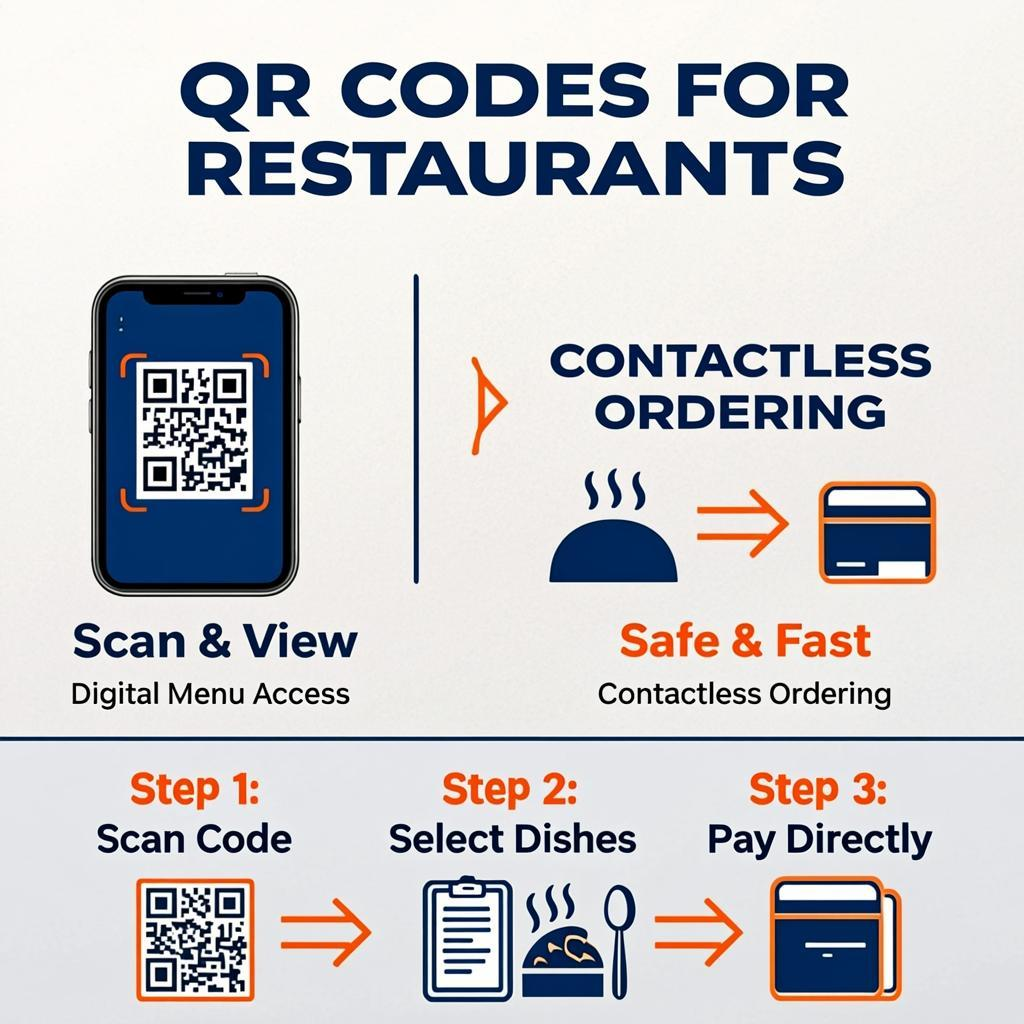
A digital menu lets customers read. Contactless ordering lets them act. When a customer taps "Add to order" on their phone, the order goes straight to your kitchen. No waiter in the middle.
The flow looks like this:
- Customer scans the table QR code.
- Menu opens. Customer browses, adds items to their cart, and reviews their order.
- Customer enters their table number (or the table number is auto-detected from the QR code).
- Customer submits the order. The order appears in the kitchen display system.
- Kitchen prepares the food. Runner brings it to the table.
- Customer can add more items later by scanning again — "dessert round" is just one tap.
Benefits restaurants see from this setup:
- Higher average order value: Customers order 15 to 25 percent more when they can browse without pressure.
- Faster table turnover: No waiting for a waiter to take the order. Tables free up sooner.
- Fewer order errors: The customer enters their own order. No misheard modifications.
- Lower labor costs: One waiter can cover more tables because they are not writing down orders.
- Better data: You see exactly what is ordered, when, and from which table. This helps with menu engineering and staffing.
To set this up, you need a digital ordering system (there are many SaaS options) plus a unique QR code per table. Use QREndless's bulk QR generator to create one QR code per table in a single batch — upload a CSV with table numbers and the corresponding URLs, and the tool generates all the codes at once.
Use Case 3: Table Reservations and Waitlists
Walk-in restaurants lose customers when the wait is too long. A QR code at the door can capture the customer's phone number and add them to a virtual waitlist. They get a text when their table is ready. While they wait, they can browse your menu and pre-order drinks.
For reservations, put a QR code on your storefront window or on a small sign at the host stand. The code links to your reservation page (OpenTable, Resy, your own website, or any booking tool). Customers scan, pick a time, and book in under a minute.
Here is what to put on the reservation QR code landing page:
- Calendar with available time slots.
- Party size selector.
- Special requests field (high chair, wheelchair access, birthday).
- Contact info collection (name, phone, email).
- Confirmation message with date, time, and address.
Use Case 4: Takeout and Pickup Ordering
Takeout is a huge revenue stream for many restaurants. QR codes make ordering takeout easier for customers and more efficient for staff. Put a QR code on your storefront, on your takeout bags, and on your delivery flyers. Each code links to your online ordering page.
Here is how the takeout QR flow works:
- Customer scans the QR code on your storefront or takeout bag.
- Your online ordering page opens.
- Customer picks items, chooses pickup or delivery, and pays.
- Customer gets a confirmation with pickup time or delivery ETA.
For pickup orders, you can also use a QR code at the pickup counter. Customers scan to mark themselves as "arrived" without needing to flag down a staff member. The kitchen sees the arrival and brings out the food.
Use Case 5: Payment at the Table
Paying the bill is one of the slowest parts of dining. Customer asks for the check. Waiter walks to the POS, prints the bill, walks back. Customer reviews, inserts card, waiter walks back to the POS, runs the card, prints the receipt, walks back. Total time: 10 minutes or more.
QR code payment shrinks this to under a minute. The bill has a QR code. Customer scans, sees the total, taps "Pay," enters a tip, and approves the payment with their phone. Done. No waiter needed.
There are two ways to set this up:
- Static merchant QR code: One code printed on every bill or table tent. Customer scans, enters the table number and amount, and pays. Works for UPI, Apple Pay, Google Pay, and similar wallets. Easy to set up.
- Dynamic per-bill QR code: Your POS generates a unique QR code for each bill, with the exact amount already encoded. Customer just scans and approves. More secure, no risk of customer entering wrong amount.
For small restaurants, start with a static code. For busy restaurants, upgrade to dynamic per-bill codes through your POS provider.
Use Case 6: WiFi Access for Guests in One Tap
Customers love free WiFi. But typing a long password is annoying, and the password changes when you forget to update the sign. A WiFi QR code solves this. Customers scan, tap "Connect," and they are on your network. No password typing, no staff interruptions.
Creating a WiFi QR code is simple:
- Open QREndless's QR generator.
- Select the WiFi data type.
- Enter your network name (SSID), password, and security type (WPA, WEP, or none).
- Generate and download the QR code.
- Print it on a table tent or wall sign.
The WiFi QR code is static — the password is encoded in the pattern itself. If you change your WiFi password, you will need to print a new QR code. So pick a strong password you can keep for a long time.
Use Case 7: Loyalty Programs and Review Collection
QR codes are ideal for capturing two things restaurants need most: returning customers and online reviews.
Loyalty Sign-Ups
Print a QR code on your receipt or table tent that says "Scan to join our rewards program." Customer scans, fills out a short form (name, phone, email), and gets a digital punch card on their phone. Every visit, they show the card to the cashier, who taps a button to add a punch. After 10 visits, they get a free meal.
Review Collection
Online reviews drive new customers to your restaurant. But most happy customers never leave a review because they do not think about it. A QR code on the receipt changes this. Customer scans, lands on your Google, Yelp, or TripAdvisor review page, and writes a review while they are still in the restaurant and the experience is fresh.
For best results, train cashiers to point out the code: "Scan this to leave a quick review and get 10 percent off your next visit." The incentive works.
How to Create Restaurant QR Codes With QREndless
QREndless has two free tools that cover every restaurant QR need. Both are fully browser-based, so your menu data, customer phone numbers, and payment links never go to a server.
Single QR Codes: The QR Generator
Use QREndless's QR code generator for one-off codes — your menu QR for a single cafe, your WiFi code, your reservation link, your review collection code. The tool supports 1,421+ QR types across 38 categories, including URL, WiFi, vCard, email, SMS, and UPI.
Bulk QR Codes: The Bulk Generator
Use QREndless's bulk QR generator when you need one QR code per table. Prepare a spreadsheet with table numbers and corresponding menu URLs (or table-specific ordering URLs). Upload it, and the tool generates up to 5,000 QR codes in one batch. You get a ZIP file with individual images and an index spreadsheet that maps each code to its table.
For a 100-table restaurant, this takes about 2 minutes — compared to generating 100 codes one at a time, which would take hours.
Customizing QR Codes for Your Restaurant Brand
Plain QR codes work, but branded QR codes look professional and feel like part of your restaurant. Use QREndless's QR code customizer to:
- Add your restaurant logo to the center of the code. Keep the logo small (about 20% of the code size).
- Use your brand colors for the dots and background. Maintain high contrast for scannability.
- Pick a dot style that matches your restaurant vibe — square dots for modern places, rounded dots for cozy cafes.
- Add a frame with a call to action: "Scan to view menu," "Scan to order," "Scan to pay."
Always test the customized code with multiple phones before printing hundreds of copies. The QREndless customizer shows a live preview so you can see how each change affects scannability.
Restaurant QR Code Best Practices
- One QR code per table. Each table should have its own code so orders and payments route to the right table number.
- Print at least 4 cm by 4 cm for table tents. Bigger codes scan faster, even in dim restaurant lighting.
- Place the code where customers naturally look — top-right corner of the table tent, center of the placemat, or sticker on the table edge.
- Add a clear call to action. "Scan to view menu" gets more scans than a bare code.
- Test in real restaurant lighting. Dim mood lighting is harder for cameras. Bigger codes and higher contrast compensate.
- Keep a backup paper menu for customers who do not have a smartphone or do not want to scan.
- Make sure your menu page loads fast. If it takes more than 3 seconds, customers get frustrated. Optimize images and use a fast hosting provider.
- Update the menu page directly when items sell out. Static QR codes do not need reprinting — just update the destination page.
Common Mistakes Restaurants Make
Mistake 1: Forcing Customers to Download an App
Some restaurant QR codes link to app store pages, forcing customers to download an app to view the menu. Most customers will not do this. They will leave. Your menu should open in a regular browser — no app required.
Mistake 2: Tiny QR Codes on Crowded Table Tents
If your table tent has 10 lines of text and a 1 cm QR code, the code will not scan. Make the QR code the biggest element on the tent. Everything else is secondary.
Mistake 3: Menu Page That Does Not Work on Mobile
Some restaurants link their QR code to a PDF of their printed menu. PDFs on phones are slow, hard to read, and require zooming. Build a proper mobile-first menu page instead.
Mistake 4: No Call to Action
A bare QR code on a table tent without text gets far fewer scans. Add "Scan to view menu" or "Scan to order." Tell people what to do.
Mistake 5: Wrong Table Number on the QR Code
If you generate one QR code per table, label each table tent clearly with the table number. Otherwise, orders will go to the wrong table and chaos will follow.
Mistake 6: Slow Website Hosting
If your menu page is on a slow shared hosting plan, it will take 5 to 10 seconds to load — long enough for customers to give up. Use a fast, reliable host. Test the page on a 4G connection.
Mistake 7: Not Updating the Menu When Items Sell Out
If the menu shows a dish that the kitchen has run out of, customers order it, and you have to disappoint them. Update the menu page the moment an item sells out.
Restaurant QR Use Cases at a Glance
| Goal | Best QR Type | Where to Place | Best Tool |
|---|---|---|---|
| Digital menu | Static URL QR (one per table) | Table tent, placemat | Bulk QR generator |
| Contactless ordering | Static URL QR (one per table) | Table tent | Bulk QR generator |
| Reservations | Static URL QR | Storefront, host stand | QR generator |
| Takeout ordering | Static URL QR | Storefront, takeout bags | QR generator |
| Table payment | Static or dynamic URL QR | Receipt, table tent | POS or QR generator |
| Guest WiFi | Static WiFi QR | Table tent, wall sign | QR generator |
| Loyalty sign-up | Static URL QR | Receipt, table tent | QR generator |
| Review collection | Static URL QR | Receipt, bill folder | QR generator |
Action Steps: Set Up QR Codes for Your Restaurant This Week
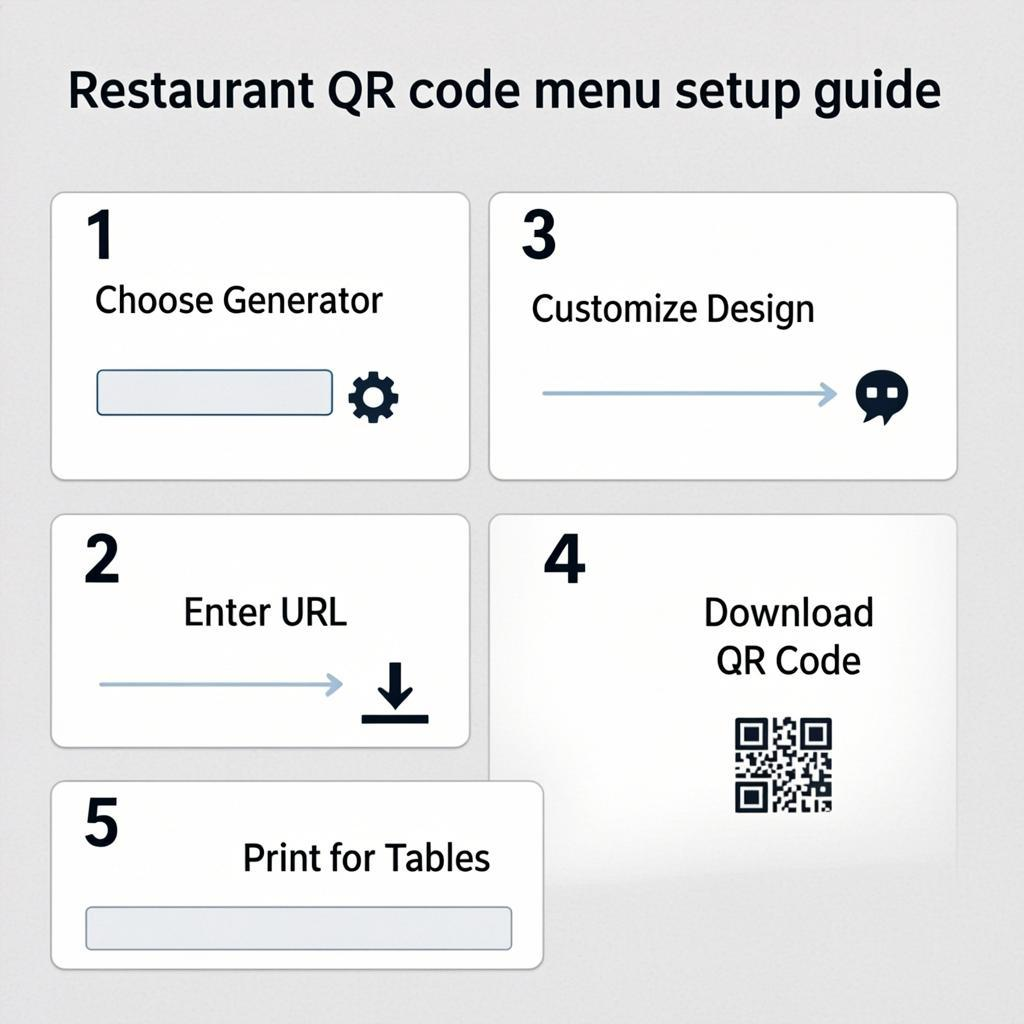
- Build your digital menu page. Mobile-first, fast loading, with photos for top items. Update prices and availability in real time.
- Number your tables from 1 to N. Make a spreadsheet with two columns: table number and the menu URL for that table.
- Generate one QR code per table using QREndless's bulk QR generator. Download the ZIP with all codes.
- Customize the codes with your restaurant logo and brand colors using QREndless's customizer. Add a frame with the call to action "Scan to view menu."
- Print and place the QR codes. Table tents work best. Make each code at least 4 cm by 4 cm.
- Create a WiFi QR code with QREndless's QR generator and put it on a separate table tent or wall sign.
- Set up payment QR codes at the table or on receipts. Start with a static merchant code if your POS does not support dynamic codes.
- Add a review collection QR code to your receipts. Link it to your Google or Yelp review page.
- Train your staff on the new flow. Tell them to point out the QR codes to customers, especially in the first few weeks.
- Keep a few paper menus as backup for customers who prefer them or do not have a smartphone.
Frequently Asked Questions
Do customers actually prefer QR code menus?
Most do. Surveys show that more than 70 percent of diners are comfortable scanning a QR code to view a menu. The speed, the ability to browse without a waiter hovering, and the option to see photos all contribute. However, always keep a few paper menus as backup for customers who prefer them or do not have a smartphone.
How do I create a QR code menu for free?
Build a mobile-friendly menu page on your website (or use a free menu builder tool). Then generate a free static URL QR code at QREndless's QR generator. Download the code as PNG or SVG, print it on a table tent, and place it on each table. The QR code is free, never expires, and you can update the menu page as often as you want without changing the code.
Should I use one QR code for the whole restaurant or one per table?
One per table is better, especially if you offer contactless ordering or table payment. Each table QR code can encode the table number, so orders and payments automatically route to the right table. Use QREndless's bulk QR generator to create one code per table in a single batch.
Do QR code menus work without internet?
No. The QR code itself is just a printed pattern, but when a customer scans it, their phone needs internet to open the menu page. Make sure your restaurant has good mobile signal, or offer free WiFi with a WiFi QR code so customers can connect in one tap.
Can I use QR codes for contactless ordering without a POS system?
It is possible but not ideal. Without a POS integration, orders would go to an email or a simple notification — fine for a tiny cafe, but unworkable for a busy restaurant. For real contactless ordering, use a digital ordering platform that integrates with your kitchen display system.
How big should a restaurant QR code be?
For table tents, print QR codes at least 4 cm by 4 cm (about 1.6 inches). For wall signs, use 8 cm by 8 cm. Bigger codes scan faster, which matters in dim restaurant lighting. Always test with multiple phones before printing the final batch.
Can customers pay through a QR code at the table?
Yes. Two approaches work. First, a static merchant QR code (printed on the bill or table tent) that customers scan, enter the amount, and pay through their wallet app. Second, a dynamic per-bill QR code generated by your POS with the exact amount already encoded. Static is simpler; dynamic is more secure.
What if my menu changes often?
That is the beauty of static QR codes. The QR code points to a URL. You update the page at that URL as often as you want — daily, hourly, even per service — and the QR code never needs reprinting. This is why static codes are ideal for restaurant menus.
Are QR code menus safe for customers?
Yes, as long as the QR code points to a page you control. Always link to your own website or a trusted menu platform. Do not use short links you do not control. Customers can protect themselves by checking the URL that appears before they tap to open it.
How do I customize QR codes with my restaurant logo?
Use QREndless's QR code customizer. Upload your logo, pick your brand colors, choose a dot style, and add a frame with a call to action like "Scan to view menu." Keep the logo small (about 20% of the code size) and maintain high contrast so the code still scans reliably.