Table of Contents
- Why I Put Six QR Tools in a Browser Extension
- The Six Tools, One Popup
- Install It in Two Minutes
- Right-Click Menus and Keyboard Shortcuts
- What Happens to Your Data
- Offline Use and Themes
- Which Browsers Work
- Why It Costs Nothing
- Frequently Asked Questions
- Get the Extension
Why I Put Six QR Tools in a Browser Extension
Every QR tool I ship runs in the browser, and for a long time there was one gap left: the tab switch itself. You read an article, you want its QR code, and suddenly you are opening a new tab, pasting a URL, and clicking download. I built this extension to delete that step.
The whole thing is a 96KB download. That is smaller than most photos you scroll past in a day. It holds six tools, a scan engine, and every QR library it needs, so it keeps working when your internet does not.
I also skipped the Chrome Web Store on purpose. The store adds a review queue and a second download page to maintain. Loading it unpacked takes about two minutes and you get the same Manifest V3 code either way.
The Six Tools, One Popup
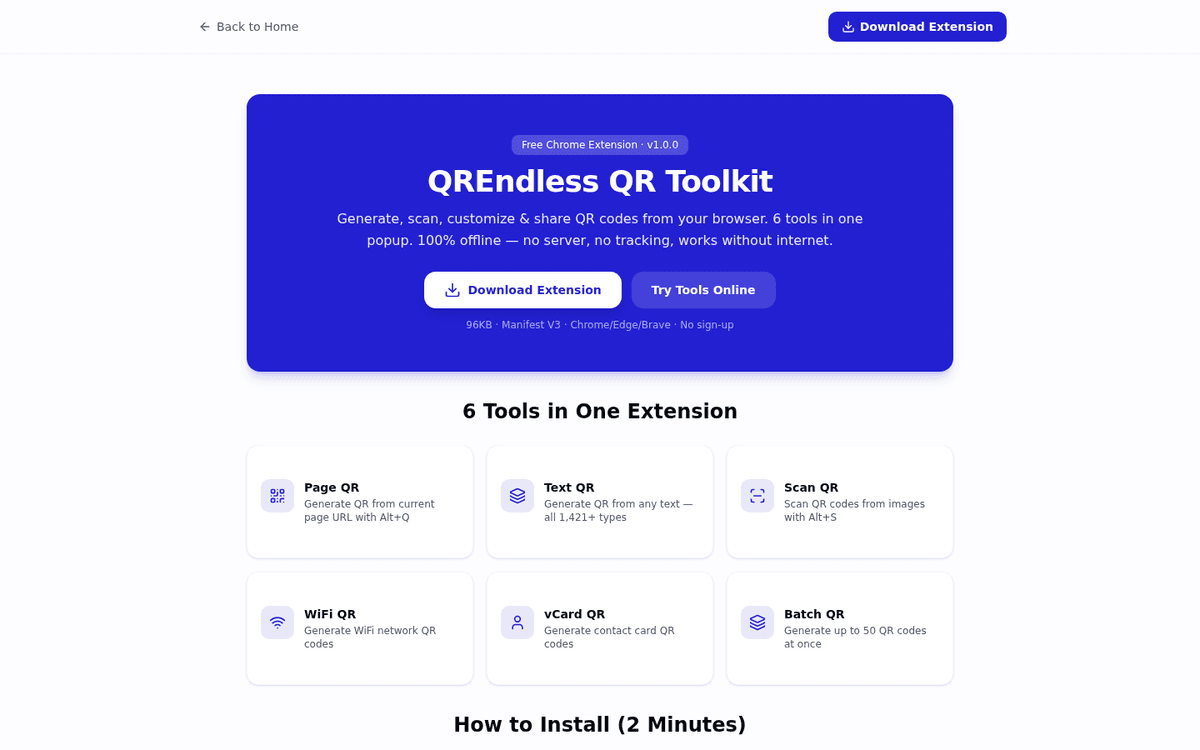
Click the QREndless icon in your toolbar and a popup opens with six tabs. Here is what each one does.
Page QR: Share the Tab You Are On
This one makes a QR code for the page you are reading. The code appears the moment the popup opens, and you can download it as PNG or SVG or copy it straight to your clipboard. Press Alt+Q instead and you skip the popup entirely.
Text QR: Any Text, Including All 1,421+ QR Types
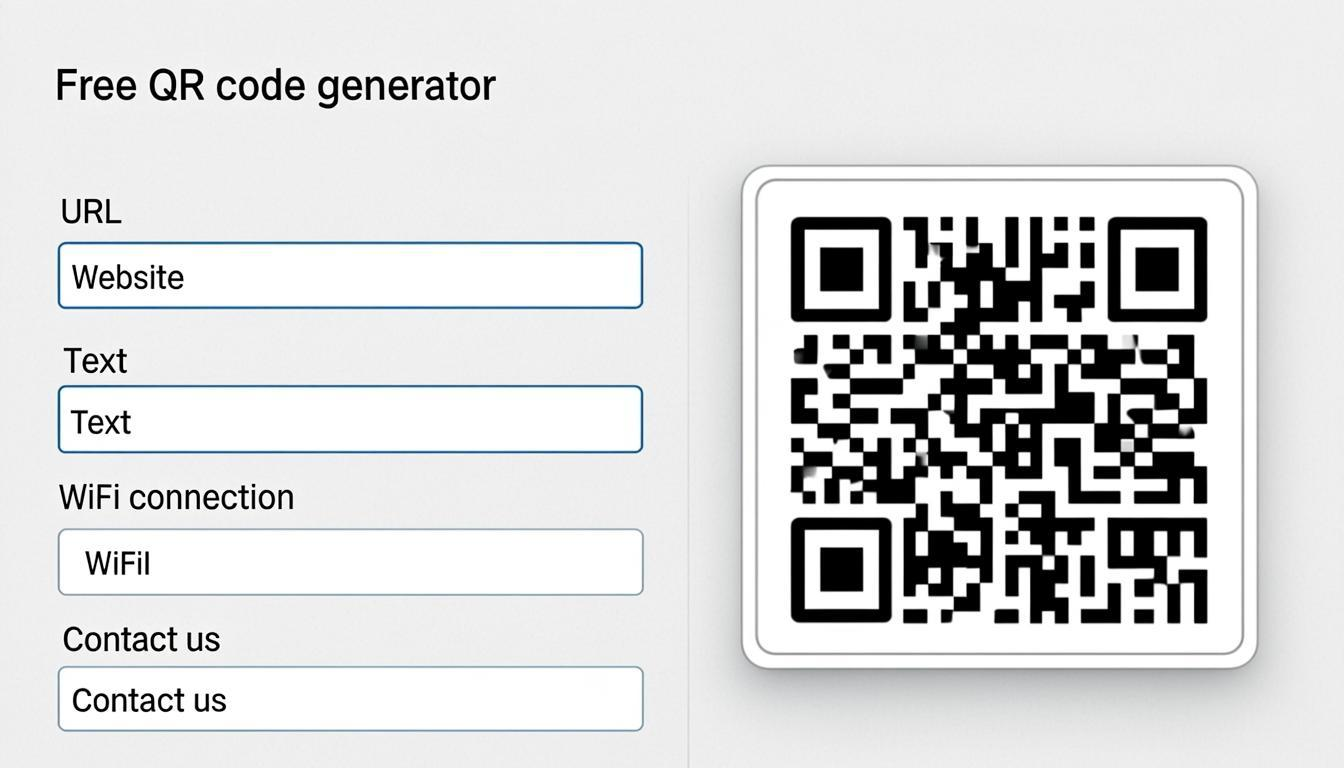
Type anything into this tab and the QR code updates as you type. A link, a phone number, an email, a WiFi password, plain text. Because you can feed it any payload, this tab can produce every QR type that exists, more than 1,421 of them.
Scan QR: Read a Code From Any Image
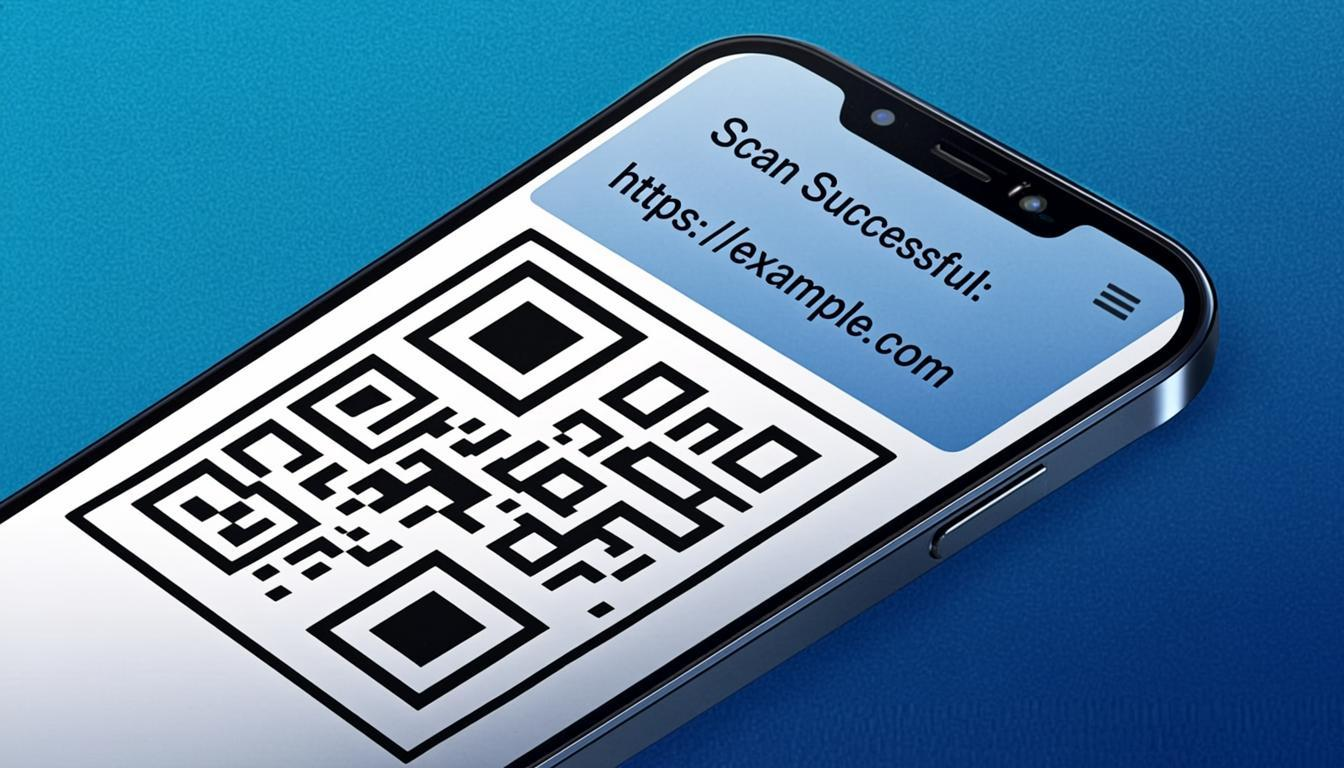
Drag a photo into the scan area or upload it, and the extension reads the QR code with the jsQR library. Decoding runs in your browser, so no image ever touches a server. You get the decoded text plus the type it detected: URL, email, phone, WiFi, or plain text.
WiFi QR: Guest Access Without Typed Passwords
Enter your network name, pick your security type (WPA, WEP, or open), type the password, and generate. Guests scan the code and their phone connects, which suits restaurants, hotels, offices, and home guests. If you want the full picture on guest networks, I wrote a separate guide to WiFi QR codes.
vCard QR: Contact Cards for Badges and Handshakes
Fill in name, phone, email, organization, and website, and this tab builds a vCard QR code. Scanning it opens a ready-to-save contact card on the phone. That fits business cards, name badges, and networking events. Field-level tips live in my vCard QR code guide.
Batch QR: Up to 50 Codes in One ZIP
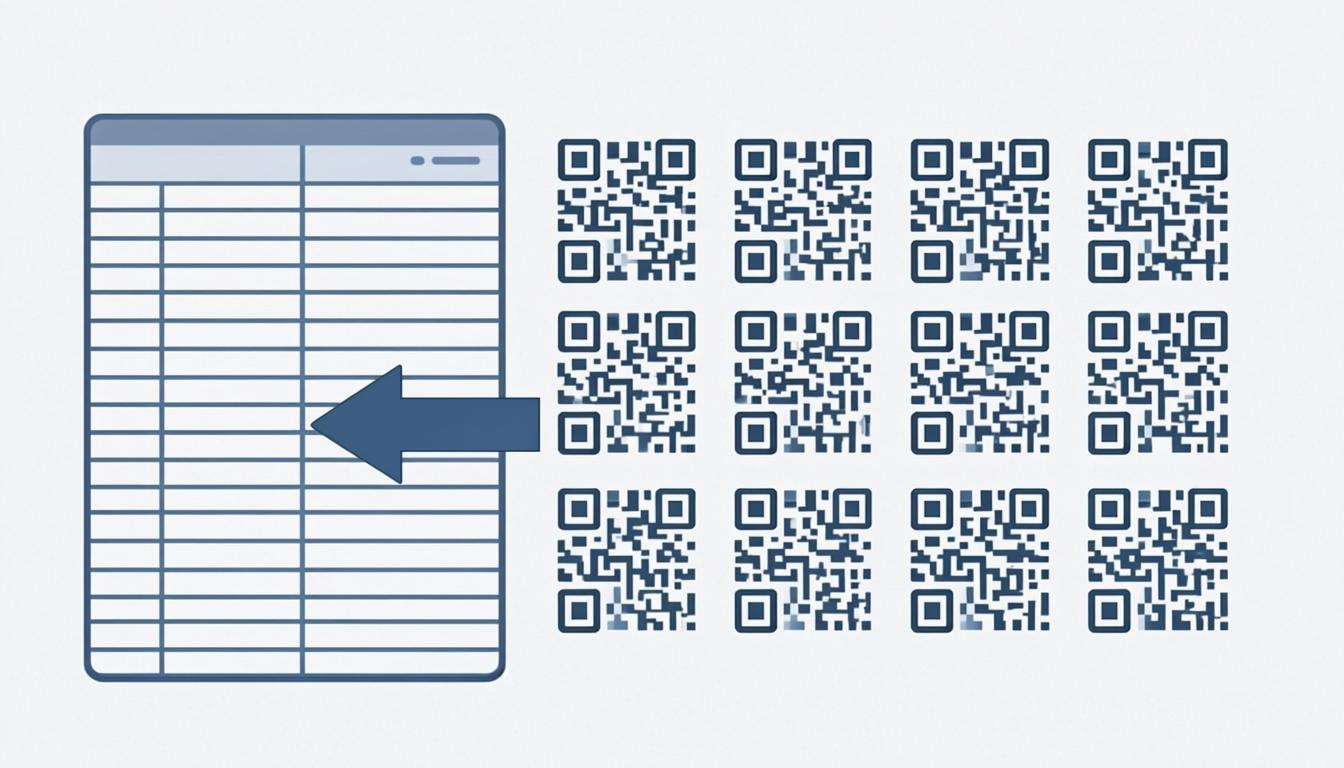
Paste a list, one line per code, and the extension generates up to 50 QR codes in one run. They arrive as a single ZIP download. This is the fastest path to event tickets, product labels, or inventory tags when you need a small batch right now.
Install It in Two Minutes
There is no store listing to find. You download the file from this site and load it into your browser yourself.
- Download the ZIP file from our Chrome extension page. It is only 96KB, smaller than most photos.
- Extract the ZIP. Right-click and choose Extract All on Windows, or double-click it on Mac. Remember the folder.
- Open the extensions page. Type
chrome://extensions/in the address bar and press Enter. - Turn on Developer mode with the toggle in the top right corner.
- Click Load unpacked and pick the folder you extracted in step 2. The extension is now installed.
That is the whole install. The QREndless icon appears in your toolbar, and the six tools are one click away from then on.
Right-Click Menus and Keyboard Shortcuts
The popup is only half the story. The extension also adds five options to your right-click menu, so you can work without opening it at all.
- Select text and right-click: generate a QR from the text
- Right-click any page: generate a QR from the page URL
- Right-click a link: generate a QR from that link
- Right-click an image: scan a QR with QREndless
- Right-click an image: generate a QR from the image URL
Context-menu jobs do not interrupt you. The extension stores the action and shows a badge on the icon, and the QR code appears when you click the icon.
Three keyboard shortcuts cover the common cases:
- Alt+Q: generate a QR from the current page URL
- Alt+S: scan the QR inside a right-clicked image
- Alt+Shift+Q: generate a QR from selected text
You can remap all three at chrome://extensions/shortcuts if they clash with another extension you use.
What Happens to Your Data
Nothing leaves your browser. Here is the complete list of what the extension does and does not do.
- Local processing. Generation and scanning happen in JavaScript on your machine.
- No server calls. The extension never connects to any website or API.
- No tracking. No analytics, no cookies, no tracking pixels.
- Local storage. Your QR history sits in
chrome.storageon your device. - You stay in control. Export, import, or clear your history from the settings page at any time.
That history earns its place, by the way. Every code you generate is saved, so last week's WiFi code can be re-downloaded without rebuilding it. The settings page exports the whole history as a JSON file, imports it on another computer, or clears it completely.
Offline Use and Themes
After install, the extension needs no internet connection. All the QR libraries are bundled inside it, so you can generate, scan, and download on a plane, in a tunnel, or anywhere with no WiFi.
The popup ships in dark and light themes. Click the moon icon in the popup header to switch, and your choice is saved for next time.
Which Browsers Work
Any Chromium browser from the last few years will run it:
- Google Chrome, version 88 or newer
- Microsoft Edge, version 88 or newer
- Brave, all recent versions
- Opera, version 74 or newer
- Vivaldi, version 3.7 or newer
The extension targets Manifest V3, the current Chrome extension standard. Every Chrome API it uses is supported by all Chromium browsers.
Why It Costs Nothing
The extension is 100% free. No premium version, no limits, no sign-up, and the code is open source. Each generated QR code can include a small link to our website (qrendless.pro), which is how we fund the project, the same way free apps work. You can remove the link if you want.
Frequently Asked Questions
Is this extension free?
Yes, completely free. No premium tiers, no watermarks, no sign-up.
Does it work offline?
Yes. All QR generation and scanning happens in your browser. No internet needed after install.
Is my data safe?
Yes. No data is sent to any server. All QR codes are generated and stored locally.
Do I need the Chrome Web Store?
No. You download directly from our website and install using Developer mode.
Can I make WiFi QR codes?
Yes. The WiFi tab creates QR codes that phones scan to connect to your WiFi.
Can I scan QR codes from images?
Yes. The Scan tab takes any uploaded or dragged image and reads it with jsQR.
Get the Extension
Six tools, 96KB, two minutes of setup. Load it once and it works everywhere, online or off.
Download the Chrome extension now or try the QR Generator online to see the same engine in your browser.