Table of Contents
- Why I Built a Scanner That Runs in a Browser Tab
- Dual-Engine Scanning Architecture
- Single Camera Scan, Step by Step
- Bulk Scan: Up to 100 Images at Once
- Supported Barcode Formats
- Works on Any Device
- Your Camera Feed and Images Stay Private
- When to Use the Related Tools
- Frequently Asked Questions
You need to scan a QR code or barcode, and you do not want to download an app, create an account, or fight through ads. You want to point your camera and get the result. The Free Online QR & Barcode Scanner at QREndless does exactly that: open the page, point your camera, get your answer, on any device with a browser and camera.
The scanner offers two modes. Single Camera Scan handles quick one-off scans, and Bulk Scan decodes up to 100 images at once. Both run entirely in your browser, with no data uploaded anywhere.
Why I Built a Scanner That Runs in a Browser Tab
Most people assume scanning needs a dedicated app. Apps take storage, demand permissions, and too often arrive wrapped in ads or subscription paywalls. I wanted the opposite: open a page and scan, nothing installed.
Building it browser-only shaped two decisions you will notice. First, the dual-engine design. Safari and some older browsers do not support the native BarcodeDetector API, so a single-engine scanner would fail for a huge share of visitors. Second, the privacy defaults: phone numbers and email addresses are masked in results because scanned codes often carry personal data, and a shared screen should not expose it.
Free means free here. No scan cap, no daily limit, no premium tier.
Dual-Engine Scanning Architecture
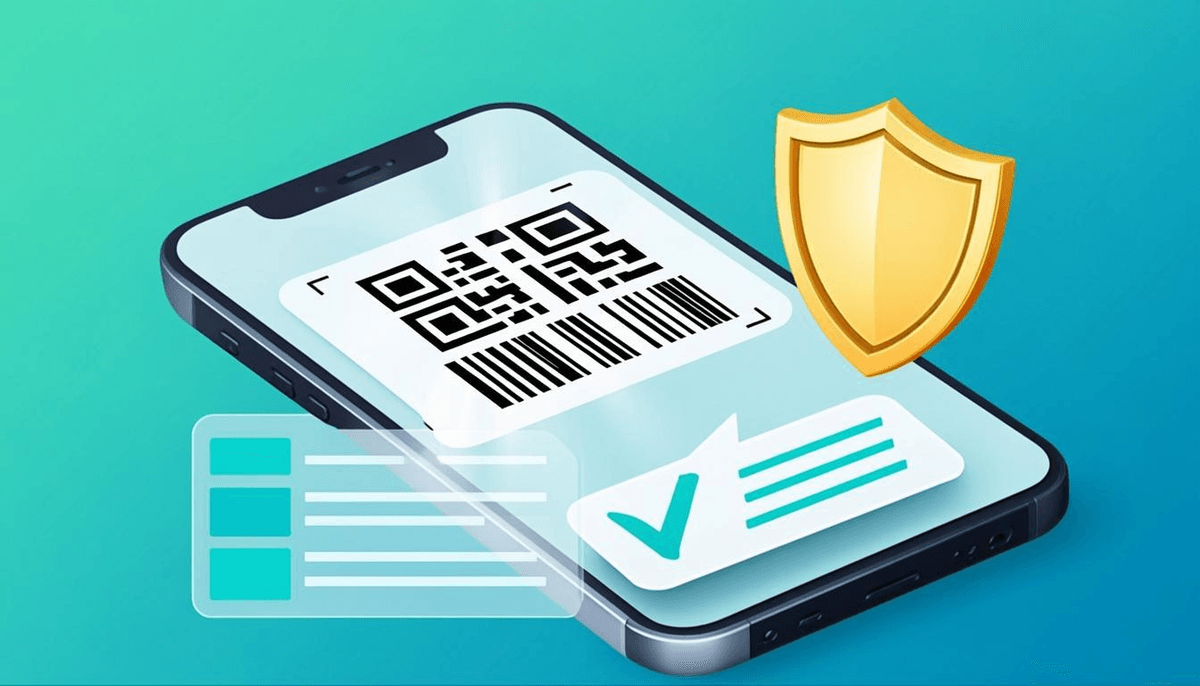
The scanner pairs two decoding engines so every device gets the fastest path available.
BarcodeDetector API (Hardware-Accelerated)
On supported browsers (Chrome, Edge, and modern Android browsers), the scanner uses the BarcodeDetector API, a native browser API that decodes barcodes with hardware acceleration where available. Recognition is near-instant with minimal CPU and battery use.
WebAssembly Worker Pool
On devices without the BarcodeDetector API (Safari, older browsers, some iOS devices), the scanner falls back to a multi-threaded WebAssembly decoder running in parallel background threads. The UI stays responsive while decoding continues at speed.
Both Engines Running Simultaneously
Where both engines are supported, the scanner runs them at the same time. Whichever decodes first delivers the result, so you never wait on the slower path.
Single Camera Scan, Step by Step
For a code in front of you, single camera mode is the fastest route:
- Open the scanner on any device with a camera.
- Grant camera permission when asked. One time only; your browser remembers.
- Point your camera at any QR code or barcode. Detection is automatic.
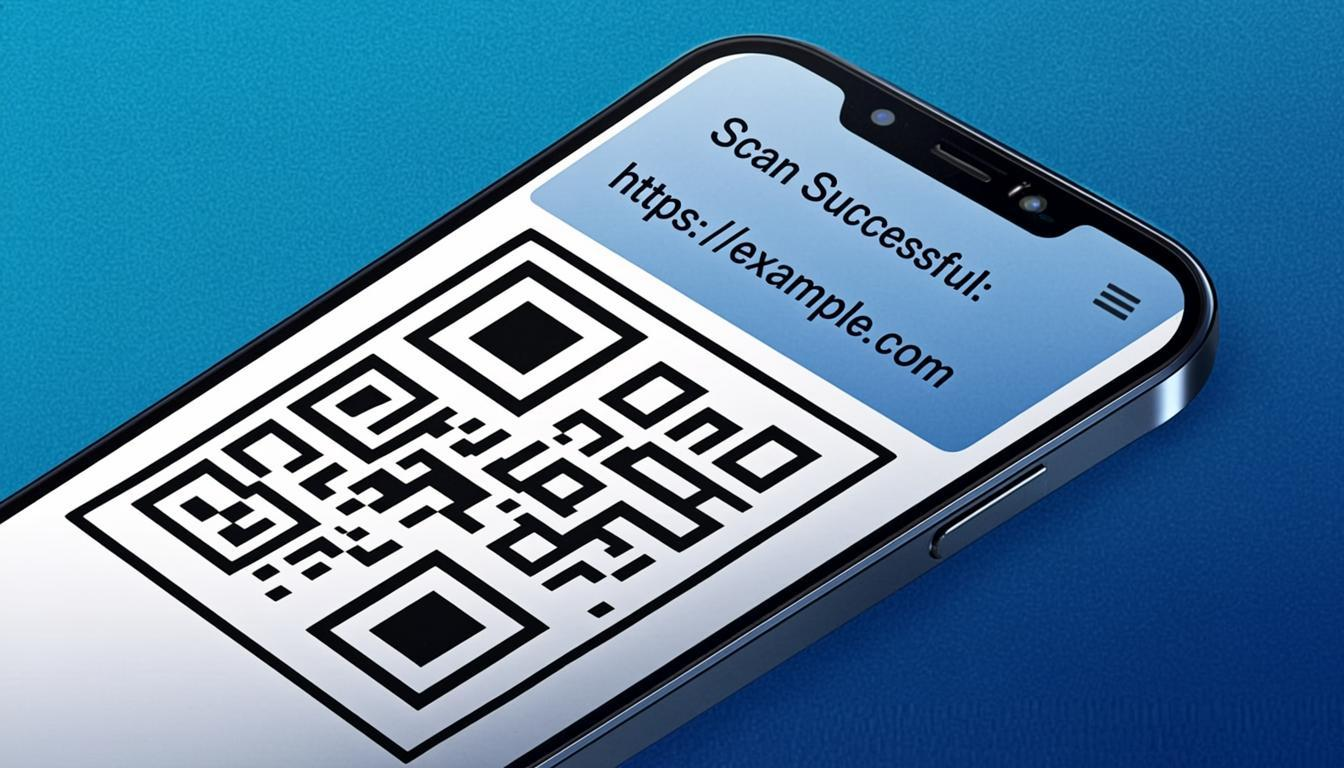
- View the result. The decoded content appears instantly. Tap to open the link, copy the text, or share it.
- Scan again. The scanner stays active; just point at the next code.
No button to press, no steps between codes. Point and scan.
Bulk Scan: Up to 100 Images at Once
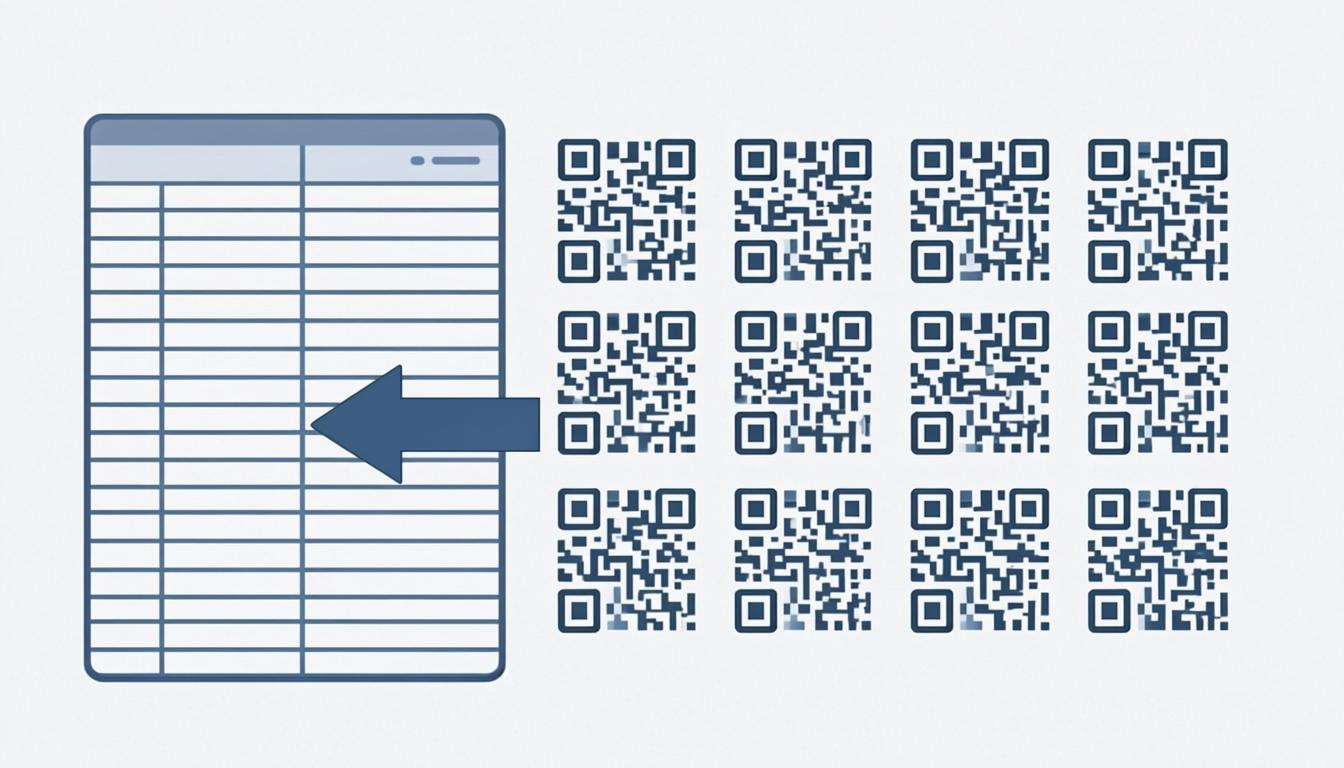
When the codes are already photos, Bulk Scan takes up to 100 images and decodes every barcode and QR code in all of them.
- Switch to Bulk Scan mode with the tab on the scanner page.
- Upload images from your gallery or file system, up to 100.
- Start scanning. All images process in parallel on the WebAssembly Worker Pool.
- View all results. Every decoded code is listed with its value and source image.
- Export or copy. Copy individual results or export the full list.
The usual jobs: photograph a retail shelf and decode every product barcode, batch-scan stacks of printed event tickets, process documents with embedded barcodes, or verify that label barcodes match your records. Quality-checking sheets generated by the Bulk QR Code Generator is a common one.
Supported Barcode Formats
The scanner recognizes all major 1D and 2D formats. Scan any of these for instant results:
- QR Code: the most common 2D barcode, used for links, payments, and menus
- Code 128: high-density 1D barcode used in shipping and packaging
- EAN-13: the standard retail barcode found on most products worldwide
- UPC-A: the North American equivalent of EAN-13
- DataMatrix: compact 2D barcode used in electronics, healthcare, and aerospace
- PDF417: stacked 2D barcode on driver's licenses, boarding passes, and ID cards
- Aztec: 2D barcode used on transportation tickets and government documents
- ITF: 1D barcode used in warehousing and logistics
- And more: Codabar, Code 39, Code 93, EAN-8, UPC-E, and other common formats
If you want to understand what is happening under the hood when a scanner reads these patterns, our guide on How QR Codes Work walks through the encoding step by step.
Works on Any Device
If it has a browser and a camera, it works:
- iPhone and iPad (iOS): open Safari or Chrome and scan. No App Store trip. The WebAssembly decoder keeps older iOS devices fast even without the BarcodeDetector API.
- Android phones and tablets: Chrome, Firefox, Edge, and Samsung Internet all work, with hardware-accelerated scanning on most devices.
- Desktop browsers: any computer with a webcam can scan codes at your desk.
- Everything else: Chromebooks, tablets, kiosks. Browser plus camera is the only requirement.
Your Camera Feed and Images Stay Private
All processing happens locally on your device. The camera feed and any uploaded images never reach a server, which matters when codes carry personal information, internal URLs, or payment details. There is a simple proof: load the page, disconnect your internet, and keep scanning. The scanner continues to work.
Decoded results also pass through URL validation and security checks. Suspicious URLs get flagged with warnings, and personal information like phone numbers and email addresses is masked by default. For the full threat picture, see our guide on QR Code Security.
When to Use the Related Tools
Scanning is one step of the job. For the others:
- Need to decode a QR code without opening the link? The QR Code Decoder inspects the full decoded content safely.
- Need to generate QR codes? Use the Free QR Code Generator or the Bulk Generator.
- Need to customize a QR code's appearance? The QR Code Customizer adds colors, logos, and frames.
Frequently Asked Questions
Do I need to download an app to scan QR codes?
No. The scanner is fully browser-based. Open the page in any browser, allow camera access, and start scanning. No app download, no account required.
What barcode formats does the scanner support?
All major formats: QR Code, Code 128, EAN-13, UPC-A, DataMatrix, PDF417, Aztec, ITF, Codabar, Code 39, Code 93, EAN-8, and UPC-E.
Does the scanner work on iPhone and iPad?
Yes. The scanner works on all iOS devices running Safari, Chrome, or any modern browser. The WebAssembly decoder keeps performance fast even on older iOS devices that lack the BarcodeDetector API.
Is my scanned data private?
Yes. All scanning happens locally on your device. Your camera feed, uploaded images, and decoded data are never sent to any server. Disconnect your internet after loading the page and the scanner keeps working.
How many images can I scan in bulk mode?
Up to 100 images in a single bulk scan. Run as many bulk scans as you want.
Is there a limit on how many codes I can scan?
No. Single camera scans and bulk scans are both unlimited. No daily limit, no scan cap, no premium tier.