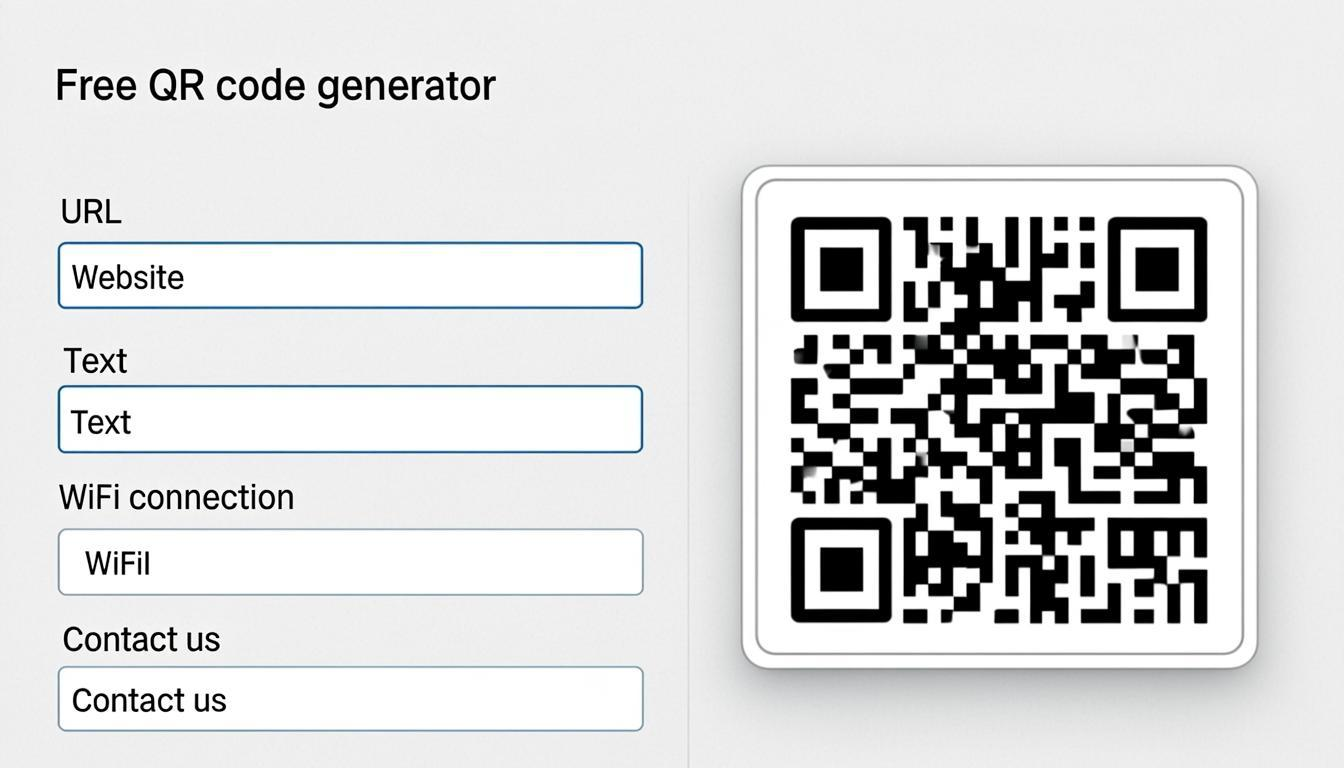
Want to put QR codes on your website, app, or printed materials? You can do it without installing any software, signing up for anything, or paying a single dollar. The QREndless QR Code API takes your text and gives you back a ready-to-use QR code image. This guide shows you exactly how it works, step by step, in plain English.
Quick Summary
Here is the short version. If you are in a hurry, read this and skip to the section you need:
- What it is: A free API that makes QR code images from text.
- Web address:
https://qrendless.pro/api/qr/?data=YOUR_TEXT&format=png - Cost: Free. No signup, no API key, no credit card.
- Formats: PNG, JPG, SVG, PDF.
- Limit: 60 requests per minute per IP address.
- No tracking: Your data is not stored. No cookies. No logs.
- Works from browser: Yes, CORS-enabled. No server needed.
What Is a QR Code API?
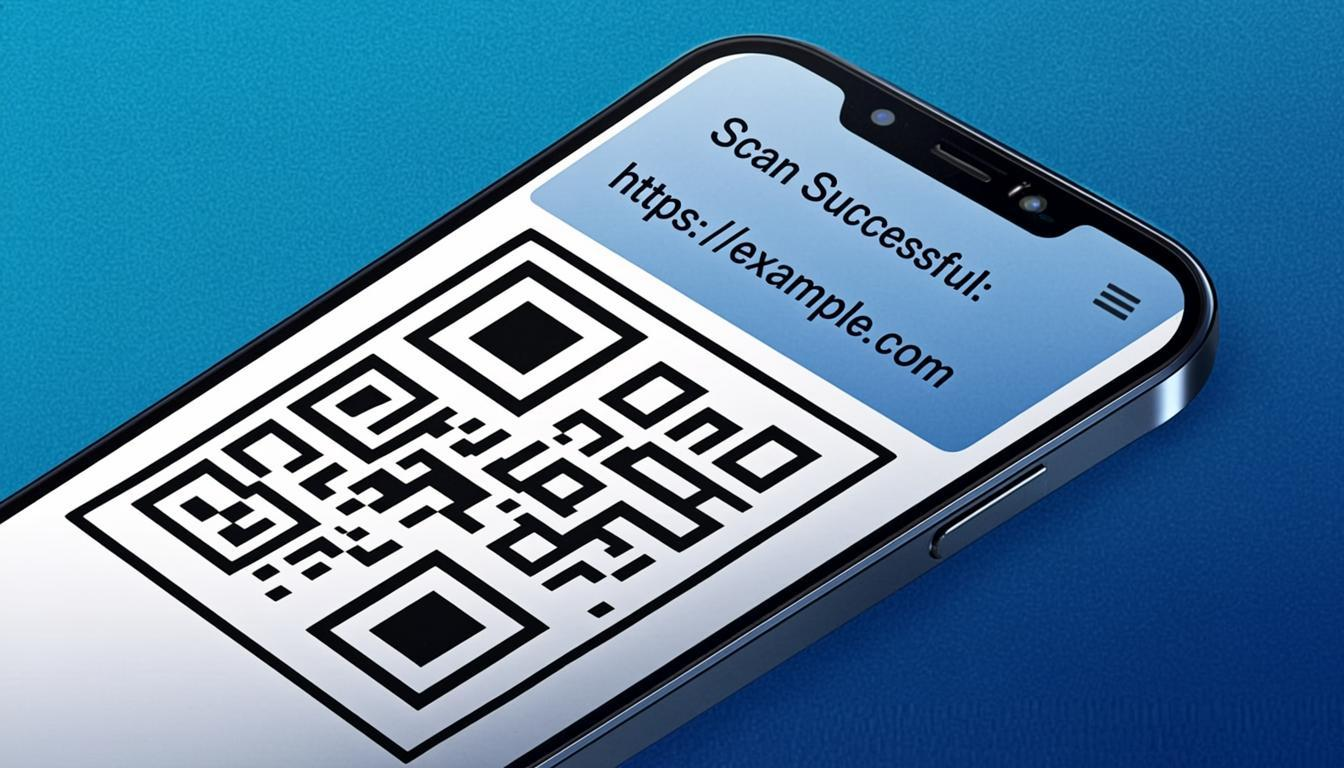
A QR code is those square barcodes you scan with your phone camera. You see them on restaurant menus, business cards, product packaging, and payment stickers. When someone scans one, their phone opens a website, connects to WiFi, or starts a payment.
A QR code API is a tool that makes these codes for you. Think of it like a printer. You send it the text you want (a website link, a WiFi password, a phone number), and it prints out a QR code image. You do not need to install anything. You do not need to write complex code. You just send a web address with your text, and the API sends back the QR code picture.
The QREndless API lives at this web address: https://qrendless.pro/api/qr/. You can use it from any device, any programming language, any website. If your tool can open a web link, it can use this API.
What Makes This API Different
There are many QR code APIs on the internet. Most of them ask you to create an account, get an API key, and pay for a monthly plan. This one does not. Here is what makes it stand out:
- No account needed. You do not sign up. You do not give your email. You do not create a password. You just use it.
- No API key. There is no secret code to remember. No token to manage. No key to keep safe.
- No credit card. There is no free trial that turns into a paid plan. There is no paid plan at all. It is free, and it stays free.
- Works from your website. You can call the API directly from your website's code. No need for a middle server. This is called CORS support, and it means less work for you.
- Open source. The code is public on GitHub. You can read it, copy it, or run it on your own server. Nothing is hidden.
- No tracking. The API does not set cookies. It does not track who you are. It does not store what you put in it. Your data is used to make the QR code and then thrown away.
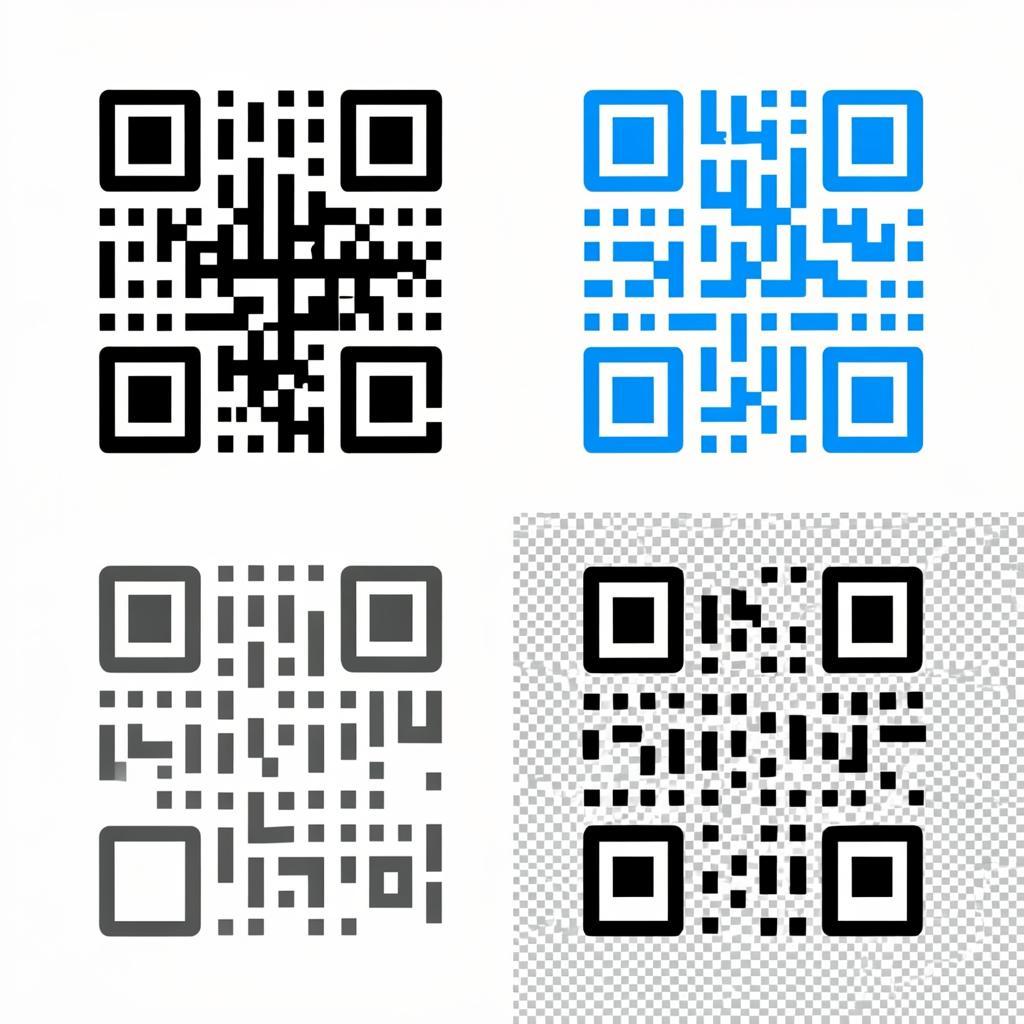
Four Ways to Get Your QR Code
The API can give you QR codes in four different file types. Each one is good for a different purpose. Here is when to use each one:
- PNG — This is the default. It is a regular image file. It works on every device, every browser, every app. Use PNG when you want a simple, reliable QR code image. PNG also supports transparent backgrounds, which means the QR code can sit on top of colored backgrounds without a white box around it.
- JPG — This is a smaller image file. JPG files take up less space than PNG, which makes them load faster on web pages. The trade-off is that JPG does not support transparent backgrounds. Use JPG when file size matters more than transparency.
- SVG — This is a vector format. That means you can make it as big or as small as you want without losing any quality. A QR code printed on a business card and the same QR code printed on a billboard can both come from the same SVG file. Use SVG for anything that goes to print.
- PDF — This gives you a full A4 page with the QR code in the center. It is ready to print. Use PDF when you need to hand the file to a printer for flyers, brochures, or posters.
To choose a format, add &format=png or &format=jpg or &format=svg or &format=pdf to your request. If you do not add any format, you get PNG by default.
How to Use the API — Step by Step
Using the API is as simple as opening a web link. Here is how to do it in different ways:
Method 1: Open in Your Browser
The easiest way to test the API is to just type a URL into your browser. Copy this link and paste it into your browser's address bar:
https://qrendless.pro/api/qr/?data=https://qrendless.pro&format=png&size=256Your browser will show you a QR code image. That is the whole API. You just changed the text after data= and you get a different QR code.
Method 2: Use cURL (Command Line)
If you use the terminal, cURL is the fastest way to download a QR code:
# Download a PNG QR code (256x256 pixels)
curl "https://qrendless.pro/api/qr/?data=https://example.com" -o qr.png

# Download an SVG QR code (vector, can scale to any size)
curl "https://qrendless.pro/api/qr/?data=https://example.com&format=svg" -o qr.svg

# Download a PDF QR code (A4 page, ready to print)
curl "https://qrendless.pro/api/qr/?data=https://example.com&format=pdf" -o qr.pdf
Method 3: Use JavaScript on Your Website
You can put a QR code directly on your website with one line of HTML:
<img src="https://qrendless.pro/api/qr/?data=https://yoursite.com&size=256"
     alt="Scan to visit our website">
Or use JavaScript to fetch the QR code and display it:
// Fetch the QR code and show it on the page
const res = await fetch('https://qrendless.pro/api/qr/?data=hello&format=png');
const blob = await res.blob();
const url = URL.createObjectURL(blob);
document.getElementById('qr').src = url;
Method 4: Use Python
import requests

# Generate a QR code and save it to a file
r = requests.get('https://qrendless.pro/api/qr/', params={
    'data': 'https://example.com',
    'size': 512,
    'format': 'png',
})
with open('qr.png', 'wb') as f:
    f.write(r.content)
Method 5: Use PHP
// Show the QR code directly in the browser
$data = urlencode('https://example.com');
$url = "https://qrendless.pro/api/qr/?data={$data}&size=512&format=png";
$png = file_get_contents($url);
header('Content-Type: image/png');
echo $png;
One API for Every QR Type
The QREndless website offers 1,421+ QR types across 38 categories. These include website links, WiFi passwords, UPI payments, contact cards, email addresses, phone numbers, text messages, map locations, and many more.
You might think you need a different API endpoint for each type. You do not. You need just one.
Here is why: a QR code does not know what type of data it holds. It just stores text. The QR code standard does not care if your text is a website link, a WiFi password, or a phone number. It stores whatever bytes you give it. The scanning app on the phone figures out what to do with the text after scanning.
So to make different types of QR codes, you just change the text in the data parameter:
# Website link QR code
curl "https://qrendless.pro/api/qr/?data=https://example.com&format=png"

# WiFi QR code (scan to connect to WiFi)
curl "https://qrendless.pro/api/qr/?data=WIFI:T:WPA;S:MyCafe;P:guest123;;&format=png"

# UPI payment QR code (scan to pay)
curl "https://qrendless.pro/api/qr/?data=upi://pay?pa=shop@upi&am=50&format=png"

# Email QR code (scan to open email app)
curl "https://qrendless.pro/api/qr/?data=mailto:[email protected]&format=png"

# Phone call QR code (scan to call)
curl "https://qrendless.pro/api/qr/?data=tel:+15551234567&format=png"
One web address. One parameter. Every QR type that exists. That is the whole design.
All Settings You Can Use
The API accepts eight parameters. Only one is required. The rest are optional with sensible defaults:
- data (required) — The text or link you want to turn into a QR code. For GET requests, the max length is 2,048 characters. For POST requests, it is 10,000 characters. Most QR codes use less than 100 characters.
- format (optional) — Choose png, jpg, svg, or pdf. If you skip this, you get PNG.
- size (optional) — The width and height of the QR code image in pixels. Range: 64 to 1024. Default: 256. Bigger sizes are better for print. Smaller sizes load faster on web pages.
- transparent (optional) — Set to true for a transparent background. Only works with PNG. This lets you place the QR code on top of colored backgrounds, photos, or gradients without a white box around it. Default: false.
- dark (optional) — The color of the dark parts of the QR code. Use a hex color like #1a73e8 for blue or #dc2626 for red. Default: #000000 (black).
- light (optional) — The color of the background. Use a hex color like #fef3c7 for cream. Default: #ffffff (white). This is ignored when transparent is set to true.
- ecc (optional) — Error correction level. This controls how much damage the QR code can take and still scan. L means 7% damage tolerance. M means 15%. Q means 25%. H means 30%. Higher levels make the QR code bigger but tougher. Default: M.
- margin (optional) — The white border around the QR code. Range: 0 to 10. A border of 4 (the default) gives enough space for most phone cameras to find the code. Default: 4.
Transparent QR Codes — No White Box
Most QR code tools give you a QR code with a solid white background. That is fine for most uses. But sometimes you want the QR code to sit on top of a colored background, a photo, or a gradient — without a white box around it.
The API supports this. Just add &transparent=true to your request. The background becomes fully transparent. Only the dark modules (the black squares that make up the QR pattern) remain visible.
# QR code with transparent background
curl "https://qrendless.pro/api/qr/?data=https://example.com&transparent=true&format=png" -o qr-transparent.png
This is useful for:
- Product packaging where the QR code sits on a brand-colored background
- Event tickets with colored designs
- Business cards with a photo or pattern behind the QR code
- Website headers where the QR code sits on a gradient
Real-World Use Cases
Here are some practical ways people use this API:
- Restaurant menus. Generate a QR code for your menu link. Print it on a table tent. Customers scan it and see the menu on their phone. No app, no paper menu, no contact.
- WiFi access for guests. Generate a WiFi QR code for your cafe or hotel. Guests scan it and their phone connects to WiFi automatically. No typing passwords.
- Product packaging. Put a QR code on your product that links to instructions, warranty info, or a support page. The API can generate thousands of unique codes for different products.
- Business cards. Put a vCard QR code on your business card. People scan it and your contact info saves directly to their phone. No typing.
- Event tickets. Generate unique QR codes for each ticket. Scan them at the door for entry. The API can handle event links, seating info, or check-in codes.
- Payment stickers. Generate a UPI QR code for your shop. Customers scan and pay. Works with PhonePe, Google Pay, Paytm, and other UPI apps.
- Real estate signs. Put a QR code on a property sign. People scan it and see photos, virtual tours, or contact info for the listing.
Rate Limits — How Many Requests You Can Make
The API allows 60 requests per minute from the same IP address. This is enough for most websites and apps. For context: 60 QR codes per minute means one new QR code every second. That covers blogs, product pages, event check-ins, and more.
If you need more, you have three options:
- Route requests through your own server, which spreads them across multiple IPs
- Self-host the API code from GitHub on your own server — no rate limits at all
- Use the
qrcodenpm package directly in your own app — no network needed
Every API response includes three headers so you can track how close you are to the limit:
X-RateLimit-Limit— How many requests you can make per minute (60)X-RateLimit-Remaining— How many you have left right nowX-RateLimit-Reset— When the counter goes back to zero (Unix timestamp)
If you go over the limit, the API returns HTTP 429 with a Retry-After header. The header tells you how many seconds to wait before trying again. There is no ban. There is no account suspension. You just wait and try again.
Security and Privacy — How Your Data Is Handled
The API is designed to be safe for everyone. Here is exactly what happens with your data:
- Your text is not stored. When you send text in the
dataparameter, the API uses it to draw the QR code. Then the text is thrown away. It is not saved to a database, a file, or a log. - Your IP is used only for counting. The API looks at your IP address to count how many requests you made this minute. This counter lives in memory and resets every 60 seconds. It is never written to disk.
- No cookies are set. The API response contains no cookies. There is no tracking, no analytics, no fingerprinting.
- Everything is encrypted. All requests and responses travel over HTTPS. Nobody can read your data in transit.
- The API runs in a sandbox. It runs on Cloudflare's edge network inside a V8 isolate. This means it cannot access the filesystem, cannot run shell commands, and cannot see other users' data.
- There is no database. The API has no database connection. It cannot read or write any persistent storage. This is by design — no database means no data breaches.
- Rate limiting cannot be cheated. The API uses Cloudflare's
cf-connecting-ipheader to identify users. This header is set by Cloudflare's network and cannot be faked by the person making the request. So someone cannot change their IP header to get around the rate limit.
How This Compares to Other QR APIs
Here is an honest comparison. We are not naming specific competitors, but this is what you typically find with other QR code APIs:
- API key: Most APIs require you to register and get an API key. This one does not.
- Free tier size: Most APIs give you 5 to 100 requests per day on their free plan. This one gives 60 per minute (3,600 per hour).
- CORS support: Many APIs block browser-based requests, forcing you to use a server. This one works directly from your website.
- Output formats: Most APIs only offer PNG. This one offers PNG, JPG, SVG, and PDF.
- Transparent background: Most APIs do not support this. This one does.
- Custom colors: Many APIs charge extra for colored QR codes. This one includes them for free.
- Source code: Most APIs are proprietary. This one is open source under GPL.
Tips for Best Scanning Results
To make sure your QR codes scan reliably on every phone, follow these tips:
- Use at least 256px for web. Smaller sizes (64px, 128px) work but are harder to scan from a distance. For website display, 256px or 512px is a good size.
- Use at least 512px for print. Printed QR codes need more pixels per inch. A 512px or 1024px QR code prints sharply on business cards, flyers, and posters.
- Keep the default margin of 4. The white border around the QR code helps phone cameras find it. If you set margin to 0, some phones may struggle to scan it, especially in low light.
- Use ECC level M (default) for most cases. If your QR code will be printed on something that might get scratched or dirty (product packaging, outdoor signs), use ECC level H for 30% damage tolerance.
- Use high contrast colors. Dark QR on light background scans best. If you use custom colors, make sure the dark and light colors are very different in brightness. Black on white is the safest choice.
- Do not use transparent background for print. Transparent PNG looks great on websites, but printed materials need a solid background. If printing, skip transparent=true and use a white or light background.
- Test before you print 1,000 copies. Generate the QR code, print one copy, and scan it with multiple phones (iPhone, Android, older phones). This catches problems before they become expensive.
Error Handling — What to Do When Things Go Wrong
The API is designed to be simple, but things can still go wrong. Here is how to handle common errors in your code:
async function generateQR(data) {
  const url = 'https://qrendless.pro/api/qr/?data='
    + encodeURIComponent(data) + '&format=png&size=256';

  const res = await fetch(url);

  // Success — got the QR code
  if (res.ok) {
    return await res.blob();
  }

  // Rate limited — wait and try again
  if (res.status === 429) {
    const waitSeconds = res.headers.get('Retry-After') || 60;
    console.log('Rate limited. Waiting ' + waitSeconds + ' seconds...');
    await new Promise(r => setTimeout(r, waitSeconds * 1000));
    return generateQR(data); // try again
  }

  // Missing data — fix your code
  if (res.status === 400) {
    throw new Error('Missing data parameter');
  }

  // Too much data — shorten the text
  if (res.status === 413) {
    const error = await res.json();
    throw new Error(error.error);
  }

  // Server error — try again later
  throw new Error('API error: ' + res.status);
}
The most common errors you will see:
- HTTP 400 — You forgot the
dataparameter. Add it to your request. - HTTP 413 — Your text is too long. Shorten it or use POST instead of GET.
- HTTP 429 — You hit the rate limit. Wait for the
Retry-Afterheader and try again. - HTTP 500 — Something went wrong on the server. Try again in a minute.
Honest Limitations
No tool is perfect. Here are the things this API cannot do:
- No WebP format. The API does not support WebP output. WebP encoding requires a browser canvas, which the Cloudflare edge runtime does not have. If you need WebP, get the PNG from the API and convert it in your browser using
canvas.toDataURL('image/webp'). - No QR scanning. The API only generates QR codes. It does not scan or decode them. Scanning requires a camera, which a server cannot access. For scanning, use the in-browser QR Scanner tool.
- No custom logos. You cannot add a logo in the center of the QR code via the API. Logo overlays are complex and need a canvas. For logos, use the in-browser QR Customizer tool.
- No bulk generation. The API makes one QR code per request. For bulk generation (up to 5,000 codes at once), use the in-browser Bulk QR Generator.
- 60 requests per minute. If you need more, self-host the code or use the npm package directly.
- Data length limit. GET requests accept up to 2,048 characters. POST requests accept up to 10,000. QR codes have a physical limit of about 2,953 bytes of data with the lowest error correction level.
Continuously Updated
The API is actively maintained and improved. Recent updates include:
- Transparent PNG support (transparent=true parameter)
- JPG format added for smaller web images
- PDF format added for print-ready documents
- Transparent background support for SVG
- 8-digit hex color support with alpha channel
- Rate limit bypass protection using Cloudflare's cf-connecting-ip
- QR accuracy verification (every QR type tested with jsQR decoder)
- Cloudflare Workers compatibility (pure JavaScript rendering, no canvas dependency)
If you have a feature request or found a bug, you can reach out via the contact page. The source code is public on GitHub, so you can also open an issue or submit a pull request.
Frequently Asked Questions
Is the API really free?
Yes. There is no paid tier, no credit card, no API key. The only limit is 60 requests per minute per IP address.
Can I use it for my business?
Yes. You can use it commercially, on production websites, for paying customers, at any scale within the rate limit. No attribution or link-back is required.
What happens if I go over the rate limit?
You get an HTTP 429 response with a Retry-After header. The header tells you how many seconds to wait. The counter resets every 60 seconds. There is no ban, no suspension, and no account lockout (there are no accounts to lock).
Do you store the text I send?
No. The text in your data parameter is used to draw the QR code and then discarded. It is not saved to a database, a file, or a log. The only thing we track is the request count per IP for rate limiting, and that counter lives in memory and resets every minute.
Can I call the API from my website?
Yes. The API sets the Access-Control-Allow-Origin header to * (allow all origins) and supports OPTIONS preflight requests. This means you can call it directly from browser JavaScript without a server-side proxy.
What QR types are supported?
All of them. The API accepts any text — website links, WiFi strings, vCard contact cards, UPI payment URIs, email addresses, phone numbers, SMS messages, map locations. If you can write it as text, the API can encode it as a QR code.
Why is there no WebP format?
WebP encoding requires a browser canvas or a large WASM encoder. The API runs on Cloudflare's edge network, which has no canvas. Instead of returning an error, the API falls back to PNG when you request WebP. If you need WebP, get the PNG from the API and convert it in your browser.
Is the QR code accurate?
Yes. Every QR type has been tested with jsQR (a JavaScript QR decoder) to verify that the generated QR code scans correctly and produces the exact text that was encoded. This includes website links, WiFi, UPI, Unicode text (Chinese, emoji, accented characters), and all error correction levels.
Can I host this API myself?
Yes. The API is a single file written in TypeScript. It runs as a Cloudflare Pages Function. The source code is on GitHub. You can clone it, deploy it to your own Cloudflare account, or adapt it for any serverless platform.
Ready to Try It?
The API is live right now. You can test it in five seconds. Just copy this link and open it in your browser:
https://qrendless.pro/api/qr/?data=https://qrendless.pro&format=png&size=256You will see a QR code image. Scan it with your phone and it will open the QREndless website. That is the whole API. No signup, no API key, no payment.
Want to generate QR codes in your browser without any code? Try the QR Code Generator — it supports all 1,421+ QR types with live preview and instant download.