Table of Contents
- Blurry QR Codes Do Not Scan. Here Is How to Fix Them
- Why QR Codes Become Unscannable
- How the Enhancer Works
- Why I Built the Enhancer Around a Three-Step Pipeline
- Web Worker + OffscreenCanvas: Processing Without Browser Freezes
- Batch Processing Without Crashes
- Browser-Based Processing: Your QR Code Images Stay Private
- How to Enhance a QR Code
- Common Use Cases
- Frequently Asked Questions
Blurry QR Codes Do Not Scan. Here Is How to Fix Them
QR code readers detect the three finder patterns (the large squares in the corners) and alignment patterns to decode data. When a QR code is blurry, low-resolution, or has poor contrast, the scanner cannot distinguish black modules from the white background. The result is a failed scan or incorrect data.
The QR Code Enhancer at QREndless takes blurry, low-resolution, faded, or poorly contrasted QR codes and transforms them into crisp, high-resolution, scannable codes: upscaled to 4K with forced black-and-white contrast and repaired quiet zones. All processing runs locally in your browser.
Why QR Codes Become Unscannable
Several common issues prevent QR codes from scanning reliably:
- Low-resolution source images: QR codes saved at small pixel dimensions lack enough detail for scanners to read accurately.
- Blurry or compressed images: JPEG compression, motion blur, or out-of-focus photos smear the module boundaries.
- Faded or colored QR codes: Gray, light, or colored modules reduce contrast against the background, making detection unreliable.
- Missing quiet zones: The white border around a QR code (the "quiet zone") is required for scanning. If it is cropped or obscured, scanners fail.
- Printing degradation: Ink bleed, low-quality printers, and worn materials degrade QR code scannability over time.
Each of these issues affects a different aspect of the QR code, so an effective enhancer has to address all of them. For more on how QR codes work and why structure matters, see our complete guide to QR code encoding.
How the Enhancer Works
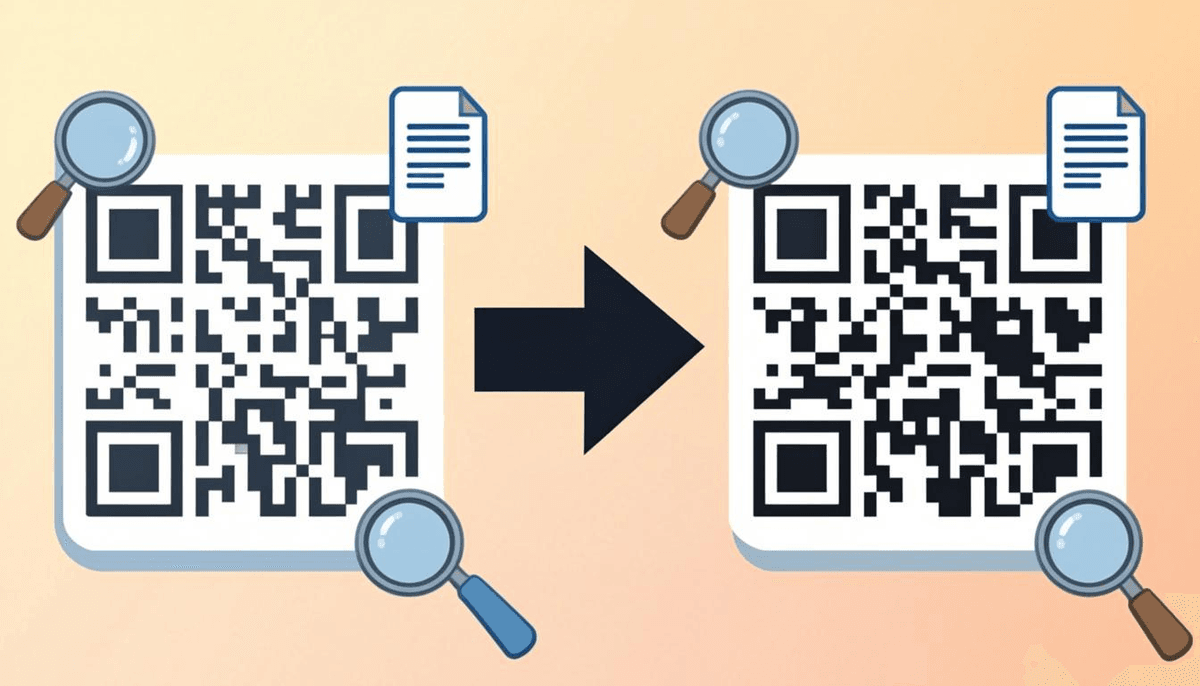
The enhancer applies a three-step pipeline to restore scannability:
Force Black & White Contrast
The enhancer analyzes every pixel in the QR code image and converts it to either pure black or pure white. No gray, no colors, no gradients. This is the most effective way to fix QR codes affected by fading, coloring, or low contrast.
QR code scanners are designed to read binary patterns: black modules on a white background. Any deviation from this (gray pixels, colored modules, gradient backgrounds) reduces scanning reliability. Forcing pure black and white ensures maximum contrast and maximum scan reliability.
Repair Quiet Zones
The quiet zone is the white border that surrounds a QR code. Per the QR code specification, the quiet zone must be at least 4 module widths wide. Without it, scanners cannot distinguish the QR code from surrounding content.
The enhancer automatically detects whether the quiet zone is missing or insufficient and restores it. This is critical for QR codes that have been cropped from screenshots, cut from printed materials, or embedded in documents without proper spacing.
Upscale Resolution to 4K
Even after fixing contrast and quiet zones, a small QR code may still be hard to scan because it lacks enough pixels. The enhancer upscales the QR code to 4K resolution, increasing the pixel count so that even tiny QR codes become crisp and scannable.
4K upscaling means the enhanced QR code has enough resolution to print at large sizes or display on high-DPI screens without pixelation. More pixels means the scanner can lock onto the finder patterns and decode the data faster.
Why I Built the Enhancer Around a Three-Step Pipeline
When I added the enhancer to QREndless, I resisted the idea of a single "sharpen" button. Sharpening a blurry screenshot does nothing for a code whose quiet zone was cropped away, and upscaling does nothing for gray, faded modules. I kept seeing three separate failure modes, so the pipeline fixes them in a fixed order: force pure black-and-white contrast first, repair the quiet zone second, and only then upscale to 4K.
I also made a decision that surprises people: everything runs in your browser, on a Web Worker with OffscreenCanvas, so your images never touch a server. I run every release through an automated self-test that generates QR codes, degrades them on purpose (compression, cropping, fading), and confirms the enhanced output scans again before anything ships. If a build breaks scannability, it does not go live.
Web Worker + OffscreenCanvas: Processing Without Browser Freezes
Image processing is computationally intensive. The enhancer uses a Web Worker combined with OffscreenCanvas to process images off the main thread. Contrast adjustment, black-and-white conversion, upscaling, and quiet zone repair all happen without blocking the browser UI. You can keep scrolling, clicking, and interacting with the page while the enhancer works in the background.
Batch Processing Without Crashes
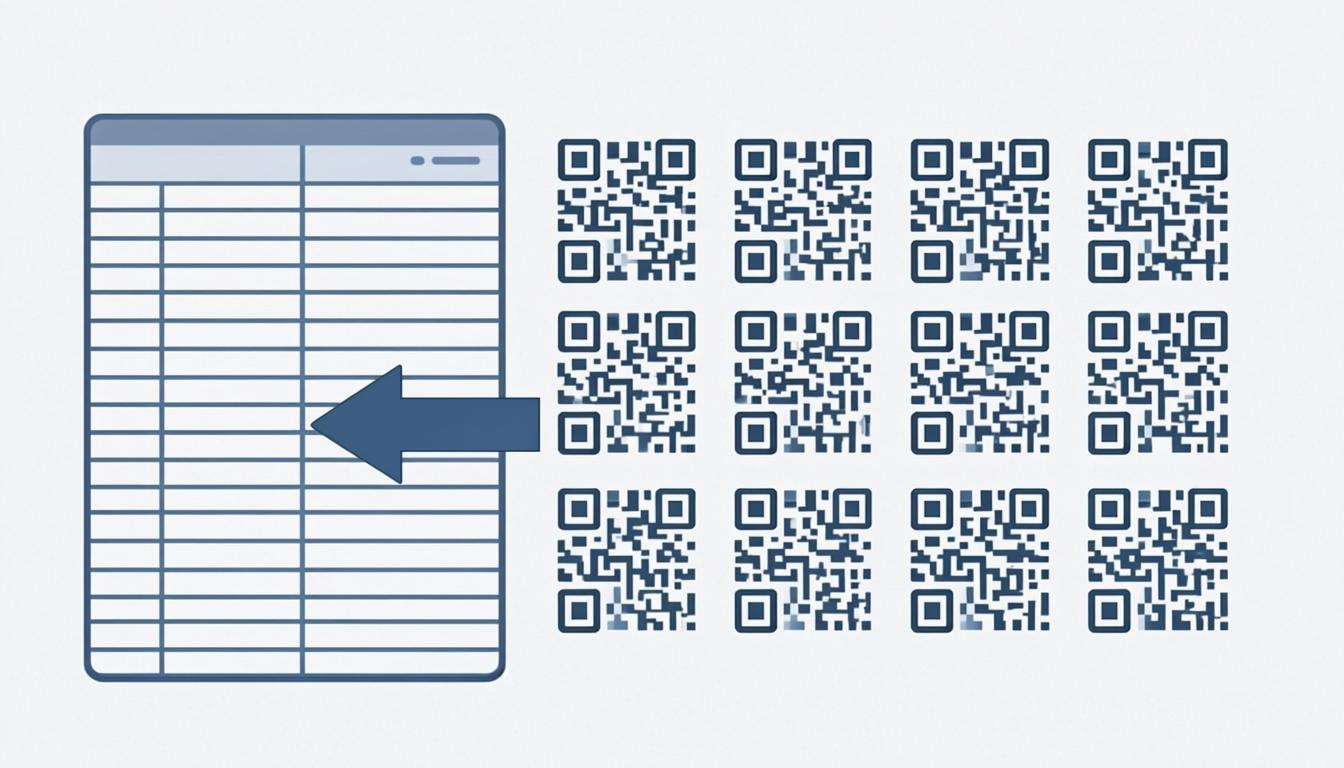
Upload multiple images at once and the enhancer runs them all through the same pipeline: black-and-white contrast forcing, quiet zone repair, and 4K upscaling. This is useful when you have a batch of codes from the same source that all need the same treatment, such as a sheet of labels scanned or exported from one place.
Processing hundreds of images in a browser can eat memory fast. The enhancer uses a BlobCache that stores finished images as compressed blobs instead of raw pixels, loads images on demand, and releases memory when it is no longer needed. That is how large batches finish without crashing the tab, though your device's available memory still sets the practical limit.
Browser-Based Processing: Your QR Code Images Stay Private
QR codes often contain sensitive data: URLs to internal systems, contact information, access codes. The enhancer runs entirely in your browser. No QR code images are uploaded to any server, and no enhanced data is stored or transmitted anywhere.
How to Enhance a QR Code
- Open the enhancer. Navigate to the QR Code Enhancer.
- Upload your QR code image. Click to upload a blurry, low-resolution, or faded QR code image. You can upload multiple images for batch processing.
- Review the enhancement options. The enhancer applies black-and-white contrast forcing, quiet zone repair, and 4K upscaling by default.
- Process the image. Click enhance. The Web Worker processes your image without freezing the browser.
- Download the enhanced QR code. The result is a crisp, high-resolution QR code at 4K resolution.
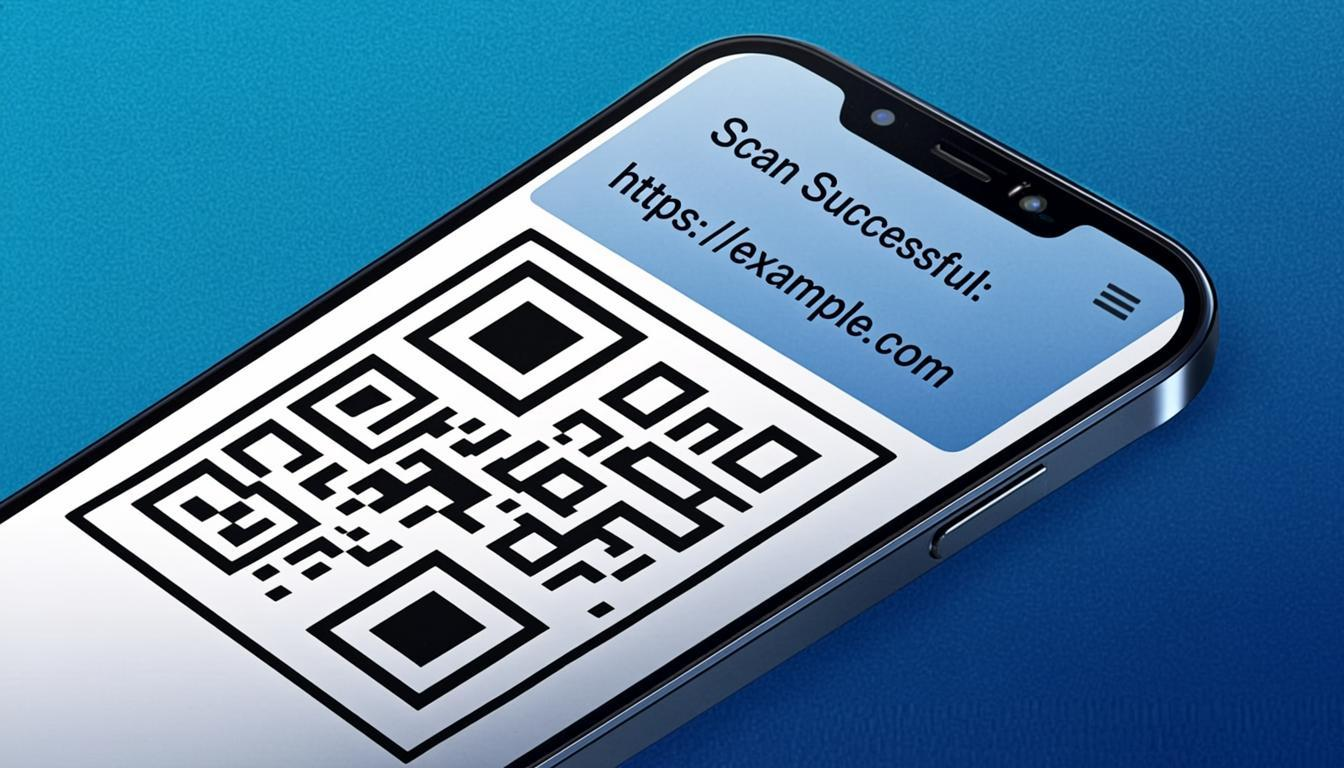
- Verify it scans. Point your phone at the enhanced QR code to confirm it scans. You can also verify with the QR Code Decoder to confirm the decoded data is correct.
Common Use Cases
Fix Printed QR Codes That Became Blurry
Printed materials degrade over time. Flyers get smudged, business cards get worn, and posters fade in sunlight. The enhancer restores these codes to scannable quality by forcing black-and-white contrast and upscaling to 4K resolution.
Enhance QR Codes from Screenshots
Screenshots are often low-resolution or compressed, especially when shared through messaging apps or social media. The enhancer increases QR code resolution so that even heavily compressed screenshots become scannable again.
Upscale Low-Res QR Codes for Print
Need to print a QR code at a large size but only have a small source image? Upscaling to 4K ensures the QR code has enough pixels to print crisply at any size: posters, banners, or packaging.
Fix Faded QR Codes on Old Materials
Old documents, worn labels, and sun-bleached signs produce faded QR codes with poor contrast. The black-and-white contrast forcing feature converts gray, faded modules back to pure black, making the code scannable again.
Frequently Asked Questions
Is the QR Code Enhancer free?
Yes. Enhance QR code images as many times as you need. No sign-up, no subscription, no hidden fees.
What does "upscale to 4K" mean?
The enhancer increases the pixel resolution of your QR code image to 4K quality (approximately 3840×2160 pixels). This gives the QR code more detail and makes it scannable from a distance or at large print sizes.
Will the enhancer work on any blurry QR code?
The enhancer is designed to fix common QR code quality issues: low resolution, poor contrast, faded colors, and missing quiet zones. If the QR code is so severely damaged that the data is irrecoverable, the enhancer may not be able to restore it. For most blurry, low-res, or faded QR codes, the enhancer produces reliable results.
Can I enhance multiple QR codes at once?
Yes. The enhancer supports batch processing with BlobCache memory management. Upload multiple images and process them all at once, even hundreds of images without crashing your browser.
Is my data sent to a server?
No. All processing happens locally in your browser using Web Workers and OffscreenCanvas. Your QR code images never leave your device.
What image formats does the enhancer support?
The enhancer supports PNG, JPG, JPEG, GIF, BMP, and WebP input formats. Enhanced output is available in PNG format for maximum quality and compatibility.
Fix blurry QR codes and restore scannability. Try the Free QR Code Enhancer at QREndless.