Table of Contents
- The Problem: Your QR Code Is Right, But the Format Is Wrong
- What the Converter Can Do
- 7 Export Formats for Converted QR Codes
- Real-World Conversion Scenarios
- How to Use the Converter
- What Happens to Your Data During Conversion
- When to Use vs. Related Tools
- Frequently Asked Questions
The Problem: Your QR Code Is Right, But the Format Is Wrong
You generated a URL QR code for your website. Now you need it as a vCard for your business card. You made codes in PNG format for email. Now the print team needs SVG. You built a batch at Level L error correction. Now they're going outdoors and need Level H. You have 200 codes that need converting — and re-making them from scratch would take hours.
Most QR code tools ignore this gap. They help you make codes, but they don't help you change existing ones. The QR Code Converter fills that gap — it takes an existing code's data and turns it into a new format, data type, or error correction level without typing everything again.
I ran into this last month. A print shop asked for 150 event badges in SVG. I had them all as PNG. Making 150 codes by hand would have eaten an afternoon. I ran them through the converter instead and had the new files in a few minutes. Same data, same look, different file type.
What the Converter Can Do
Change the Data Type
This is the most useful conversion — turning one kind of code data into another:
- URL to vCard — take a website link code and turn it into a contact card that includes the link as the website field. Good for business cards.
- vCard to URL — pull the website link out of a contact card and make a plain link code. Useful when you only need the URL.
- Wi-Fi to text — turn a structured Wi-Fi code into plain text showing the network name and password.
- Payment to URL — turn a UPI payment code into a link that opens a payment page. Useful for people whose phones don't support UPI directly.
- SMS to URL — turn an SMS code into a link that opens a web-based SMS service.
- Any type to any type — the converter pulls out the underlying data and puts it into a new format, keeping as much as the new type can hold.
Upgrade the Error Correction Level
You can raise a code's error correction without changing its data:
- Level L to M — from 7% to 15% damage tolerance
- Level M to Q — from 15% to 25%
- Level Q to H — from 25% to 30%
- Any level to H — the maximum, best for logos, outdoor use, or rough handling
Upgrading makes the code slightly larger (more dots) but much more resistant to damage, dirt, and partial covering. This is a required step before adding a logo with the QR code customizer.
Change the File Format
You can change the output file type without re-making the code:
- PNG to SVG — from image to scalable vector for print. SVG stays sharp at any size.
- SVG to PNG — from vector to image for digital display. PNG works everywhere.
- Any format to PDF — for document embedding and professional printing
- Any format to EPS — for professional design workflows
- Any format to WebP — for modern web and app use, 30–50% smaller than PNG
Format conversion keeps the code's look and data exactly the same — it's a file change, not a new code.
Batch Conversion
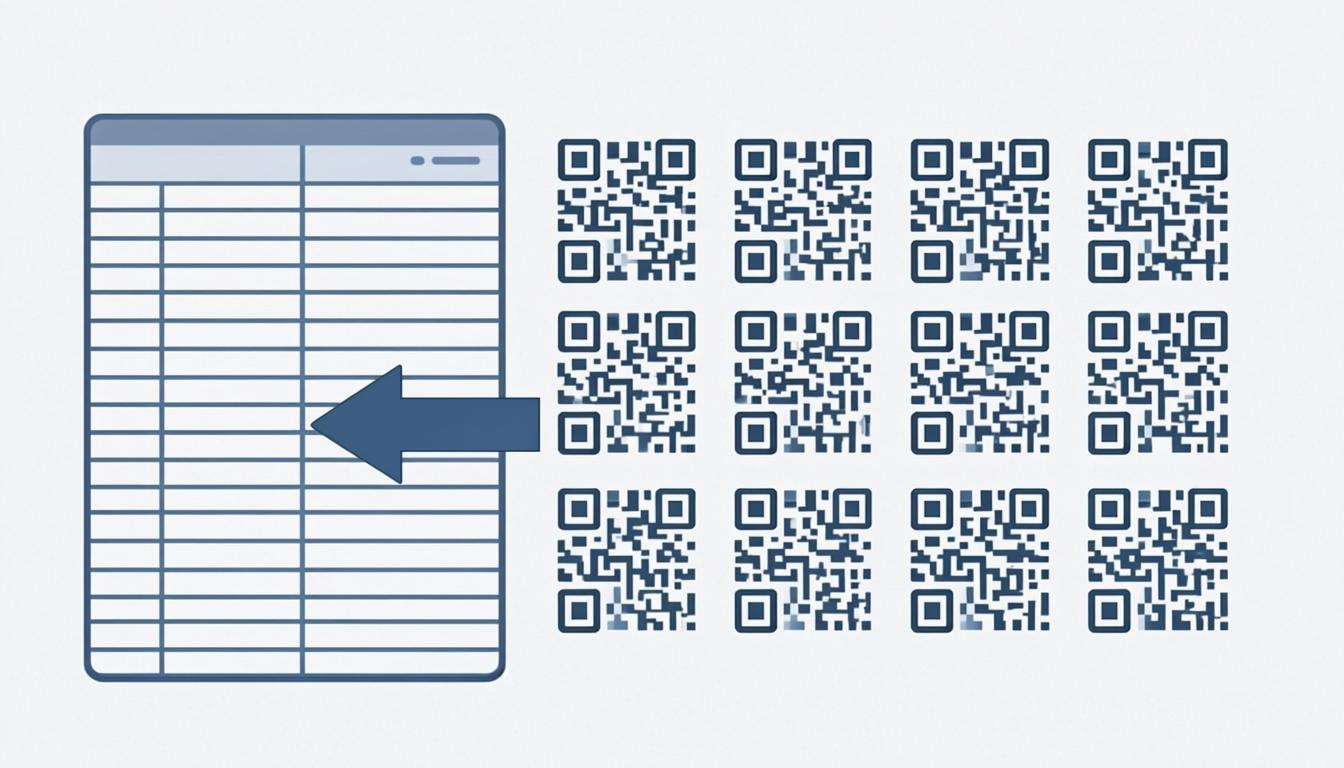
You can process many codes at once — upload a batch of images or data rows, and the converter handles them all together:
- Upgrade error correction for 50 codes in one go
- Convert 100 URL codes to vCard format
- Change 200 PNG codes to SVG
- Re-encode a batch with better settings
This works well with the bulk QR code generator — make a batch first, then convert it for different uses.
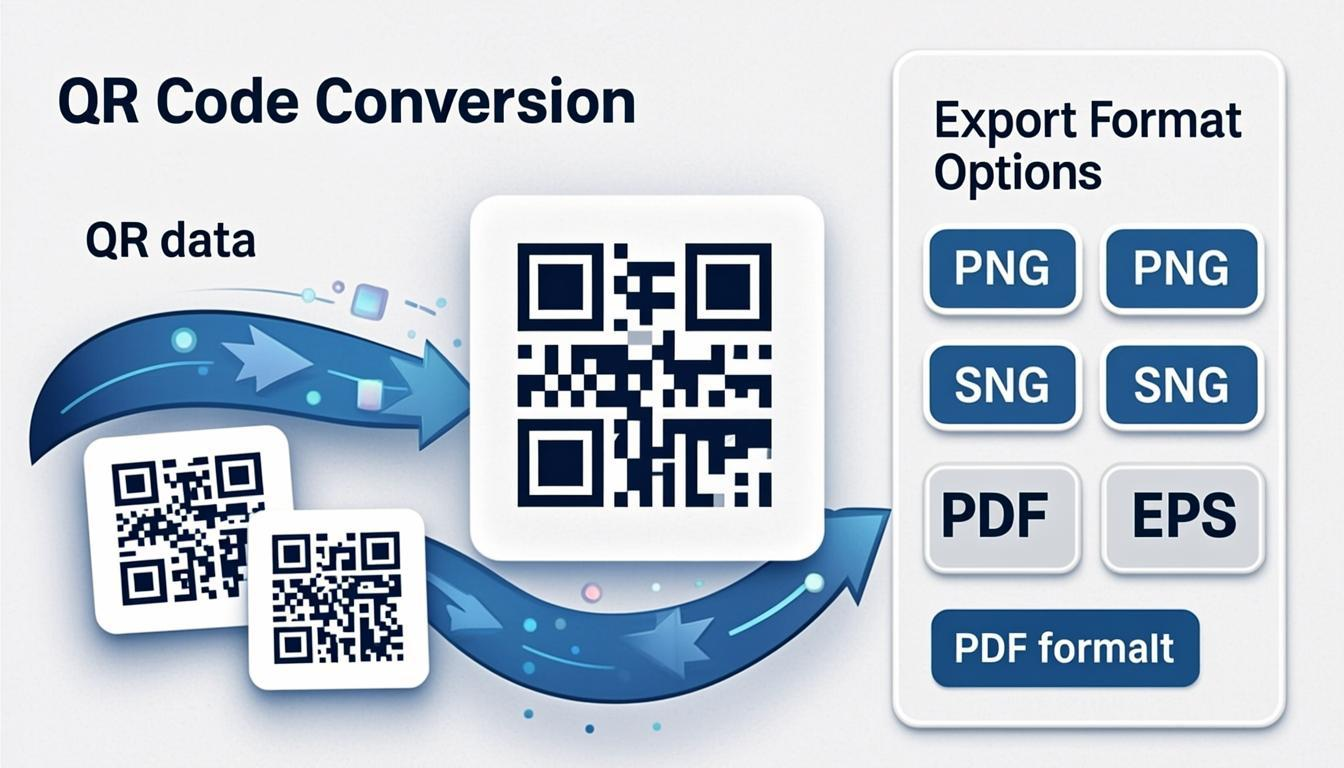
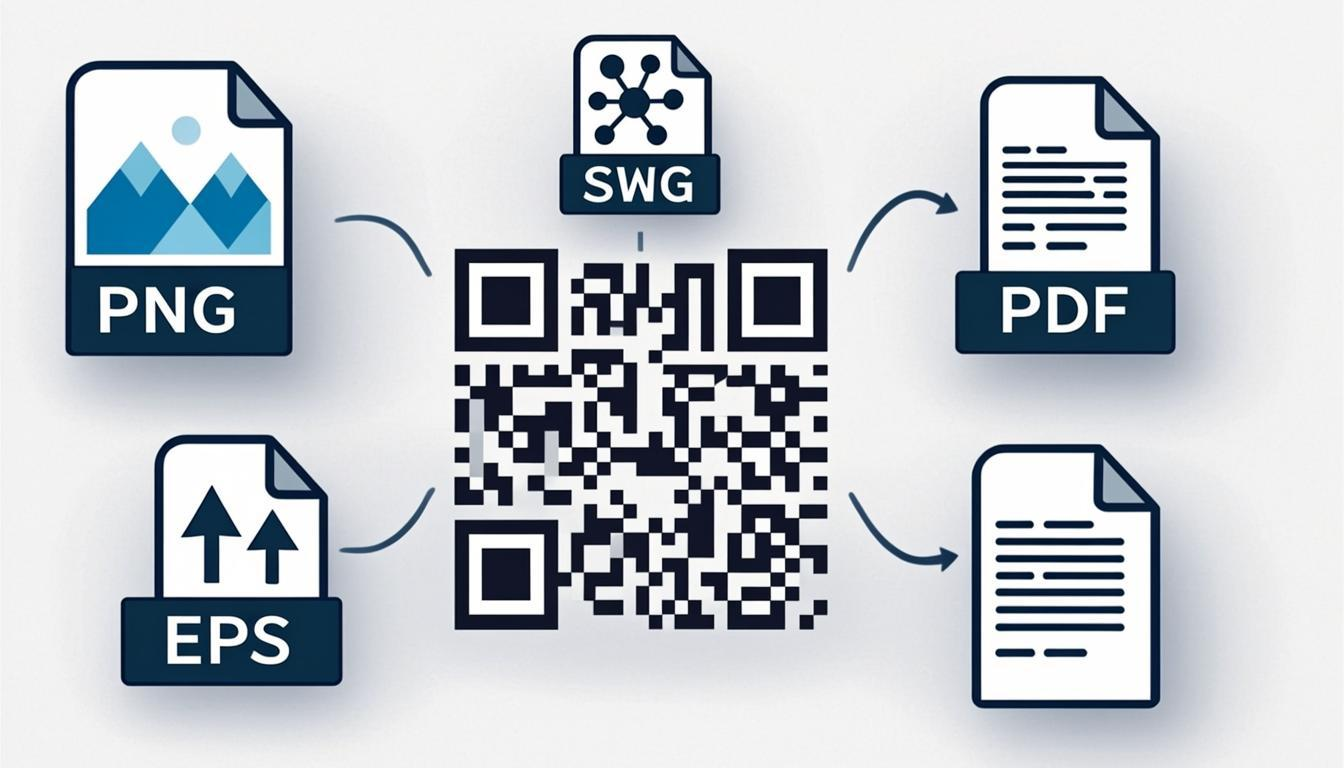
7 Export Formats for Converted QR Codes
After conversion, pick the format based on where the code will be used:
- PNG 4K (3840 × 3840 px) — best for digital display, presentations, or email. High resolution keeps quality after conversion.
- JPG — smaller files for sharing in documents or email where file size matters.
- WebP — 30–50% smaller than PNG at the same quality. Best for websites and apps.
- Transparent PNG — no background. Useful when the code will sit over a colored surface, photo, or branded design.
- SVG — scales perfectly at any size. The best choice for print.
- PDF — print-ready for professional print workflows.
- EPS — for commercial printers and sign shops that require it.
Real-World Conversion Scenarios
Business Card Upgrade
You have a URL code on your business card linking to your portfolio. You want a full vCard instead, with your name, phone, email, company, and that same portfolio link. Convert URL to vCard — the original link becomes the "website" field, and you add the contact fields. Then style it with the customizer.
Outdoor Signage Prep
You made codes for indoor posters at Level M. Now you need the same codes for outdoor billboards facing weather and sun. Upgrade from Level M to Level H — same data, 30% damage tolerance instead of 15%. Export as SVG for large-format print.
Print Format Change
Your designer made codes in PNG for web. The print team needs SVG for a magazine ad. Convert PNG to SVG — no data loss, no quality loss, sharp at any print size.
International Payment
Your UPI code works in India, but international customers can't scan UPI directly. Convert the payment code to a URL code linking to a web payment page that works anywhere. Same payment destination, different way in.
Campaign Cleanup
You made marketing codes with another tool that used Level L and an unnecessarily high version — making the code dense and hard to scan. Decode it with the decoder, then convert it — same data, better version, Level Q error correction. The result is smaller, cleaner, and more reliable.
Multi-Format Distribution
You need the same code in three formats — PNG for email, SVG for print, PDF for presentation decks. Make it once, convert to all three. One data source, three channels.
How to Use the Converter
- Add your code data. Upload a code image (it decodes automatically), paste data from the decoder, or type it in.
- Pick the conversion type. Data type change, error correction upgrade, file format change, or batch processing.
- Set the target options. Choose the new type, error correction level, format, and any extra fields.
- Convert. The tool does the work in your browser — no server uploads.
- Download. Get your new code in the chosen format, ready to use or style further with the customizer.
What Happens to Your Data During Conversion
This is the question people ask most, and the honest answer has three parts.
Same-type conversions keep data 100% intact. Upgrading error correction or changing the file format doesn't touch the data. Nothing is lost, nothing changes.
Cross-type conversions can lose some data — and the tool tells you. If you convert a vCard to a URL, only the website field fits. The phone number and email don't have a place in a URL code. The converter shows you exactly which fields will carry over and which won't, and lets you decide before converting. This is important — a tool that silently drops data is dangerous.
Adding new fields keeps the old data. If you're adding UTM parameters to a link or adding vCard fields, the original data stays and the new data is added on top. You review and confirm the additions before converting.
When to Use vs. Related Tools
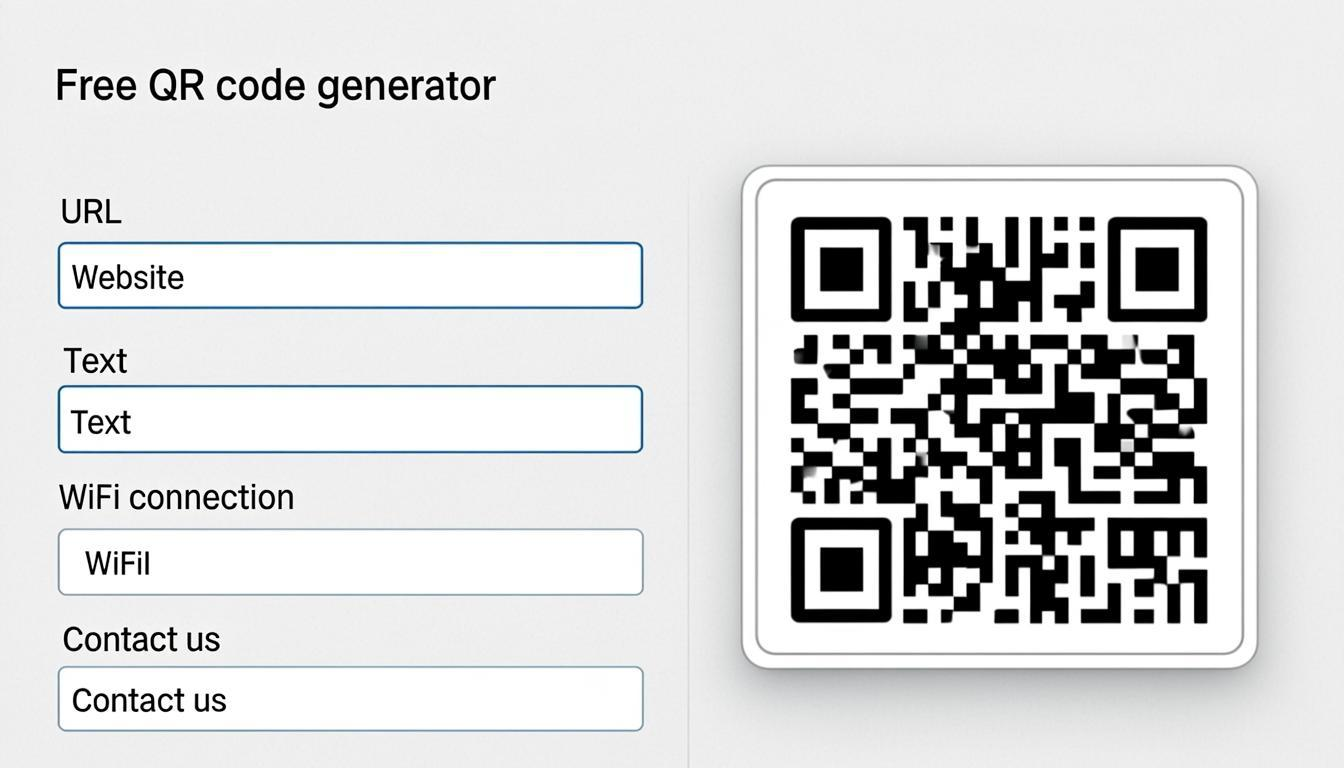
- Making a new code from scratch? Use the QR code generator.
- Making many codes from a spreadsheet? Use the bulk QR code generator.
- Adding brand colors and logos? Use the QR code customizer.
- Quick scan of a code? Use the QR code scanner.
- Deep technical analysis? Use the QR code decoder.
- Transforming existing code data? Use the converter.
A common workflow: generate with the generator → upgrade error correction with the converter → style with the customizer → check with the scanner → analyze with the decoder → convert again for a new purpose.
Frequently Asked Questions
Does conversion change the encoded data?
Same-type conversions (error correction upgrade, format change) keep data 100% intact. Cross-type conversions (URL to vCard) keep the original data within the new format, and clearly show any data that can't carry over. Adding fields keeps the original data and adds new fields with your confirmation.
Can I convert a QR code image directly?
Yes. Upload a code image (PNG, JPG, SVG) and the converter decodes it automatically, then shows conversion options based on the detected content type. You don't need to decode it separately first.
What happens when I upgrade error correction?
The data stays the same, but more backup dots are added. The code becomes slightly larger (more dots per side) but much more resistant to damage. Level H survives 30% damage, compared to Level L's 7%. The look is similar — just a slightly denser pattern.
Can I batch-convert multiple QR codes?
Yes. Upload multiple images or a batch data file, pick the conversion type, and the converter processes everything at once. Good for upgrading error correction across a batch, converting PNG to SVG in bulk, or turning many URL codes into vCards.
What format conversions are supported?
PNG to SVG, SVG to PNG, any format to PDF, any format to EPS, and any format to WebP. These are pure file changes — the code's look and data stay the same. SVG is especially useful for print because it scales without blur.
Can I convert a URL QR code to a vCard?
Yes. The converter pulls the link out and creates a vCard with the link as the "website" field. You can add name, phone, email, and company during conversion. The original link is kept, and the new vCard has richer contact info.
Is converted data still processed in-browser?
Yes. All conversion work — decoding, data changes, re-encoding, and file rendering — happens in your browser. Your code data, images, and converted files never leave your device. Zero server uploads.
Can I add UTM parameters to a URL QR code?
Yes. This is one of the most useful marketing conversions. The converter takes your existing URL code, adds UTM parameters (source, medium, campaign, content, term), and makes a new code with the tracked link. This gives you campaign tracking without re-making from scratch.
What if the target type can't hold all the original data?
The converter clearly shows which fields from the original code can carry over and which can't. You review this before converting. Data that can't carry over is flagged — you decide whether to go ahead with partial data or pick a different target type that keeps everything.
Can I convert and then customize in one workflow?
Yes. Convert first (upgrade error correction to Level H, change the data type), then take the result to the QR code customizer for branding. This two-step path is the recommended way to transform codes for new uses with new visual needs.
What export formats are available?
Seven formats: PNG 4K (3840 × 3840 px), JPG, WebP, Transparent PNG, SVG, PDF, and EPS. Pick one or generate several at once. SVG is recommended for print, WebP for web and apps, and Transparent PNG for overlays on colored backgrounds.